
Are you ready to give your WordPress site a fresh new look? Using a downloaded theme can transform your website’s appearance and functionality in just a few clicks.
But if you’re unsure how to go about it, you’re not alone. Many WordPress users find themselves overwhelmed by the process. The good news is, it’s easier than you might think. You’ll discover a step-by-step guide on how to use a downloaded theme in WordPress.
We’ll walk you through the entire process, ensuring that by the end, you’ll feel confident and empowered to customize your site to perfectly match your vision. So, if you’re eager to create a stunning, professional-looking website without the hassle, keep reading. You’ll find the secrets to transforming your WordPress site just a scroll away.
Preparing Your Theme Files
Always ensure the theme is compatible with your WordPress version. This helps avoid any issues. Visit the theme’s website for details. Check for any updates or support. A compatible theme works well and looks nice. Ensure the theme supports your website’s features. Your theme should be responsive on all devices. This means it looks good on phones and computers. A good theme will also load fast. Fast loading keeps visitors happy.
First, find the theme you want. Click the download link. Save the file to your computer. The file is often a .zip file. Next, go to your download folder. Right-click the file and select “unzip” or “extract”. This will create a new folder. Inside, you will find the theme files. These files are important for your site. Keep them safe and organized. Now, you can get ready to upload them.
Credit: www.kadencewp.com
Accessing The WordPress Dashboard
First, open your web browser. Type the URL of your website. Add “/wp-admin” at the end. Press enter. You will see the login page. Enter your username and password. Click the “Log In” button. You are now on the WordPress dashboard.
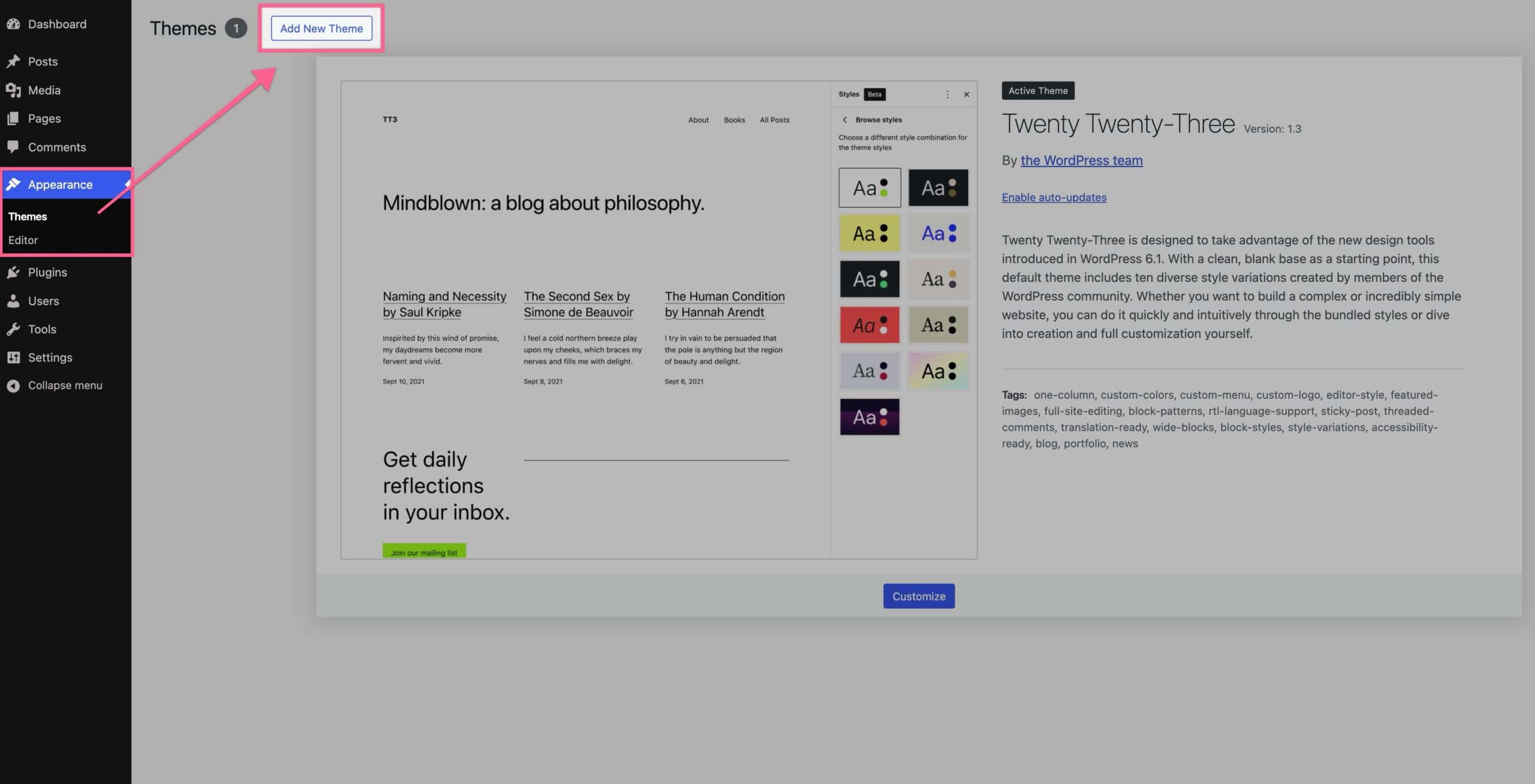
Look on the left menu. Find the “Appearance” option. Click on it. A new menu will open. Click on “Themes”. You will see all your themes here. This is where you can add new themes.
Uploading Your Theme
In the WordPress dashboard, find the Appearance tab. Click on it. You will see Themes. Click it. Look for the button that says Add New. You need this to upload. After clicking, find the Upload Theme button. This lets you add your theme.
Have your theme file ready. It should be a .zip file. Click Choose File. Find your theme on your computer. Select the file. Click Upload. Wait a few moments. Your theme will be uploaded. Activate it to see changes. Your website now has a new look.
Activating The Theme
Go to your WordPress dashboard. Click on Appearance in the left menu. Choose Themes from the list. You will see a list of themes. Find the theme you uploaded earlier.
Hover over the theme you want. You will see an Activate button. Click on it. Your new theme is now active. Check your website to see the changes.
Customizing Your Theme
Explore the ease of theme customization in WordPress. Upload your downloaded theme via the dashboard’s ‘Appearance’ tab. Activate it to transform your site’s look instantly.
Access The Customizer
Start by logging into your WordPress dashboard. Go to Appearance on the left side. Click on Customize. The Customizer lets you change how your site looks. You can adjust colors, fonts, and layout. It is easy and fun to use.
Adjust Theme Settings
In the Customizer, find Theme Options. Every theme has different settings. Some let you change the header or footer. Others allow you to add a logo or background image. Explore all options available.
Remember to click Save & Publish after changes. This makes sure your site updates. You can always go back and change things again. Enjoy making your site look just how you want it!
Testing Your Theme
Installing a theme in WordPress begins by downloading your chosen theme file. Navigate to your WordPress dashboard, select ‘Appearance,’ then ‘Themes,’ and click ‘Add New. ‘ Upload your theme file, activate it, and customize to suit your needs. Explore the theme settings to adjust layout, colors, and fonts.
Check Theme Responsiveness
Themes should look good on all devices. Open your site on a phone. Check if it fits the small screen. Next, use a tablet. Does everything adjust nicely? Finally, check on a computer. The theme must look neat everywhere. Responsiveness is very important. It makes sure users have a good experience. No matter where they view your site, it should look great.
Verify Functionality And Features
Test every button on your site. Click all the links. Make sure they work. Check forms and slideshows. They should function well. Look for any missing images. Ensure plugins show correctly. Themes may have special features. Use them and see if they work. Problems found? Fix them before going live. A good theme should be smooth and error-free.
Troubleshooting Common Issues
Installing a downloaded theme in WordPress can lead to common issues like compatibility problems or missing files. Check the theme documentation for installation steps and verify server requirements. Ensure all theme files are uploaded correctly to avoid errors.
Resolve Upload Errors
Uploading a theme can sometimes cause errors. Check the file format. It should be a .zip file. Ensure the file size is under the limit. WordPress allows certain file sizes. If the theme is too big, it won’t upload. Consider splitting large files.
Check your internet connection. A weak signal can cause upload failures. Try uploading during off-peak hours. This can help avoid server overload. Clear your browser cache. Sometimes old cache causes issues. Refresh your page after clearing.
Fix Theme Conflicts
Theme conflicts occur when two themes clash. Deactivate other themes first. Start with the theme you want. Activate it and check the site. If issues persist, check for plugin conflicts. Plugins sometimes cause theme issues.
Update all themes and plugins. Outdated versions can cause conflicts. Regular updates fix bugs. Check the theme’s documentation. Follow the setup instructions closely. If the problem continues, contact theme support. They can guide you further.

Credit: themeforest.net
Backup And Update
Easily manage your WordPress site by backing up data before using a downloaded theme. Updating themes regularly ensures security and functionality. This process keeps your website running smoothly and looking fresh.
Create A Backup
Making a backup of your website is crucial. It saves your data if something goes wrong. Use a plugin like UpdraftPlus or BackupBuddy. These tools help in storing your data safely. Save your backup on cloud or external drives. This will ensure your data is always safe. Regular backups protect your website from unexpected issues. They also help in quick restoration. Always keep this in mind.
Keep Your Theme Updated
Always keep your theme updated for better security. Updates fix bugs and improve features. Check for updates regularly in your dashboard. Click on the Updates section to find available updates. Updating prevents hackers from exploiting old code. It also makes your site run smoothly. New updates may add cool features too. Always update carefully. Test updates on a staging site first. This avoids breaking your live website.

Credit: www.greengeeks.com
Frequently Asked Questions
How To Use Downloaded Theme In WordPress?
Go to your WordPress dashboard. Click “Appearance,” then “Themes. ” Select “Add New,” then “Upload Theme. ” Choose your downloaded theme file, click “Install Now,” and activate it.
How Do I Apply A Downloaded Theme?
Open your CMS dashboard, navigate to ‘Themes’ or ‘Appearance. ‘ Click ‘Upload,’ select your downloaded theme file, and hit ‘Install. ‘ Activate the theme to apply it to your website. Ensure compatibility and backup before installation for safety.
How Do I Activate A New Theme In WordPress?
To activate a new theme in WordPress, go to the dashboard. Click “Appearance,” then “Themes. ” Find your desired theme and click “Activate. ” Your new theme is now live. Make sure to customize it to fit your needs.
How Do I Apply A Theme To A Page In WordPress?
To apply a theme in WordPress, navigate to “Appearance” > “Themes” in your dashboard. Click “Add New,” choose your theme, and activate it.
Conclusion
Using a downloaded theme in WordPress can enhance your site’s look. Follow simple steps to ensure a smooth installation. Upload your theme file through the WordPress dashboard. Activate it with just a click. Customize your theme to fit your style.
Check the theme’s settings for more options. Make your website unique and appealing. Explore different themes to find the perfect match. Keep your site updated for best performance. A well-chosen theme can significantly improve user experience. Start experimenting with themes today.
Happy website building!


