

Have you ever wondered how to use a domain name that’s hosted somewhere else? Maybe you bought your domain from one company but want your website or email to work through another service.
It might sound tricky, but it’s actually simpler than you think. You’ll discover clear, step-by-step guidance to connect your domain with any hosting provider smoothly. By the end, you’ll have the confidence to manage your domain like a pro and avoid common mistakes that slow you down.
Ready to take control of your online presence? Let’s dive in.
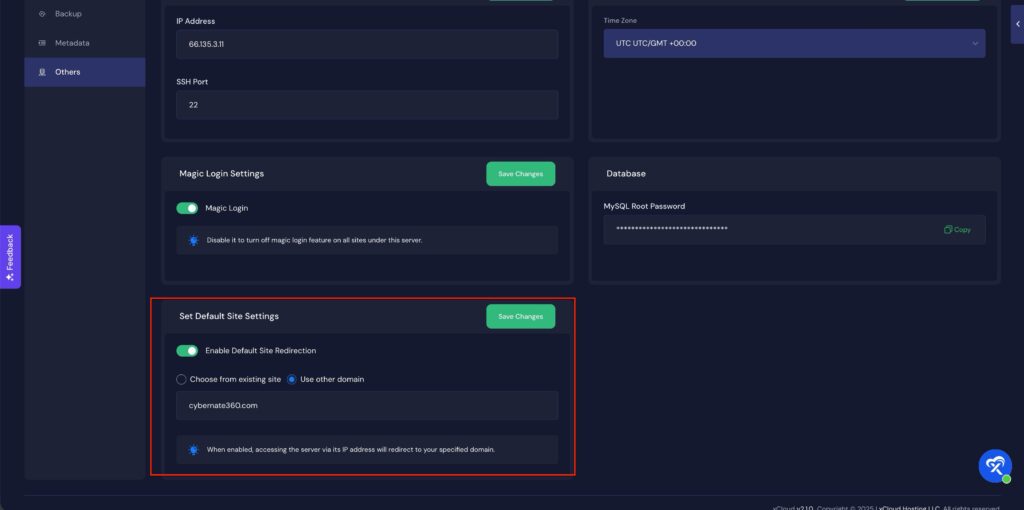
Credit: xcloud.host
Check Domain Registrar Settings
Checking your domain registrar settings is essential when using a domain hosted elsewhere. It helps you control where your domain points. This step ensures your website or email services work correctly with the new host.
Changing settings without understanding can cause downtime or errors. Start by knowing which registrar holds your domain. Then, access the DNS management area to update records as needed.
Locate Your Domain Registrar
First, find out where you registered your domain. Use a WHOIS lookup tool by entering your domain name. The results show the registrar’s name and contact details. This info tells you where to log in for changes.
Sometimes, domains move between registrars. Check your email for registration details. Look for messages from the company that handles your domain. This helps confirm the correct registrar.
Access Dns Management Panel
Log in to your registrar’s website. Find the DNS or Domain Settings section. This panel lets you edit DNS records like A, CNAME, or MX.
Make sure you understand the records you need to change. Save any changes carefully. Incorrect settings can stop your website or email from working.
Update Nameservers
Updating nameservers is a key step when using a domain hosted at another location. It tells the internet where to find your website. Without updating nameservers, your domain will not connect to your hosting provider.
This process is simple but important. It ensures visitors reach your website without errors. Follow the steps below to update nameservers correctly.
Find Hosting Provider Nameservers
Start by getting the nameserver details from your hosting provider. These are usually listed in your hosting account dashboard. You can also check the welcome email from your hosting company.
Nameservers look like this: ns1.examplehost.com and ns2.examplehost.com. You need at least two nameservers. Write them down or keep the tab open to copy later.
Replace Existing Nameservers
Next, go to your domain registrar’s website. Log in to your account where you bought the domain. Find the section for managing your domain’s DNS or nameservers.
Delete the old nameservers and enter the new ones from your hosting provider. Save the changes. It may take a few hours for the update to work across the internet.
Once done, your domain will point to your new hosting provider. Visitors will see your site without problems. Check your website after some time to confirm the update.
Modify Dns Records
Modifying DNS records is essential when your domain is hosted separately from your website or email provider. This process connects your domain name to the correct servers. It ensures visitors reach your site and emails get delivered properly.
DNS records control where your domain points. You change these records at the place where your domain is registered. Common records you will adjust include A, CNAME, and MX records.
Set A And Cname Records
A records link your domain to an IP address. This tells browsers where to find your website. You need to enter the IP address provided by your web host.
CNAME records point one domain name to another. Use them to direct subdomains like www to your main domain. This helps keep your URLs simple and consistent.
Check that you enter the correct values. Small mistakes can stop your website from loading. Save changes and wait for DNS to update. This can take from a few minutes to several hours.
Configure Mx Records For Email
MX records route email to your mail servers. They must match the settings from your email provider. Without correct MX records, emails won’t reach your inbox.
Enter the priority and server address exactly as given by your email host. Priority determines which server handles mail first. Lower numbers have higher priority.
Verify your email works after updating MX records. Send test messages to confirm delivery. Adjust if any issues arise. Proper MX setup keeps your email reliable and secure.
Verify Propagation
Verifying propagation is a crucial step after pointing your domain to a different host. It ensures that DNS changes have spread across the internet. Without verification, you might face downtime or access issues. This process confirms that visitors reach your website without problems.
Propagation time can vary. Knowing how to check it saves time and prevents frustration.
Use Dns Lookup Tools
DNS lookup tools help check if your domain points to the right server. These tools show DNS records from multiple locations worldwide. You can see if changes have reached different servers. Some popular tools are WhatsMyDNS, MXToolbox, and DNSChecker. Enter your domain name and select the record type, like A or CNAME. The results indicate if DNS records updated correctly.
Understand Propagation Time
DNS propagation usually takes a few hours to 48 hours. Sometimes it finishes faster or slower. It depends on your DNS provider and internet service providers. Each server updates at its own speed. Patience is key during this period. Avoid making more changes until propagation completes. Frequent updates can cause confusion and errors.
Troubleshoot Common Issues
Troubleshooting common issues can save time and effort when using a domain hosted elsewhere. Problems often arise from simple mistakes or local settings. Fixing these can get your site running smoothly again. Start by checking the basics, then move to more technical steps.
Check For Typographical Errors
Typing errors are a frequent cause of domain problems. Double-check the domain name you entered. Make sure each letter, number, and symbol is correct. Even a small mistake can stop your site from loading. Look closely at dots, dashes, and extensions like .com or .net. Correct any errors and try again.
Clear Local Dns Cache
Your computer saves DNS information for faster loading. Sometimes this cache holds old data. It can cause your browser to show the wrong site or an error. Clearing the DNS cache forces your system to fetch fresh information. This step often fixes access problems. You can clear the cache using simple commands or browser settings. Restart your browser after clearing the cache.
Credit: www.hosted.com
Maintain Domain And Hosting Coordination
Maintaining coordination between your domain and hosting is key to keeping your website live and running smoothly. Both need regular attention to avoid interruptions. Proper management helps prevent downtime and loss of visitors.
It is important to track renewal dates and update your hosting details. This ensures your site stays accessible and secure. Careful coordination reduces the risk of technical problems or lost data.
Renew Domain On Time
Domain renewal prevents your website from going offline unexpectedly. Set reminders well before the expiry date to avoid last-minute issues. Use automatic renewal if available for hassle-free management. Check your contact email regularly for renewal notices. Renewing early keeps your domain safe from being registered by others.
Keep Hosting Account Updated
Update your hosting account details regularly to ensure smooth service. Verify your payment methods and billing information to avoid disruptions. Check for any service updates or maintenance alerts from your hosting provider. Keep track of your hosting plan limits and upgrade if needed. Staying current with hosting details helps your website load fast and stay secure.
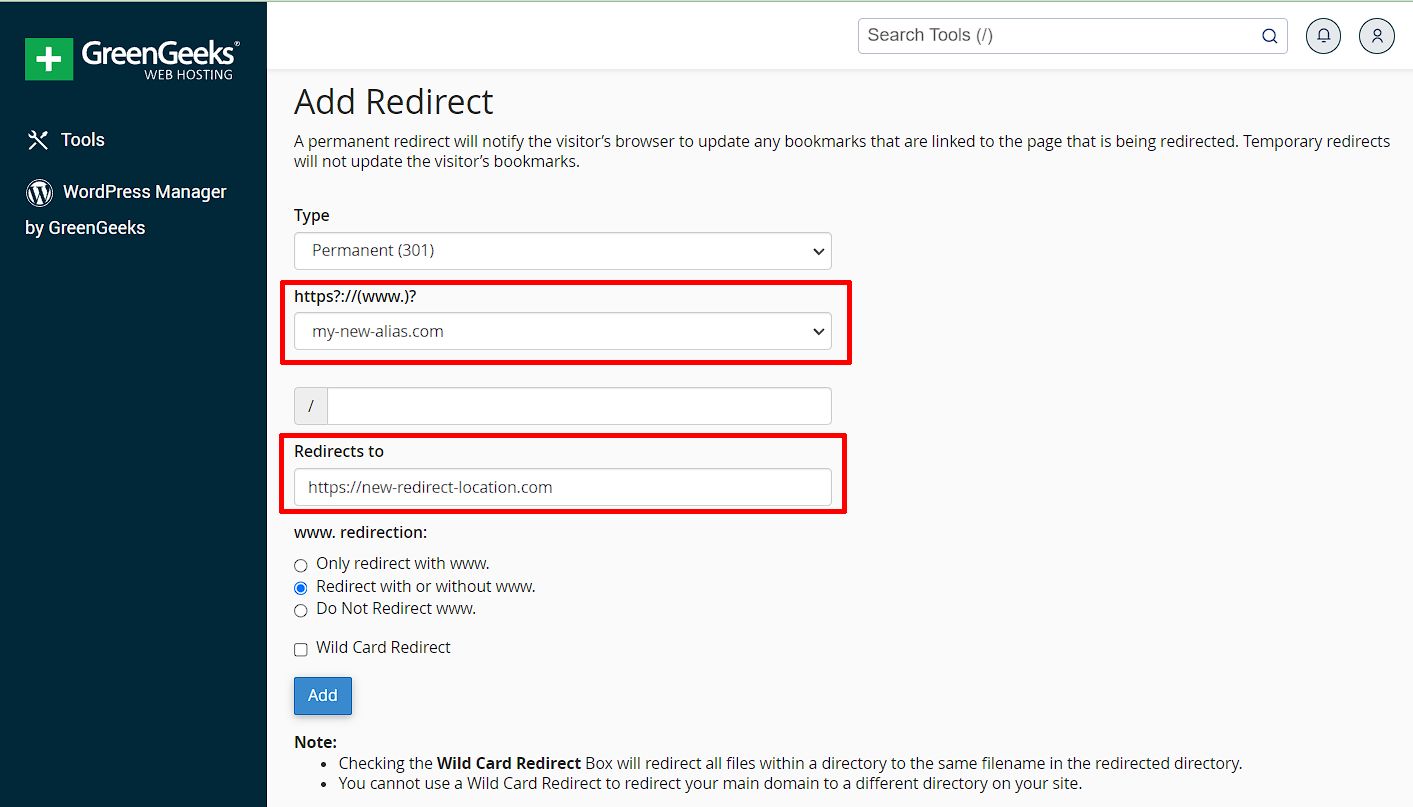
Credit: www.greengeeks.com
Frequently Asked Questions
How Do I Point My Domain To Another Hosting Provider?
Update your domain’s DNS settings by changing the A record to your hosting provider’s IP address. This directs traffic to the new server while keeping your domain registered elsewhere.
Can I Use Different Registrars And Hosting For One Domain?
Yes, you can register your domain with one company and host your website with another by updating DNS records accordingly. This setup offers flexibility and control over your web assets.
What Dns Records Are Essential For External Hosting?
The key DNS records are A (points to IP address), CNAME (aliases), and sometimes MX (email). Properly configuring these ensures your domain directs users to the correct hosted content.
Will Changing Dns Affect My Website’s Uptime?
If done correctly, DNS changes cause minimal downtime, typically a few minutes to 48 hours due to propagation. Plan changes during low-traffic periods to reduce impact.
Conclusion
Using a domain hosted in a different place is simpler than it seems. Just update your DNS settings carefully. Check that your domain points to the right server. Test your website to confirm everything works well. Keep your domain and hosting details handy for future changes.
With clear steps, your site stays online and runs smoothly. This approach gives flexibility to manage your web presence easily. Stay patient and follow instructions for the best results.


