
Have you ever wanted to customize your WordPress website but worried about breaking something? You’re not alone.
Many WordPress users face this dilemma. The good news is there’s a simple solution: using a child theme. By mastering the art of child themes, you can safely modify your website’s appearance and functionality without the fear of losing your hard work during updates.
Imagine having the freedom to tweak your site to your heart’s content while keeping the core theme intact. Sounds liberating, right? In this guide, you’ll discover exactly how to use a child theme in WordPress, empowering you to take control of your website’s design with confidence and ease. Stay with us, and transform your site into something truly unique, just like you envisioned.
What Is A Child Theme?
A child theme is a small theme. It works with a parent theme. The parent theme gives the main look. The child theme can change this look. You can make small changes. No big changes needed. This keeps the main theme safe. You can update the parent theme. Your changes stay safe.
You can make your site special. Add a new color. Change the font. Make your site yours. It’s simple to do. No need for expert skills. Just follow a few steps.
Many people use child themes. They are easy to use. They help make sites look different. They are very helpful.

Credit: www.wpbeginner.com
Benefits Of Using A Child Theme
A child theme is like a safety net for your website. It helps you keep your custom changes safe. You can update the parent theme without worry. No need to fear losing your tweaks.
Using a child theme is smart. It protects your customization from updates. You can try new designs easily. Mistakes are safe to make. Just like a painter with a canvas.
Child themes make your site unique. They allow you to add special features. Your site stands out from the crowd. No need for complex coding. Simple tweaks make a big impact.
Creating A Child Theme
Create a new folder for the child theme. Inside, make a style.css file and a functions.php file. These are your essential files. The style.css file controls the design. The functions.php file adds extra features. You need both files for the child theme to work.
Open the style.css file. Add a special header at the top. This tells WordPress about the child theme. Include the parent theme’s name. This links the child theme to the parent theme. Don’t forget to save your changes.
Open functions.php. Add code to load the parent theme’s stylesheet. This keeps the original design. You can add more code for new features. Save the file. Now, the child theme is ready to use.
Credit: elementor.com
Activating The Child Theme
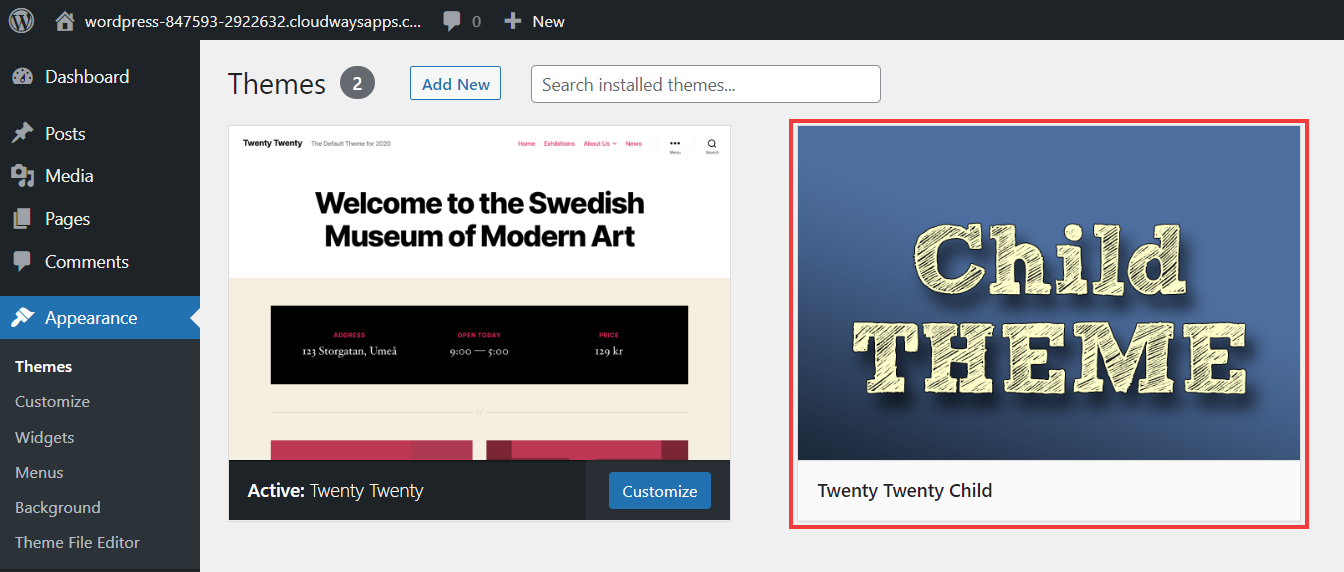
Go to your WordPress dashboard. Click on Appearance and then select Themes. Find the Add New button at the top. Click it. Now, search for the child theme you want. Once found, click on Install. Wait for the installation. Finally, click Activate. Your child theme is now ready.
Use an FTP client to connect. Go to the wp-content/themes folder. Upload your child theme folder here. After uploading, go back to your WordPress dashboard. Visit Appearance and then Themes. You will see your child theme here. Click Activate. Now your child theme is active.
Customizing With A Child Theme
A child theme helps change styles without breaking the main theme. First, find the style.css file in the child theme. Next, add your new CSS rules there. This way, you can make fonts bigger or colors brighter. Your changes won’t vanish after theme updates.
Child themes can replace files in the parent theme. Copy the template file you want to change. Put it in the child theme folder. Now, edit this copy for your needs. The parent theme’s update won’t affect your changes.
Add new features with a child theme. Open the functions.php file in the child theme. Write your custom functions there. This adds new abilities to your site. All without touching the main theme’s files.
Credit: www.cloudways.com
Troubleshooting Common Issues
Sometimes, styles in a child theme don’t apply. This happens if the child theme’s stylesheet is not loaded correctly. Make sure to enqueue the stylesheet in the functions.php file. Check if the stylesheet URL is correct. Ensure the parent theme’s stylesheet loads first. This is important for proper styling.
If functions do not run, check the functions.php file. Ensure it has the correct PHP tags. Each function must be declared properly. Misplaced or missing brackets can cause errors. Functions should not have the same name as parent theme functions. This can prevent execution.
Template overrides might fail if the file structure is wrong. Make sure child theme templates mirror the parent theme’s structure. File names should match exactly. Check if the child theme is active. Sometimes, the parent theme updates, causing issues. Ensure the child theme is up-to-date.
Best Practices For Child Themes
Child themes help keep your website safe. They protect changes during updates. Always use a child theme for customizations. Never edit parent theme files directly. It can cause issues later. Download a child theme framework first. Use reliable sources for this.
Structure and organize files correctly. Place style.css and functions.php in the right folders. Import parent theme styles in the child theme. Use the @import rule carefully. It helps keep styles intact.
Test changes on a local server. This prevents live site errors. Use tools like XAMPP or WAMP. Check changes thoroughly before going live. Always backup your site files. Regular backups save data from unexpected losses.
Frequently Asked Questions
What Is A WordPress Child Theme?
A WordPress child theme is a theme that inherits functionality from another theme, called the parent theme. It allows you to make modifications without altering the parent theme’s code. This means your customizations are preserved when the parent theme is updated, ensuring site stability and easy maintenance.
Why Use A Child Theme In WordPress?
Using a child theme ensures your customizations remain intact during theme updates. It also provides a safe space to experiment with design changes without affecting the main theme. This approach preserves the original theme’s code, ensuring your website’s functionality and appearance remain consistent.
How Do I Create A WordPress Child Theme?
To create a WordPress child theme, create a new folder in the themes directory. Add a style. css file with a header that specifies the parent theme. Optionally, include a functions. php file for additional functionality. Activate the child theme through the WordPress dashboard to begin customizing.
Can A Child Theme Have Its Own Templates?
Yes, a child theme can have its own templates. You can create custom template files within the child theme directory. These templates override the parent theme’s templates, allowing you to customize specific pages or sections of your website without altering the parent theme.
Conclusion
Creating a child theme in WordPress is simple and beneficial. It helps preserve customizations during updates. Start by setting up a new folder and style. css file. Copy and modify the template files you need. Make sure functions. php is optimized for your needs.
This approach protects your website’s design and functionality. It encourages creativity without risking core updates. Understanding child themes boosts your site’s performance and longevity. Keep learning and experimenting with your WordPress skills. Your website deserves the best. Implementing a child theme ensures it stays unique and secure.


