
Are you ready to bring your website to life? Uploading web codes to a hosting server is a crucial step in making your site accessible to the world.
It might seem daunting at first, but with the right guidance, you can do it with ease. Imagine the satisfaction of seeing your site live and functional, the pride of knowing you made it happen. This guide will walk you through the process, providing clear, simple instructions to help you upload your web codes successfully.
Whether you’re a seasoned developer or a curious beginner, you’ll find valuable insights here to ensure your website shines online. Let’s unlock the secrets to a seamless upload and empower you to create a powerful web presence.

Credit: www.youtube.com
Choosing The Right Hosting Provider
Shared hosting is like sharing a big house. Everyone uses the same resources. It’s often cheaper and good for small websites. Dedicated hosting is like having your own house. You get all the resources yourself. It’s more expensive but offers better performance. Choose based on your website’s needs.
Always check the storage and bandwidth limits. Ensure there is good customer support. Look for security features like SSL certificates. Some hosting providers offer easy setup tools. These can help you get started quickly. Consider uptime guarantees. This ensures your site is always online.
Preparing Your Web Code
Organize files before uploading. Keep the structure clean. Use clear folder names. Group similar files together. For example, place all images in one folder. Keep CSS and JavaScript in separate folders. This makes your code easy to manage. It also helps in finding files quickly. A clean structure is essential for efficient uploads.
Ensure your code works with the server. Test your code locally first. Check for any errors or bugs. Verify all links and paths are correct. Make sure HTML, CSS, and JavaScript are up to date. Different servers support different code versions. Confirm your server’s requirements. This avoids errors during uploads.
Accessing The Hosting Server
FTP Clients help move files. They act like a bridge. FileZilla is a popular choice. Open the FTP client. Enter the hostname, username, and password. Connect to the server. You will see your files. Drag and drop your web files. Make sure to upload to the right folder. Done! Your files are now on the server.
SSH means Secure Shell. It is safe and fast. Open a terminal or SSH client. Use commands to connect. Enter `ssh username@hostname`. Type your password. Now you have access. Use `cd` to change directories. Upload files with `scp` or `rsync`. Keep your server safe. Always log out when done.
Uploading Files To The Server
First, install an FTP client on your computer. FileZilla is a popular choice. Next, open the FTP client and enter your server’s hostname, username, and password. You might find these details in your hosting account. Then, click connect. If connected, you will see your computer files on one side. The server files will be on the other side. This means you are ready to transfer files.
Choose the files you want to upload. Drag them from your computer side to the server side. Wait for the upload to finish. Check if all files are on the server. Sometimes, not all files upload at once. If needed, try again. Your web code is now on the server. This means your site can be live.
Configuring Server Settings
Uploading web codes to a hosting server involves setting up server configurations correctly. This process ensures your website runs smoothly and efficiently. Proper configuration helps maintain security and enhances performance.
Adjusting Permissions
Permissions control who can access your web files. They keep your site secure. Set permissions to restrict access to sensitive files. Use numeric codes like 755 or 644. These numbers decide what users can do. 755 lets everyone read and execute but only you can write. 644 allows reading for everyone but writing only for you. Adjust settings through your hosting panel or command line. Be cautious with permission changes. Wrong settings may expose your site to risks.
Managing Environment Variables
Environment variables store important data for your app. They can hold database info, API keys, or paths. Use them to keep data secure and organized. Set variables in your hosting control panel. Some servers have a file named .env for this. Make sure the file is not publicly accessible. Environment variables help your app run smoothly. They ensure consistent behavior across different setups. Always double-check your variables. Mistakes can cause app errors.

Credit: developer.mozilla.org
Testing Your Website
Test every part of your website. Click on all links. Ensure they work. Try filling out forms. See if they send data correctly. Check images. They should load quickly. Make sure all buttons respond. Look at your site on different devices. It must look good on phones and computers. Functionality is key. Without it, users will leave. Always test before going live.
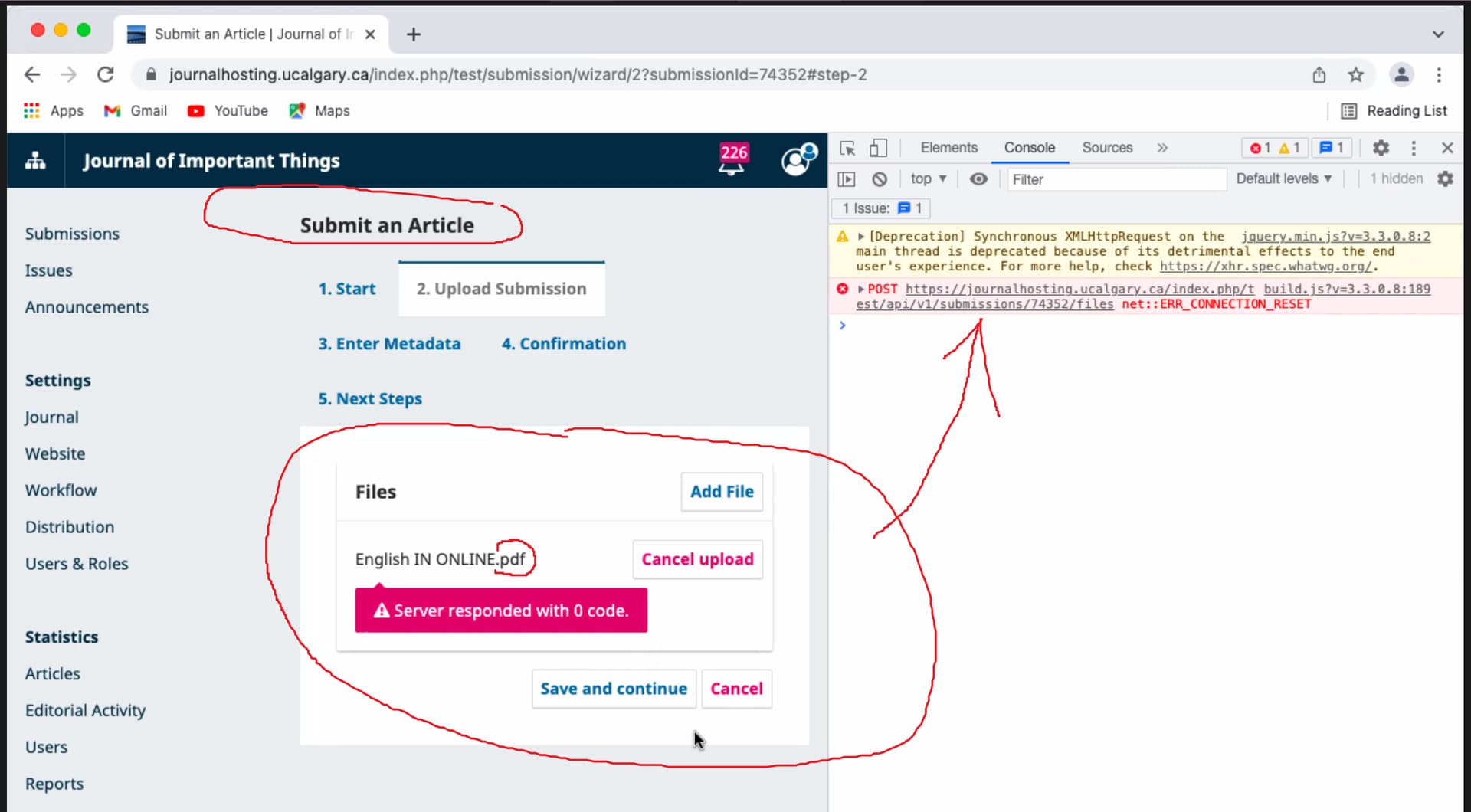
Sometimes, things don’t work. Don’t worry. First, check your internet connection. Slow speeds cause problems. Look at your code. Small errors can break the site. Check if all files are uploaded. Missing files lead to errors. Use tools like browser developer tools. They help find issues fast. Fix problems one by one. Patience is important. Every problem has a solution.
Maintaining Your Web Code
Keeping your web code updated is very important. New updates fix bugs and improve security. Always check for the latest version. Install updates as soon as they come out. Updates keep your website safe. They help it run smoothly. Make updating a habit. It’s a simple task but very crucial.
Backing up your web code is a smart move. Data loss can happen anytime. Create backups regularly. Store copies in different places. Use cloud services for extra safety. Backups help you recover files easily. They save you from starting over. Always have a backup plan ready. Don’t wait for a problem to start backing up.
Credit: forum.pkp.sfu.ca
Frequently Asked Questions
How Do I Upload Code To A Server?
Use an FTP client to upload code to a server. Connect using server credentials. Drag and drop files to the desired directory. Verify successful upload by checking the server’s file structure. Secure connection with SFTP for added security.
How Can I Host My Coded Website?
To host your coded website, choose a reliable web hosting provider. Register a domain name and upload your website files via FTP. Configure server settings and ensure your site is secure. Test your website to confirm it’s live and functioning correctly.
Optimize for speed and performance for a better user experience.
How Do I Upload My Website To A Hosting Server?
To upload your website, choose a reliable hosting provider. Access the control panel, then use FTP or the file manager to transfer your files. Ensure your domain points to the server. Finally, test your website to confirm it works correctly.
How To Upload A Web Application On A Server?
To upload a web application, first choose a reliable hosting provider. Use FTP or SCP to transfer files securely. Configure server settings and databases. Ensure all dependencies are installed. Test the application thoroughly before going live. Regularly update and monitor for security and performance.
Conclusion
Uploading web codes to a hosting server is simple. Follow each step carefully. Choose the right tools for your needs. Understand file transfer methods. Practice makes perfect; you’ll get better with time. Always double-check your work. Errors can happen. Keep backups of your files.
This saves you from losing important data. Security is crucial. Protect your web codes from threats. Now, you’re ready to share your website with the world. Explore more. Learn continuously. Enjoy the process of web development.


