
Are you trying to give your WordPress site a fresh look but unsure how to upload a theme? You’re not alone.
Navigating the world of WordPress themes can seem daunting, especially if you’re new to the platform. But here’s the good news: uploading a theme to WordPress is a straightforward process that anyone can master with the right guidance. Imagine transforming your website’s appearance with just a few clicks, making it more appealing to your audience.
This article is your go-to guide for uploading a WordPress theme in 2017, ensuring you can customize your site effortlessly. Stick with us, and by the end, you’ll have the confidence to enhance your website’s visual appeal, making it stand out in a crowded digital space. Ready to dive in? Let’s get started!
Credit: documentation.laborator.co
Preparing For Theme Upload
Always check your WordPress version first. This ensures theme compatibility. Update WordPress if it’s outdated. Old versions can cause problems. Make sure to stay up-to-date.
Backing up your site is important. It protects your data from loss. Use plugins or hosting tools. Backup everything before starting. This keeps your site safe.
Check if the theme is compatible. Look for theme details. See if it matches your WordPress version. Compatible themes reduce errors. Always verify compatibility before upload.
Credit: documentation.laborator.co
Downloading The Theme
Finding a trusted source is important for theme safety. Some popular places include WordPress.org and ThemeForest. These sites offer many options. Always read reviews before downloading. Reviews help in picking the best themes. Look for themes with high ratings. High ratings mean users like them.
After choosing a theme, download the file. Usually, it is a .zip file. Ensure the file is complete. A good download will not have errors. Save it in a place you can find later. This makes uploading easier. Remember the file name and location.
Accessing WordPress Dashboard
Open your web browser. Enter your website’s URL. Add /wp-admin at the end. This takes you to the login page. Type your username. Enter your password. Click on the Log In button. You are now in the WordPress dashboard.
Look at the left side menu. Find the Appearance tab. Click on it. A menu will drop down. Select Themes. You see all installed themes. To add a new one, click the Add New button. This will show you theme options.
Uploading The Theme
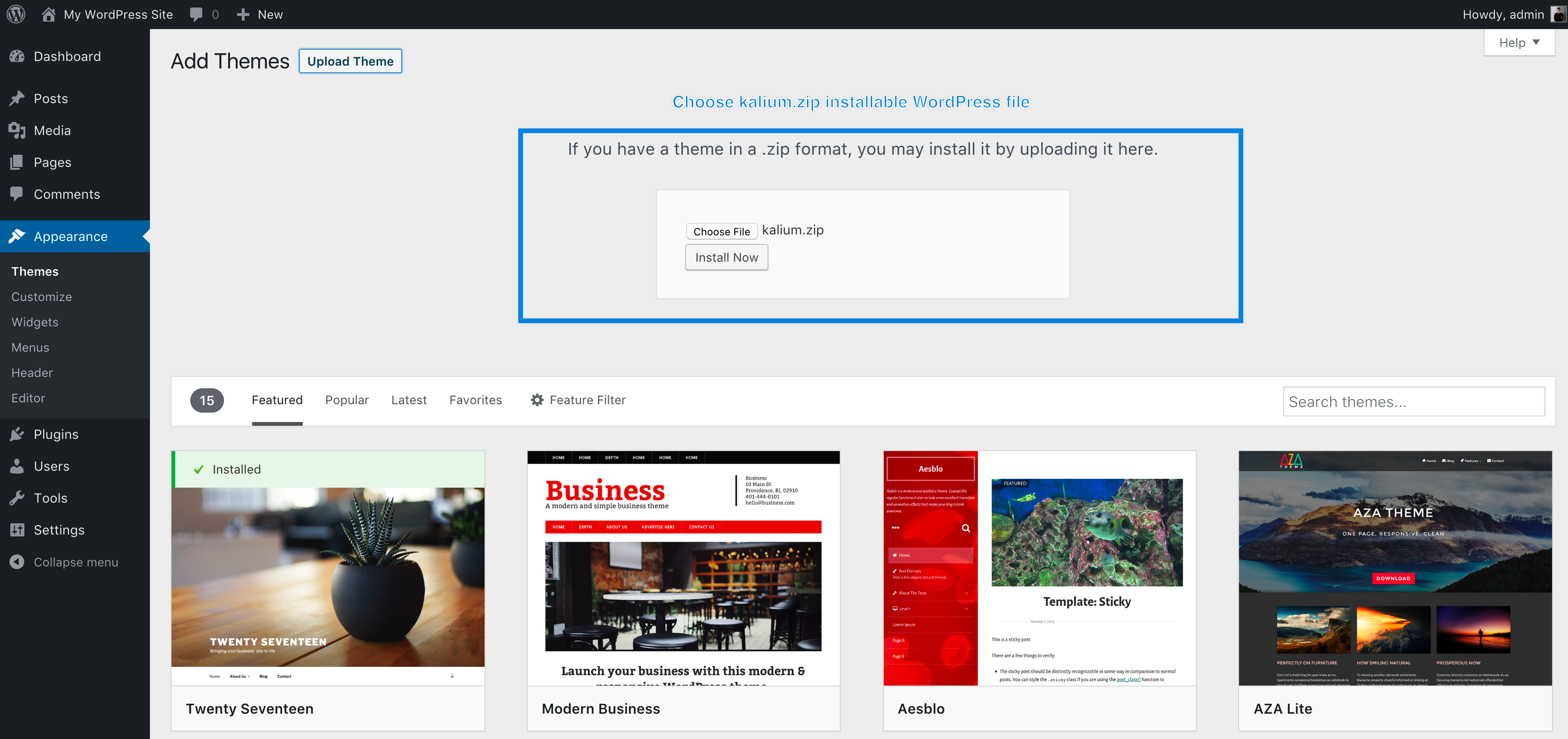
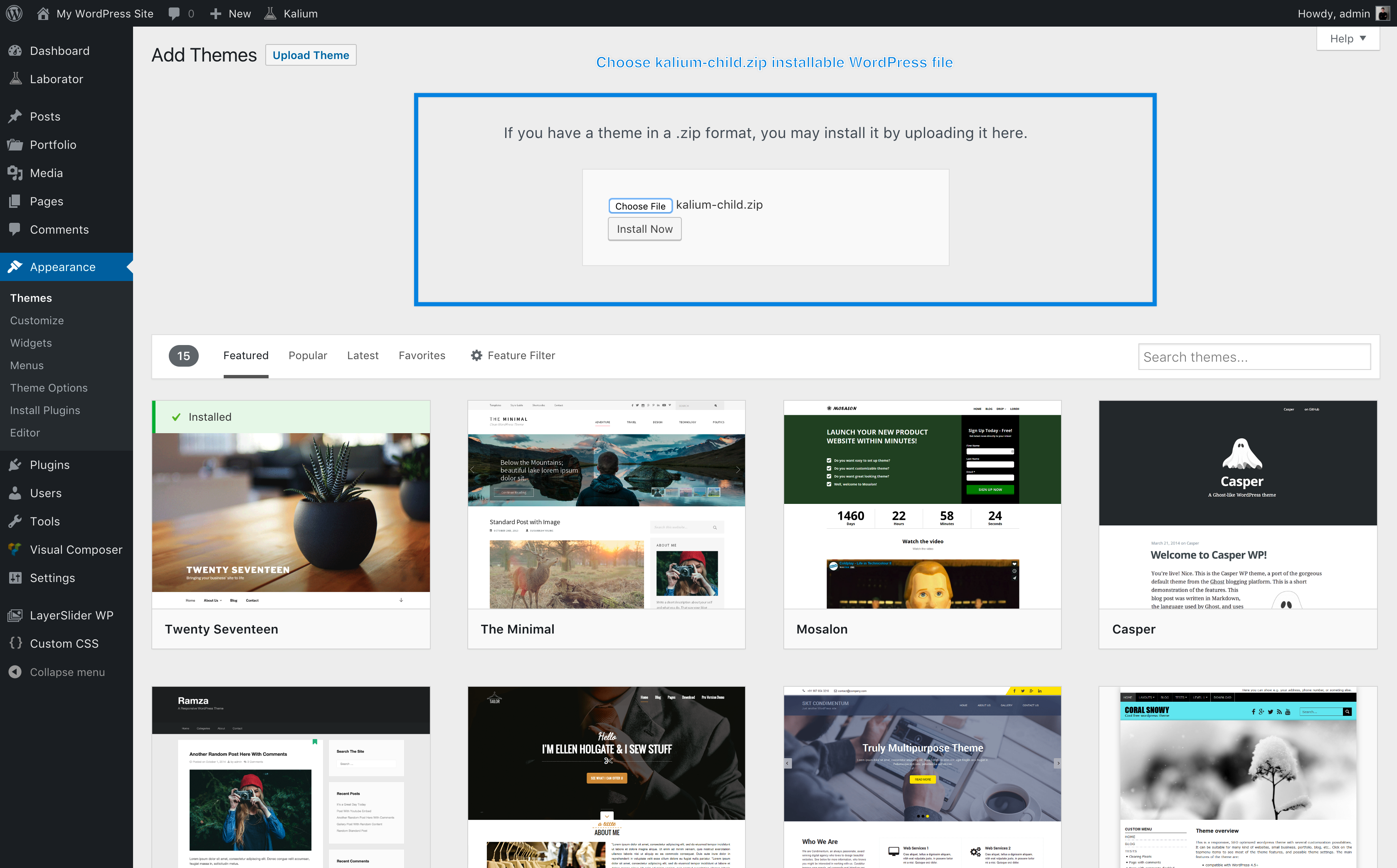
First, log into your WordPress dashboard. Find the Appearance menu on the left side. Click on Themes. At the top, you will see an Add New button. Click it. Now, click on the Upload Theme button. A new page will open. Here, click on Choose File. Find your theme file on your computer. The file should be in a .zip format. Select it and then click Install Now. Wait for the installation to finish.
After uploading, a new page will show. This page gives you options. Click Activate to make the theme live. Your theme is now installed and active. Visit your site to see the new look. If you want to change it, go back to the Themes section. You can always switch to a different theme there.
Activating The New Theme
Uploading a theme to WordPress 2017 involves a few simple steps. Navigate to the admin panel, select ‘Appearance’, then ‘Themes’. Choose ‘Add New’, upload the theme file, and activate your new theme to refresh your site’s design.
Locating Installed Themes
Visit your WordPress dashboard. Look for Appearance on the left side. Click it. You will see a list of themes. These are your installed themes. Find the theme you want. Make sure it is the right one. It should be in this list. Look carefully.
Activating Your Theme
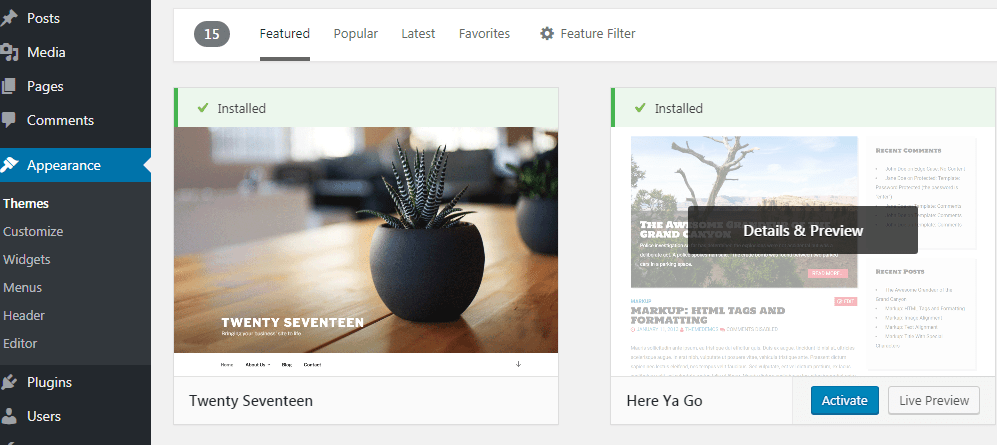
Hover over the theme you want. You will see a button. This button says Activate. Click the button. Your theme will change. Your site will look different. The new theme is now active. Check your site. Make sure it looks good. You can always switch back. If you don’t like it, choose another theme.
Credit: www.templatemonster.com
Customizing The Theme
The Theme Customizer is a tool in WordPress. It helps you change your theme. You can see changes in real-time. This makes editing easy. Click on Appearance and then Customize. You can change colors, fonts, and more. Each theme has different options. Explore these options to make your site unique.
The Theme Settings let you adjust many things. Go to Settings in your WordPress dashboard. You can change the site title and tagline. Set your homepage to show posts or a static page. Make sure to save changes. This keeps your site looking great.
Testing The Theme
Test all buttons. Make sure they work right. Click every link. Check they go to the correct page. Fill out forms. Ensure they send information. Look at menus. Do they display properly? Everything should work smoothly. A broken feature can confuse users. It may make them leave. Fix any problems you find.
Open the site on a phone. Does it look good? Text should be easy to read. Images must fit the screen. Try using the menu. Can you tap it easily? Test with different phones. Tablets too. Each device can show the site differently. Make sure it looks nice on all.
Troubleshooting Common Issues
Uploading a theme to WordPress 2017 can sometimes be tricky. Common issues include file size limits and incorrect file formats. Ensure your theme is in. zip format and does not exceed the upload limit.
Handling Upload Errors
Upload errors can be frustrating. First, check your internet connection. A slow connection can cause problems. Next, verify the file size. WordPress limits upload size. If it’s too big, it won’t upload. Try compressing the file. Ensure the theme is in a .zip format. WordPress only accepts .zip files for themes.
If errors persist, check permissions. Your server needs correct settings to allow uploads. Contact your hosting provider for help. They can adjust settings. Finally, disable other plugins. Sometimes, plugins conflict with theme uploads. Reactivate them one by one. This will help find the problem.
Dealing With Compatibility Problems
Compatibility issues can disrupt your theme. Start by checking your WordPress version. Themes need specific versions to work. Update WordPress if needed. Next, check your PHP version. Older versions might cause trouble. Update to the recommended version.
Review the theme’s documentation. Some themes need extra plugins. Install these plugins if needed. Test the theme on a staging site first. This helps avoid problems on your live site. Finally, contact the theme’s support team if issues continue. They can offer guidance and fixes.
Finalizing Your Setup
Reviewing site appearance is important. Check if the design looks good. Make sure text is easy to read. Look at images and see if they fit well. Test if buttons work. Click on links and see if they open. Ensure the theme matches the brand. Ask a friend to review it too. They can spot mistakes. Don’t forget to check on mobile. Sites should look good on all devices.
Backing up the configuration is a smart step. Save your settings in a safe place. Use plugins to back up. Store them on your computer. Or use cloud services. This helps if something goes wrong. You can easily restore your site. Backup often. Keep your site safe. A backup is your safety net.
Frequently Asked Questions
How Do I Upload A Theme To WordPress?
To upload a theme, go to your WordPress dashboard. Click on “Appearance” then “Themes. ” Select “Add New” and use “Upload Theme. ” Choose the theme file (. zip format) from your computer and click “Install Now. ” Once installed, activate the theme by clicking “Activate.
“
Can I Upload A Theme Without Ftp?
Yes, you can upload a theme directly via the WordPress dashboard. Navigate to “Appearance,” then “Themes,” and click “Add New. ” Choose “Upload Theme” and select your theme’s. zip file. Click “Install Now” and then activate the theme. No FTP is needed for this process.
What Is The Maximum File Size For Themes?
WordPress generally allows theme uploads up to 50MB. If your theme exceeds this size, you may need to increase your PHP settings or use FTP. Larger themes may require adjustments in your hosting settings to accommodate the upload. Contact your hosting provider for assistance if needed.
Why Can’t I Upload My WordPress Theme?
The upload issue may be due to file size limitations or incorrect file format. Ensure your theme is in a. zip format and doesn’t exceed the upload size limit. Check your server settings or use FTP if needed. Contact your hosting provider for further assistance.
Conclusion
Uploading a theme to WordPress in 2017 is simple and quick. Follow the steps carefully, and you’ll have a new look for your site. Themes change the feel and functionality instantly. Always ensure your theme is compatible with your version of WordPress.
Check for updates regularly to keep your theme fresh and secure. Practice makes perfect, so don’t hesitate to try different themes. Experimenting helps you find what best suits your needs. Enjoy customizing your WordPress site to reflect your style and purpose.
Remember, a good theme enhances user experience and engagement.


