
Are you looking to give your WordPress site a unique identity by adding your own logo? Uploading a logo might seem like a daunting task, but it doesn’t have to be.
Imagine the impact your logo can have—it’s like the face of your brand, instantly recognizable and memorable. By following a few simple steps, you can easily upload your logo to your WordPress theme and create a more professional and cohesive look for your site.
Don’t let technical hurdles stop you from showcasing your brand’s personality. Dive in, and let’s transform your website into a visual powerhouse that resonates with your audience and keeps them coming back for more. Ready to get started? Let’s make your brand shine!

Credit: attesawp.com
Choosing The Right Logo
A logo should be clear and easy to see. Size matters. A logo too big or small might not fit well. Most WordPress themes have recommended sizes. Follow these for best results. Common sizes are 200×100 pixels or 300×100 pixels. Always check your theme’s guide for details.
Formats are also key. PNG is often best. It supports transparent backgrounds. This makes your logo look good on any color. JPEG is another option but lacks transparency. Always keep your original file safe. You might need it later for changes.
Keep the design simple. A busy logo is hard to read. Use clear colors that match your site. Too many colors can confuse users. Stick to one or two. Fonts should be readable. Fancy fonts might look good but can be hard to understand. Test your logo on different screens. Make sure it looks good everywhere.
Accessing The WordPress Dashboard
Start by visiting your website’s login page. Usually, you type /wp-admin after your site’s URL. Enter your username and password. Click on the Login button. You will see the WordPress dashboard. It’s the control center for your site. Remember your login details. They keep your site safe.
The dashboard has many options. Start by exploring the left-hand menu. Find sections like Posts, Pages, and Appearance. Click on Appearance to change your site’s look. Look for the Customize option. It lets you upload your logo. Follow the steps to make your site unique. The dashboard helps you manage your site easily.
Customizing The Theme
Start by logging into your WordPress dashboard. Look for the Appearance tab on the left. It’s easy to find. Click on it. A menu will pop up. Now, choose Customize from the list. This opens the theme customizer. Here, you can make changes. It’s a fun way to update your site. Take your time to explore.
Inside the customizer, options vary by theme. Look for the Site Identity section. This is usually where the logo lives. Click to enter. You will see an option to upload a logo. Follow the prompts. Choose a file from your computer. It should be a clear and nice image. Adjust it if needed. Now, your logo is set. Refresh your site to see the changes.
Uploading The Logo
First, open the WordPress dashboard. Next, locate the Appearance menu. Click on Customize. You will see the Site Identity section. Select it to proceed.
Inside Site Identity, find the option to add a logo. You will see a button labeled Change Logo. Click it to start uploading your logo file.
After clicking Change Logo, a new window appears. You can upload your logo here. Select your logo file from your computer. Ensure the file is high-quality. Press the Select button once done. Your logo will now show on the site.
Adjusting Logo Settings
Many themes have logo settings in the customizer. Click on “Customize” in the WordPress dashboard. Look for the “Site Identity” or “Header” section. Here, you can upload your logo. Drag and drop your logo file or click “Select Image.”
Resizing And Positioning
Your logo might look too big or small. You can resize it easily. Use the “Logo Width” slider in the customizer. Slide it left or right to adjust. To position your logo, look for alignment options. Choose “left,” “center,” or “right.” This helps make your logo fit just right.
Previewing Changes
Always preview your changes before saving. Click “Preview” in the customizer. This shows how your site will look. If you like it, click “Publish.” Your new logo is now live!
Saving And Publishing
Easily upload your logo in WordPress by navigating to the theme customizer. Select “Site Identity” and choose your logo file. Save changes to make it visible on your website instantly.
Saving Customizations
Ensure your changes are not lost. Save your customizations frequently. After uploading your logo, look for the Save button. It is often at the top or bottom of the page. Click it to keep your changes. This step is important. Otherwise, you may lose your work.
Publishing The Logo
After saving, it is time to show the world. Find the Publish button. It makes your logo live. Ensure everything looks good. Check the preview before clicking. Happy with your logo? Then press publish.
Troubleshooting Common Issues
Uploading a logo in a WordPress theme can be tricky. First, ensure your logo file is the right format and size. Navigate to the ‘Customizing’ section in your dashboard, select ‘Site Identity,’ then upload your logo. Save changes to see your new logo displayed on your site.
Logo Not Displaying
Sometimes the logo may not show up on your WordPress site. This can be due to incorrect settings or upload issues. First, check your theme settings. Make sure the logo upload option is enabled. If the logo is still not visible, try clearing your browser cache. This can often solve display problems. Also, ensure your logo file format is supported, like JPEG, PNG, or GIF. If the file size is too large, it might not load properly.
Image Quality Problems
Low-quality logos can make your site look unprofessional. Ensure your logo is high resolution. A good size is 300×300 pixels or larger. Avoid using too many colors. This can make the logo blurry. Use a simple design with sharp lines. Compress the image to reduce file size without losing quality. This helps in faster loading. Always preview your logo after uploading. This ensures it looks right on all devices.
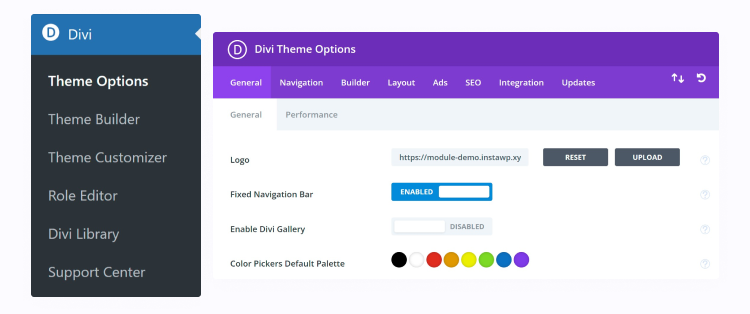
Credit: diviflash.com
Tips For Optimal Logo Appearance
Uploading a logo to a WordPress theme enhances brand visibility. Start by accessing the WordPress dashboard and navigate to ‘Appearance. ‘ Select ‘Customize,’ then click ‘Site Identity’ to upload your logo file. Ensure the logo is clear and fits well in the designated space to maintain visual appeal.
Using Transparent Backgrounds
Logos with a transparent background look clean on websites. They blend well with any page color. This makes your logo look smooth and professional. Save the logo in PNG format. This format supports transparency. A JPG does not work well for this. Make sure the logo is centered and not too big.
Ensuring Mobile Compatibility
Check the logo on a mobile device. It should look good on small screens. Test the logo in different browsers. This ensures it appears correctly for all users. Use a responsive design. This makes the logo adjust to screen size. A small file size is better. It loads faster and saves data.

Credit: visualmodo.com
Frequently Asked Questions
How Do I Upload A Logo In WordPress?
To upload a logo in WordPress, go to your dashboard. Navigate to Appearance > Customize. Select the “Site Identity” section. Here, you’ll find the option to upload your logo. Click “Select Logo” and upload your image. Finally, save the changes to update your website.
Can I Change The Logo Size In WordPress?
Yes, you can change the logo size in WordPress. After uploading your logo, adjust its size in the “Site Identity” section. Some themes allow custom dimensions. If not, use custom CSS to modify the size. Save changes to apply the new logo dimensions on your site.
Why Is My WordPress Logo Blurry?
Your WordPress logo may be blurry due to low resolution. Ensure your logo image is high-quality and in the correct format. Check your theme’s recommended logo dimensions. Adjust the image accordingly and re-upload it. This should improve the logo clarity on your WordPress site.
What File Formats Are Best For WordPress Logos?
For WordPress logos, use PNG or JPEG formats. PNG is preferred for transparent backgrounds. JPEG works well for detailed images. Ensure your logo is high-resolution to prevent blurriness. These formats maintain quality and load quickly, enhancing your site’s overall appearance and performance.
Conclusion
Uploading your logo on a WordPress theme is straightforward. Follow the steps carefully. Customize your site with your unique branding. Your logo helps visitors recognize your brand easily. Ensure it fits well within the design. Check its appearance on different devices.
Test its visibility on mobile and desktop screens. A clear, professional logo enhances your site’s appeal. Make sure it aligns with your theme’s colors and style. Regularly update your logo if you rebrand. Keep your WordPress site looking fresh and relevant.
With your logo correctly uploaded, your site stands out.


