
Are you ready to transform your WordPress site with a fresh, new look? Uploading a new theme can feel like giving your website a complete makeover, breathing new life into its design and functionality.
But where do you start? You might be wondering if it’s complicated or if you need technical skills. The good news is you don’t need to be a tech wizard to successfully change your theme. With just a few simple steps, you can enhance your site’s appeal and user experience.
In this guide, you’ll discover how to upload a new theme into WordPress effortlessly. By the end, you’ll have a stunning website that captures your vision and engages your audience. Ready to dive in? Let’s get started!
Credit: thimpress.com
Choosing The Right Theme
Picking a theme is a big decision. First, think about your website’s purpose. Is it a blog, a shop, or a portfolio? Check if the theme is responsive. It should look good on phones and computers. Make sure it is easy to use. Some themes need coding skills, others do not. Look for themes that are fast. Slow sites can upset visitors. Support is important too. Choose themes with helpful support.
Many people use WordPress.org. It has a lot of free themes. Another place is ThemeForest. It offers many paid themes. Elegant Themes is known for its designs. StudioPress has themes that are SEO-friendly. These sources have trusted themes. Always read reviews before downloading. This helps in avoiding bad themes.
Downloading The Theme
Themes come in different formats like .zip or .rar. These formats keep files together. Most themes are in .zip format. It is easy to upload to WordPress. Check the theme’s format before downloading. Make sure it is compatible with WordPress.
Save the theme file on your computer. Choose a location you remember. This makes it easy to find later. Many people save files in the Downloads folder. Once saved, the theme is ready for upload. Ensure the file is not open or in use. This can cause errors during upload.
Accessing The WordPress Dashboard
First, open your web browser. Type in your website’s URL. Add /wp-admin at the end. Press enter to visit the login page. Enter your username and password. Click the Log In button. Now, you are inside your WordPress dashboard.
The dashboard is your control panel. It has many options. You can see the menu on the left. Click on the items to explore. Each item does something different. You will find Appearance here. This is where you upload themes.
Uploading The Theme
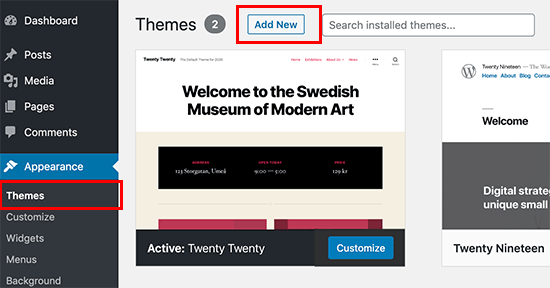
Find the Appearance option in your WordPress dashboard. Click on Themes and then on Add New. Choose the Upload Theme button at the top. Select the theme file from your computer. Click on Install Now to upload the theme. Wait for the upload to finish. Once done, click on Activate to use the theme. Now, your new theme is ready to go.
Use an FTP client to connect to your server. Locate the wp-content/themes folder. Upload the theme folder to this directory. Ensure the theme is in a zipped format. Once uploaded, go to your WordPress dashboard. Navigate to Appearance and then Themes. Find the uploaded theme and click Activate. Your theme is now ready for use.
Activating The Theme
Easily upload a new theme to WordPress by navigating to your dashboard. Find “Appearance,” then select “Themes. ” Click “Add New,” upload your theme file, and activate it to refresh your site’s look.
Theme Activation Process
Uploading a theme is easy. First, go to the dashboard. Find “Appearance” and click “Themes.” Choose your new theme. Click “Activate” to use it. Your site will look different now. The theme changes the layout. It also changes the colors and fonts.
Customizing The Active Theme
Make the theme yours. Go to “Appearance” then “Customize.” Change the colors to match your style. Pick new fonts that look nice. You can also add a logo. Customizing is fun and easy. Make sure you save your changes. Watch your site come alive with new looks.
Troubleshooting Common Issues
Uploading a new theme in WordPress often involves navigating through the dashboard. Users may face issues with theme compatibility. Ensure the theme file is in. zip format before uploading.
Upload Errors
Upload errors can happen for many reasons. One common issue is file size. WordPress has limits on file uploads. If your theme is too big, it won’t upload. Try making the file smaller or ask your host to increase the limit.
Another issue is file format. Themes need to be in a .zip file format. Any other format will cause errors. Always check your theme file before uploading.
Compatibility Problems
Some themes may not work with your WordPress version. This can cause the site to break. Always check if the theme is compatible with your WordPress version. Keep WordPress updated to avoid these issues.
Sometimes, plugins can cause conflicts. If a theme does not work, disable plugins and try again. This can help find the problem.
Ensuring Theme Updates
Navigating the WordPress dashboard allows easy theme uploads. Click “Appearance,” then “Themes,” and select “Add New” to proceed. Choose your theme file and hit “Install Now” for a fresh look.
Automatic Updates
Automatic updates keep your theme fresh. No need to lift a finger. Themes update themselves. This saves time and effort. Your site stays secure and efficient. Most themes have this feature. Always check the settings. Enable automatic updates. This ensures your theme stays updated. No more manual checks. Peace of mind for busy site owners.
Manual Update Steps
Sometimes, themes don’t update themselves. Manual updates become necessary. First, visit the WordPress dashboard. Click on “Appearance”. Then, select “Themes”. Find your theme. Click “Update Now”. Wait a few minutes. Your theme gets updated. Always backup before updating. This prevents data loss. Check your site after updating. Ensure everything works well. This keeps your site running smoothly.

Credit: www.greengeeks.com

Credit: www.elegantthemes.com
Frequently Asked Questions
How Do I Upload A Theme To WordPress?
To upload a theme, go to your WordPress dashboard. Navigate to “Appearance” and select “Themes. ” Click “Add New,” then “Upload Theme. ” Choose your theme file, then click “Install Now. ” Activate your theme to finish the process.
Can I Upload Themes Without Ftp?
Yes, you can upload themes directly via the WordPress dashboard. Use the “Upload Theme” option in the “Themes” section. This method doesn’t require FTP access, making it easier and faster for most users.
What File Format Is Needed For WordPress Themes?
WordPress themes should be in. zip format for uploading. This compressed format is essential for installation. Ensure your theme is properly zipped before uploading to avoid errors during installation.
Are Premium Themes Better For WordPress?
Premium themes often offer better features and support. They are typically more customizable and come with regular updates. However, free themes can also be effective, depending on your site’s needs.
Conclusion
Uploading a new theme in WordPress is simple. Follow steps carefully. Explore different themes to find your favorite. Customize it to suit your style. Change colors, fonts, and layout easily. Make your website unique and attractive. Don’t forget to test the theme’s functionality.
Ensure everything works smoothly. Regular updates keep your site secure. Always backup your site before changes. Enjoy your new look and feel. A perfect theme enhances user experience. Visitors appreciate a well-designed site. Keep learning and experimenting. Your WordPress journey is just beginning.
Happy blogging!


