
Updating your WordPress themes manually might sound a bit daunting at first. Yet, you’re about to discover that it’s a straightforward process that gives you more control over your website’s look and feel.
Imagine having the power to keep your site secure and up-to-date, without relying solely on automated updates. This guide will walk you through each step, ensuring you gain the confidence to manage your WordPress themes effortlessly. Ready to enhance your site’s performance and security?
Let’s dive in and unlock the secrets to manual WordPress theme updates.

Credit: www.youtube.com
Preparing For Theme Update
Updating WordPress themes manually involves downloading the latest theme version from the official site or developer. Next, access your WordPress dashboard and navigate to “Appearance,” then “Themes,” and deactivate the current theme. Upload the new version using FTP or the theme upload option, ensuring a seamless transition.
Backup Your Website
Before any theme update, always backup your website. This protects your data. Use plugins like UpdraftPlus or BackupBuddy. They are easy to use. Click a few buttons and your backup is ready. Save it to a safe place. Backups save you from losing important data. Never skip this step.
Check For Theme Compatibility
Ensure the new theme works with your WordPress version. Visit the theme’s website. Read the update notes. Check if other users have issues. Use forums or support pages. Compatibility issues can break your site. Always check before updating. This saves you from big problems later.
Downloading The Latest Theme Version
First, go to the official WordPress website. Then, find the theme you want. Look for the download button. Click it to start downloading. Make sure you save it in a place you can find. Sometimes, the theme might be a zip file. If so, do not unzip it yet. You will need it later.
After downloading, check the file on your computer. Double-check the name of the theme. This helps to avoid mistakes. Then, create a new folder on your desktop. Name it something easy to remember. Move the downloaded theme file into this new folder. Keep it safe until you are ready to upload.
Deactivating The Current Theme
Deactivate the current theme before updating WordPress manually. This prevents errors during the update process and ensures smooth theme integration. Access your WordPress dashboard, select “Themes,” then activate a default theme to deactivate the current one.
Switching To A Default Theme
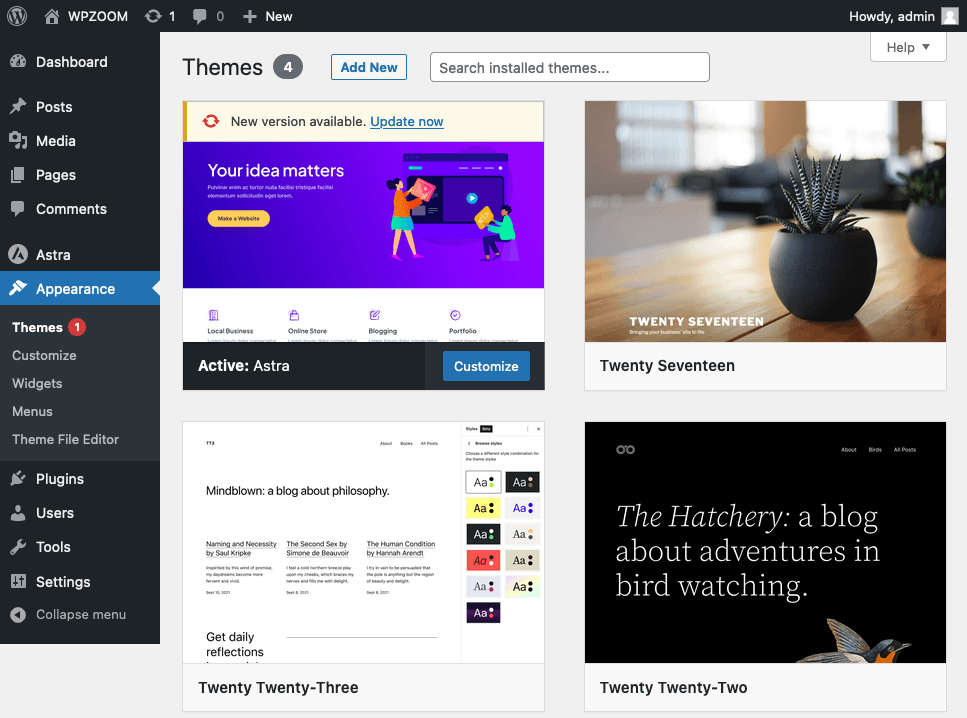
Switching themes can be important for updates. First, go to the WordPress dashboard. Click on Appearance, then Themes. Choose a default theme like Twenty Twenty-One. Click Activate. This makes your site use the default theme.
Ensuring Website Stability
It’s key to keep your website stable during updates. A default theme can help with this. It keeps the site working if the main theme has issues. Always check your site’s pages after switching themes. Make sure everything looks right and works well. If something is broken, fix it before updating. This way, visitors will always have a smooth experience.
Uploading The Updated Theme
Manually updating WordPress themes involves downloading the latest version from the theme provider. Access your WordPress dashboard, deactivate the current theme, and upload the new theme file. Ensure compatibility by checking for plugin updates before activating the updated theme.
Using Ftp For File Transfer
Download and install an FTP client like FileZilla. It helps transfer files. Open the FTP client and connect to your website. Use your FTP credentials for this. Locate the “wp-content/themes” folder. This folder holds all theme files. Find the updated theme folder on your computer. Drag the new theme files to the “themes” folder. Overwrite the old files with new ones. This step updates your theme.
Replacing Old Theme Files
Ensure you have a backup of your old theme. This is important for safety. Check the website for any errors after the update. If errors occur, restore the backup. Always verify the website’s appearance. Make sure the theme looks as expected. This keeps your website fresh and secure.
Activating The Updated Theme
Switching Back to the Updated Theme is simple. First, go to your WordPress dashboard. Find the ‘Appearance’ section. Click on ‘Themes’. You will see a list of themes. Locate the updated theme. Click ‘Activate’. Your site uses the new theme now.
Next, check your site. Look for Visual Consistency. Ensure everything looks right. Check the colors and fonts. Look at the layout. Make sure images are in place. You want your site to look good. Your visitors should enjoy visiting.

Credit: www.themeum.com
Testing The Updated Theme
Updating WordPress themes manually ensures customization and security. Start by backing up your site and downloading the new theme version. Install the theme via the WordPress dashboard, carefully checking for any errors.
Reviewing Website Functionality
Ensure the website looks good. Check if all links work. Test every button. Verify images load properly. Navigate through all pages. Look for any missing elements. Confirm the text is readable. Ensure the layout is correct. Check the mobile view. Is the menu responsive? Test forms and contact pages.
Resolving Potential Issues
Did you find any broken links? Fix them immediately. Are images not loading? Re-upload them. Does any text overlap? Adjust the font size. Ensure plugins are active. Update outdated plugins. Is the site speed slow? Optimize images. Check if scripts load properly. Reach out for help if needed.
Credit: www.wpzoom.com
Frequently Asked Questions
How Do I Manually Update WordPress Themes?
To update manually, download the theme’s latest version from its source. Access your website via FTP and navigate to the wp-content/themes directory. Replace the old theme folder with the new one. Ensure you back up your website before updating to prevent data loss.
Is It Safe To Update WordPress Themes Manually?
Yes, manual updates are safe if done correctly. Always back up your website before updating. This ensures you can restore it in case of issues. Manual updates let you control the process and address any customizations you’ve made.
What Tools Are Needed For A Manual Update?
You’ll need an FTP client like FileZilla and access to your website’s server. A text editor can be useful for checking and editing files. Ensure you have the theme’s latest version downloaded before starting the update.
Can I Lose Customizations During A Manual Update?
Yes, customizations in theme files can be lost. Use a child theme for customizations to avoid losing changes. Always back up your website before updating. This practice ensures you can restore your customizations if needed.
Conclusion
Updating WordPress themes manually is straightforward. First, back up your site. Next, download the latest theme version. Then, deactivate the current theme. Upload the new version. Finally, activate the updated theme. This process ensures your site remains secure and efficient.
Regular updates protect against vulnerabilities. Manual updates give you control over changes. This method is ideal for customizing themes. Follow these steps for a smooth update. Keep your website running optimally. Remember, staying updated boosts site performance. It’s worth the effort.
Enjoy a safe and functional WordPress site.


