
Have you ever wanted to give your WordPress site a fresh look by updating its theme, but felt overwhelmed by the process? You’re not alone.
Navigating through theme files can seem daunting, especially if you’re not a tech expert. But here’s the good news: updating theme files in WordPress is easier than you think, and we’re here to guide you every step of the way.
Imagine the satisfaction of customizing your site exactly how you envision it, all while maintaining its functionality and style. This article will break down the process into simple, manageable steps, ensuring you feel confident and capable. By the end of this guide, you’ll have the tools you need to update your theme files seamlessly, enhancing your site’s appearance and performance. So, are you ready to transform your WordPress site effortlessly? Let’s dive in!
Credit: jetpack.com
Importance Of Updating Theme Files
Keeping theme files updated is very important. Themes get new features. Old bugs are fixed. Updates improve security. Hackers look for weak spots. An old theme is a weak spot. Updates can keep your site safe.
Performance is another reason. New updates can make your site faster. A fast site keeps visitors happy. Happy visitors stay longer. They might come back again. Search engines like fast sites too. Better performance can help with SEO.
Updates keep your site looking fresh. New designs come with updates. Everyone loves a modern look. Themes also add new tools. These tools help you create better content. Your site becomes more useful for visitors.
Backup Your WordPress Site
Updating theme files in WordPress is crucial for maintaining your site’s performance and security. Before making changes, ensure you backup your WordPress site to prevent data loss. Use plugins or manual methods to save your site’s data safely.
Using Plugins
Plugins are helpful for backups. They make tasks easy for users. Choose a reliable plugin from the WordPress repository. Popular choices include UpdraftPlus and BackupBuddy. Install the plugin and follow the setup instructions. Automate backups to save time. Plugins usually offer storage options. Save backups on the cloud or local server. Check plugin settings regularly for updates. Ensure your backup is complete and secure.
Manual Backup Process
Manual backup is simple but important. Start by copying all site files. Use an FTP client like FileZilla. Connect to your website server. Locate the WordPress directory and download files to your computer. Next, export the database. Access the database through phpMyAdmin. Select your database and click ‘Export’. Choose the SQL format for easy recovery. Store both files safely. Regularly update these backups for protection.
Identify Theme Files To Update
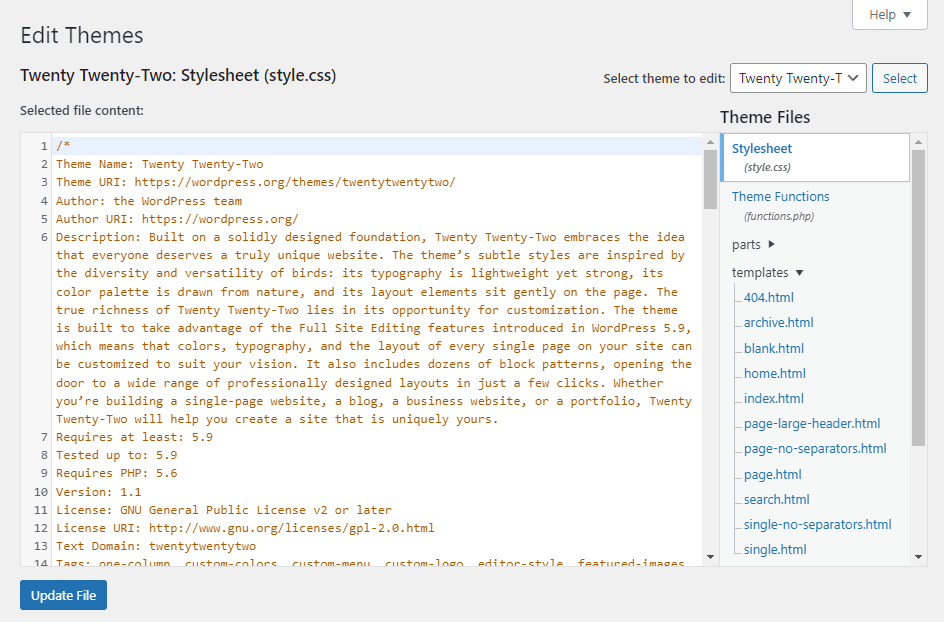
Core Theme Files are important for your website. They control the look and feel. These files include style.css, functions.php, and template files. Updating these files keeps your site fresh and secure. Make sure to backup before changes. Mistakes can break your site.
Custom Theme Modifications give your site a unique look. They include custom CSS and custom templates. They help your site stand out. But updating them can be tricky. It’s easy to lose your changes. Always save your work. Consider using a child theme. This keeps your custom work safe during updates.

Credit: forums.envato.com
Methods To Update Theme Files
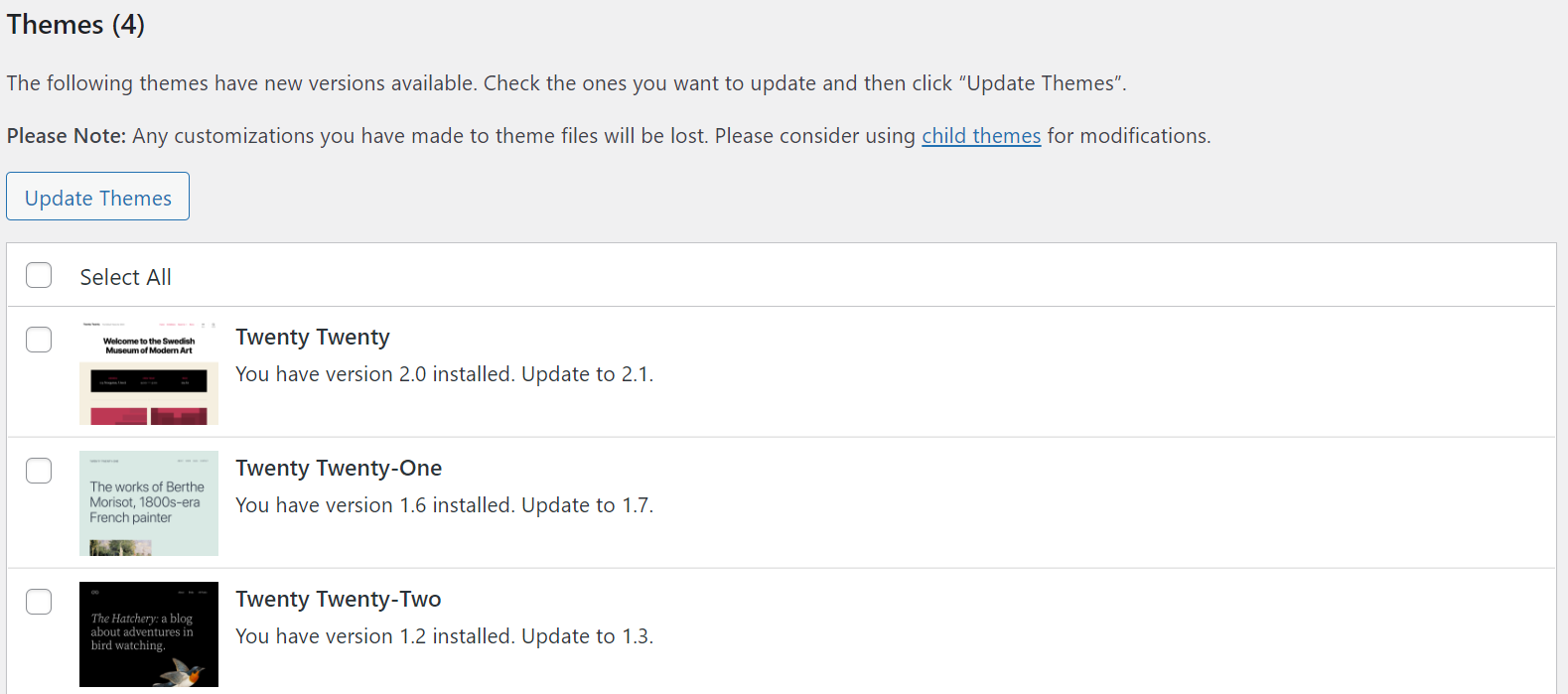
WordPress makes updating themes simple. Visit the Dashboard. Click on Updates. Look for the theme you want to update. Click the Update button. Wait for it to finish. Keep your site safe and current. Always back up your site first. This method is fast. Easy for beginners.
Use FTP to update themes. Connect using an FTP client. Go to the wp-content/themes folder. Upload the new theme files. Replace old files with new ones. Make sure files have the same name. Backup your site first. This method gives you control. Good for advanced users.
cPanel is another option. Log into cPanel. Find File Manager. Navigate to the wp-content/themes folder. Upload the updated theme files. Overwrite the old files. Always back up your site first. This method is safe. Useful for those with cPanel access.
Preserving Customizations
Child themes keep your changes safe. They don’t get lost during updates. Always use a child theme to customize. First, create a folder for it. Name it like your main theme. Add a style.css file inside. Use this file for all your custom styles. You can also add a functions.php file. This helps with custom code. Now, your theme updates won’t erase your work.
Custom code adds unique features to your site. Use the Additional CSS tool in WordPress. Find it in the Customizer. Add your CSS here. It’s safe from theme updates. For PHP, add code to the child theme’s functions.php. Be careful with PHP. One error can break your site. Always backup before making changes.
Testing After Updates
Always check if the website works properly. Click on all buttons. Make sure forms send data. Test links to see if they go to the right page. Check if the menu opens and closes. Ensure all images show up clearly. Look for any errors or broken parts. This step is very important. It helps keep the website safe and smooth.
Look at the website design. Make sure the layout is neat. Check if fonts are easy to read. Inspect colors for consistency. Ensure images align properly. See if all sections are visible. Spot any changes that are strange. This helps maintain a good website appearance. It ensures users have a great experience.
Troubleshooting Common Issues
Updating theme files in WordPress can fix issues and improve your site’s look. First, back up your files to avoid data loss. Next, use a child theme to safely apply changes without affecting the main theme.
Theme Incompatibility
Theme incompatibility can cause problems. It might break your site design. Always check if the theme matches your WordPress version. Update WordPress if needed. Sometimes, plugins clash with themes. Disable plugins to test compatibility. Use a default theme to see if the issue persists. Check for theme updates from the developer. Updated themes fix many issues. Keep a backup before making changes. This helps revert back if something breaks. Contact theme support for help if needed. They can provide specific solutions.
Restore From Backup
Restoring from a backup can save you. Always have a recent backup ready. Use a plugin like UpdraftPlus. It makes backups easy. Store backups in the cloud for safety. If your site breaks, restore the latest backup. This brings your site back to normal. Follow the plugin instructions carefully. Restoring is quick and simple. Never panic if you have a backup. Backups protect your hard work.
Credit: www.hostinger.com
Frequently Asked Questions
How To Safely Update WordPress Theme Files?
To safely update WordPress theme files, create a child theme. This prevents losing customizations during updates. Use FTP or the WordPress dashboard for file uploads. Always backup your website before making changes. Regularly update themes to improve security and functionality.
Can I Update Themes Without Losing Changes?
Yes, use a child theme to preserve changes. A child theme allows updates to the parent theme while maintaining customizations. Regular backups are essential. Check compatibility before updating. Always test updates in a staging environment first to avoid unexpected issues.
Why Should I Update WordPress Themes?
Updating themes enhances security and performance. It fixes bugs and introduces new features. Regular updates ensure compatibility with the latest WordPress version. They protect your site from vulnerabilities. Keeping themes updated is crucial for maintaining a smooth user experience.
What Tools Help Update Theme Files?
Tools like FTP clients and WordPress dashboard are useful. FTP clients facilitate direct file access. The WordPress dashboard allows theme updates and modifications. Code editors like Sublime Text or Notepad++ help manage code efficiently. Always backup before using these tools.
Conclusion
Updating theme files in WordPress can seem challenging. But it’s quite manageable. Follow the steps carefully. Always back up your files first. This ensures your data stays safe. Use a child theme to make changes. This prevents losing edits during updates.
Regular updates keep your site secure and fast. Stay informed about WordPress changes. Explore online tutorials and forums for more tips. Practice regularly to gain confidence. Soon, updating themes will feel like second nature. Keep your WordPress site fresh and functional.
Happy updating!


