
Are you looking to keep your Avada Theme running smoothly on your WordPress site? Updating your theme is crucial for ensuring optimal performance, enhanced security, and access to the latest features.
But if you’re feeling a bit lost on how to go about it, you’re not alone. Many WordPress users encounter challenges when updating themes, and that’s where this guide comes in. By following the steps outlined here, you can effortlessly update your Avada Theme, ensuring your site remains secure and operates at its best.
Ready to dive in and discover how easy it is to keep your theme up to date? Let’s get started!
Preparing For The Update
Updating the Avada Theme in WordPress involves backing up your site and downloading the latest theme version. Ensure compatibility by checking plugin updates and theme requirements. Follow the installation guide to smoothly integrate new features without disrupting your site.
Check Current Version
Always know your current theme version. Go to your WordPress dashboard. Look at the theme section. Find the version number. Compare it with the latest version online. This tells you if an update is needed. Knowing the version helps prevent issues.
Backup Website Data
Backup is crucial before any update. Use a plugin or manual method. Save your website data safely. This includes posts, images, and settings. If something goes wrong, backups help restore your site. Regular backups keep your data secure. Never skip this step.

Credit: www.youtube.com
Downloading The Latest Version
First, log in to your Themeforest account. Use your username and password. Go to the “Downloads” section. Here, you find all your purchased themes. Locate the Avada theme from the list. Click on the “Download” button next to it. Choose “All Files & Documentation”. This option gives you everything you need. The download begins. Save the file on your computer.
After downloading, find the zip file on your computer. Unzip the file. Inside, you see many folders and files. Look for the “Avada” folder. This is your theme folder. Keep it ready for the next steps. These files are important. Do not delete them by mistake.
Installing The Update
First, go to your WordPress dashboard. Find the “Appearance” menu. Click on it. Now, select “Themes” from the list. You will see your current theme. Hover over the Avada Theme. You will see an option to “Deactivate”. Click on it. Your site will now use a default theme. This is important for a smooth update.
Download the new version of Avada from ThemeForest. Save it on your computer. Go back to your WordPress dashboard. Click on “Appearance” again. Select “Themes”. Then, click on “Add New”. You will see an “Upload Theme” button. Click on it. Choose the new Avada file you downloaded. Click “Install Now”. Wait for the upload to finish. Now, activate the new theme. Your Avada theme is now updated.
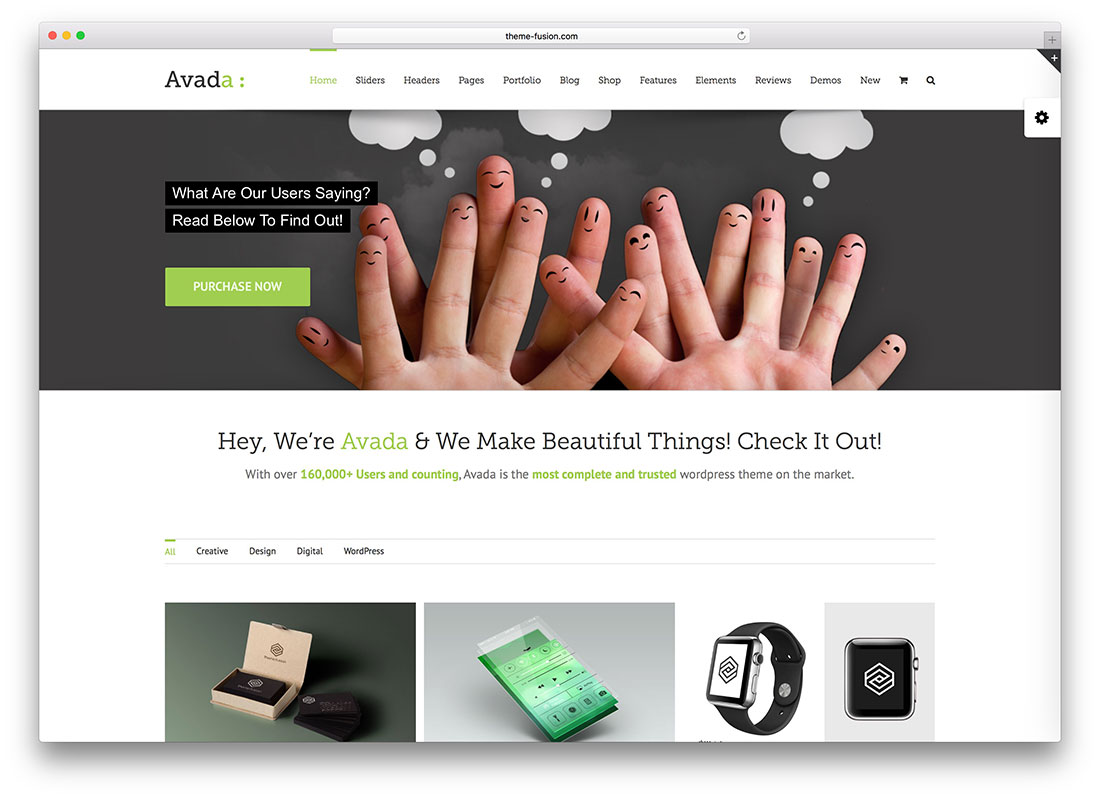
Credit: colorlib.com
Activating And Configuring
Updating the Avada theme in WordPress involves activating the latest version and configuring settings. Ensure your site stays secure and compatible by following the update process. This helps maintain optimal performance and access to new features.
Activate Updated Theme
First, go to your WordPress dashboard. Click on Appearance and then Themes. You will see the list of all themes. Find the updated Avada theme. Click on Activate. This will make the new theme live on your site. Make sure everything looks right after activation. If anything seems off, check your settings. Sometimes you need to adjust a few things.
Adjust Theme Settings
After activating, go to the Avada settings. These settings are in the Avada tab on the dashboard. Check each setting one by one. Adjust them to fit your needs. You can change colors, fonts, and layouts. Save your changes after each adjustment. This will ensure your site looks the way you want.
Troubleshooting Common Issues
Updating the Avada theme may cause some compatibility issues. This can affect your site’s plugins and features. Always check plugin updates before updating the theme. Ensure all plugins are compatible with the new Avada version. Sometimes, you need to deactivate a plugin to fix issues. Reinstall the plugin after updating Avada. This helps in preventing conflicts.
Always create a backup before updating. This helps if things go wrong. Use backup plugins or hosting services. They save your site data. If you face issues, restore your site from the backup. This returns your site to its old state. Backups are important. They can save time and effort.
Post-update Checks
Updating the Avada theme in WordPress requires post-update checks to ensure everything functions smoothly. Verify plugin compatibility, examine site performance, and review design elements. This ensures the update enhances your site without disruptions.
Verify Site Functionality
Test the site features after updating. Click buttons and links. Ensure all features work. Check forms and sliders. See if the images load correctly. Look for missing elements. Test the site speed. Make sure the site looks right on phones.
Check For Broken Links
Click every link on the site. Make sure each link goes somewhere. Check menu links and footer links. Look at links in blog posts. Fix broken links quickly. Use a link checker tool. Broken links can confuse visitors. They may leave the site.

Credit: www.youtube.com
Frequently Asked Questions
How Do I Manually Update My Avada Theme?
To manually update your Avada theme, download the latest version from ThemeForest. Access your WordPress dashboard, navigate to Appearance > Themes, and deactivate Avada. Delete the old version, upload the new zip file, and activate it again. Always back up your site before updating.
How Do I Manually Update My WordPress Theme?
To manually update your WordPress theme, download the latest version. Access your WordPress dashboard, navigate to Appearance, then Themes. Deactivate the current theme, delete it, and upload the new version. Activate the updated theme to complete the process. Always backup your site before updating to prevent data loss.
How Do I Change The Avada Template?
To change the Avada template, go to the WordPress dashboard. Select “Appearance” and then “Themes. ” Choose Avada and click “Customize. ” Adjust settings as needed, then save changes.
How Do I Force A WordPress Theme To Update?
Access your WordPress dashboard. Go to “Appearance” > “Themes”. Click on your theme and select “Update”. Alternatively, download the latest theme version from the developer’s site and upload it via “Appearance” > “Themes” > “Add New”. Ensure you backup your site before updating.
Conclusion
Updating your Avada Theme enhances your site’s performance. Follow the steps carefully. Backup your site before starting. Check for compatibility with plugins. Use the WordPress dashboard for updates. Keep your theme and plugins up-to-date. Regular updates improve security and functionality.
They ensure a smooth user experience. Updating prevents potential issues. It keeps your site running efficiently. Practice routine maintenance for your WordPress site. A well-maintained site attracts more visitors. Happy updating!


