
Are you ready to give your WordPress site a fresh look? Updating your theme can breathe new life into your website, enhance its functionality, and improve user experience.
But if you’re worried about losing your customization or breaking your site, you’re not alone. Many WordPress users share these concerns. Imagine effortlessly keeping your site up-to-date while maintaining its unique style and features. That’s what this guide is all about.
In the following sections, you’ll discover simple, step-by-step instructions to update your WordPress theme safely and efficiently. With just a few clicks, you can transform your site without any hassle. Let’s dive in and unlock the full potential of your WordPress theme!
Credit: www.inmotionhosting.com
Backup Your Site
Backing up your site is very important. It keeps your data safe. If something goes wrong, you can restore it. Losing data can be a nightmare. Imagine if your hard work disappears. Backups can save you from this. Always have a recent backup ready. It gives peace of mind. You will feel more secure.
Many tools help in backing up your site. UpdraftPlus is a popular choice. It is easy to use. BackupBuddy is another good option. It offers many features. Jetpack also helps in backups. Choose a tool that fits your needs. Make sure it is reliable. A good tool makes backups simple and quick.
Check Theme Compatibility
Before updating, ensure your WordPress version matches the theme requirements. New themes often need the latest WordPress version. Check if your site meets the minimum version. This helps avoid errors and bugs. Always read the theme notes. They tell which version works best. This step is crucial for a smooth update.
Themes may not work well with some plugins. This can cause site issues. Check which plugins might cause trouble. Some themes list known conflicts. Disable these plugins before updating. This keeps your site running well. After updating, you can re-enable plugins. Check if the site is still fine. Always take a backup before making changes.
Update Through WordPress Dashboard
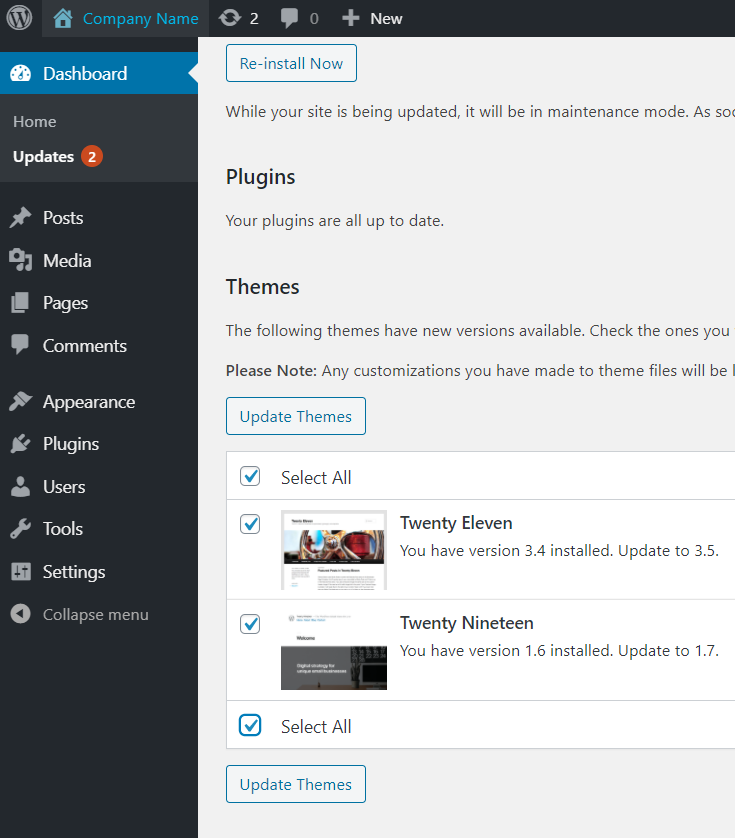
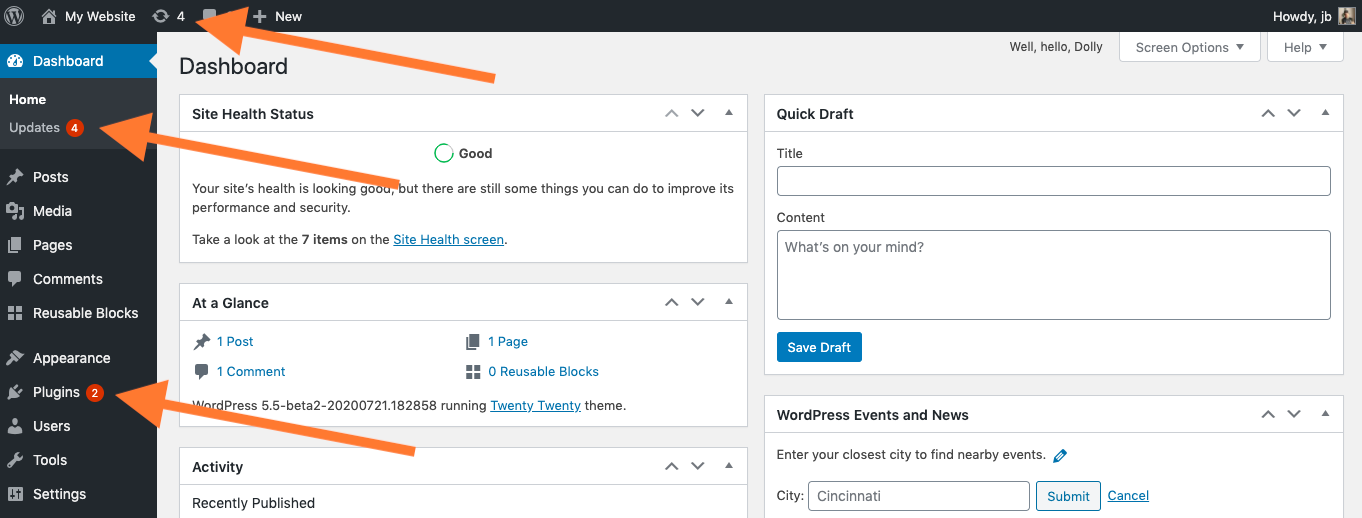
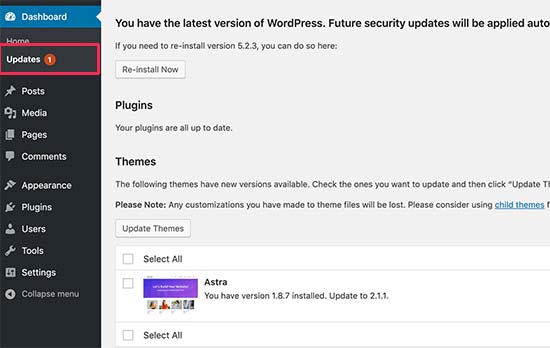
First, log into your WordPress site. Use your username and password. Once logged in, find the sidebar. Click on Dashboard. This takes you to the main page. Look for Updates. It’s often at the top. Click to open the updates page.
On the updates page, find the Themes section. It lists themes needing updates. Select the theme to update. Check the box next to it. Click Update Themes button. Wait while the theme updates. The process is usually quick. Your theme is now up-to-date.
Credit: wordpress.org
Manual Theme Update
First, locate the theme you want to update. Visit the theme’s official website. Find the download link. Click to download the latest version. Save the file to your computer. Make sure you remember where you saved it. This file is usually in a .zip format.
Open your FTP client software. Connect it to your WordPress server. Navigate to the wp-content/themes directory. Find your existing theme folder. Rename it to keep a backup. Upload the new theme folder from your computer. Ensure the upload completes without errors. Check your website to see the new theme.
Testing The Updated Theme
Easily update a WordPress theme by accessing your dashboard. Navigate to Appearance > Themes, then click Update. Testing the updated theme ensures your site retains its look and functionality, keeping everything running smoothly.
Checking Site Functionality
Ensure all buttons and links work. Navigate through every page. Look for anything broken. Check if images load correctly. Ensure text is readable. Test on different devices. Use a phone and a tablet. Open the site on a computer too. See if it looks good everywhere. Test the site’s speed. It should load quickly.
Resolving Potential Issues
Fix any broken links you find. Update any outdated plugins. Check for theme conflicts. Sometimes, themes don’t work well together. Look at the site’s code for errors. Use tools to help with this. Ask for help if needed. It’s important everything works smoothly. Your visitors will have a better experience.
Credit: www.altdatum.com
Restore From Backup If Needed
Always ensure you have a recent backup before updating a WordPress theme. This step can save your site in case of errors. Easily restore your site from a backup if needed to keep everything running smoothly.
Using Backup Tools
Backup tools save your theme and site. They keep copies safe. These tools help quickly restore your theme. Many plugins offer this feature. Choose a reliable backup plugin. Follow its instructions. Most plugins have easy steps. Click restore, and your theme returns. Always check backup dates. Ensure backups are recent. Old backups might miss new changes. Plugins like UpdraftPlus are popular. They have user-friendly interfaces.
Common Restoration Challenges
Restoration can face issues. Backups sometimes fail to restore. Check plugin settings first. Verify file permissions. Some files might be locked. Restored themes may lose settings. Reconfigure theme options if needed. Missing media files are common. Ensure all images are backed up. Database errors can occur. Repair database using plugins. Always test restored sites. Look for broken links. Check for missing content.
Best Practices For Future Updates
Regular update schedules are crucial. They keep your site secure and fresh. Themes get better with updates. They fix bugs and add new features. Updating regularly helps avoid problems. Sites run smoothly with the latest updates. Set a specific time for theme updates. Stick to this schedule. This keeps everything organized. Missed updates can cause issues.
Monitoring for theme updates is important. Check for updates often. Themes may change unexpectedly. Stay informed about these changes. Use update alerts if possible. Alerts notify you about new updates. Follow theme websites or blogs for news. News gives information on what’s new. Keeping track ensures your site is always updated.
Frequently Asked Questions
How Do I Update A Theme In WordPress?
To update a WordPress theme, log into your dashboard. Navigate to “Appearance” then “Themes. ” Find the theme needing an update. Click “Update Now” if available. Always back up your site before updating to prevent data loss. Regular updates ensure security and functionality.
How Do I Edit An Existing WordPress Theme?
To edit a WordPress theme, use the WordPress Customizer or a child theme. Access the Customizer via the dashboard under Appearance. For advanced edits, create a child theme to modify code without losing changes during updates. Always back up your site before making changes.
Do WordPress Themes Update Automatically?
WordPress themes do not update automatically by default. You need to enable automatic updates. Navigate to the themes section, select your theme, and activate auto-updates. Regularly check for updates to ensure compatibility and security. Updating themes enhances functionality and keeps your site secure and efficient.
Can I Change WordPress Themes Without Losing Content?
Yes, you can change WordPress themes without losing content. Themes affect design, not content like posts or pages. Always back up your site before changing themes to ensure data safety. After switching, you may need to adjust widgets and menus.
Conclusion
Updating a WordPress theme is essential for security and new features. Follow the steps carefully to avoid issues. Always back up your site before making changes. This ensures you can restore it if needed. Use a child theme to keep customizations safe.
Stay updated with the latest WordPress version. Regular updates enhance performance and security. Remember, a well-maintained site attracts more visitors. Check your site after updating to ensure everything works. Now, you’re ready to update your WordPress theme confidently. Enjoy the improved look and functionality of your site!


