
Is your WordPress site looking a bit dated or lacking the features you need? Updating your theme might be the perfect solution.
A fresh theme can breathe new life into your website, enhance its functionality, and improve user experience. But how do you go about updating your theme without risking your site’s performance or losing content? You’ll discover simple steps to safely update your WordPress theme.
You’ll gain confidence in managing your site’s appearance and functionality, ensuring it aligns with your vision. Imagine the satisfaction of having a site that not only looks great but also works seamlessly. Ready to transform your WordPress site with a few clicks? Let’s dive in!
Backing Up Your Website
Backups keep your website safe. They save your data. Imagine losing all your work. Scary, right? That’s why backups are important. Accidents happen. Files can be lost. Updates can break things. A backup can save the day. It restores everything. Your posts, pictures, and settings. It’s like magic. Always have a recent backup. It’s your safety net. Protect your hard work. Don’t risk losing it all.
Many tools help with backups. Some are free. Some cost money. UpdraftPlus is popular. It’s easy to use. BackWPup is another choice. It offers many features. VaultPress is strong and secure. Always read reviews. Choose what fits your needs. Some tools offer automatic backups. Others need manual steps. Pick the best one for you.
Selecting The Right Theme
Choose a theme with features you need. Customization options are important. They let you change colors and fonts. Responsive design is a must. It makes sure your site looks good on phones. Check if it has SEO-friendly code. This helps your site rank better. Read reviews from other users. They tell you if the theme is good.
Check if the theme works with your WordPress version. This prevents errors. Make sure it supports popular plugins. Plugins add features to your site. Test the theme on different browsers. It should work well on all of them. Look for regular updates. Updates keep the theme secure and bug-free.
Checking For Theme Updates
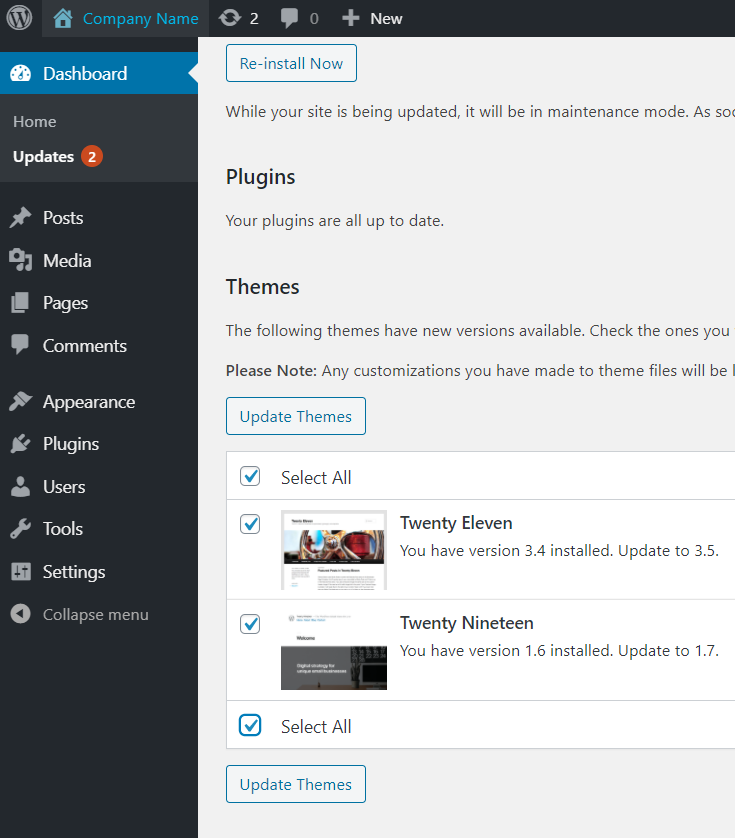
Open the WordPress Dashboard. Find the Appearance tab on the left menu. Click on it. Look for Themes. A list of installed themes will appear. If a theme needs an update, you’ll see a notification. Click Update Now. Wait for the process to complete. Refresh the page to see changes. Always back up your site first.
Visit the theme provider’s site. Log in to your account. Check for any available updates. Download the latest theme files. Go back to the WordPress Dashboard. Navigate to Appearance > Themes. Click Add New. Upload the new theme file. Activate it to start using it. Ensure all settings are correct. Test the site for any issues. Back up data before making changes.
Preparing For The Update
Always make changes in a staging environment first. This is a safe place to test. Your main website stays safe. Setting up a staging site is easy. Many hosting services offer this feature. Use it to test your theme updates. Ensure all plugins and features work well. If something breaks, your live site is not affected. Once all is fine in staging, you can update the live site.
Read the theme documentation before making changes. It contains important details. Learn about new features and improvements. Check for any known issues. Documentation helps you understand the theme better. This will prevent possible errors during updates. Update instructions are usually included. Follow them carefully to avoid problems.
Updating The Theme Via WordPress Dashboard
Easily update a WordPress theme through the dashboard by navigating to ‘Appearance’ and selecting ‘Themes’. Click ‘Update Now’ on the active theme to ensure your website stays fresh and secure. Regular updates improve performance and compatibility with plugins.
Automatic Update Process
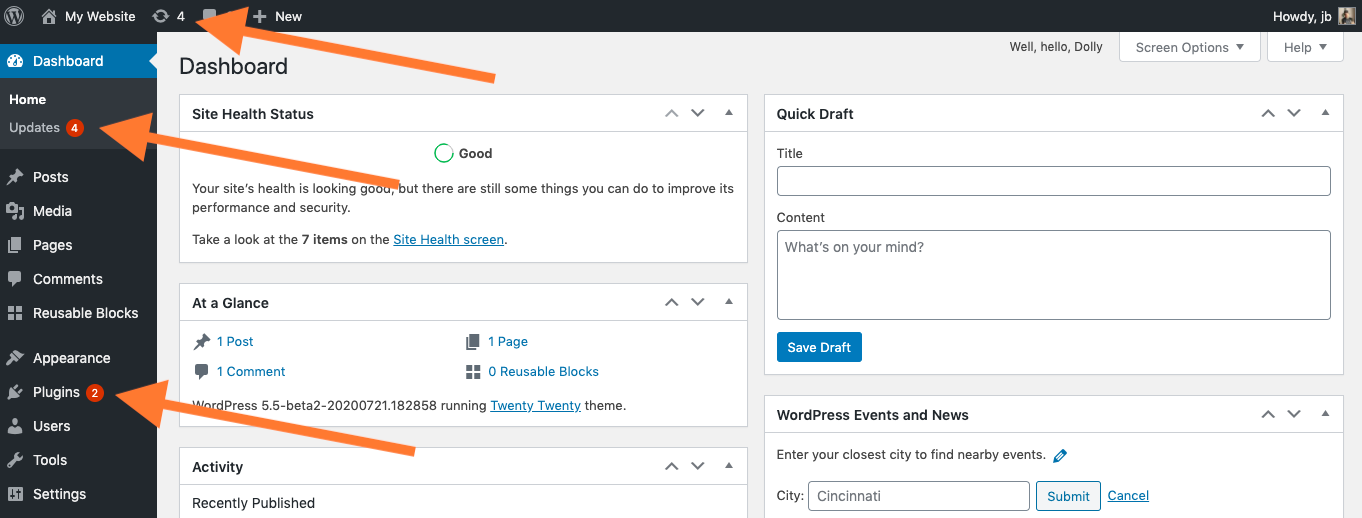
Themes update automatically. Visit the dashboard. Click on Updates. Find the Theme section. Check for any updates. Click Update if available. Wait for it to finish. Your theme updates easily.
Manual Update Steps
Sometimes updates require manual action. Download the latest theme version. Go to the Appearance section in the dashboard. Click Add New. Upload the new theme file. Activate the theme once uploaded. Double-check settings. Ensure everything works smoothly. Manual updates keep themes fresh.
Credit: wordpress.org
Updating The Theme Via Ftp
First, download an FTP client like FileZilla. Open the FTP client. Enter your website credentials. Find your website’s FTP details in your hosting account. Connect to your website server.
Locate the new theme on your computer. Use the FTP client to access your website files. Navigate to the wp-content/themes directory. Delete the old theme folder. Upload the new theme folder. Wait for the upload to complete. Ensure all files are uploaded. Refresh your website to see changes. Check if the new theme works well.
Verifying The Update
After updating your theme, it’s crucial to check site functionality. Load different pages on your site. Ensure all links work correctly. Check menus and widgets. Confirm images display properly. Look at text formatting and style. Your website should look consistent.
Checking Site Functionality
Check the login page first. Ensure users can log in without issues. Navigate to key pages. Confirm they load quickly. Test forms for submissions. Verify they function correctly. Visit the homepage. Ensure it displays as expected. Check responsiveness on different devices. This ensures mobile users have a good experience.
Resolving Common Issues
Sometimes updates cause problems. Theme conflicts can occur. Deactivate plugins one by one. This helps identify issues. Clear your browser cache. It might show old data. If errors remain, contact your theme developer. They can provide assistance. Regular backups prevent data loss. Always keep a backup handy.
Credit: www.inmotionhosting.com
Customizing The Updated Theme
Updating a WordPress theme is simple. First, access your dashboard. Then, navigate to “Appearance” and select “Themes. ” Click on your desired theme to update. Customize the updated theme by adjusting colors, fonts, and layout to match your style. Save changes to see the new look.
Restoring Customizations
Customizations can disappear after a theme update. Always save custom settings before updating. Backup your website to avoid losing changes. It’s important to check each customization after the update. Use the WordPress Customizer to restore settings. This tool helps adjust your site’s look easily. Make sure everything appears as expected. You might need to redo some adjustments. Keep a list of customizations handy. This helps you remember what needs fixing.
Utilizing Child Themes
Child themes are important for customizations. They protect changes during updates. A child theme copies the parent theme’s features. You can add your own styles and functions. This keeps your custom changes safe. Create a child theme before making adjustments. Use it for all custom work. It ensures updates don’t erase your changes. This is a smart way to keep your site unique.
Maintaining Your WordPress Site
Always keep your WordPress theme up-to-date. This helps your site stay secure and running smoothly. Check for updates in your WordPress dashboard often. Install them quickly to avoid issues. Updates can fix bugs and improve features.
Use a staging site for testing first. This way, your main site stays safe. Backup your site before making changes. Backups are important if something goes wrong. Regular updates keep your site fast and reliable. They also help with compatibility with plugins.
Strong passwords are a must for security. Use a mix of letters and numbers. Update them every few months. Use security plugins to protect your site. These plugins can block unwanted users.
Speed is important for users. Optimize images to make your site faster. Use caching plugins to improve load times. Monitor your site’s performance regularly. Fast sites provide a better user experience. A secure site builds trust with visitors.
Credit: www.wpzoom.com
Frequently Asked Questions
How Do You Update A Theme In WordPress?
To update a theme in WordPress, go to your dashboard. Navigate to Appearance > Themes. Check for update notifications on your active theme. Click ‘Update Now’ if available. Ensure you have backups before proceeding. Updating keeps your site secure and compatible with new features.
How Do I Edit An Existing WordPress Theme?
To edit a WordPress theme, use the Theme Editor in the dashboard. Navigate to Appearance, then Theme Editor. Modify code files directly or use a child theme for safer updates. Ensure backups before changes. Alternatively, use page builders for easier customization without coding.
Do WordPress Themes Update Automatically?
WordPress themes do not update automatically by default. Users need to enable automatic updates manually. Navigate to the WordPress dashboard, select “Appearance” and then “Themes. ” Choose your theme and click “Enable auto-updates” to activate this feature. Regular updates enhance security and functionality.
How Do I Manually Change The Theme In WordPress?
To manually change a WordPress theme, navigate to your dashboard. Click “Appearance,” then select “Themes. ” Choose your preferred theme and activate it. Ensure your theme is compatible with current plugins for optimal performance. Always backup your site before making changes to prevent data loss.
Conclusion
Updating a WordPress theme is simple and essential. First, check compatibility with plugins and the latest WordPress version. Backup your site to safeguard data. Navigate to your dashboard and locate the theme update button. Click to initiate the update. Test your site thoroughly after updating.
Ensure all features work smoothly. Address any issues promptly. Regular updates enhance security and performance. Keep your site dynamic and secure by staying updated. Enjoy a fresh look and improved functionality. Updating themes helps maintain a modern, efficient website. Stay proactive in managing your WordPress site.


