Have you ever made a change in WordPress and instantly wished you could take it back? Maybe you updated a page, tweaked your site’s design, or edited a post—and suddenly, things didn’t look or work the way you wanted.
Don’t worry, you’re not alone, and the good news is undoing changes in WordPress is easier than you think. You’ll learn simple, step-by-step ways to reverse those edits quickly and safely. Keep reading, and you’ll never have to stress over accidental changes again.
Common WordPress Changes To Undo
WordPress is easy to use but mistakes happen. Undoing changes is part of managing a site. Some changes need fixing more often than others. Knowing common changes helps you act fast. It keeps your website safe and running well.
Content Edits
Changing text or images is common in WordPress. Sometimes you delete or change something by mistake. Undoing content edits is simple with the revision tool. It lets you go back to an earlier version quickly. This saves time and protects your work.
Theme Modifications
The theme controls your site’s look and style. Changing themes or settings can break the design. You may want to undo if the new look is bad. Restoring a backup or using a child theme helps. Undoing theme changes keeps your site professional.
Plugin Updates
Plugins add features to your site. Updating plugins can cause problems or conflicts. Undoing updates may be necessary to fix errors. You can roll back to an older plugin version. This keeps your site stable and working well.
Settings Adjustments
WordPress settings control many site functions. Changing settings wrong can affect site speed or visibility. Undoing settings changes often means resetting values. Keeping notes of original settings helps. Quick fixes prevent bigger issues later.
Using The Revision Feature
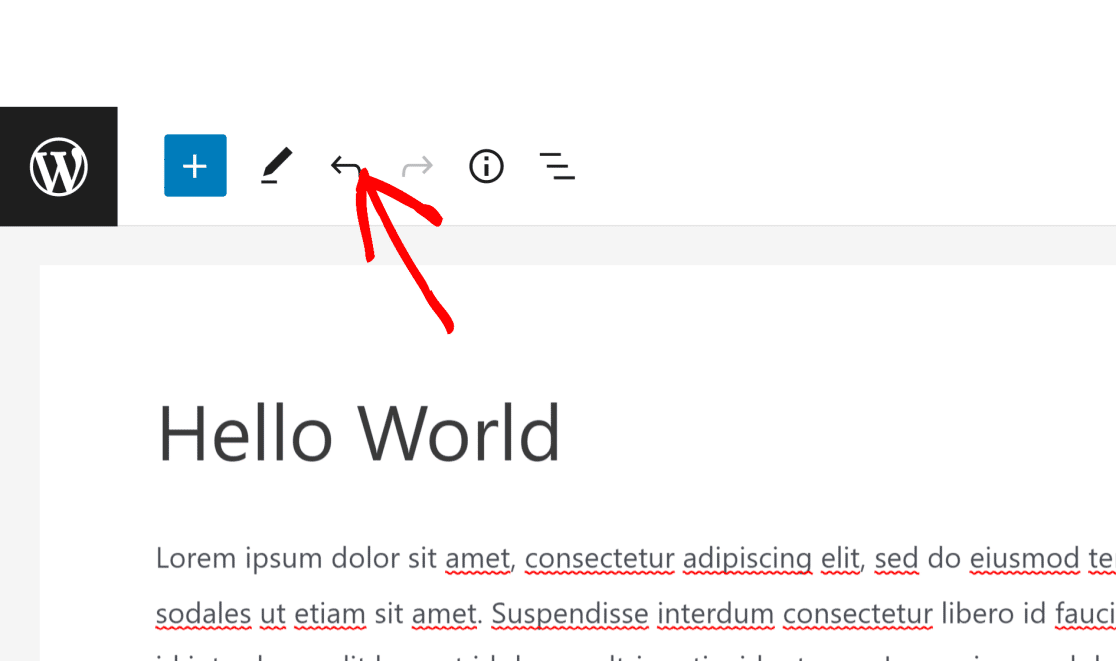
The revision feature in WordPress saves every change you make in posts or pages. It helps track edits and lets you undo mistakes easily. This tool is useful for fixing errors or restoring content you deleted by accident.
You can compare different versions and pick the one you want. No need to worry about losing your work. WordPress keeps a history of your edits for easy access.
Accessing Post Revisions
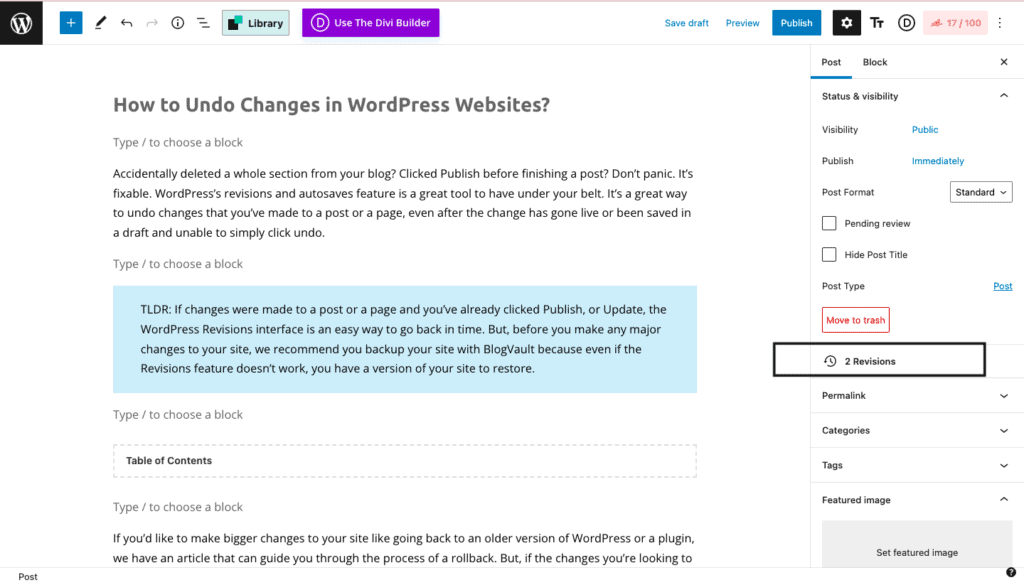
Open the post or page you want to edit. On the right side, find the “Revisions” section in the editor panel. Click on the number of revisions shown. This opens the revision screen with two versions side by side.
Use the slider or arrows to move through different saved versions. The screen highlights what was added or removed. This makes it clear what changes happened over time.
Restoring A Previous Version
Find the version you want to restore using the slider. Check the content carefully to make sure it is correct. Press the “Restore This Revision” button below. WordPress will replace the current content with the selected revision.
Save or update the post to keep the restored version. The revision history still remains, so you can undo again if needed. This feature keeps your content safe and flexible.
Undoing Theme And Plugin Changes
Undoing theme and plugin changes is important for fixing problems on your WordPress site. Sometimes updates cause errors or change your site’s look. Knowing how to undo these changes saves time and stress.
This section explains easy ways to undo theme and plugin changes safely.
Reverting To Default Theme
Reverting to the default theme helps you check if the problem comes from your current theme. Go to Appearance > Themes in your WordPress dashboard. Activate a default theme like Twenty Twenty-One. This shows if your theme causes the issue. You can switch back anytime.
Rolling Back Plugin Updates
Rolling back plugin updates fixes issues caused by new plugin versions. Use a plugin like WP Rollback to return to an older version. Install and activate WP Rollback. Then go to Plugins, find the plugin, and click Rollback. Choose the version you want. This restores previous plugin settings and functions.
Using Backup Plugins
Backup plugins protect your site by saving copies of your files and database. Use plugins like UpdraftPlus or BackWPup. Create backups before making changes. If something breaks, restore your site from the backup. This returns your site to the exact state before the changes.
Credit: wpforms.com
Manual Fixes Via Ftp Or File Manager
Manual fixes via FTP or File Manager offer a direct way to undo changes in WordPress. This method allows you to access your website files and restore them without using the WordPress dashboard. It is helpful when your site breaks or you cannot log in after an update or change.
By manually replacing files, you can fix errors quickly and regain control of your site. This approach requires basic knowledge of FTP or hosting file managers but is very effective for reversing unwanted changes.
Accessing WordPress Files
Start by connecting to your website using an FTP client or your hosting file manager. You will need your FTP login details, usually found in your hosting account. Once connected, locate the WordPress root folder, often called public_html or www.
Inside the root folder, you will see WordPress files like wp-config.php and folders such as wp-content. These contain your themes, plugins, and uploads. Access the files you want to fix or replace here.
Replacing Modified Files
To undo changes, upload a clean version of the modified file to your server. This action overwrites the broken or unwanted file. You can download fresh WordPress files from the official site or use backups you have made earlier.
Ensure you replace files in the correct folders. For example, theme files go in wp-content/themes and plugin files in wp-content/plugins. After uploading, check your site to confirm the fix worked.
Restoring From Backups
Restoring from backups is a reliable way to undo changes in WordPress. Backups save your website’s data and settings. They allow you to return your site to a previous state. This method protects your site from errors or unwanted edits.
Choosing The Right Backup
Choose a backup that matches the date before the change. Check if the backup includes all website files and databases. Use a backup created by your hosting provider or a trusted plugin. Avoid backups that are incomplete or outdated. Always store backups in a safe place.
Restoration Process
Start by accessing your WordPress hosting control panel. Locate the backup section or use your backup plugin. Follow the steps to restore the files and database. Make sure to back up your current site before restoring. After restoration, test your website carefully. Confirm that the unwanted changes are removed.
Credit: duplicator.com
Preventing Future Mistakes
Preventing mistakes in WordPress saves time and stress. It helps keep your site safe and working well. Small steps can stop big problems later. Start with simple habits to protect your work and data.
Regular Backups
Backups copy your website data regularly. They help restore your site if something breaks. Use plugins or your hosting service for backups. Set a schedule to keep backups updated. Store backups in a safe, separate place.
Using Staging Sites
Staging sites are copies of your live website. They let you try changes without risk. Test new themes, plugins, or edits here first. Fix any issues before updating your main site. Many hosts offer easy setup for staging sites.
Testing Updates Safely
Updates improve your site but can cause errors. Check updates on a staging site before applying. Review your site’s functions after updating plugins or themes. Keep your WordPress and tools up to date for security. Test each update carefully to avoid surprises.
Credit: blogvault.net
Frequently Asked Questions
How Can I Undo Recent Changes In WordPress?
You can undo recent changes using the WordPress revision feature. Edit the post or page, then click “Revisions” to restore a previous version easily.
Is It Possible To Undo Plugin Changes In WordPress?
Yes, you can undo plugin changes by deactivating or deleting the plugin. Always backup your site before making plugin changes.
Can I Restore Deleted Content In WordPress?
Yes, deleted posts or pages go to the Trash folder. You can restore them by navigating to Trash and clicking “Restore. ”
How Do I Revert Theme Changes In WordPress?
To revert theme changes, switch back to the previous theme under Appearance > Themes. You can also use a backup to restore customizations.
Conclusion
Undoing changes in WordPress is simple and quick. Use the built-in revision feature to restore old versions. Always save your work before making edits. This way, you can avoid losing important content. Backups help protect your site from bigger mistakes.
Practice these steps to keep your site safe and clean. Editing becomes less stressful with these easy tips. Your WordPress site stays organized and error-free. Keep learning to improve your skills bit by bit.