

Are you thinking about moving your domain from Google to another host but don’t know where to start? Transferring a domain might sound complicated, but it doesn’t have to be.
In this guide, you’ll discover simple, step-by-step instructions to make the process smooth and stress-free. Whether you want better features, lower costs, or more control, this article will help you take action confidently. Keep reading to learn how to transfer your domain quickly and safely, without losing traffic or downtime.

Credit: www.youtube.com
Prepare Your Domain For Transfer
Preparing your domain for transfer is a key step before moving it from Google to another host. This process ensures the transfer goes smoothly without delays or issues. Follow these steps carefully to get your domain ready for the change.
Check Domain Eligibility
First, confirm if your domain is eligible for transfer. Domains must be at least 60 days old to transfer. Also, check if there are any holds or restrictions on your domain. Domains on hold or recently registered cannot move yet. Make sure your domain is active and unlocked for transfer.
Unlock Your Domain
Next, unlock your domain in your Google Domains account. Locked domains prevent unauthorized transfers. Log in to Google Domains, select your domain, and find the domain lock setting. Turn off the lock to allow the transfer. Keep this setting off until the transfer completes.
Disable Privacy Protection
Privacy protection hides your personal details from public view. Many hosts require this to be off during transfer. Go to your domain’s privacy settings in Google Domains. Turn off privacy or WHOIS protection. This lets the new host verify your ownership. Remember to enable privacy again after transfer.

Credit: discourse.webflow.com
Obtain The Authorization Code
Obtaining the authorization code is a key step to transfer your domain from Google to another host. This code acts like a password. It ensures only you can move your domain. Without this code, the transfer cannot start.
You need to access your Google Domains account and find the code. It is also called the EPP code or transfer key. Keep it safe and ready for the next steps.
Access Google Domains Settings
First, log in to your Google Domains account. Use your email and password linked to the domain. After signing in, find the domain you want to transfer.
Click on the domain name to open its settings. Look for the section related to domain management or transfer. This is where you can request the authorization code.
Request Epp Code
Inside the domain settings, find the option to get the EPP code. It might be called “Get authorization code” or “Transfer code.”
Click this option. Google will either show the code immediately or send it to your email. Check your inbox carefully. Use this code in your new host’s transfer process.
Initiate Transfer With New Host
Starting the domain transfer process with your new host is a key step. This phase connects your domain from Google to the new hosting provider. It sets the stage for a smooth change without downtime.
Follow the steps carefully. Each action helps keep your domain safe and ready for the move.
Choose A New Registrar
Select a domain registrar that fits your needs. Check their pricing, support, and features. Pick one that offers easy transfer support and good customer service. This choice affects your domain management later.
Start Transfer Process
Log in to the new registrar’s website. Find the domain transfer section. Enter your domain name to begin. The system will check if the domain can be moved. Confirm your request to start the transfer.
Enter Authorization Code
The new registrar will ask for an authorization code. This code comes from your current registrar, Google Domains. It proves you own the domain and agree to the move. Enter the code carefully to avoid delays.
Verify And Approve Transfer
After initiating the domain transfer, the next step is to verify and approve the process. This step ensures you have control over the domain and prevents unauthorized transfers. Taking time to confirm the transfer request and approve it properly keeps your domain safe. Follow these simple steps to complete the verification and approval smoothly.
Confirm Transfer Request
Check your current domain registrar account for the transfer request. You must approve the request to continue the process. Look for any alerts or notifications about the domain transfer. Confirming the transfer shows you agree to move the domain to the new host.
Check Email For Approval
The domain owner’s email will receive a message about the transfer. This email contains a link or instructions to approve the transfer. Open the email carefully and follow the steps provided. Approving the transfer by email is a key step to avoid delays.
Monitor Transfer Status
After approval, the transfer will begin and may take several days. Watch the transfer status in both your old and new registrar accounts. Stay alert for any messages that need your action. Monitoring the status helps you know when the domain transfer is complete.
Post-transfer Steps
After transferring your domain from Google to a new host, some important tasks remain. These steps ensure your website stays online and works correctly. Follow them carefully to avoid downtime or loss of control over your domain.
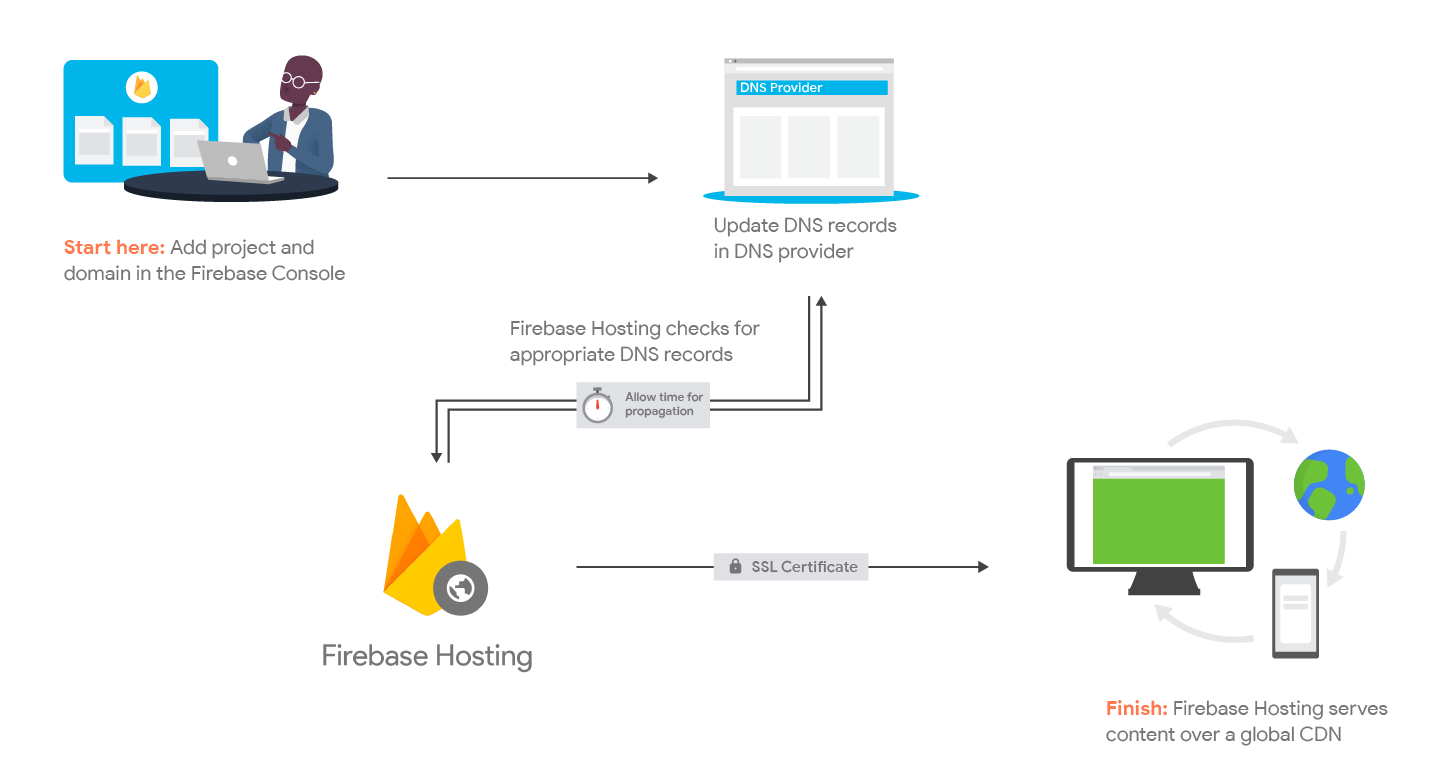
Update Dns Settings
Change your DNS settings at the new host’s control panel. Point your domain to the correct web server IP address. This step connects your domain with your website hosting. Without updating DNS, visitors cannot reach your site. Allow up to 48 hours for DNS changes to spread worldwide.
Renew Domain Registration
Check the domain’s expiration date after transfer. Renew it early if needed to keep ownership. Some hosts offer auto-renewal; enable it to avoid accidental loss. Keep your contact details up to date to receive renewal notices. Missing renewal can cause your domain to expire and become unavailable.
Check Website Functionality
Visit your website using your domain name. Confirm all pages load properly and links work. Test email accounts linked to the domain to ensure they function. Clear your browser cache if you see old content. Fix any errors quickly to keep your visitors happy.
Credit: firebase.google.com
Troubleshooting Common Issues
Transferring your domain from Google to another host can sometimes face issues. These problems may slow down the process or cause errors. Knowing how to fix common troubles helps you save time and stress. Here are some typical problems and easy ways to solve them.
Transfer Delays
Transfers can take several days to complete. This delay happens due to verification or registrar rules. Check your email for confirmation requests. Missing these emails can pause your transfer. Also, avoid making recent changes to your domain. Updates might cause the transfer to freeze until they clear.
Authorization Code Problems
The authorization code is essential for a smooth transfer. Make sure you get the exact code from Google Domains. Mistyped or expired codes will cause errors. Request a new code if the first does not work. Enter the code carefully on your new host’s transfer page.
Domain Lock Issues
Domains often have a lock to prevent unauthorized moves. You must unlock your domain before transfer. Log in to Google Domains and find the lock settings. Turn off the domain lock to allow the transfer. If the lock stays on, the transfer will fail.
Frequently Asked Questions
How Do I Unlock My Google Domain For Transfer?
To unlock your Google domain, sign in to Google Domains. Select the domain, go to “Registration settings,” and disable the domain lock. This allows you to initiate the transfer to another host smoothly and without restrictions.
What Is An Authorization Code For Domain Transfer?
An authorization code, or EPP code, is a unique key from Google Domains. It verifies you own the domain and authorizes the transfer to your new host. You’ll need this code to complete the transfer process securely.
How Long Does Transferring A Domain From Google Take?
Domain transfers from Google usually take 5 to 7 days. The exact time depends on the new registrar and domain extension. You can speed up the process by approving any confirmation emails promptly.
Will My Website Face Downtime During Domain Transfer?
Typically, domain transfers do not cause website downtime if DNS settings remain unchanged. Keep your current hosting and DNS active until the transfer completes to ensure continuous website availability.
Conclusion
Transferring your domain from Google to another host is simple. Follow each step carefully to avoid mistakes. Keep your domain unlocked and get the authorization code. Start the transfer with your new host and confirm the process. Watch your email for important messages during transfer.
The move may take a few days to finish. After transfer, check your website and email settings. Stay patient and double-check all details. This guide helps you move your domain with ease. Now, your website can grow with a new hosting provider.


