
Switching web hosts can seem daunting, but it doesn’t have to be. You’re not alone if you’ve ever wondered how to transfer your website’s info from one host to another without losing data or disrupting your online presence.
Whether you’re seeking better performance, cost savings, or improved customer support, moving your site is a pivotal step to achieving your goals. Imagine the peace of mind you’ll feel knowing your site is seamlessly settled into its new home, ready to serve your audience with enhanced efficiency.
You’re about to discover the steps to make this transition smooth and stress-free, ensuring your website continues to thrive. So, buckle up and dive into this guide that will empower you with the knowledge you need to make the switch effortlessly.
Choosing The Right Web Host
Understanding your hosting needs is very important. Start by listing your website’s features. Do you need lots of storage? What about high traffic support? Consider if you want email hosting. These factors help you choose the best host.
Look at different hosting plans. Some hosts offer shared hosting. Others provide dedicated servers. Compare prices and features. Check customer reviews. A good host should have great support. Make sure the host has a reliable uptime. Security features are also important. Choose a host that fits your budget and needs.

Credit: www.znetlive.com
Preparing For The Transfer
Switching web hosts involves careful preparation to ensure a smooth transition. Back up all website files and databases. Update domain settings to point to the new host.
Backing Up Data
Data safety is crucial. Always create backups before transferring. Use your web host’s backup tool. It saves time and ensures safety. Save all files and databases. Download backups to your computer. Check their completeness. It’s better to be safe than sorry. Double-check everything.
Checking Domain And Dns Settings
Domains link your site to the web. DNS settings manage this link. Verify that your domain is unlocked. Check the DNS records. Ensure they are correct. Update them if needed. This avoids downtime. Incorrect settings can cause problems. Always review them carefully.
Migrating Website Files
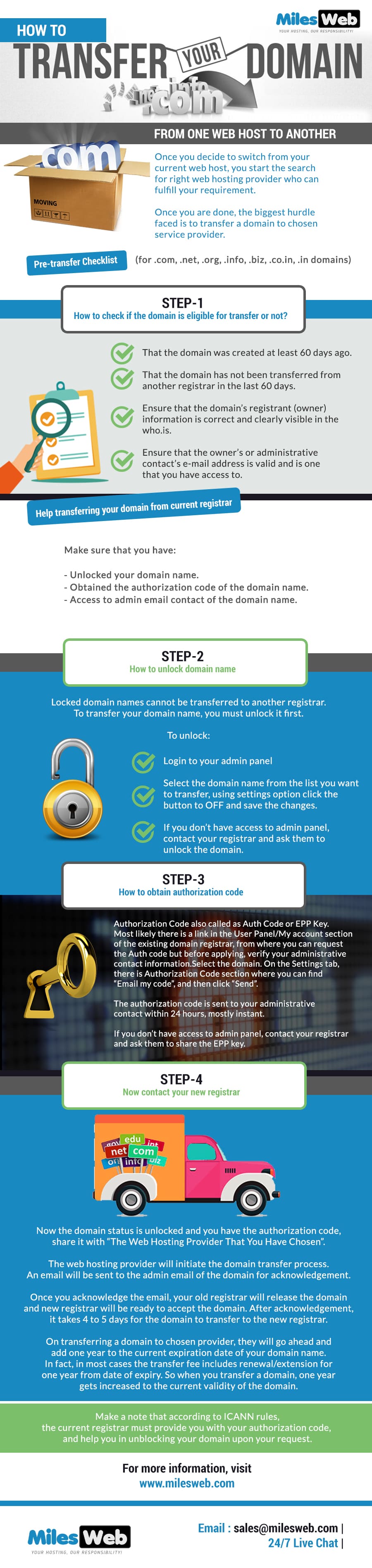
FTP stands for File Transfer Protocol. It helps move files between computers. First, get an FTP client. FileZilla is a popular choice. Then, connect to your old web host. You will need a username and password. Once connected, find your website files. Select and download them to your computer. Next, connect to your new web host. Upload the files you downloaded. Ensure all files are uploaded. Double-check everything. This process is simple but requires care.
Transferring databases is crucial. You need phpMyAdmin for this. Log into your old host’s phpMyAdmin. Select your database. Click on Export to download it. Save the file safely. Now, log into your new host’s phpMyAdmin. Create a new database. Select Import and upload your saved file. Check for any errors. Ensure everything is correct. A small mistake can cause issues. Take your time.
Credit: www.milesweb.com
Configuring The New Host
Begin by creating new email accounts on the new host. Use the same names as before. This keeps things simple. Most hosts have easy guides. Follow them step-by-step. Check email settings carefully. This ensures smooth delivery. Test each account by sending emails. Make sure you receive replies. This confirms everything works well.
Security is very important. Always use strong passwords for all accounts. Mix letters, numbers, and symbols. Enable two-factor authentication if possible. This adds an extra layer of safety. Regularly update your security settings. This helps protect your data. Check for any firewall settings. Adjust them as needed. This prevents unwanted access.
Testing The Transferred Website
Verify all links and buttons. Click them to see if they work. Ensure images load properly. Check if forms submit correctly. Test the site’s speed. Make sure pages open fast. Look for any missing elements. Ensure no content is lost.
Some pages might not appear. Check your DNS settings. Update them if needed. Errors may show up on the site. Look into the error messages. Consult your hosting provider for help. They can guide you. Ensure all files are uploaded. Missing files cause issues.
Credit: www.wpbeginner.com
Finalizing The Transfer
DNS records are like a phone book for the internet. They tell browsers where to find your website. You need to update these records to point to the new web host. This step is crucial for making your site live on the new server. Log into your domain registrar. Find the DNS settings section. Enter the new host’s DNS information. Save the changes. It might take some time for the changes to take effect. Sometimes up to 48 hours. This is called DNS propagation. Be patient.
After the transfer, check your website’s performance. Make sure everything works smoothly. Look for any broken links or missing pages. Use tools to check site speed and uptime. Address any issues you find promptly. Happy website means happy visitors. Keep an eye on your site’s traffic and loading speed. Regular monitoring helps in catching problems early. This ensures your site runs well on the new host.
Frequently Asked Questions
How Do I Transfer My Website Content To A New Host?
Backup your website files and database. Choose a reliable new host. Upload files to the new host. Import the database. Update DNS settings to point to the new host.
How Do I Transfer Data From One Website To Another?
Use a website migration tool or plugin to transfer data efficiently. Ensure both websites are compatible. Backup data before starting. Follow step-by-step instructions for smooth migration. Verify all data post-transfer.
How To Transfer From One Host To Another?
To transfer hosting, first backup your website files and database. Then, sign up with the new host. Upload your files to the new server and restore the database. Update DNS settings to point to the new host. Finally, test your website to ensure everything functions correctly.
How Do I Transfer Files From One Host To Another?
Use FTP to transfer files between hosts. Connect both servers via an FTP client and drag files. Alternatively, utilize SSH for secure transfers. Execute SCP commands for file migration. Ensure you have login credentials for both servers.
Conclusion
Transferring your website is not as hard as it seems. With careful planning, you can move your data smoothly. Always back up your files to avoid losing important information. Choosing a reliable new host makes a big difference. Follow each step patiently and double-check your settings.
Seek help if you feel stuck. Many resources are available online to guide you. Once complete, your website will run smoothly on the new host. Enjoy the benefits of improved performance. Your visitors will appreciate the seamless experience. Happy hosting!


