
Are you planning to move your domain from Namecheap to GoDaddy but feeling overwhelmed by the process? You’re not alone.
Many people find domain transfers confusing, yet knowing how to do it smoothly can save you time and frustration. In this guide, you will discover a simple, step-by-step method to transfer your domain effortlessly. Imagine the peace of mind you’ll experience once your domain is securely in GoDaddy’s hands.
By following our easy instructions, you’ll avoid common pitfalls and ensure a seamless transition. Stick around to learn how to make this move stress-free and efficient, ensuring your online presence remains uninterrupted.
Preparation Steps
Transferring a domain from Namecheap to GoDaddy requires careful preparation. Avoid disruptions by setting up everything before starting. These steps will guide you smoothly through the process. Make sure your domain is eligible and backed up.
Check Domain Eligibility
Ensure your domain meets transfer requirements. Verify that the domain is active and not expired. Check for a locked status; it must be unlocked for transfer. Confirm it is at least 60 days old. This is a universal rule for domain transfers. Resolve any pending issues to avoid delays.
Backup Important Data
Protect your data by backing up essential information. Store website files and databases securely. Consider exporting contact lists and email settings. Don’t forget to save configuration files. This ensures nothing is lost during the transfer.

Credit: punchsalad.com
Unlocking Your Domain
Transferring your domain from Namecheap to GoDaddy involves a few simple steps. First, unlock your domain and get the authorization code from Namecheap. Then, initiate the transfer process on GoDaddy by entering the code and confirming your details.
Transferring your domain from Namecheap to GoDaddy can seem daunting, but it doesn’t have to be. One of the first steps in this process is unlocking your domain. This is crucial because it allows you to move your domain freely. Without unlocking, you’ll find yourself stuck. Once your domain is unlocked, the pathway to a smooth transfer opens up. Have you ever felt the frustration of being unable to move something important? Unlocking your domain is like finding the key to that locked door. ###Access Namecheap Account
Begin by logging into your Namecheap account. Make sure you remember your username and password. If not, a quick password reset can save the day. Once you’re in, navigate to the dashboard. It’s your command center for all things domain-related. From the dashboard, you’ll easily spot your list of domains. It’s like a digital library, only instead of books, you have domains. Select the domain you wish to transfer. A simple click will take you closer to your goal. ###Locate Domain Settings
Now, it’s time to delve into the domain settings. Can you find the settings tab? It’s usually located next to your domain name on the dashboard. Click on it to access more options. In the domain settings, look for the ‘Domain Lock’ feature. This feature is like a security guard for your domain. You’ll need to disable it to proceed. Switching it off is as easy as toggling a button. Once you’ve disabled the domain lock, your domain is ready for the next steps in the transfer process. Feel a sense of achievement? You’ve just unlocked a critical part of your domain transfer journey. What’s your next move?Obtaining Epp Code
To transfer from Namecheap to GoDaddy, first obtain the EPP code. This code, also known as the authorization code, is crucial for domain transfer. Access it through your Namecheap account dashboard.
Obtaining the EPP code is a crucial step when transferring your domain from Namecheap to GoDaddy. This code, also known as the transfer authorization code, acts like a key, allowing you to unlock your domain for transfer. Without it, you’re stuck. But don’t worry, getting your EPP code is straightforward and, as you’ll see, quite empowering.Request Transfer Authorization Code
First, log into your Namecheap account. Navigate to the “Domain List” section on your dashboard. Click “Manage” next to the domain you want to transfer. You’ll find the option to request your EPP code under “Sharing & Transfer”. Click on “Get EPP Code”. This might prompt you to verify your identity. It’s a security measure to ensure you’re the rightful owner.Verify Code Receipt
Once you’ve requested it, check your email for the EPP code. Namecheap typically sends it to the email address associated with your account. Don’t forget to check your spam or junk folder if it doesn’t appear right away. Double-check the email details. Is the code correct? Does the email seem legitimate? It’s your responsibility to ensure everything is in order. Have you ever misplaced an important email and kicked yourself later? That’s why it’s smart to save this one safely. Maybe create a folder specifically for domain-related communications. Obtaining the EPP code is just one step in your domain transfer journey, but it’s a vital one. Are you ready to move forward with confidence?
Credit: www.youtube.com
Initiating Transfer On Godaddy
Transferring domains from Namecheap to GoDaddy involves unlocking the domain on Namecheap. Then, obtain the authorization code. Start the transfer on GoDaddy by entering this code. Follow GoDaddy’s instructions to complete the process smoothly.
Initiating a domain transfer to GoDaddy can seem challenging. This guide will simplify the process for you. First, prepare by unlocking your domain at Namecheap. Obtain your EPP code. Now, you’re ready to start the transfer on GoDaddy.Log Into Godaddy
Begin by accessing your GoDaddy account. Use your username and password. Navigate to the domain transfer section. Familiarize yourself with the dashboard. This area is where you will manage your domains.Enter Domain And Epp Code
Input your domain name in the provided field. Make sure you enter it correctly. Next, you’ll need the EPP code. This code is crucial for transferring. It confirms your authority over the domain. Enter the EPP code carefully. Double-check for any errors. A correct entry will ensure a smooth transfer.Monitoring Transfer Progress
Transferring your domain from Namecheap to GoDaddy is an exciting step, but it doesn’t end when you click ‘transfer’. Monitoring the progress of your transfer is crucial to ensure a smooth transition. Staying informed during this phase can save you from potential headaches.
Check Status Updates
Once you initiate the transfer, it’s essential to frequently check the status updates provided by both Namecheap and GoDaddy. These updates are your roadmap, guiding you through the transfer journey. Don’t just wait passively.
Log into your Namecheap account and navigate to the domain transfer section. Here, you’ll find a clear timeline detailing each step of the process. GoDaddy will also send notifications, so keep an eye on your email.
What if something goes wrong? Act fast by contacting customer support for assistance. They can help resolve issues quickly.
Respond To Confirmation Emails
During the transfer, you’ll receive confirmation emails from both Namecheap and GoDaddy. Responding promptly is crucial. These emails often require your action to approve the transfer.
Have you ever missed an important email? It’s easy to do, especially when you’re busy. Make it a habit to check your spam or junk folder too. Sometimes, essential emails get miscategorized.
Why wait? Confirming your transfer without delay means you’ll avoid unnecessary bottlenecks in the process. Be proactive and ensure you don’t miss these crucial steps.
Monitoring your domain transfer progress might feel like a chore, but it’s a necessary one. Are you keeping a vigilant eye on your transfer? It’s up to you to ensure everything goes smoothly. You’ve got this!
Credit: www.namecheap.com
Post-transfer Actions
After transferring your domain from Namecheap to GoDaddy, update your DNS settings. Ensure your website remains accessible. Verify email accounts and renew your domain to avoid disruptions.
After transferring your domain from Namecheap to GoDaddy, some tasks remain. These steps ensure your domain functions correctly on its new platform. Completing these tasks is crucial for the seamless operation of your website. Follow the steps below to make sure everything is set up properly.Verify Domain On Godaddy
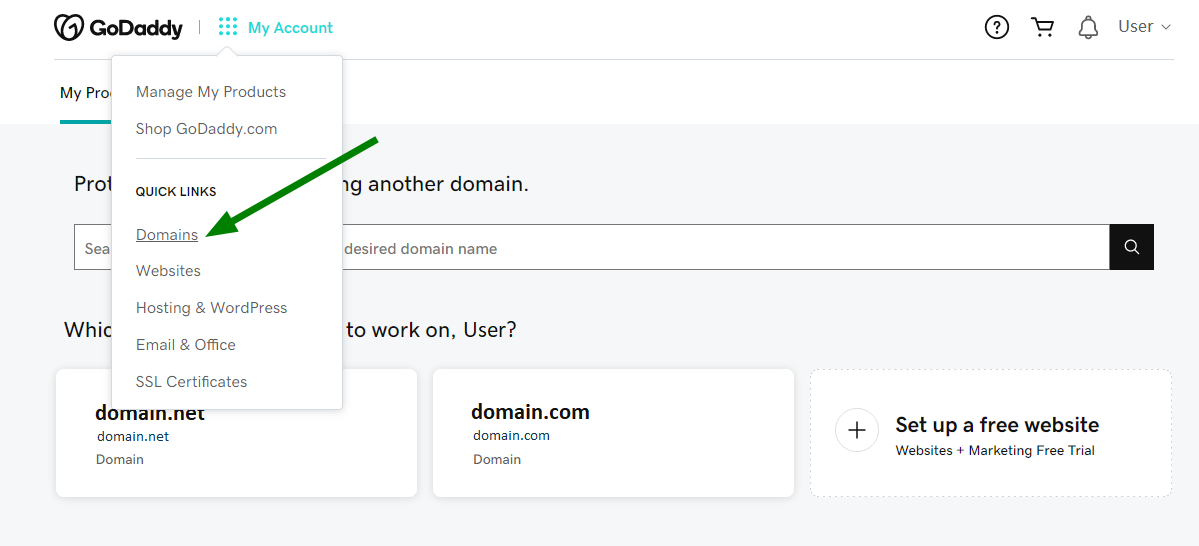
First, confirm your domain transfer to GoDaddy. Log into your GoDaddy account. Navigate to the “Domains” section. Check if your domain appears there. If visible, the transfer succeeded. Sometimes, verification emails are sent. Look for these emails. Follow any instructions they provide. This step secures your domain’s status with GoDaddy.Update Dns Settings
Next, update your DNS settings. These settings direct internet traffic to your website. Access the DNS settings in your GoDaddy dashboard. Enter the correct DNS records. Use your hosting provider’s details. This step connects your domain to the right server. Make sure your website remains accessible. Changes can take a few hours to propagate. Check if your website functions properly. If issues arise, contact GoDaddy support. Their team can assist with DNS problems.Frequently Asked Questions
Can I Switch From Namecheap To Godaddy?
Yes, you can switch from Namecheap to GoDaddy. Begin by unlocking your domain at Namecheap. Obtain the authorization code, then initiate the transfer process at GoDaddy. Follow GoDaddy’s instructions to complete the transfer. Ensure your domain meets the eligibility requirements for transfer.
Can I Transfer My Existing Website To Godaddy?
Yes, you can transfer your existing website to GoDaddy. Use their migration tool for seamless transfer. Ensure your domain and hosting details are accurate. Contact GoDaddy support for assistance if needed. Enjoy reliable hosting and expert customer service once transferred.
How Do I Transfer My Domain To My Godaddy Account?
Unlock your domain at the current registrar. Obtain the authorization code. Log in to your GoDaddy account. Go to “Domains” and select “Transfer”. Enter your domain and authorization code. Follow the prompts to complete the transfer.
How Do I Transfer A Domain From Namecheap?
Unlock your domain on Namecheap. Obtain the authorization code. Initiate the transfer with your new registrar. Confirm the transfer via email. The process usually completes within 5-7 days.
Conclusion
Switching from Namecheap to GoDaddy is straightforward. Follow each step carefully. Double-check all details for accuracy. Keep your domain safe during transfer. Remember to update your DNS settings. This ensures your website stays online. Seek help if needed. Both Namecheap and GoDaddy offer support.
Successfully transferring domains boosts confidence. Take your time, and don’t rush. Your website’s stability matters most. Happy transferring, and enjoy your new hosting experience with GoDaddy!


