
Transferring a domain to another web hosting service might sound like a daunting task, but it’s simpler than you think. If you’ve ever felt stuck with your current host or found a better deal elsewhere, knowing how to transfer your domain can open up exciting possibilities for your website’s future.
This guide will walk you through the process step-by-step, ensuring you make the move smoothly and without stress. Imagine having the freedom to choose the perfect host for your needs, with faster speeds, better support, or more features. You deserve a web hosting service that works for you, not against you.
By mastering the art of domain transfer, you can take control of your online presence and ensure your site thrives under the best conditions. Ready to unlock the potential of your domain? Let’s dive in and explore how you can make this transition effortlessly.
Choosing The Right Web Hosting Provider
Think about what your website needs. Do you need lots of space? Is your website busy with many visitors? Identify key requirements for your site. This helps in choosing the right host. Some hosts are better for big sites. Others are good for smaller ones. Know what you need first.
Check what each hosting service offers. Look at storage, bandwidth, and security. Compare prices and features. See if they offer backups. Ask if they have easy-to-use tools. Some hosts give more features for your money. Pick a host that fits your site’s needs.
Customer support is very important. Good support solves problems fast. Look for 24/7 support. Check if they have chat, email, and phone help. Read reviews about their service. Good support makes your hosting experience smooth. Choose a host that values customer help.
Preparing For Domain Transfer
Always save your website data before a transfer. Use a reliable tool to create backups. Store them safely on your computer. Backups protect your files and ensure nothing is lost. A backup is like having an extra copy of your work.
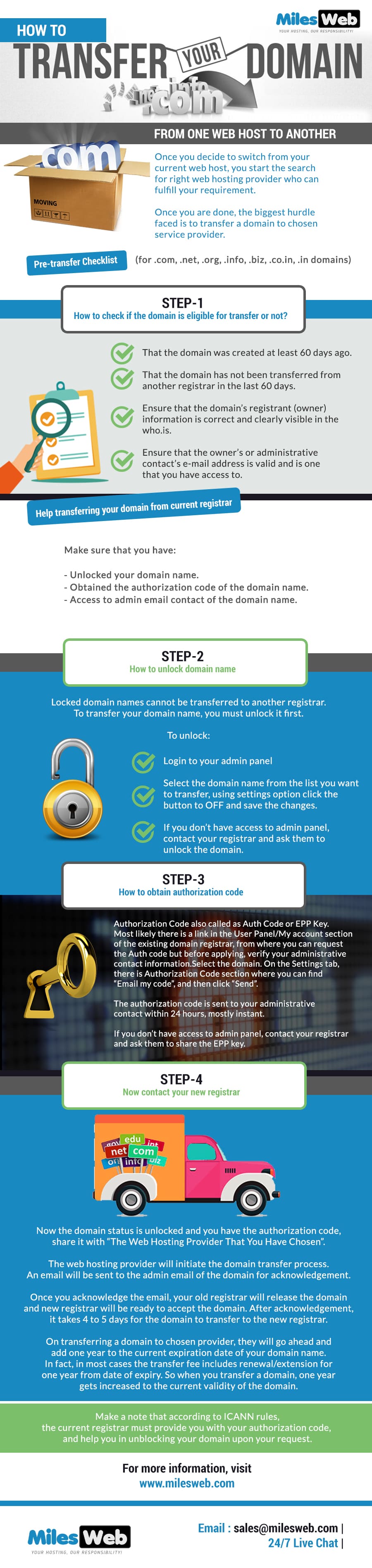
Ensure your domain is ready for transfer. It should be at least 60 days old. Make sure it is not locked. Check the domain status with your registrar. Unlock the domain if needed. These steps help in smooth transfer.
Collect all important details. You need the EPP code from your current registrar. This code is also called the transfer key. It is like a password for your domain. Keep it safe and ready for use. Knowing this information helps in quick transfer.
Unlocking Your Domain
Domains have a security feature called domain locks. These locks keep your domain safe. They stop unauthorized transfers. To transfer your domain, you must unlock it first.
- Log in to your domain account.
- Find the domain settings page.
- Locate the lock option.
- Click to unlock your domain.
- Save your changes.
Obtaining Authorization Code
The authorization code is a unique key. This key helps in transferring a domain. It ensures that you own the domain. Think of it as a password for your domain.
Contact your current registrar. Ask them for the authorization code. You might need to log in to your account. Check the domain settings section. The code is usually there.
Some registrars send the code via email. Make sure your email is up to date. Always keep this code safe and secure. It’s important for your domain transfer.
Initiating Domain Transfer
Transferring a domain needs careful steps. First, unlock your domain on your current host. This is needed for a smooth move. Next, check if your contact info is up-to-date. The new host will send you emails. Always keep your email valid.
You need an authorization code. This is a secret code. Ask your current host for it. They will send it to your email. Keep the code safe. The new host will need it. Without this, your domain stays locked. Use the code to start the transfer. Follow the steps given by your new host. This makes the process easy.

Credit: m.youtube.com
Confirming Domain Transfer
Once you initiate a domain transfer, keep an eye on its progress. Visit the domain registrar’s website to check the transfer status. It’s important to verify that the domain’s auth code is correct. This code is crucial for a successful transfer. You might receive emails asking for confirmation. Always respond promptly to these messages. They ensure the transfer process moves smoothly. If you don’t respond, the transfer might get stuck.
Monitoring Transfer Status
Access the transfer dashboard regularly. Look for any updates or errors. Sometimes, transfers can take a few days. Patience is key. If the status shows “pending,” wait for a confirmation. The registrar will send you updates via email. Make sure your email address is accurate. This helps you get the latest information.
Resolving Potential Issues
Sometimes issues arise during transfers. Check for any lock on your domain. Unlock it if necessary. Verify all information entered is correct. Mistakes can delay the transfer. Contact your registrar’s support if you face problems. They can guide you through the steps. Ensure all fees are paid. Unpaid fees can halt the transfer process. Regularly check your spam folder for important emails. Missing these can cause delays.
Post-transfer Actions
Ensure your domain functions smoothly after transfer. Update nameservers, verify domain settings, and check email configurations. Keep your website accessible to users.
Updating Dns Settings
After transferring your domain, it’s crucial to update the DNS settings. This ensures your site points to the right server. Access your domain registrar’s dashboard. Locate the DNS section. Enter the new hosting provider’s nameservers. This step is vital for smooth website operation. Changes might take up to 48 hours to propagate. During this time, your site might not be accessible. Patience is key. Monitor the progress through DNS propagation tools. Ensure all records are correct. Double-check your entries to avoid any errors.
Testing Your Website
Once DNS settings are updated, test your website. Ensure all pages load correctly. Check for broken links. Verify images and media files display properly. Navigate through different sections. Ensure forms and interactive elements work. If you find any issues, address them promptly. Use different browsers to test compatibility. Make sure the website is responsive on mobile devices. These steps are vital for maintaining a seamless user experience.

Credit: www.youtube.com
Common Pitfalls To Avoid
Ignoring transfer deadlines can cause big problems. Domains need time to move. Missing these deadlines can lead to delays. Your website might be offline. This can affect your business. Keep track of all dates. Mark them on your calendar. It’s important for a smooth transfer.
Overlooking compatibility issues can also be tricky. Not all hosts support every domain type. Some may not work with your domain. Check before you start the transfer. Make sure your new host supports your domain. Talk to their support team if unsure. This avoids surprises.
Tips For A Smooth Transfer
Always keep in touch with the support team. They help solve problems quickly. Ask questions if you have doubts. Clear communication saves time. Be polite and patient. They are there to help you. Make sure to write down important details.
Keep backup copies of your files. This is important. It helps prevent data loss. Use a reliable tool for backups. Save backups in multiple places. This adds safety. Keep backups updated regularly. This ensures you have the latest data.
Credit: www.milesweb.com
Frequently Asked Questions
Can I Transfer My Domain Name From One Web Host To Another?
Yes, you can transfer your domain name to another web host. Ensure your domain is unlocked. Obtain the authorization code from your current registrar. Follow the new host’s transfer instructions to complete the process. The transfer may take up to seven days.
Ensure your domain remains active throughout.
How Difficult Is It To Transfer A Domain?
Transferring a domain is generally straightforward. Unlock the domain, obtain the transfer code, and initiate the transfer with the new registrar. Ensure your domain is eligible for transfer, not expired, and check for any domain-specific restrictions. Follow the registrar’s instructions for a seamless transfer process.
Can I Transfer My Domain From Godaddy To Bluehost?
Yes, you can transfer your domain from GoDaddy to Bluehost. Unlock your domain and obtain the EPP code from GoDaddy. Initiate the transfer on Bluehost’s platform. Follow the instructions to complete the process. Ensure your domain is eligible for transfer, usually after 60 days of registration or previous transfer.
How Do I Transfer A Domain To A New Provider?
Unlock your domain and get an authorization code from your current provider. Initiate the transfer at your new provider. Enter the authorization code when prompted. Confirm the transfer via email if required. Wait for the transfer to complete, usually within five to seven days.
Conclusion
Transferring a domain to a new web host is straightforward. Keep details organized for a smooth process. Follow each step carefully. Ensure your new hosting supports your domain. Verify DNS settings after the transfer. Check website functionality on the new host.
Contact support if issues arise. Patience is key during the transfer. Completion brings relief and satisfaction. Your website gains stability and improved performance. Enjoy the benefits of your new web host. Make the most of your updated online presence.


