
Are you looking to transfer your domain from Namecheap to Shopify but don’t know where to start? You’re in the right place.
Navigating domain transfers can seem tricky, but we’re here to simplify the process for you. Imagine the possibilities when your domain aligns seamlessly with your Shopify store, enhancing your brand’s visibility and credibility. It’s not just about moving from one platform to another; it’s about unlocking the full potential of your online business.
In this guide, we’ll walk you through each step, ensuring a smooth transition. You’ll gain confidence and control over your domain, making your Shopify store the best it can be. Stick with us, and you’ll find that transferring your domain is easier than you think. Let’s dive in and make this transition a breeze.
Preparing Your Domain For Transfer
Transferring a domain from Namecheap to Shopify involves a few straightforward steps. Start by unlocking your domain in Namecheap and obtaining the transfer code. Enter the code in Shopify to initiate the transfer process.
Transferring your domain from Namecheap to Shopify can feel daunting, but preparing your domain for transfer is a straightforward process. Before diving into the technical details, ensure your domain is ready for the move. Proper preparation will ensure a smooth transition and minimize downtime for your online store. ###Unlocking Your Domain
The first step in preparing your domain is unlocking it. Domains are often locked to prevent unauthorized transfers. Log into your Namecheap account and navigate to the “Domain List” section. Here, you’ll see your domains listed. Click on “Manage” next to the domain you wish to transfer. In the “Domain Lock” section, toggle the switch to unlock your domain. A simple click can make all the difference. Unlocking your domain is a critical step that many people overlook. Without it, you won’t be able to initiate the transfer process. Have you ever tried to access something important and realized it was locked away? It’s frustrating! Ensuring your domain is unlocked will save you from similar headaches. ###Obtaining The Transfer Code
Once your domain is unlocked, the next step is obtaining the transfer code. This code, also known as the EPP or authorization code, is essential for transferring your domain to Shopify. Head back to your Namecheap dashboard, and under the same “Manage” section, look for the “Advanced DNS” tab. Scroll down until you find “Auth Code.” Requesting this code is as simple as clicking a button. Keep this code safe, as it’s your key to moving your domain. Imagine it as your domain’s passport; without it, your domain can’t travel to its new home on Shopify. Have you ever misplaced a crucial document right when you needed it most? By securing your transfer code, you ensure your domain’s journey to Shopify is smooth and stress-free. Preparing your domain for transfer might seem like a small step, but it’s foundational to a successful domain migration. By unlocking your domain and obtaining the transfer code, you set the stage for a seamless transition. Are you ready to move forward?
Credit: help.shopify.com
Initiating The Transfer On Shopify
Start transferring your domain from Namecheap to Shopify by unlocking it in your Namecheap account. Obtain the authorization code. Enter this code into your Shopify admin panel. Follow the prompts to complete the transfer process smoothly.
Initiating the transfer of your domain from Namecheap to Shopify might seem daunting, but it’s simpler than you think. This process is crucial for entrepreneurs looking to streamline their online presence and enhance their brand visibility. Once you initiate the transfer, you can efficiently manage your store and domain in one place. Have you ever considered how much time and stress you could save by consolidating everything under Shopify’s umbrella? Let’s dive into how you can get started. ###Accessing Shopify Domain Settings
First, log in to your Shopify admin panel. Once there, navigate to the Settings section at the bottom left of your dashboard. From here, click on Domains. This is your central hub for all domain-related activities in Shopify. Don’t let the idea of domain settings overwhelm you. Think of it as your backstage pass to managing your online real estate. Have you ever wondered why some businesses thrive with seamless domain management? It’s because they start with a solid foundation right here. ###Entering The Transfer Code
Once you’re in the Domains section, look for the option to transfer a domain. Here, you’ll enter the transfer code you obtained from Namecheap. This code is essential as it authorizes the shift of your domain from Namecheap to Shopify. You might be asking, “What exactly is this transfer code?” Simply put, it’s like a key. Without it, the doors to your domain’s new home at Shopify remain locked. Think back to a time when you moved to a new apartment—having the right key made all the difference, right? Remember, each step in this process is about ensuring your domain is transferred smoothly and securely. As you enter this transfer code, take a moment to appreciate how this simple action is a significant step toward your business’s future growth. Could this be the missing piece to your online business puzzle? By successfully transferring your domain, you’re not just changing an address; you’re positioning your brand for a brighter future.Completing The Domain Transfer Process
Transferring a domain from Namecheap to Shopify involves several steps. First, unlock your domain and obtain the transfer code from Namecheap. Then, enter the code in Shopify to complete the transfer process efficiently.
Completing the domain transfer process from Namecheap to Shopify is a crucial step that demands precision and attention to detail. You’ve done the groundwork, and now it’s time to ensure everything is set up correctly for a seamless transition. This phase involves verifying your domain ownership and finalizing the transfer confirmation, ensuring your domain is successfully moved to Shopify.Verifying Domain Ownership
Verifying your domain ownership is a straightforward process, but it’s important. Access your Namecheap account and confirm that your contact information is up-to-date. This ensures that all communications regarding the transfer reach you without delay. Shopify will send a verification email to the registered email address. Click on the confirmation link promptly to avoid any transfer delays. Did you know that failing to verify can stall your transfer for weeks? Always double-check your inbox, including the spam folder, to not miss this crucial step.Finalizing Transfer Confirmation
Once ownership is verified, you’ll receive a transfer confirmation email from Shopify. This is your green light to proceed. Follow the instructions in the email carefully to authorize the transfer. This step often involves entering an authorization code, which is a security measure to ensure the transfer is legitimate. You can find this code in your Namecheap account under the domain settings. It’s a bit like the final handshake in the process, confirming your readiness to complete the transfer. After confirmation, the transfer can take anywhere from a few hours to several days. Keep an eye on your email for any further instructions or notifications. Are you prepared for a brief waiting period? Use this time to explore Shopify’s features and prepare your store for the incoming domain. Completing the domain transfer process might seem technical, but with careful attention to each step, you’ll have your domain successfully transferred to Shopify in no time. Are you ready to see your online store flourish with its new home?
Credit: help.shopify.com
Troubleshooting Common Issues
Transferring a domain from Namecheap to Shopify involves several steps. Start by unlocking your domain and getting the EPP code from Namecheap. Then, enter this code in Shopify to complete the transfer process smoothly.
Transferring a domain from Namecheap to Shopify can sometimes come with a few bumps in the road. It’s not uncommon to face issues during the process, but knowing how to troubleshoot them can save you time and frustration. Here, we’ll dive into some common problems you might encounter and how to address them effectively.Transfer Delays
One of the most frequent issues is a delay in the transfer process. This can happen for several reasons, but often it’s due to not having enough time elapsed since your last domain transfer. Most domains require a 60-day waiting period before they can be transferred again. Check your domain’s transfer eligibility in your Namecheap dashboard. If you’ve recently updated your contact information, this might also trigger a delay. Be patient and ensure all your domain details are up to date.Domain Lock Problems
Another common hurdle is the domain lock status. Domains are often locked by default to prevent unauthorized transfers. If you try to transfer a locked domain, you’ll hit a roadblock. You can easily fix this by logging into your Namecheap account and navigating to the domain management area. Look for the ‘Registrar Lock’ setting and toggle it off. Remember to save your changes and verify that the lock is indeed disabled. Have you ever wondered why your domain is still not transferring even after unlocking? Double-check that you’ve received the transfer authorization code from Namecheap and entered it correctly in Shopify. If you keep encountering issues, don’t hesitate to reach out to Namecheap support. They can provide insights specific to your domain that might not be immediately obvious.Tips For A Smooth Transition
Effortlessly transfer your domain from Namecheap to Shopify by unlocking your domain at Namecheap first. Update your DNS settings to point to Shopify’s servers. Finally, verify the domain transfer in your Shopify account to ensure everything runs smoothly.
Embarking on the journey to transfer your domain from Namecheap to Shopify can feel daunting, but with the right tips, the transition can be smooth and hassle-free. Whether you’re an entrepreneur expanding your online presence or simply seeking a more integrated e-commerce solution, understanding the nuances of domain transfer is crucial. By focusing on key areas, like checking domain expiration and updating DNS settings, you can ensure a seamless switch.Checking Domain Expiration
Before diving into the transfer process, verify your domain’s expiration date. This step is vital to prevent any interruptions during the transition. Imagine the surprise of discovering your domain expired mid-transfer, causing your website to go offline temporarily. You don’t want your hard work to be halted by something preventable. Log into your Namecheap account and check your domain’s expiration date. If it’s close to expiring, renew it beforehand to eliminate any risks.Updating Dns Settings
DNS settings act as the roadmap directing traffic to your website. Accurate DNS settings ensure that visitors reach the intended destination without any detours. Have you ever tried to visit a website only to find an error page? This often stems from incorrect DNS settings. Make sure to update your DNS settings to match Shopify’s requirements. This step is essential once the domain transfer is complete. Double-check that all records, like CNAME and A records, align with Shopify’s specifications. Consider it like rerouting your mail when you move to a new address. If done correctly, it ensures everything reaches you seamlessly, without missing a beat. Have you ever wondered why some transitions are smoother than others? It often boils down to precision in these small, yet impactful, steps. Each detail matters, and by addressing these two critical areas, you pave the way for a successful domain transfer. What steps will you take today to ensure your domain transition is smooth?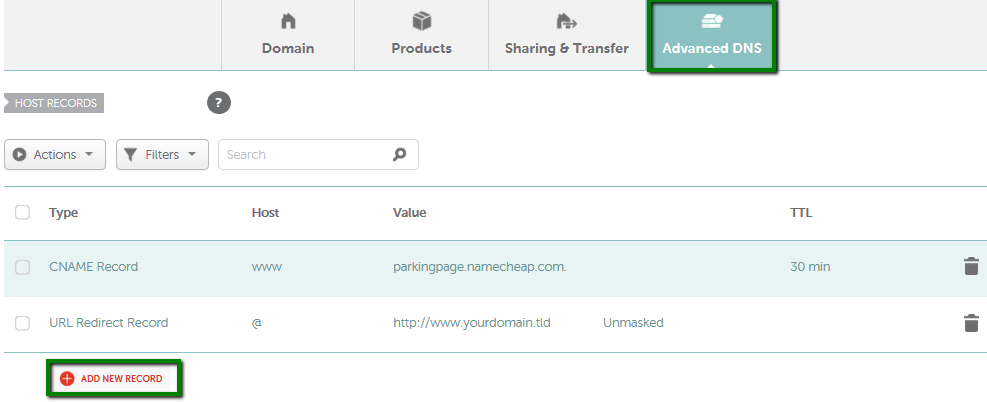
Credit: www.namecheap.com
Frequently Asked Questions
How To Move Namecheap Domain To Shopify?
To move your Namecheap domain to Shopify, first unlock the domain. Obtain the transfer authorization code from Namecheap. Log into Shopify and start the domain transfer process. Enter the authorization code and follow Shopify’s instructions to complete the transfer.
How Do I Transfer My Domain To Shopify?
To transfer your domain to Shopify, unlock your domain and get the authorization code. Then, connect your domain in Shopify’s admin panel. Follow Shopify’s domain transfer instructions. Ensure your domain’s email is correct and verify transfer request. The process usually takes 7-10 days.
How Do I Transfer A Domain From Namecheap?
To transfer a domain from Namecheap, unlock the domain and obtain the authorization code. Initiate the transfer with your new registrar. Confirm the transfer via email and ensure the domain’s WHOIS information is accurate. The process typically completes within 5-7 days.
Is Namecheap Compatible With Shopify?
Yes, Namecheap is compatible with Shopify. You can use Namecheap to register your domain and connect it to Shopify. This process helps establish your online store’s web address efficiently. Ensure you follow Shopify’s instructions for seamless integration and proper DNS settings.
Conclusion
Transferring your domain to Shopify is simple with this guide. Follow each step carefully. Double-check your settings to avoid errors. Your online store will run smoothly on Shopify. Transitioning enhances your store’s potential. Reliable hosting and user-friendly tools await. Take advantage of Shopify’s features.
Your business deserves the best platform. Enjoy a seamless transfer experience. Keep your customers happy with a stable website. Happy selling on Shopify!


