
Are you looking to transfer your domain from Namecheap to GoDaddy but unsure where to start? You’re not alone.
Many people like you want to streamline their domain management or make use of GoDaddy’s unique features. However, the process can seem a bit daunting if you’re unfamiliar with the steps. Fear not! This guide is crafted to walk you through each phase of transferring your domain smoothly and effortlessly.
By reading further, you’ll discover key tips and tricks that will save you time and ensure your domain lands safely in its new home. Ready to simplify your domain transfer? Let’s dive in!
Preparing Your Domain For Transfer
Transferring a domain from Namecheap to GoDaddy involves unlocking the domain and obtaining an authorization code. Update contact details to ensure smooth communication during the transfer process. Follow GoDaddy’s instructions to finalize the transfer and manage your domain on their platform.
Preparing your domain for transfer is a crucial step. It ensures a smooth transition from Namecheap to GoDaddy. This process involves several straightforward steps. Each step is necessary for a successful domain transfer.Unlock The Domain
First, unlock your domain. This prevents transfer restrictions. Log into your Namecheap account. Navigate to your domain list. Select the domain you want to transfer. Look for the “Domain Lock” option. Turn it off. This allows the domain to be transferred.Verify Contact Information
Check your contact details. Accurate information is essential. Go to your account settings. Review your email and contact info. Ensure it is up to date. The registrar uses this data to communicate. Incorrect details can delay the transfer.Obtain Epp Code
Get your EPP code. This code is vital for domain transfer. It acts like a password. Go to your domain management section. Find the “EPP Code” or “Authorization Code” option. Request the code. Save it securely. You will need it for GoDaddy to initiate the transfer.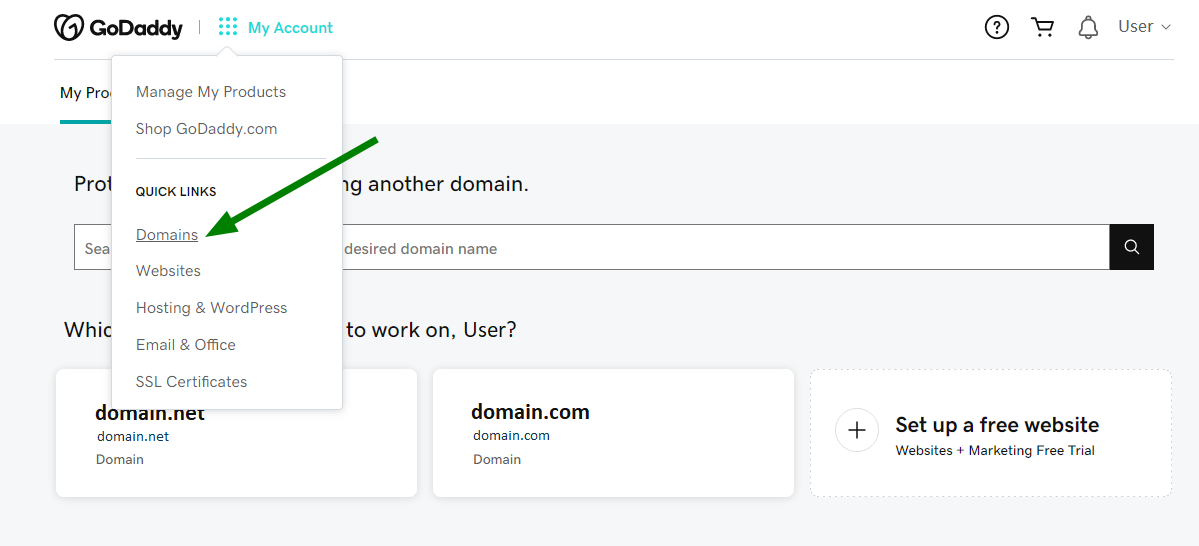
Credit: www.namecheap.com
Initiating The Transfer On Godaddy
Transferring your domain from Namecheap to GoDaddy requires initiating the transfer on GoDaddy’s platform. Begin by unlocking your domain at Namecheap, then obtain the authorization code. Enter this code on GoDaddy to start the transfer process. Ensure your contact information is updated to facilitate smooth communication during the transfer.
Initiating the transfer of your domain from Namecheap to GoDaddy might seem like a daunting task, but with a step-by-step approach, it becomes quite manageable. Starting the transfer process on GoDaddy is crucial to successfully moving your domain. Have you ever found yourself in a situation where you feel overwhelmed by tech jargon? You’re not alone. Let’s break it down into simple, actionable steps that anyone can follow.Access Godaddy Account
First things first, you need to log into your GoDaddy account. If you haven’t set one up yet, now is the time. Once logged in, navigate to the dashboard. Look for the “Domains” section. This is where all the magic happens. Imagine it as your control center where you manage everything domain-related. If you’re anything like me, you appreciate having everything in one place. Having easy access to all your domain settings simplifies the process. It’s like having your own virtual office where you can tackle tasks with confidence.Enter Domain Details
Next, you need to provide the details of the domain you wish to transfer. Click on the option to transfer a domain. You’ll be asked to enter the domain name you’re transferring. This step is all about accuracy—ensure you enter the correct domain name. Think of this as filling out the paperwork for a new car. It’s essential to get the details right to avoid any hiccups down the road. Double-check the spelling and ensure there are no spaces or extra characters.Apply The Epp Code
The EPP code, also known as the authorization code, is vital for the transfer process. You’ll need to retrieve this code from Namecheap. Once you have it, enter it into the designated field on GoDaddy. Consider the EPP code as the key that unlocks the transfer. Without it, you’re stuck. It’s the final piece of the puzzle that ensures everything falls into place seamlessly. Does the idea of transferring your domain still feel overwhelming, or are you now ready to tackle this task with confidence? Embrace the simplicity of the process and take control of your domain transfer journey!Confirming The Transfer
Transferring a domain from Namecheap to GoDaddy involves confirming the transfer. Ensure the transfer code from Namecheap is correct. Monitor your email for a confirmation request from GoDaddy to finalize the transfer process smoothly.
Transferring a domain from Namecheap to GoDaddy can feel like navigating a maze without a map. But once you’ve initiated the transfer, the next crucial step is confirming it. This step ensures that your domain is securely making its way to its new home. Missing this step can delay or even cancel the transfer, leaving your domain in limbo. So, how can you be sure you’re doing it right?Approve Transfer Request
Once you’ve initiated the transfer from Namecheap, keep an eye on your email. You’ll receive a transfer approval request, usually sent to the email address associated with your domain. This email is your green light to proceed. Act quickly to approve the transfer request. Log in to your Namecheap account and head to the domain settings. Here, you should find an option to approve the pending transfer. It’s a straightforward process but crucial for moving forward. Have you ever missed an important email and faced the consequences later? Don’t let this be one of those moments. Ensure your inbox is well-organized and check your spam folder if you don’t see the email.Monitor Transfer Status
After you’ve approved the transfer, it’s time to keep tabs on its progress. You can do this by logging into your GoDaddy account and checking the transfer status. It’s like tracking a package to ensure it arrives safely. GoDaddy typically updates the status within a few days. However, if you notice any delays or issues, don’t hesitate to contact their support team. A simple call or chat can save you from unnecessary stress. Have you ever wondered why it’s essential to monitor the transfer status closely? Imagine planning a big launch, only to discover your domain hasn’t transferred. Regular monitoring helps avoid such surprises and keeps your plans on track.
Credit: punchsalad.com
Finalizing The Transfer
Finalizing the domain transfer from Namecheap to GoDaddy involves verifying your email and entering the authorization code. Ensure the domain is unlocked and privacy settings are disabled before proceeding. Once completed, allow a few days for the transfer process to finalize and confirm its success.
Finalizing a domain transfer can seem daunting, but with the right steps, it’s more straightforward than you might think. Once you’ve initiated the transfer from Namecheap to GoDaddy, you’re in the home stretch. This phase involves a few critical checks to ensure everything is set up correctly and your domain is ready to go.Verify Domain Ownership
First, you need to verify your domain ownership. This step ensures that you have the right to transfer the domain and that it’s not being hijacked. Log in to your Namecheap account and check the status of your domain. Ensure that your contact details are up-to-date, as GoDaddy will use this information to verify your request. If you’ve ever transferred a domain before, you know that receiving verification emails is a pivotal moment. Don’t overlook checking your spam folder, as these emails can sometimes hide there.Check Dns Settings
Before finalizing, make sure your DNS settings are correct. If you have existing email accounts or websites linked to your domain, improper DNS settings can cause disruptions. Log in to your GoDaddy account and double-check the DNS records. If you’re not sure which settings to use, GoDaddy’s help center is a great resource. Have you considered the impact of a DNS error on your business? A small oversight can lead to downtime, affecting your customers and credibility. Always verify twice to avoid such pitfalls. Finalizing your domain transfer from Namecheap to GoDaddy doesn’t have to be a headache. By verifying domain ownership and checking DNS settings, you ensure a smooth transition. Each step you take brings you closer to a seamless transfer experience.Troubleshooting Common Issues
Transferring a domain from Namecheap to GoDaddy can seem tricky. Start by unlocking your domain at Namecheap. Obtain the transfer code, then initiate the transfer process in GoDaddy’s domain management.
Transferring a domain from Namecheap to GoDaddy might seem straightforward, but hiccups can occur along the way. Let’s dive into troubleshooting common issues that might arise during this process. You don’t have to be an expert to resolve these problems, but understanding the potential pitfalls can make your transition smoother and stress-free. Have you ever wondered why your domain transfer is taking longer than expected? Or maybe you’ve faced issues with domain lock preventing the transfer. Let’s tackle these challenges head-on.Resolve Transfer Delays
Transfer delays can be frustrating, especially if you’re eager to finalize your domain move. There might be several reasons for a delay. Ensure that the domain is eligible for transfer; it must be at least 60 days old. Check if you’ve correctly entered the authorization code from Namecheap. Sometimes, double-checking for any errors can speed things up. If you’re waiting for days without progress, consider contacting customer support from both registrars. They can offer insights into specific issues related to your domain. Have you ever missed an email notification? Make sure you check your spam folder for any missed communications that might be delaying the process.Handle Domain Lock Issues
A domain lock is a security feature that prevents unauthorized transfers. If your domain is locked, you won’t be able to initiate the transfer to GoDaddy. Log into your Namecheap account and navigate to the domain management section. Look for the lock status and ensure it’s disabled. It’s common to overlook this step, especially if you’re juggling multiple tasks. Once unlocked, you should receive a confirmation email. If the lock status remains unchanged, try refreshing your account or consult Namecheap support for assistance. Remember, a locked domain is like a locked door; unless you unlock it, you can’t move through. Have you faced any unexpected challenges while transferring domains? These troubleshooting steps should guide you through a smoother process, ensuring your transition is as seamless as possible.
Credit: www.youtube.com
Frequently Asked Questions
Can I Transfer A Domain From Namecheap To Godaddy?
Yes, you can transfer a domain from Namecheap to GoDaddy. First, unlock your domain at Namecheap. Obtain the authorization code. Initiate the transfer on GoDaddy. Follow their steps to complete the process. Ensure your domain is eligible for transfer. Check domain age and contact information for accuracy.
How To Connect Namecheap Domain To Godaddy Hosting?
Log in to Namecheap, go to Domain List, select your domain, and access Domain Management. Update DNS settings to use GoDaddy’s nameservers. Log in to GoDaddy, go to your hosting account, and ensure it’s linked to your domain. Changes may take up to 48 hours to propagate.
How Do I Transfer Ownership Of A Domain Namecheap?
To transfer a domain on Namecheap, log into your account, go to the Domain List, select your domain, and choose “Manage”. Click on “Sharing & Transfer”, then follow instructions for “Change Ownership”. Provide the new owner’s account details to complete the transfer.
How Do I Transfer My Domain Name From One Website To Another?
To transfer your domain, unlock it and obtain the authorization code from your current registrar. Initiate the transfer process with your new registrar using the code. Confirm the transfer through the verification email sent to your registered email address. The transfer completes within 5-7 days.
Conclusion
Transferring a domain can seem challenging, but it’s manageable. You now know the steps to move your domain from Namecheap to GoDaddy. Follow each step carefully to avoid issues. Always double-check details like authorization codes and contact information. This ensures a smooth transfer process.
Patience is key, as transfers can take a few days. Keep an eye on your email for updates from both registrars. Successful transfers mean your domain is ready for new opportunities. Enjoy managing your domain with GoDaddy. Your efforts will pay off with a well-organized domain portfolio.


