
Have you ever found yourself tangled in the web of WordPress themes? You update your website, and suddenly, your carefully crafted design disappears.
Panic sets in, and you’re left wondering how to tell WordPress where your theme stylesheet has moved. You’re not alone, and the solution is simpler than you might think. By understanding this straightforward yet crucial step, you can regain control over your website’s appearance and ensure your design stays intact.
Keep reading to discover the secret to seamlessly guiding WordPress to your relocated stylesheet, and transform your website management from daunting to delightful.
Locating The Theme Stylesheet
WordPress themes use a stylesheet to control looks. This file is often named style.css. It usually sits in the theme folder. This folder is in the wp-content/themes directory. Look for it there first.
Sometimes, themes store stylesheets in subfolders. Check folders named css or assets. These are common places. Double-check these areas if you can’t find it.
| Location | Description |
|---|---|
| wp-content/themes | Main theme directory |
| css | Subfolder for styles |
| assets | Another subfolder option |
Credit: www.dreamhost.com
Reasons For Moving The Stylesheet
People move stylesheets for better customization. They want their site to be unique. Changing the stylesheet helps them make special designs. It allows them to add new colors and fonts. This way, their site looks different from others.
Moving a stylesheet can speed up a website. Sites load faster with a well-organized stylesheet. Faster sites make visitors happy. People don’t like waiting for slow pages. A quick site keeps visitors around longer.
Organizing files is important. It makes updates easier. A tidy file system helps find files quickly. Moving stylesheets to the right place helps with this. It keeps everything in order.
Modifying Functions.php
Find the Functions.php file in your theme folder. Use a file manager or an FTP client. Open it with a text editor. Make sure to create a backup first. This file is important. It controls many things on your site. Be careful while editing.
Locate the enqueue script in the Functions.php file. This script tells WordPress where your stylesheets are. You need to update the path. Replace the old path with the new one. Make sure it points to the correct location. Save the changes. Refresh your site to see the update.
Using Child Themes
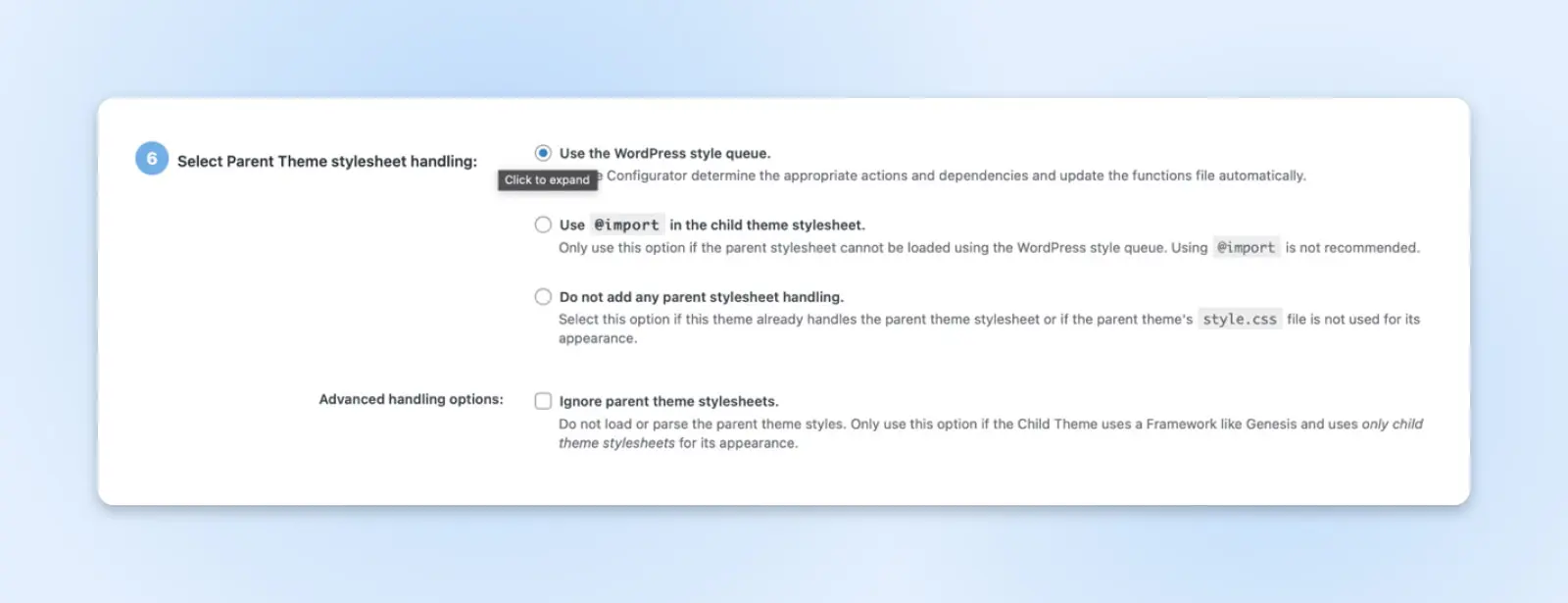
A child theme is a theme that inherits features from another theme. First, create a new folder in the themes directory. Name it after your child theme. Then, make a style.css file inside this folder. Add a header in the file. This header includes the theme name and template. The template points to the parent theme. Your child theme is now ready. Activate it from the WordPress dashboard.
The functions.php file links the stylesheet. Open this file in your child theme folder. Use the wp_enqueue_style function. This function links your new stylesheet. Add the function in functions.php. The function has a unique name. It also includes the path to your stylesheet. Save the file. Check your website to see changes. Styles from your new stylesheet should show up.
Updating The WordPress Database
Start by accessing your WordPress dashboard. Look for the Settings menu. Click on the General tab. You will find the site URL here. Ensure the URL matches the new stylesheet location. This is important for the theme to work correctly. Check for any typos in the URL. This prevents errors in loading your theme.
Go to the Theme Editor in your dashboard. Find the style.css file. This is usually the main stylesheet. Check if the file path matches the new location. Update the path if needed. Save changes once done. This tells WordPress where to find your theme styles. Make sure to backup before making changes. This avoids losing important data.
Testing The Changes
Look at the website on the frontend. Are the styles showing? If not, the new path might be wrong. Double-check the file path. Make sure it matches the new location. Try refreshing the page. Sometimes a refresh helps to load new styles. Clear your browser cache if needed.
Common issues can be frustrating. Check if the stylesheet file is missing. Ensure the file permissions are correct. Wrong permissions can stop the file from loading. Sometimes, a plugin can cause problems. Try disabling plugins one by one. See if the style loads after each one. This helps to find the problem.
Best Practices For Managing Stylesheets
Moving your theme’s stylesheet in WordPress requires updating the theme’s functions. php file. Use the wp_enqueue_style function to specify the new location. This ensures WordPress knows where to find your stylesheet, maintaining the design and layout of your website.
Version Control
Using version control helps track changes in your stylesheet. It keeps a history of all edits. You can see who changed what and when. This is very useful for team projects. Tools like Git are popular for this. They make it easy to manage different versions. You can also revert to an older version if needed. This ensures that no changes are lost. It also helps you fix mistakes quickly.
Regular Backups
Regular backups protect your stylesheet files. Always keep a copy of your files. Store them in a safe place. This helps in case of accidental deletion. Backups ensure you can recover lost data. Use external drives or cloud storage for this. Schedule backups to happen automatically. This way, you never forget to do it.
Documentation
Documentation explains your stylesheet structure. Write notes about each section. This helps others understand your work. It also helps you remember your logic. Use comments within the code for this. Keep the documentation updated with any changes. This ensures that everyone is on the same page. It saves time when troubleshooting issues.
Credit: elegantmarketplace.com
Credit: documentation.concretecms.org
Frequently Asked Questions
How Do I Update My WordPress Stylesheet Location?
To update your WordPress stylesheet location, you’ll need to edit the functions. php file. Use the wp_enqueue_style function to define the new stylesheet path. This ensures WordPress knows where to find your theme’s CSS file, maintaining proper styling across your site.
Why Is My WordPress Stylesheet Not Loading?
If your WordPress stylesheet isn’t loading, the path might be incorrect. Verify the stylesheet URL in functions. php. Ensure there are no typos or broken links. Also, clear your cache to see if that resolves the issue.
Can I Move My WordPress Theme Stylesheet?
Yes, you can move your WordPress theme stylesheet. After moving it, update the functions. php file. Use wp_enqueue_style to set the new location. This adjustment ensures WordPress correctly links to your theme’s CSS file.
How Do I Register A New Stylesheet In WordPress?
To register a new stylesheet, use the wp_register_style function in functions. php. Define the stylesheet’s handle and path. After registering, enqueue it with wp_enqueue_style to load it properly on your site.
Conclusion
Updating your WordPress stylesheet location is simple. Follow the steps outlined above. Make sure your changes are saved. This ensures WordPress knows the new path. Double-check your edits to avoid errors. Testing your site helps confirm everything works. If issues arise, retrace your steps.
Correcting mistakes is easier with practice. Remember, understanding your theme’s structure is key. It helps in managing files efficiently. Keep exploring WordPress to enhance your skills. Learning these basics makes future modifications smoother. Stay curious and keep improving your WordPress site.


