
Are you curious about the version of WordPress running on your website? Knowing your WordPress version can be crucial for maintaining your site’s security, ensuring compatibility with plugins, and keeping everything running smoothly.
Imagine the peace of mind that comes with understanding your digital environment better. With the right version information at your fingertips, you can make informed decisions about updates and improvements. This guide is designed to empower you with simple steps to identify your WordPress version.
Dive in to discover how easy it is to get this essential information and why it matters for your online success. Don’t miss out on unlocking the secrets to a more secure and efficient website!
Check Admin Dashboard
The admin dashboard is the main control center. In the dashboard, find the At a Glance widget. This widget provides quick info about your site. The WordPress version is displayed here. It’s usually near the top. Just look for it among the details. It’s easy to spot.
Another way is the Updates section. This section tells if your site needs updates. Click on Dashboard in the menu. Then select Updates. The version number will be shown here. It’s important for keeping your site safe. Regular updates are necessary. Always know your version.
View Source Code
To find the WordPress version, open the website. Right-click and select “View Page Source.” Look for the Meta Generator Tag. This tag often shows the WordPress version. Press Ctrl + F to search faster. Type “generator” in the search box. If the tag is there, the version will be displayed next to it. Some sites hide this tag for security reasons. If you can’t find it, try other methods.
Identify Version In Meta Generator Tag
The Meta Generator Tag is usually near the top of the source code. It might look like this: . The number after “WordPress” shows the version. Note that some websites might remove or alter this tag. In such cases, use another method to check the version.
Search In Readme.html File
Another way is to look for the readme.html file. Type “/readme.html” after the website’s URL. This file often reveals the WordPress version. Scroll until you find the version number. Not all sites have this file available. If it is missing, try other options.
Use Online Tools
Explore WordPress Version Checker Tools to find out your WordPress version. These tools are simple and quick. They show the version in seconds. Just enter your site URL. Then click check. One popular tool is WP Version Check. It’s easy to use.
Verify with Website Analysis Platforms like BuiltWith. These platforms give detailed info. They list the WordPress version. You can also see plugins used. This helps in knowing the setup. Simply enter your website link. BuiltWith does the rest.
Credit: kinsta.com
Check Rss Feed
Discovering your WordPress version can be done by checking the RSS feed. Simply add “/feed” to your site URL. Look for the WordPress generator tag in the feed source. This reveals the version number quickly. Easy and effective method for identifying your WordPress version.
Access Rss Feed Url
To find the WordPress version, start by accessing the RSS Feed. You can typically find this by adding /feed/ to the site’s URL. For example, if the site is example.com, visit example.com/feed/. This will bring you to the RSS data.
Find Version In Rss Feed Data
Once on the RSS page, view the page source. Look for a line that shows generator. This line will often display the WordPress version. For example, it might say WordPress 5.8.1. This number tells you the version running.
Access Wp-includes Folder
To find the WordPress version, open the wp-includes folder. Inside, you will see a file named version.php. Open this file with any text editor. Look for a line that starts with $wp_version. The number next to it is your WordPress version. This method is simple and quick. Always ensure you have the right access permissions.
The version.php file holds key details. It shows the exact WordPress version. Open this file in a text editor. Locate the line with $wp_version. Check the number next to it. This number tells the WordPress version. Make sure the file is not altered. This ensures accurate information.
The style.css file is another place to check. It is located in your theme folder. Open this file with any text editor. Look for comments at the top. Sometimes, the WordPress version is listed here. This method is not always reliable. Use it as a secondary check.
Credit: wpmet.com
Utilize Command Line Tools
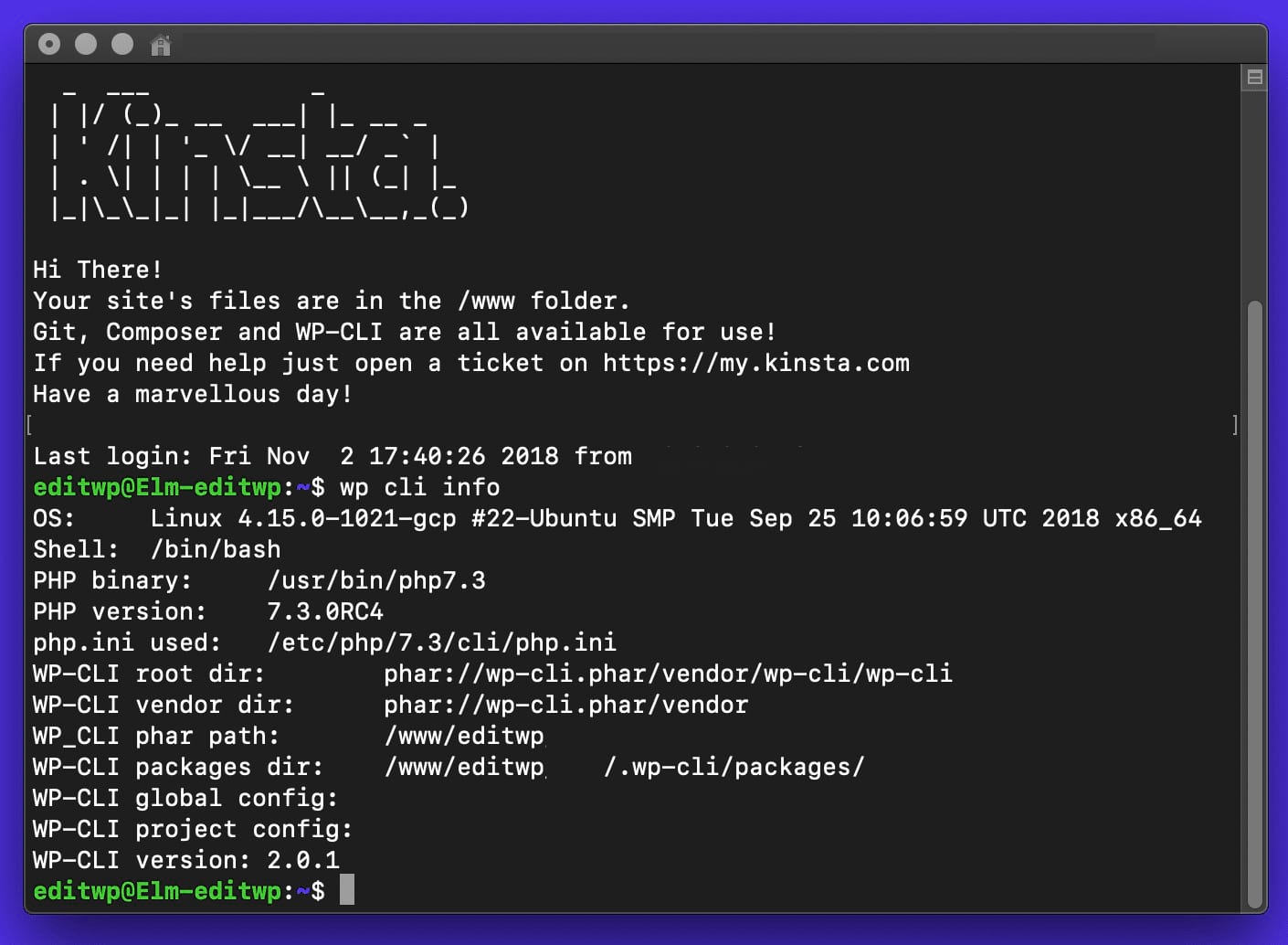
WP-CLI is a tool for WordPress. It helps check the version fast. First, install WP-CLI on your computer. Next, open the command line tool. Type wp core version and press enter. The terminal will show the WordPress version. It’s quick and easy. WP-CLI works well for developers. They use it often.
WPScan is another tool to check WordPress. It helps find the version. First, install WPScan on your system. Make sure it’s set up correctly. Then, open the command line. Type wpscan –url yoursite.com. Replace yoursite.com with your website. Press enter. WPScan will show the WordPress version. This tool is handy. It also checks for security issues. It’s helpful for website safety.

Credit: kinsta.com
Frequently Asked Questions
How Can I Check My WordPress Version?
To check your WordPress version, log into your admin dashboard. Scroll down to the bottom right corner. The version number is usually displayed there. Alternatively, go to Updates under the Dashboard menu. You’ll find the version information at the top of the page.
Why Is Knowing My WordPress Version Important?
Knowing your WordPress version is crucial for security and compatibility. Older versions may have vulnerabilities. Keeping your site updated ensures you have the latest security patches. It also ensures compatibility with themes and plugins, preventing potential site issues.
Can I Find WordPress Version Without Logging In?
Yes, you can find the version without logging in. Check the “readme. html” file in your WordPress directory. This file often contains the version number. However, it’s recommended to secure this file to prevent exposing your version to potential threats.
Does WordPress Version Affect Site Performance?
Yes, the WordPress version can affect site performance. Newer versions typically include performance improvements. These enhancements can make your website faster and more efficient. Keeping your WordPress updated ensures optimal performance and leverages the latest technology advancements.
Conclusion
Identifying your WordPress version is crucial for site management. It helps ensure compatibility with themes and plugins. Always keep your WordPress updated for security. Updates provide new features and fix bugs. Check your version using the dashboard or page source.
Each method is simple and quick. Understanding your WordPress version leads to better site performance. It protects against vulnerabilities and enhances user experience. Stay informed and maintain a healthy website. Your site’s success depends on it. Regular checks can prevent potential issues.
Always prioritize your website’s security and functionality. Your efforts will pay off in the long run.


