
Have you ever wondered about the version of WordPress you’re using? Knowing your WordPress version is crucial for keeping your website secure and up-to-date.
It helps you avoid compatibility issues with plugins and themes, ensuring your site runs smoothly. Imagine the peace of mind you’ll have when you’re confident your site is protected against vulnerabilities. In this post, you’ll discover simple ways to check your WordPress version, making sure your website is always in top shape.
Let’s dive in and find out how you can easily identify your WordPress version without any hassle.
Checking Admin Dashboard
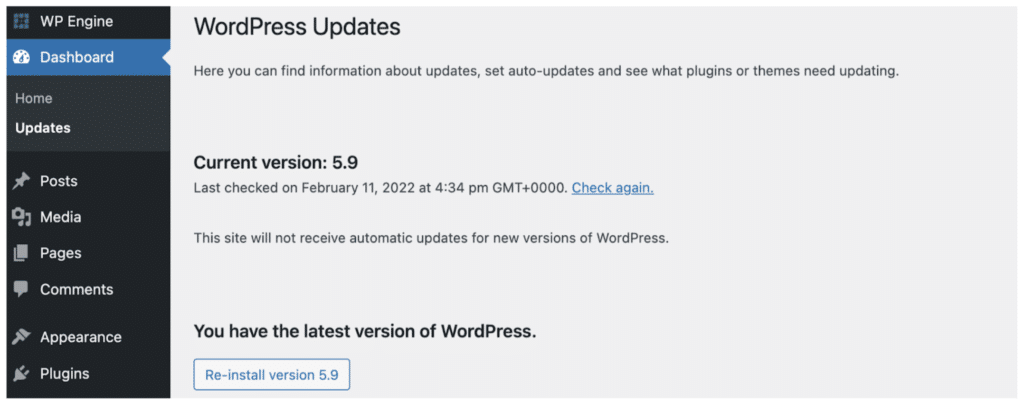
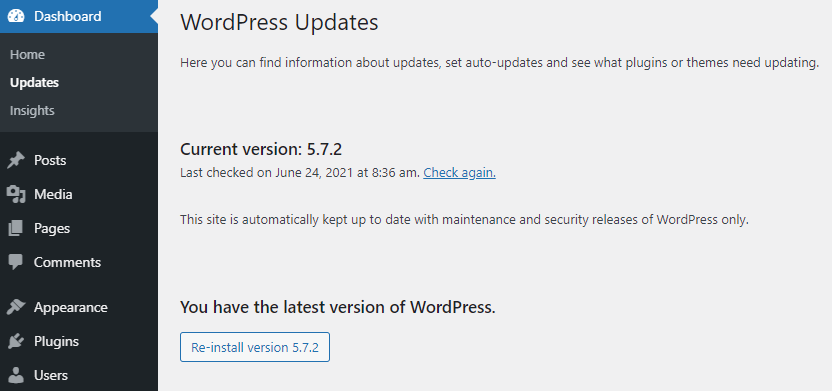
The WordPress version is easy to find. Go to the admin dashboard. Click on Dashboard. Then select Updates. The version number is shown here. It’s right at the top. Make sure your WordPress is updated. This keeps your site safe.
Another way is through At a Glance. This is in the dashboard too. Look at the top left corner. You can see the WordPress version here. This area shows important info. Like how many posts you have. Keep an eye on this section. It’s very useful.

Credit: smartwp.com
Viewing Source Code
Finding the WordPress version can be simple. Open your website in a browser. Right-click anywhere on the page. Choose “Inspect” from the menu. A new panel will appear. This panel shows the HTML code.
Look for the section in the code. This section has important information. It might contain the WordPress version. You might need to search a bit. This can help you find what you need.
The meta generator tag is often used. It shows the WordPress version. Search for in the code. This tag tells you the version number. Not all sites use this tag. Some sites hide it for safety.
If the tag is there, you’ll see the version next to it. It’s usually easy to spot. If it’s not there, don’t worry. There are other ways to find the version. Keep exploring the code. You’ll find what you need.
Using WordPress Files
To know your WordPress version, find the version.php file. This file tells you the version. Use an FTP client to see files on your server. Log in with your credentials. You will see many folders and files. Look for the wp-includes folder. This folder has the version.php file. Open version.php using a text editor. The version number is written inside. Look for the line with $wp_version. This line tells the WordPress version. Keep your version updated. Updates fix bugs and improve security.
Start by opening your FTP client. Enter your server details to log in. You will see a list of files and folders. Look for the wp-includes folder. Click on it to open. Inside, you will find many files. Find version.php in this list. This file tells you the WordPress version. Open it with a text editor. Look for $wp_version. This shows the version number. Keep your WordPress updated. It keeps your site safe and fast.
Credit: wpengine.com
Third-party Tools
Online version detectors are tools to find your WordPress version. These tools work quickly. They scan your website and give results. Most are free to use. You just enter your website URL. Then, wait for the scan to finish. In seconds, you get the information. It’s easy for beginners. No need to dive into the code. Just a few clicks, and you know your version.
Using Online Version Detectors
Online version detectors can be helpful. They save time. You don’t have to check manually. Many websites offer this service. Some popular ones are WP Detector and WhatWP. They are user-friendly. Just visit the site and follow the steps. Enter your URL in the box. Click the button to start scanning. Results will show quickly.
Installing Plugins For Version Check
Plugins are easy to install. They help you check the WordPress version. Many plugins are available for free. They display the version on your dashboard. You don’t need to visit external sites. Plugins like WP-Version and Version Checker are popular. They are simple to use. Just install and activate them. Your WordPress version shows in the admin area.
Command Line Interface
WP-CLI is a tool for WordPress. It helps manage your site. Check the version with a simple command. First, you need to have WP-CLI installed. Open your terminal. Type the command: wp core version. Press enter. The version number will appear. It’s that easy! This command is very useful. No need to log in to your WordPress admin.
Open your terminal on your computer. Use SSH to access your server. Log in with your credentials. Type: cd path/to/wordpress. Change to your WordPress directory. Now, enter the command: wp core version. This will show your current WordPress version. No need for a browser. You can find this out quickly.
Security Considerations
WordPress version disclosure can be risky. Hackers might exploit known vulnerabilities. Protecting your version details is crucial. Many sites fall victim to attacks. This happens if their versions are outdated. So, hiding your WordPress version can help. It ensures better security for your website.
Understanding Version Disclosure Risks
Knowing your WordPress version is dangerous. Hackers can find weaknesses. They use these to attack websites. Always keep your WordPress updated. This reduces risks. Make sure your plugins and themes are updated too. This keeps your site safe.
Best Practices To Hide Version
- Remove the WordPress version number from your site code.
- Use security plugins to hide version details.
- Keep all software up to date regularly.
- Disable file editing in your WordPress dashboard.
- Set strong passwords for all user accounts.
Credit: www.hostinger.com
Frequently Asked Questions
How Can I Find My WordPress Version?
To find your WordPress version, log in to your dashboard. Check the bottom-right corner for the version number. Alternatively, go to “Updates” under the “Dashboard” menu. You’ll see your version there. Another option is to view the readme. html file in your WordPress directory.
Why Is Knowing WordPress Version Important?
Knowing your WordPress version is crucial for security and compatibility. It ensures your site is up-to-date and secure. Older versions may have vulnerabilities. Compatibility with plugins and themes also depends on your version. Keeping your WordPress updated helps maintain website performance and security.
Can I Check WordPress Version Without Login?
Yes, you can check without logging in. View the source code of your website’s homepage. Look for a meta tag labeled “generator” in the HTML code. This tag often displays the WordPress version. Alternatively, check the readme. html file in your WordPress directory for version information.
Does The WordPress Admin Panel Show Version?
Yes, the WordPress admin panel displays the version. Log in to your dashboard, then scroll down to the bottom-right corner. The version number is usually displayed there. You can also find it under “Updates” in the “Dashboard” menu, where it shows the current WordPress version.
Conclusion
Knowing your WordPress version is crucial for site security. It helps in troubleshooting, too. Always check your version after updates. This keeps your site running smoothly. Regular checks prevent potential issues. Use the methods shared in this guide. They’re simple and effective.
Stay informed about WordPress changes. It’s key to maintaining your site. Keep this guide handy for future reference. Understanding your site’s setup makes you a confident website owner. Always prioritize safety and efficiency. With these tips, managing your WordPress site becomes straightforward.
You gain control over your online presence.


