
Are you curious about the PHP version running your WordPress site? Knowing this can help you optimize your website’s performance and security.
PHP is the backbone of WordPress, and using the right version ensures that your site functions smoothly. Imagine having a site that loads faster, has fewer bugs, and is more secure—sounds great, right? That’s what choosing the right PHP version can do for you.
We’ll guide you through the simple steps to find out which PHP version is powering your WordPress site, empowering you to make informed decisions for your website’s health and efficiency. Let’s dive in and unlock the secrets to a smoother, safer WordPress experience!

Credit: wp-rocket.me
Checking Php Version Via WordPress Dashboard
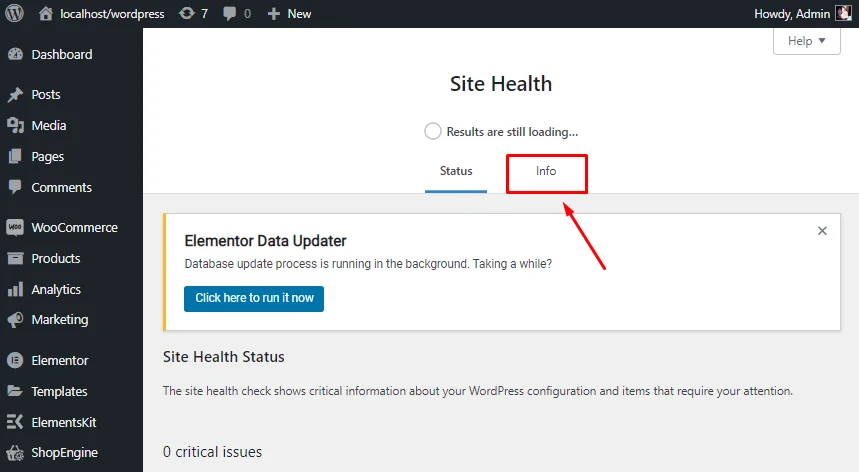
The Site Health Tool is in WordPress dashboard. This tool helps check PHP version. Click on “Tools” in the menu. Then, select “Site Health“. This page shows important site info. Look for “PHP Version” details. It will tell the current PHP version.
Find server details in “Site Health Info“. Click on “Info” tab. Scroll to “Server” section. Here, check the “PHP version“. It is easy to see. This helps ensure WordPress runs smoothly. Keep PHP updated for better site performance.
Credit: wpmet.com
Using Php Info File
To find out your PHP version, create a new file. Name it phpinfo.php. Inside, type this code: php phpinfo(); ?. Save the file and make sure it is in your website folder. This file will show many details about PHP. It’s a simple way to see the PHP version. Always delete the file after checking. This keeps your website safe.
Open your web browser. Type your website address with /phpinfo.php at the end. For example, www.yoursite.com/phpinfo.php. This shows a page with PHP details. Look for the section labeled PHP Version. You will see the version number there. Remember to remove the file after viewing. This protects your site from risks.
Checking Via Hosting Control Panel
Discovering your WordPress PHP version is straightforward using the hosting control panel. Access the panel, navigate to the PHP settings section, and find the current version listed. This method ensures quick identification without complicated processes.
Accessing Cpanel
First, log into your hosting account. Find the cPanel option. It’s usually on the dashboard. Click to open it. Inside cPanel, many tools appear. Find the one for PHP settings.
Navigating To Php Version Settings
Once in cPanel, look for Software section. Click on PHP Version or MultiPHP Manager. A list of options will show. Your current PHP version is visible here. Easy to see and check. Change it if needed. Choose a newer version if available.
Credit: wedevs.com
Utilizing Command Line Interface
Connecting via SSH is essential to check PHP version on WordPress. Start by opening your terminal. Type ssh followed by your server’s address. This connects you to your server. You need your login details for access. Always keep these details safe.
Once connected, it’s time to execute the PHP Version Command. Type php -v in the terminal. Press enter to see the PHP version. This command shows the version number quickly. Knowing your PHP version helps with updates. It ensures your website runs smoothly. Updating to the latest version is often a good idea. It improves security and performance.
Always verify the PHP version after changes. This ensures compatibility. PHP updates can affect plugins or themes. Regular checks prevent problems on your site. Keep your WordPress site in top shape with these simple steps.
Using WordPress Plugins
Discovering your WordPress site’s PHP version is simple with plugins. Access the dashboard, navigate to “Tools” or “Site Health. ” The PHP version is displayed, ensuring compatibility and security. Using plugins helps streamline the process, keeping your site updated and efficient.
Installing Php Version Plugin
To find the PHP version, install a plugin. Plugins help show important information. The PHP Version Plugin is easy to use. First, go to the WordPress dashboard. Click on “Plugins” and then “Add New”. Search for “PHP Version”. Find the plugin named PHP Version Plugin. Click “Install Now”. After installation, activate the plugin. This plugin will show the PHP version your site uses.
Viewing Php Version In Plugin Dashboard
Once installed, the plugin shows the PHP version easily. Go to the plugin dashboard in WordPress. Look for a section or tab named PHP Info. The PHP version number is displayed there. The plugin makes it simple to check your site’s PHP version. You don’t need coding skills for this task. It is very helpful for WordPress users.
Verifying Php Version Compatibility
PHP version is important for WordPress sites. It affects speed and security. To check your version, visit the WordPress admin. Look under “Site Health.” This section shows your PHP version. Ensure the version meets WordPress requirements. WordPress needs PHP 7.4 or higher. Using older versions can cause problems. Always update to the latest PHP version. This keeps your site safe.
WordPress has specific PHP needs. PHP 7.4 is the minimum. Older versions might not work well. They can slow your site down. They might cause security risks. Check your hosting provider. They might offer PHP updates. Keeping PHP updated is important. It ensures your site works properly. It helps with speed and security.
Plugins need the right PHP version. Some plugins need PHP 8.0 or higher. Check plugin details before installing. This ensures they work well. Using the wrong PHP version can break plugins. It can make your site unstable. Always read plugin requirements. Update PHP if needed. This helps plugins run smoothly.
Frequently Asked Questions
How Do I Check My WordPress Php Version?
To check your WordPress PHP version, log in to your WordPress dashboard. Navigate to “Tools” and then click on “Site Health. ” Under the “Info” tab, you’ll find “Server. ” There, you can view the PHP version currently running.
Why Is Php Version Important For WordPress?
PHP version is crucial for WordPress performance and security. Newer versions offer improved speed, enhanced features, and better security. Using an outdated PHP version can expose your website to vulnerabilities and slow down performance.
Can I Change The Php Version In WordPress?
Yes, you can change the PHP version in WordPress. This is typically done through your web hosting control panel. Access your hosting account, find the PHP settings, and select the desired version. Always back up your site before making changes.
Does Updating Php Affect WordPress Plugins?
Updating PHP can affect WordPress plugins. Some plugins may not be compatible with newer PHP versions. Before updating, check plugin compatibility. It’s recommended to update plugins and themes to their latest versions to ensure smooth operation.
Conclusion
Checking your PHP version helps keep WordPress secure and efficient. Regular updates ensure compatibility with themes and plugins. Use the WordPress dashboard or hosting control panel to find the version. It’s simple and quick. Understanding your PHP version prevents potential website issues.
Take action today to maintain optimal website performance. Keeping your site updated makes your online presence strong. Consistent checks lead to fewer problems. Stay informed and proactive. Regular maintenance is key. It ensures your WordPress site runs smoothly. Make PHP version checks a routine task.
It benefits your website greatly.


