
Switching your web hosting provider can feel like a daunting task, especially if you’re unsure where to start. If you’re considering moving your website from 1And1.com to another host, you’re not alone.
Many people look for better performance, customer support, or pricing options. But here’s the secret: it doesn’t have to be complicated. Imagine having the freedom to choose the best hosting service tailored to your specific needs without the hassle. In this guide, you’ll discover simple, step-by-step strategies to make the transition smooth and stress-free.
By the end, you’ll feel empowered, knowing you’ve made the right choice for your website’s future. Ready to take control and switch your web hosting with confidence? Let’s dive in!

Credit: www.whatsthehost.com
Preparing For The Switch
Understand what your website needs. Check how much space you use. Know your bandwidth requirements. List your site’s special features. Consider if you need extra security. Make a checklist of these needs. This helps you choose well.
Look for a host with great reviews. Check their support service. See if they offer easy site transfer. Compare prices of different hosts. Find a plan that fits your budget. Choose a host that meets your needs list.
Create a full backup of your site. Save all your files. Don’t forget the database. Use a backup tool if needed. Keep your backup safe. This ensures nothing gets lost during the switch.
Domain Considerations
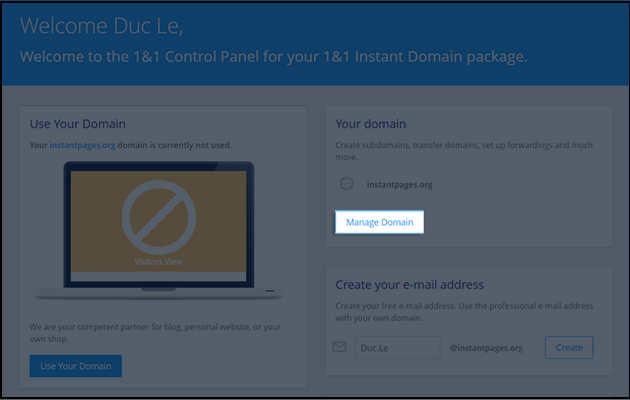
Transferring a domain to a new host is easy. First, unlock your domain at 1And1.Com. This allows the transfer. Next, get an authorization code. This code is sent to your email. Share this code with your new host. They will handle the rest. The process can take a few days.
Updating DNS settings is crucial. It ensures your site points to the new host. Log into your domain registrar account. Find DNS settings. Update the nameservers to your new host’s servers. This change can take up to 48 hours. During this time, your site might be down. This is normal and should pass quickly.
Migrating Your Website
Begin by backing up all website files. Use an FTP client for this task. Connect to 1And1.Com server using your login details. Download all files to your computer. This step is vital. Make sure everything is saved. Double-check the files. You don’t want to lose anything important.
Now, connect to the new host using an FTP client. Upload the files you just saved. Make sure every file is correctly placed. This keeps your website running smoothly. After uploading, check your website. Ensure everything looks right. If something is wrong, try uploading again. Keep your new host details safe. You’ll need them for future updates.

Credit: www.authormedia.com
Database Migration
First, open the control panel of your current host. Find the database section. Choose the database you want to back up. Click the export button. This action saves your data to your computer. Use a safe place to store the file. This file is your backup. Keep it safe.
Go to the control panel of your new host. Find the database section. Create a new database. Make sure it has the same name as the old one. Click the import button. Select the backup file from your computer. Wait for the upload to finish. Check if everything is there. This ensures your data is now on the new host.
Email Account Transition
Moving your email accounts is important. First, list all your email accounts. This helps avoid missing any. Next, create the same accounts with the new host. Use the same email addresses. Then, save all important emails. You can use email clients like Outlook or Thunderbird. They help you download emails to your computer. Finally, check if all emails are safe. Make sure none are missing.
Setting up email can be tricky. Start by checking your new host’s settings. Find the incoming and outgoing server details. Enter these details in your email client. Make sure username and password are correct. Test by sending a test email. See if it works without errors. If problems occur, check settings again. Ask your new host for help if needed.
Testing And Verification
After moving your website, check all the pages. Ensure every link works. Each image should load correctly. Look for broken links. They can confuse visitors. Make sure forms are working. Visitors may want to contact you. Test the shopping cart if you have one. It should add items properly. Also, check any special features. They must work as expected. This helps keep your site user-friendly.
Securing your website is crucial. Check your SSL certificate. It should be active and valid. This keeps data safe. Update your passwords regularly. Use strong and unique passwords. Check for any security plugins or tools. Ensure they are working well. Regular backups are important. Keep them in a safe place. This helps in case of data loss. Security measures protect your site from hackers. Keep your website safe for visitors.
Finalizing The Switch
Canceling Old Hosting requires a few steps. First, log into your 1And1 account. Find the hosting section. Look for the cancel option. Click it. Follow the instructions carefully. You may need to confirm your cancellation. Save any important data. Backup your files. It’s important. Double-check your email for confirmation. Ensure the cancellation is complete.
Monitoring Performance is crucial after switching hosts. Check your website’s speed. Is it loading quickly? Use online tools for this. Look at uptime statistics. Your site should be accessible all the time. Keep an eye on visitor numbers. Are they increasing? Check server response times. Contact support if needed. Keep a record of any issues. It’s helpful for future reference. Ensure everything is running smoothly.
Credit: support.doublethedonation.com
Frequently Asked Questions
How To Switch Web Hosting Provider?
Choose a new host and back up your website files. Transfer your domain and upload files to the new host. Update DNS settings to point to your new hosting provider. Test your website to ensure everything works correctly. Cancel the old hosting service once the transfer is complete.
How To Move Domain From Ionos?
Log in to your IONOS account. Access “Domains & SSL” section. Select the domain you wish to transfer. Unlock the domain and obtain the authorization code. Initiate the transfer with your new registrar using the code. Confirm the transfer via email.
Can I Change The Domain Name On Ionos?
Yes, you can change the domain name on IONOS. Navigate to the domain settings. Follow the prompts to update your domain. Ensure your new domain is available and register it. Remember, changing your domain may affect your site’s SEO and traffic.
Always back up your site before making changes.
How Do I Transfer My Domain From Ionos To Hostinger?
Transfer your domain by unlocking it in IONOS and getting the authorization code. Enter the code in Hostinger’s transfer form, pay the transfer fee, and confirm the transfer via email. Ensure your domain is eligible and the email contact is correct for successful transfer.
Conclusion
Switching web hosting from 1And1. Com is straightforward. Start by choosing a new host. Then, backup your website files. Transfer your domain to the new host. Update DNS settings for proper connection. Test your site thoroughly after migration. Ensure everything works smoothly.
Seek help if needed; many hosts offer support. Moving hosts can improve site performance. Better speed. Enhanced security. More control over resources. Take your time with each step. A careful approach avoids problems. Your website deserves reliable hosting. Happy hosting!


