
You’re in the middle of working on your WordPress site when suddenly, your theme updates automatically. It might sound convenient, but these updates can sometimes disrupt your carefully crafted design or even cause compatibility issues.
If you’ve ever wished you could control when and how your WordPress theme updates, you’re not alone. Knowing how to stop auto updates can put you back in the driver’s seat, ensuring that your site remains exactly as you want it.
Imagine the peace of mind you’ll have, knowing that unexpected changes won’t catch you off guard. Dive into this guide, and you’ll discover simple steps to regain control over your WordPress theme updates.
Understanding Auto Updates
Auto updates are changes that happen automatically. They update your WordPress theme without asking you. This can be good and bad. Good because it keeps your site safe. Bad because it can break your site. You might lose changes you made to your theme. Updates can change how your site looks.
Auto updates can affect your site in many ways. They can fix bugs and improve security. But they can also cause problems. Your site might look different. Your plugins might not work. You might need to fix things after an update. It’s important to be careful with auto updates.
Reasons To Disable Auto Updates
Auto updates can overwrite customizations in WordPress themes. Protect your work by stopping automatic theme updates. Ensure consistent design and functionality by manually controlling updates.
Control Over Theme Changes
Auto updates change themes without asking. This can alter your site’s look. You lose control over design and features. Unwanted changes may confuse visitors. By stopping auto updates, you decide when to change themes. You can plan changes at a convenient time. This way, your site stays consistent and reliable.
Prevent Potential Conflicts
Updates may conflict with plugins. This can break your site. Themes might not work well with all plugins. Conflicts cause errors and slow down your site. Stopping auto updates prevents these problems. You can test updates before applying them. This ensures everything works smoothly. Your site stays safe from sudden issues.
Manual Update Management
To manage updates manually, check themes regularly. This helps avoid automatic changes. Automatic updates may cause site issues. Always schedule updates at a time that suits you. Early morning or late night may work best. This way, users are not disturbed. You can plan updates on a calendar. It helps keep track of dates.
Scheduling updates is important for smooth site operation. It prevents sudden changes during busy hours. Use a calendar or reminder tool. Choose a time when traffic is low. It keeps users happy and avoids confusion. Regular checks help ensure everything is up-to-date. Make it a habit.
Testing is crucial before updating themes. Backup your site first. It keeps your data safe. Use a test site if possible. Check if updates break anything. Avoid surprises on the main site. Testing saves time and stress. It keeps your site running smoothly.
Disabling Auto Updates Via Code
Stop WordPress theme auto updates by adding a code snippet to the functions. php file. This quick method provides control over updates, ensuring theme stability.
Editing Functions.php
To stop updates, open the functions.php file. This file is in your theme folder. Add a specific line of code. This code stops updates for your theme. It is simple and quick. Use this line: add_filter('auto_update_theme', '__return_false');. Save the file after adding the code.
Using Configuration Constants
Another method is using constants. Open the wp-config.php file. This file is in the root folder of your site. Find a place to add a new line. The line is: define('AUTOMATIC_UPDATER_DISABLED', true);. This constant stops all updates. Save the file to apply changes. Be careful with changes. Wrong edits can break your site.
Using Plugins To Control Updates
Plugins offer a simple way to manage WordPress theme updates. By installing the right plugin, you can disable automatic updates easily. This ensures your theme remains stable and compatible with your website’s design preferences.
Popular Plugins For Update Management
Plugins help manage WordPress updates easily. Popular choices include Easy Updates Manager, WP Rollback, and ManageWP. Easy Updates Manager lets you control themes and plugins updates. WP Rollback allows rolling back to older plugin versions. ManageWP provides a dashboard for managing updates. These plugins offer user-friendly interfaces to customize update settings.
Setting Up Plugin Options
Setup is simple with these plugins. First, install your chosen plugin. Next, go to the plugin settings. Choose which updates to stop. You can disable theme updates. Also, control plugin updates similarly. Be sure to save your settings. Always check for plugin updates to avoid issues. Plugins help keep your site stable. They give you control over updates.

Credit: www.cloudways.com
Advanced Options For Update Control
Manage updates in WordPress by exploring advanced options. Disable auto-updates for themes with a few simple steps. Customize settings to maintain control over your site’s appearance.
Creating Custom Update Scripts
Custom scripts help control theme updates. They give you more flexibility. First, create a backup of your WordPress files. This ensures you don’t lose important data. Next, access your website’s server using an FTP client. Locate the wp-content folder and find your theme’s directory. Inside, create a new file for your script. Name it something like custom-update.php. Write code to manage updates as you wish. Save the changes and upload the file back to the server. This way, you have control over automatic updates.
Integrating With Version Control Systems
Version control systems help manage changes to your theme. Tools like Git are popular for this task. First, install Git on your server. Initialize a Git repository in your theme’s folder. Track changes by committing files to the repository. This keeps a history of updates and changes. When updates occur, you can compare them with previous versions. This method ensures better control and management of your theme. It also helps in identifying any unwanted updates quickly.
Monitoring Update Activity
Keeping track of theme updates is important. Watch for changes after each update. Look at what parts of the website are different. Some updates can change the way things look. Others might affect how things work. Tracking Changes Post-Update is helpful to spot any errors. Keep a list of what changes. This will help fix things faster. Compare the site before and after updates. Look for anything unusual or broken.
Reviewing Site Performance
After updates, check the site’s speed. Reviewing Site Performance is crucial. Slow sites can upset visitors. Test how fast pages load. Fix any problems quickly. Also, check if all links work. Broken links can confuse users. Make sure forms and buttons work. Regular checks help keep the site smooth. A site that runs well keeps visitors happy.

Credit: www.cloudways.com
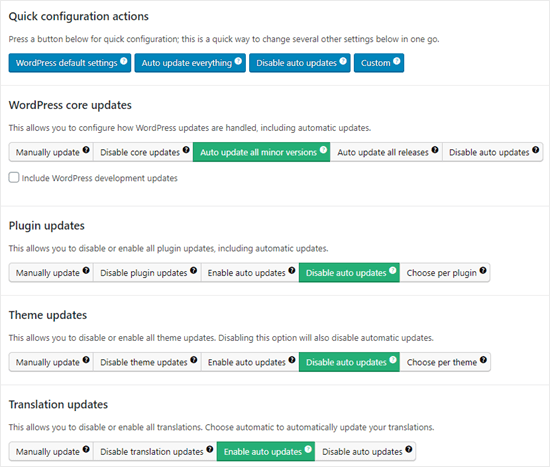
Credit: www.wpbeginner.com
Frequently Asked Questions
How Do I Turn Off Theme Updates In WordPress?
To disable theme updates in WordPress, add this code to your theme’s functions. php file: `remove_action(‘load-update-core. php’, ‘wp_update_themes’);`. This prevents automatic updates. Always back up your site before making changes. Regularly review security settings to ensure your website remains protected.
How Do I Disable Automatic Update In WordPress?
To disable automatic updates in WordPress, add this code to your wp-config. php file: `define(‘AUTOMATIC_UPDATER_DISABLED’, true);`. Alternatively, use a plugin like “Easy Updates Manager” for more control. Always back up your site before making changes.
How To Undo Theme Update In WordPress?
Restore your theme by accessing your WordPress dashboard, go to Appearance, and select Themes. Use a backup or previous version. Alternatively, use the WP Rollback plugin to revert changes. Always backup before updates to prevent data loss.
How Do I Turn Off Automatic Updates?
To turn off automatic updates, go to Settings, select Update & Security, and click on Windows Update. Choose Advanced options and toggle off automatic updates.
Conclusion
Stopping auto updates in WordPress themes is essential. It gives you control. You avoid unwanted changes. Protects your website’s design. Keeps functionality intact. Follow the steps outlined above. You ensure stability and security. Easy steps lead to peace of mind.
Remember, regular updates are still crucial. They fix bugs and enhance features. Manage them wisely. Balance is key. Stay informed on updates. Take charge of your site’s appearance. You keep your brand’s identity consistent. Success lies in proper management. Your site remains reliable and user-friendly.
Maintain control, and your WordPress journey stays smooth.


