
Are you ready to unlock the potential of your web hosting environment and take control of your server-side applications? If you’ve ever wondered how to run a jar file on your web host using SSH, you’re in the right place.
This guide is tailored for you—whether you’re a budding developer or just someone curious about expanding your technical horizons. Imagine effortlessly executing your Java applications, seamlessly integrating powerful functionalities right on your server. We’re about to dive into the straightforward steps to get your jar file up and running, demystifying the process and empowering you with the confidence to manage your web host like a pro.
Stick with us, and you’ll soon master this essential skill, enhancing your web hosting capabilities and boosting your server’s performance. Ready to take control? Let’s get started!

Credit: stackoverflow.com
Prerequisites For Running Jar Files
A Jar file is a package of Java files. It helps run Java programs. Each Jar file has important parts. These parts are class files and libraries. They make the program work. Knowing this helps in running them smoothly.
To run Jar files, you need Java Runtime Environment (JRE). It is very important. A good text editor is also helpful. Tools like PuTTY or Terminal are needed for SSH. These tools help you talk to the server.
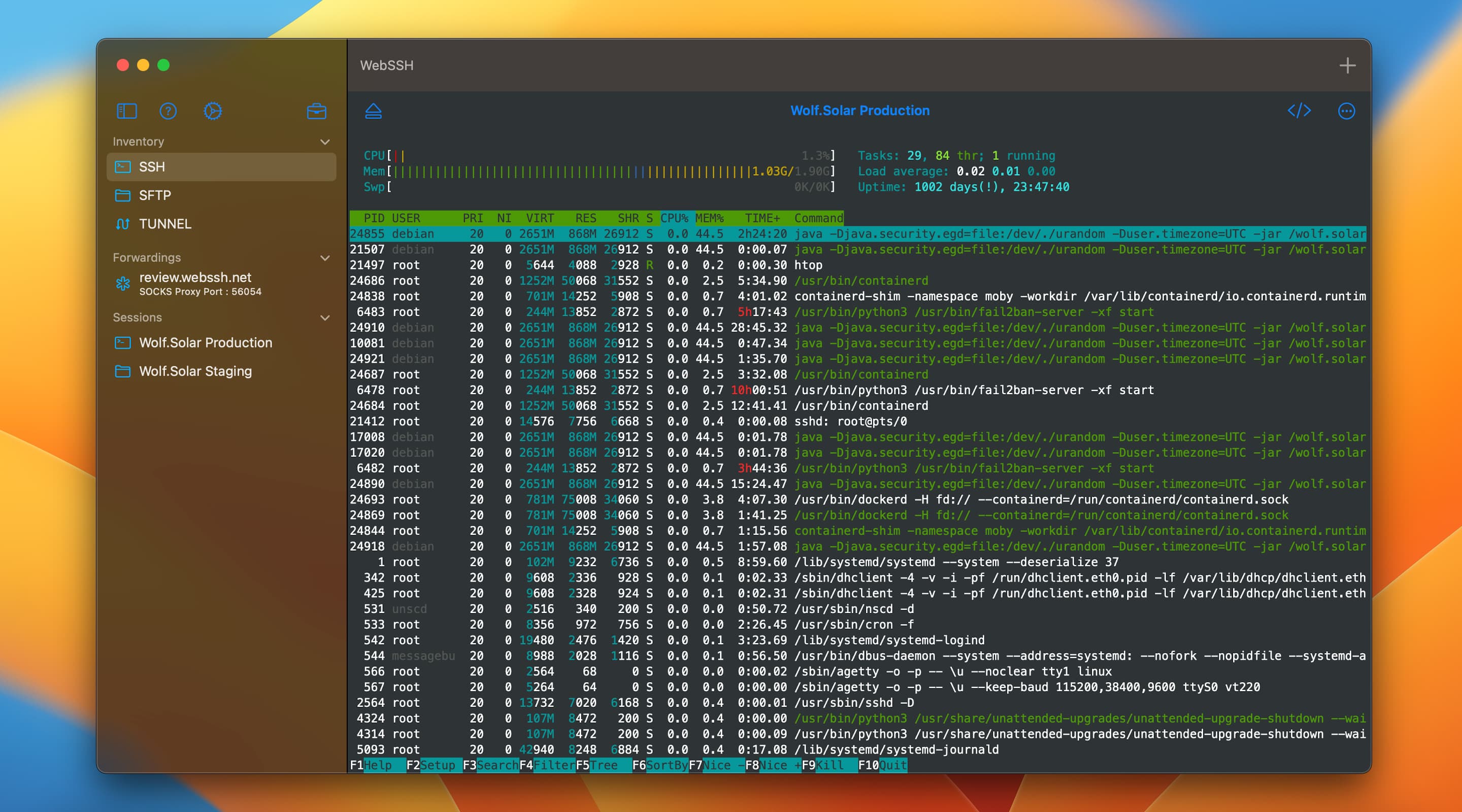
You need a username and a password for SSH access. Use PuTTY for Windows or Terminal for Mac/Linux. Connect to your web host with SSH. Type the correct command to start the session. This makes sure you can send commands to your host.
Credit: webssh.net
Preparing Your Environment
Setting up your environment involves accessing your web host through SSH. Navigate to the directory containing your jar file. Use the command `java -jar filename. jar` to start the file.
Setting Up Java On Server
First, ensure Java is installed on your server. Check the version with java -version command. If Java is missing, install it using your server’s package manager. For Ubuntu, you can use sudo apt-get install default-jdk. After installation, verify it again. This ensures Java is ready to run your jar files.
Configuring Environment Variables
Environment variables help Java find necessary files. Set the JAVA_HOME variable. This tells your system where Java is installed. Edit the .bashrc file in your home directory. Add the line export JAVA_HOME=/path/to/java. Save and exit the file. Apply changes with source ~/.bashrc. Now, your environment is ready for Java.
Uploading Jar Files To Web Host
SCP helps you move files safely. It’s a secure way to transfer data. Open a terminal on your computer. Type the SCP command. Then, enter your web host details. You will need the host address, username, and password. Type the path of your Jar file. Press enter. The file will transfer to the host. Check the terminal for any errors. If all is well, you will see a success message.
After transferring, check the file on the web host. Use checksums to verify the file. Checksums are like special fingerprints for files. Run the checksum on your computer. Do the same on the web host. Compare both results. If they match, the file is good. If not, transfer again. This ensures your file is safe and complete.
Executing Jar Files Via Ssh
To connect, you need an SSH client. One popular tool is PuTTY. First, enter your server’s IP address. Then, click open to start. Enter your username and password when prompted. You are now connected to the server. This is like having a remote computer.
Ensure Java is installed on your server. Use the command java -version to check. To run a Jar file, type java -jar filename.jar. Replace filename with your file’s name. Your Jar file will now execute. Make sure the file is in the right folder. If not, move it first.
Managing Process And Logs
Use the ps command to see active processes. Type ps aux in the terminal. It lists all running tasks. Check the PID of your jar file. If unsure, search by name. Typing ps aux | grep ‘yourjarfile’ helps.
Logs are important for tracking errors. Use the tail command to view logs. Type tail -f /path/to/logfile. This shows the latest entries. For deep analysis, open logs with a text editor. Search for specific messages to understand issues.

Credit: medium.com
Troubleshooting Common Issues
Sometimes, Java version conflicts can stop your jar file. Make sure the Java version on your server is correct. Use the command java -version to check it. If it’s wrong, install the right version. Download it from the official Java site. Set it as the default version. This helps the jar file run smoothly.
Permissions errors can also stop your jar file. Check the file permissions with the command ls -l. Make sure the owner has the right access. Use chmod to change permissions. Give it execute permissions with chmod +x filename.jar. This allows the jar file to start.
Frequently Asked Questions
How To Run Jar File On Remote Server?
Upload the JAR file to the server. Use SSH to access the server. Navigate to the file directory. Run the command: `java -jar filename. jar`. Ensure Java is installed on the server.
How To Deploy Jar File In Web Server?
Deploy a JAR file by uploading it to the web server. Use SSH or FTP for file transfer. Configure the server to recognize the JAR file. Set execution permissions if needed. Restart the server to apply changes. Ensure the server environment supports Java.
How Do I Run A Jar File Online?
Use an online Java compiler or platform like JDoodle or Repl. it. Upload your JAR file, and execute it directly through the browser interface. Ensure Java is supported by the chosen platform to avoid compatibility issues.
How To Run A Java Program On A Remote Server?
Connect to the remote server using SSH. Install Java if not present. Transfer your Java program files using SCP or SFTP. Compile using `javac .java`. Run with `java `. Ensure server permissions allow execution. Troubleshoot any errors for successful execution.
Conclusion
Starting a JAR file on a web host via SSH is simple. Follow the steps carefully. First, connect to your server using SSH. Next, navigate to your JAR file’s directory. Then, use the Java command to start it. Ensure your server has the required Java version.
Check for errors and fix them promptly. Practice will make the process easier over time. This method is efficient for running Java applications on web hosts. With these steps, you’re ready to go. Enjoy managing your Java applications with ease.


