
Are you ready to take control of your web hosting needs? Imagine having the power to host your own website, manage your own servers, and ensure that your digital presence is rock solid.
Setting up a Windows Server for web hosting might sound daunting, but it’s easier than you think. Whether you’re a small business owner looking to save on hosting fees or a tech enthusiast eager to dive into the world of server management, this guide is tailored just for you.
We’ll walk you through each step, ensuring you have a clear understanding of the process without any technical jargon. Get ready to unlock the potential of your Windows Server and take your web hosting capabilities to the next level. Keep reading, and you’ll soon discover how empowering and straightforward this journey can be.
Credit: www.hostens.com
Choosing The Right Windows Server Version
Windows Server comes in different editions. Each has unique features. Some editions are better for small businesses. Others suit large enterprises. Check the features list for each edition. Compare them based on your needs. Budget is important too. Some editions cost more. Make sure you choose wisely.
Compatibility is key. Check if the server works with your hardware. Some editions need more resources. Others may run on older machines. Your software should also be compatible. Some programs need specific versions. Always verify before buying. This avoids problems later.
Preparing Your Hardware
Your server needs a strong base. At least 1 GHz processor is important. Ensure you have a minimum of 512 MB of RAM. More RAM is better for speed. A hard disk with at least 32 GB space is essential. Check for a reliable power supply. It must stay on for long hours. Keep a backup power source ready.
Good network setup is key. Use a reliable internet connection. A stable connection ensures smooth hosting. Secure your network with a strong firewall. This protects your server from threats. Assign a static IP address to your server. Dynamic IPs can cause issues. Use a trusted DNS server for name resolution. A well-configured network keeps your server ready.
Installing Windows Server
Setting up a Windows Server is a simple task. First, insert the installation disk. Restart the computer and boot from the disk. Follow the on-screen instructions. Choose your language and other preferences. Click Next to continue. Select Install Now. Enter the product key when asked. Choose the version of Windows Server. Pick either Standard or Datacenter edition. Accept the license terms. Choose Custom installation.
Select the partition for Windows. If no partition exists, create one. Click Next and wait. The system will install Windows Server. This might take a few minutes. Once done, the computer will restart. Your Windows Server is now installed.
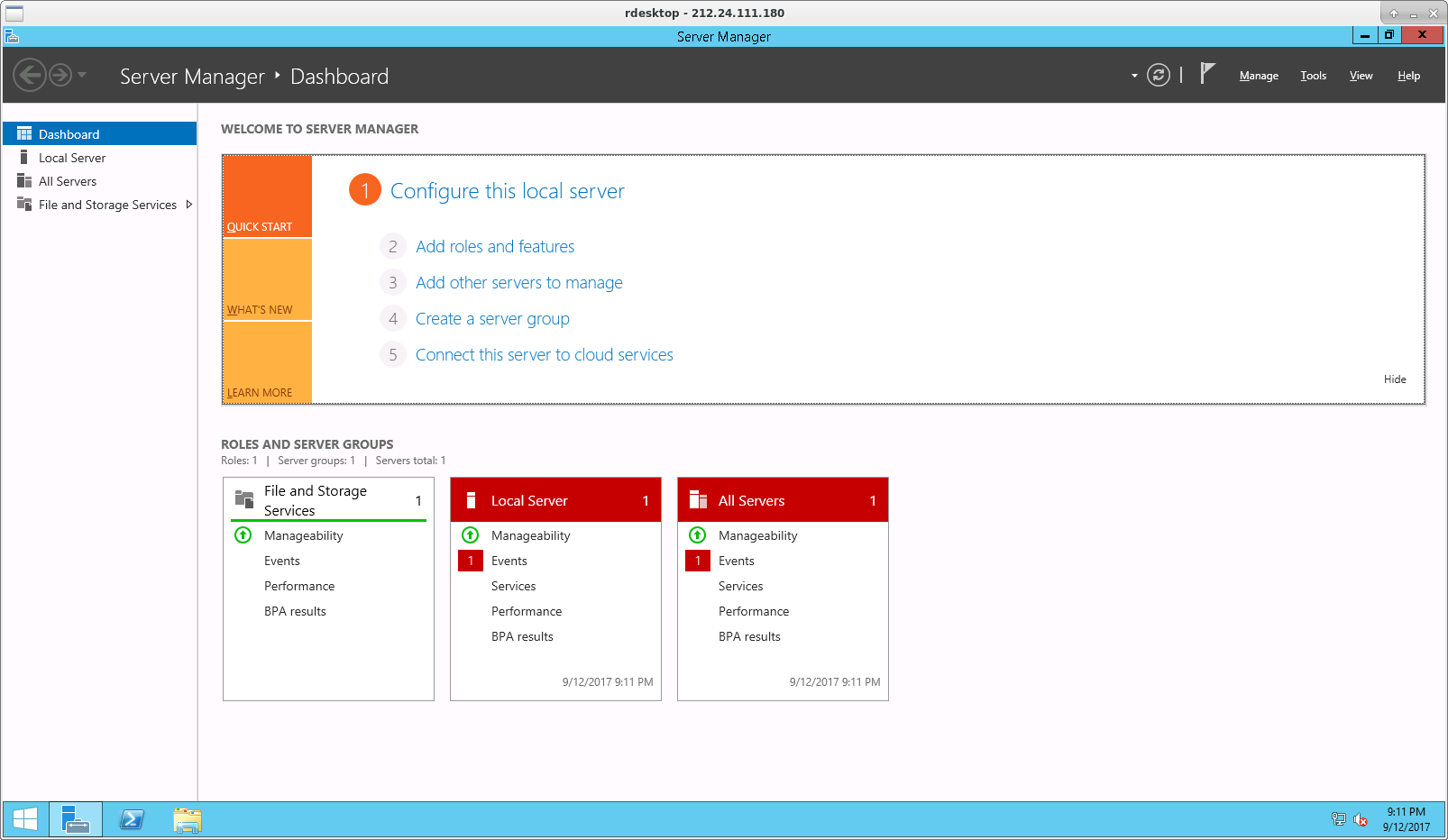
After installation, set up the server. First, set a password for the administrator account. This keeps your server safe. Set the date and time correctly. Connect to a network. This can be wired or wireless. Ensure the network settings are correct. Enable automatic updates for security. Open the Server Manager to check roles and features. Add necessary roles for web hosting. Save all changes. Now, your server is ready for use.
Configuring Internet Information Services (iis)
Open the Control Panel on your Windows Server. Find Programs and click it. Choose Turn Windows features on or off. A list will show up. Look for Internet Information Services. Check the box next to it. Expand it to see more options. Make sure to check Web Management Tools and World Wide Web Services. Click OK to install the features.
Launch the IIS Manager from the Start menu. On the left, find Sites and click it. You will see Default Website. Click on it to select it. In the right pane, find Browse :80. Click it to open the website. This will show a basic web page. You can now host your files here. To change the site, replace files in C:inetpubwwwroot. Make sure to save changes.
Securing Your Server
Setting up a Windows Server for web hosting involves installing necessary software, configuring security settings, and managing user access. Prioritize updating the server to protect against vulnerabilities. Regular backups and monitoring ensure smooth operation and data safety.
Firewall Setup
Setting up a firewall is very important for your server’s safety. It stops bad traffic from reaching your server. Use the built-in Windows Firewall tool. Open the control panel and find the firewall settings. Choose to allow or block certain types of traffic. Always block unknown sources. This keeps your server safe from hackers. Regularly update your firewall settings. This ensures you have the latest protections.
Ssl Certificate Configuration
SSL certificates are crucial for data protection. They encrypt data between your server and users. Purchase an SSL certificate from a trusted source. Install it on your server using the server management tools. Follow the setup guide provided by the certificate issuer. Ensure all web pages are SSL-enabled. This makes user data safe and secure. Always renew your SSL certificate before it expires. This maintains continuous protection.

Credit: learn.microsoft.com
Managing User Access
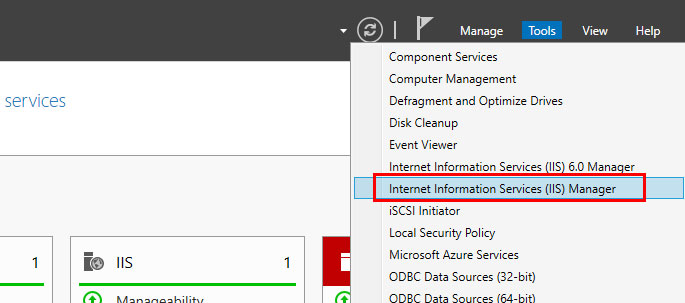
Begin by opening the Server Manager. Find the Tools menu. Click on Computer Management. Next, open Local Users and Groups. Right-click on Users, then choose New User. Fill in the user details. Click Create to finish. Each user should have a strong password. This keeps their account safe. Always remember to save your changes.
Permissions control what users can do. Assign roles based on tasks. Open Active Directory Users and Computers. Right-click on the user. Select Properties. Go to the Member Of tab. Add them to a group. Each group has different permissions. Use Read, Write, and Execute wisely. Keep permissions simple. This prevents mistakes.
Deploying Websites
Use an FTP client to upload your files. This tool helps you transfer files from your computer to the server. A popular choice is FileZilla. Download and install it on your computer. Enter your server’s IP address, username, and password. Drag and drop your website files into the server’s directory. Ensure all files are in the correct place. Check that your homepage is named index.html or index.php. This helps your website load properly.
First, set up a database on your server. Use tools like MySQL or SQL Server. Create a new database for your website. Note down the database name, username, and password. Open your website’s configuration file. Enter the database details you noted earlier. Save the file and upload it to the server. Test the connection to ensure it works. Fix any errors you see. This will make your website connect to the database properly.
Credit: www.ionos.com
Monitoring And Maintenance
Performance Monitoring Tools are essential for a smooth server operation. These tools help track server health. Some popular tools include Task Manager and Resource Monitor. They keep an eye on CPU, memory, and disk usage. Tools like PerfMon can provide detailed insights. Monitoring helps in predicting problems early. It ensures the server runs without hiccups.
Regular Backup Strategies protect your data from unexpected loss. It’s crucial to backup data often. Use tools like Windows Backup or third-party software. Schedule backups daily or weekly. Store backups on a different server or cloud. This ensures data safety if the main server fails. Backups are your safety net. Keep them updated and secure.
Frequently Asked Questions
How To Setup A Web Server In Windows Server?
To set up a web server on Windows Server, install Internet Information Services (IIS) via Server Manager. Configure site settings and add content files. Ensure network settings allow traffic. Test the server by accessing the website locally.
Can I Host A Website On A Windows Server?
Yes, you can host a website on a Windows Server. Use IIS (Internet Information Services) for hosting. Windows Server supports ASP. NET, PHP, and other web technologies. Ensure your server is properly configured and secured.
How Do I Make My Computer A Web Hosting Server?
Install server software like Apache or Nginx. Configure your firewall to allow web traffic. Ensure a static IP address for accessibility. Set up domain name settings if needed. Regularly update and secure your server to prevent vulnerabilities.
Does Windows Have A Built-in Web Server?
Yes, Windows includes a built-in web server called Internet Information Services (IIS). IIS supports HTTP, HTTPS, FTP, and more. It’s available on most Windows editions, offering features like security, scalability, and management tools for hosting websites and web applications. IIS is ideal for developers and businesses needing reliable web hosting.
Conclusion
Setting up Windows Server for web hosting can be simple. Follow the steps carefully. Ensure your server is secure and updated. Use reliable software for smooth operations. Regularly check server performance to avoid issues. Back up data often to protect your work.
Remember, every detail counts in web hosting. Practice makes perfect, so keep learning. Your website can thrive with the right setup. With patience and effort, success is achievable. Happy hosting, and enjoy your online journey!


