
Are you ready to elevate your web hosting skills by setting up a Windows Server for PHP hosting? If you’ve been feeling overwhelmed by the technical jargon or unsure where to start, you’re in the right place.
Imagine having complete control over your server environment, optimizing it to fit your needs perfectly. This guide is crafted just for you, with clear steps that will transform this daunting task into a manageable project. Picture this: a seamless, fast, and reliable web hosting experience that you’ve set up with your own hands.
You’ll not only boost your confidence but also enhance your site’s performance, ensuring your visitors have a smooth browsing experience. As you follow along, you’ll gain the knowledge and skills needed to manage your server like a pro, eliminating the need for costly professional help. Ready to get started? Let’s dive into the process and empower you to take charge of your web hosting setup with ease and confidence!
Choosing The Right Windows Server Version
Windows Server has many editions. Standard and Datacenter are popular. Standard is good for small setups. Datacenter works for larger needs. It supports many virtual machines. Essentials is for small businesses. It is simple and easy to use. Each edition has unique features. Choose based on your needs and budget.
Check the system requirements before installation. Ensure your server meets them. Processor speed matters. At least 1.4 GHz is needed. RAM is also important. Minimum 512 MB is required. Disk space should be ample. 32 GB is a good start. Compatibility with PHP is crucial. Make sure to verify PHP versions. Always choose a stable Windows Server version.

Credit: manage.accuwebhosting.com
Installing Windows Server
Set up Windows Server to host PHP websites by installing Internet Information Services (IIS). Configure PHP and MySQL for smooth operation. Optimize settings to ensure efficient web hosting.
Preparing The Installation Media
Get a blank USB drive or a DVD. Download Windows Server ISO file from the official site. Use a tool to create bootable media. Follow on-screen steps. Choose the correct file for your system. Ensure USB or DVD is large enough for the file.
Step-by-step Installation Guide
Insert the bootable media into your computer. Restart the machine. Press the boot menu key quickly. Choose USB or DVD from the list. Wait for the Windows Server setup to load. Select your language and region. Click install now. Enter the product key, if needed. Agree to the terms. Choose custom installation for new setup. Pick the drive to install Windows Server. Click next and wait.
Configuring Server Roles
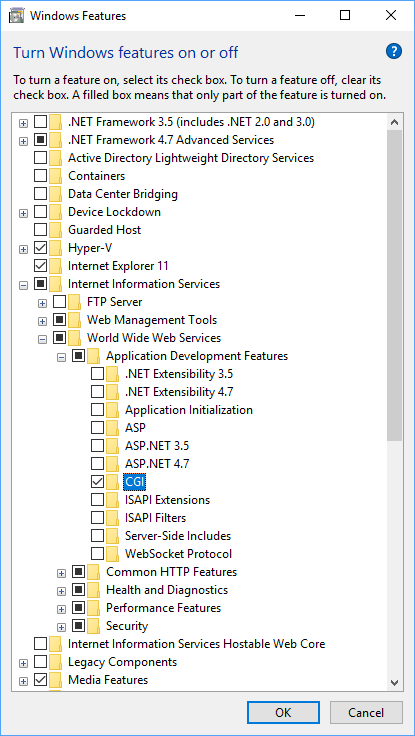
Begin by accessing the Server Manager on your Windows Server. Click on Manage, then Add Roles and Features. A wizard will guide you. Choose Web Server (IIS). Make sure to select ASP.NET and .NET Extensibility. These are crucial for PHP. Click Next and then Install. This process may take a few minutes. Once done, your web server role is enabled. Test the web server by accessing http://localhost in your browser. A successful message will appear.
Go back to Add Roles and Features in the Server Manager. This time, select FTP Server. Ensure FTP Service and FTP Extensibility are checked. Click Next and proceed with the installation. After installation, configure your FTP settings. Open IIS Manager and create a new FTP Site. Assign a name and directory path. Set the Binding and SSL settings. Choose Basic Authentication for simple access. Set permissions for users, like Read or Write. Now, your FTP service is ready. Test by connecting through an FTP client.
Setting Up Internet Information Services (iis)
Set up Internet Information Services (IIS) on Windows Server to host PHP websites efficiently. Install necessary PHP components and configure IIS settings for optimal performance. Ensure all server requirements are met to provide a seamless hosting experience for your PHP applications.
Installing Iis On Windows Server
Start by opening the Server Manager on your Windows Server. Click on Add roles and features. Choose the Role-based or feature-based installation option. Select your server from the list. Check the box for Web Server (IIS). Add the features needed when prompted. Click Next until you reach the installation screen. Click Install and wait for the process to complete. IIS is now installed on your server.
Configuring Iis For Php
Download the PHP installer from the official website. Open IIS Manager from the start menu. Click on your server’s name in the left pane. Double-click on Handler Mappings. Add a module mapping for PHP. Enter the path to the PHP executable. Set the request path to .php. Name the module and click OK. Your server is now ready to handle PHP files.
Installing Php On Windows Server
First, visit the PHP official website. Click on the download link. Choose the version you need. Make sure it matches your server. Save the file to your computer. The file is usually a ZIP. You will need to unzip it. Use a tool like WinRAR or 7-Zip. Remember where you save the extracted files.
Open your IIS Manager. Click on your server name. Find the “Handler Mappings” option. Click on it. Choose “Add Module Mapping”. Set the request path to “.php”. Select the PHP module. Set the name to “PHP”. Click “OK” to save. You now have PHP support in IIS.
Configuring Mysql Database
First, download the MySQL installer from the official website. It’s free to use. Open the installer and follow the steps. Choose a server type that fits your needs. The setup will ask for a root password. Keep this password safe. It’s important.
After installation, check the MySQL service. Make sure it is running. You can do this from the Windows Services panel. MySQL should be listed there. If not, restart your computer.
To connect PHP with MySQL, use the mysqli_connect() function. This function needs four things: server name, username, password, and database name. These details are vital. Without them, the connection won’t work.
Test the connection with a simple PHP script. If it connects, you’ll see a success message. If not, check your details again. Make sure they are correct. This will solve most problems.
Securing Your Server
Setting up a Windows server for PHP web hosting involves installing necessary components like IIS and PHP manager. Ensure proper configuration to enhance security and performance. Regular updates and strong passwords add an extra layer of protection.
Firewall And Network Security
Firewalls block unwanted traffic. This keeps your server safe. Use Windows Firewall for basic protection. Advanced users can choose third-party tools. Set rules for allowed and denied connections. Monitor traffic regularly. Watch for unusual activity. Network security is vital. Encrypt sensitive data. Use VPNs for secure connections. Limit user access to needed areas only.
Ssl Certificate Installation
SSL certificates protect data. They encrypt information. Install an SSL certificate on your server. Use trusted providers for certificates. Follow instructions for setup. Verify the certificate is active. Check for a lock icon in browser bar. This shows secure connection. Renew certificates regularly. Keep data safe from hackers.

Credit: www.upwork.com
Testing The Server Setup
Setting up Windows Server for PHP web hosting involves testing server configurations. Ensure PHP is installed correctly and compatible with your server. Verify that all necessary software components are configured to optimize performance and security.
Running Php Test Scripts
Upload a small PHP test script to your server. This script checks if PHP is working correctly. Use the script to print “Hello World!” or the PHP version. Access the script via your web browser. Ensure the correct output appears. The script helps verify PHP and server setup. If problems occur, check your PHP configuration. Review your server logs for any errors.
Troubleshooting Common Issues
Errors might show up during testing. Common issues include wrong file permissions and missing extensions. Check your PHP settings in the php.ini file. Verify file permissions allow script execution. Missing extensions cause PHP errors. Install required extensions if needed. Review error messages carefully. They offer clues to fix problems. Each error message helps pinpoint the issue.
Credit: stackify.com
Frequently Asked Questions
How To Run A Php Website On Windows Server?
To run a PHP website on Windows Server, install a web server like IIS or Apache. Download and configure PHP compatible with your server. Ensure necessary extensions are enabled. Upload your PHP files to the server directory. Test your setup by accessing the site’s URL in a browser.
Does Windows Server Support Php?
Windows Server supports PHP. You can install PHP manually or use Web Platform Installer. PHP works smoothly with IIS, enabling dynamic web applications. Ensure compatibility with the correct PHP version for optimal performance. Regular updates enhance security and functionality. Check Microsoft’s documentation for detailed setup instructions.
How To Host A Php Website On A Server?
To host a PHP website, choose a reliable web hosting provider with PHP support. Upload your files using FTP. Configure settings in the hosting control panel, ensuring PHP version compatibility. Set up a database if required, and link it to your website.
Test to ensure everything functions properly.
How Do I Install Php In Windows Server?
Download PHP from the official website. Extract files to C:PHP. Configure php. ini file. Add PHP to system PATH. Restart server.
Conclusion
Setting up a Windows Server for PHP web hosting is simple. Follow the steps carefully. Install the required software. Configure settings properly. Ensure compatibility with PHP versions. Test your setup to confirm it works. Regular updates keep your server secure.
Troubleshooting helps solve common issues. With practice, your skills improve. Hosting PHP on Windows Server becomes easier over time. Enjoy your server’s performance. Your website will run smoothly. Happy hosting!


