
Setting up AWS for web hosting might seem like a daunting task at first, but with the right guidance, you can transform your web presence effortlessly. Imagine having the power of Amazon’s robust infrastructure at your fingertips, ensuring your website runs smoothly and efficiently.
This article is your roadmap to mastering AWS for web hosting, packed with practical steps and insider tips to make the process simple and effective. By the end of this guide, you’ll have the knowledge you need to leverage AWS’s powerful tools to host your website.
You’ll discover how to optimize your setup for performance, security, and cost-effectiveness, giving you the confidence to handle your web hosting like a pro. Dive in and unlock the potential of AWS for your web hosting needs, and see how easy it is to elevate your online presence.
Choosing The Right Aws Services
EC2 is a powerful tool for hosting servers. It lets you run virtual machines in the cloud. You can choose different types of EC2 instances. Some are small, some are big. Pick what fits your need. Security is important. Set up firewalls and rules to protect data. EC2 works with other services. This makes it flexible and easy to use.
S3 stores static content like images and files. It is reliable and scalable. You can access files from anywhere. S3 is cost-effective. Pay only for what you use. Organize files in buckets. This helps keep things tidy. Use S3 to deliver content fast. It works well with EC2 and other AWS services.
RDS manages databases easily. It supports popular databases like MySQL and PostgreSQL. RDS is automated. Tasks like backups and updates are done for you. It is secure. You can set up encryption and rules. Scale databases as your needs grow. RDS works well with EC2 and S3. This provides a smooth experience.
Creating An Aws Account
Creating an AWS account is simple. Visit the AWS website and click on “Create an AWS Account”. Provide your email, password, and user name. Choose your account type: personal or professional. Fill in your details. Verify your email. It’s that easy!
AWS offers a free tier for beginners. It includes free hours, storage, and resources. You need to add a payment method. Don’t worry; you won’t be charged unless you go beyond free limits. Explore the free tier benefits. Save money while learning.
Launching An Ec2 Instance
Select an Amazon Machine Image (AMI) to start. It’s like a template for your server. Choose one that fits your needs. You can find many types. Some are free. Look for the free tier label. This helps save costs.
Pick the right instance type. It decides the power of your server. Choose small for simple tasks. Bigger ones are for heavy tasks. Check the price before you choose. Ensure it fits your budget. Then, set the network. Make sure it matches your plan.
Security groups are like walls around your server. They keep bad people out. Choose which ports to open. Open only the needed ones. This makes your server safe. Always review your settings. Double-check them for mistakes.
Configuring Elastic Ip
Start by logging into the AWS Management Console. Find the EC2 Dashboard in the services menu. Click on Elastic IPs in the navigation pane. Click the Allocate Elastic IP address button. This will allocate a new IP for your use. Note the IP address provided. It’s now yours to use. Keep it safe and secure.
Go back to the Elastic IPs page. Select your new IP address. Click the Actions button, then Associate Elastic IP address. Choose your EC2 Instance from the list. Click Associate to link the IP to your instance. Your instance now has a public IP. Users can access it easily.
Setting Up A Domain Name
Choose a domain name for your website. Visit AWS Route 53. Sign up if you don’t have an account. Search for your chosen name. Confirm its availability. Follow steps to register the name. You will need to provide contact information. AWS will guide you through the payment process. Once registered, your domain is ready to use.
Access your Route 53 dashboard. Locate your domain in the list. Click to view DNS settings. Add new records for your domain. Use A records for IP addresses. Use CNAME records for aliases. Make sure settings point to your server. Save changes to update DNS settings. Your domain will now direct users to your website.
Deploying Web Application
Start by creating an EC2 instance. Choose a server type. Next, access the EC2 dashboard. Use the key pair to connect securely. Upload your files using SCP or FTP. Verify all files are in the right place. Ensure file permissions are set correctly. Check if your web app is running.
Set up the environment for your app. Install necessary software. This may include a web server like Apache or Nginx. Ensure database connections are configured. Set environment variables for sensitive data. Adjust security groups in AWS to allow traffic. Test to see if the app works well.
Using Cloudfront For Cdn
CloudFront is a great tool for content delivery. First, log in to the AWS console. Click on “CloudFront” under the services tab. Then, choose “Create Distribution”. This step will help you set up a new distribution.
Linking CloudFront with S3 and EC2 is easy. Go to the distribution settings. Select the origin type as “S3 bucket” or “EC2 instance”. Make sure the bucket or instance is already set up. Check the permissions. Ensure they allow CloudFront access.

Credit: aws.amazon.com
Monitoring And Logging
CloudWatch helps track your web hosting resources. It shows real-time data. This data includes CPU usage, memory, and network traffic. You can view logs and metrics anytime. It keeps your website safe and fast.
Using Cloudwatch
CloudWatch is easy to use. Start by creating a CloudWatch account. Set it to monitor your AWS services. It logs important events for you. These logs help find issues quickly. Keep your website healthy with CloudWatch.
Setting Up Alarms And Metrics
Alarms warn you about problems. Set alarms for high CPU usage. Alarms can be set for low memory. When something goes wrong, alarms alert you. Metrics show data trends. They help plan for future needs. Use metrics to improve web hosting performance.
Ensuring Security And Compliance
Implementing IAM Policies is vital for AWS security. IAM helps control access. It manages who can use resources. Set up users and roles carefully. Give permissions wisely. Always follow the principle of least privilege. This means users get only what they need. No more, no less. Keep reviewing and updating policies. Ensure they meet current needs. This helps in maintaining security.
Using AWS WAF and Shield can protect websites. They guard against attacks. WAF blocks harmful traffic. It checks the data before it reaches your site. Shield offers extra protection. It defends against DDoS attacks. Both tools work together. This keeps your web hosting safe. Stay alert. Regularly monitor for threats. Update settings as needed. This ensures your site remains protected.
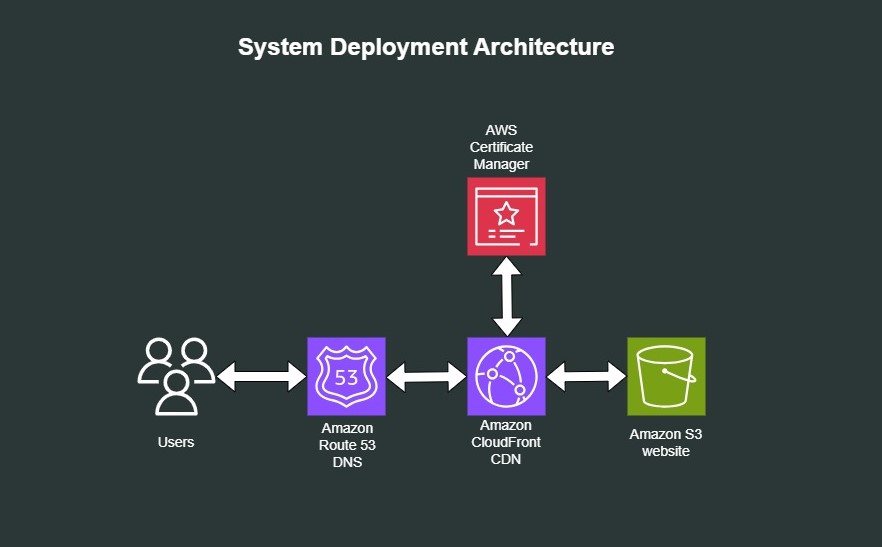
Credit: vuyisile.com
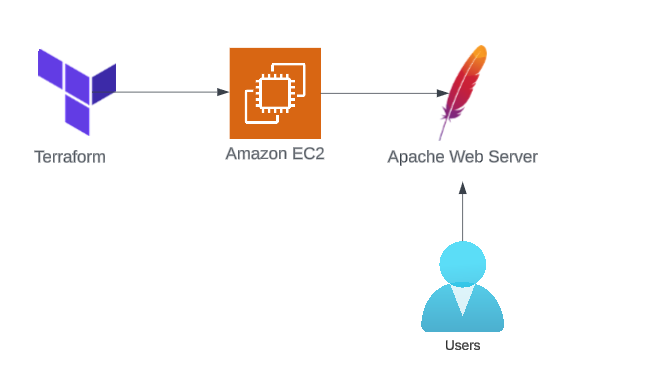
Credit: aws.plainenglish.io
Frequently Asked Questions
Can I Use Aws To Host My Website?
Yes, AWS can host your website efficiently. Use services like EC2, S3, and Elastic Beanstalk. AWS offers scalability, reliability, and security. Optimize costs with AWS Free Tier for small-scale sites. Access global content delivery through AWS CloudFront. Manage your resources easily via AWS Management Console.
How To Setup A Web Server In Aws?
To set up a web server in AWS, create an EC2 instance. Choose an appropriate Amazon Machine Image and instance type. Configure security groups to allow HTTP/HTTPS traffic. Connect to the instance via SSH. Install a web server software like Apache or Nginx.
Deploy your website files.
Is Aws Free For Web Hosting?
AWS offers a Free Tier with limited web hosting services for 12 months. It includes EC2, S3, and RDS. Some features remain free indefinitely, but costs might apply beyond limits. Always check usage to avoid unexpected charges. AWS pricing varies by service and region.
How Much Does Aws Cost For Hosting A Website?
AWS hosting costs vary based on services and usage. Basic hosting starts at around $3. 50/month with AWS Free Tier. Pricing depends on factors like bandwidth, storage, and additional features. Visit AWS Pricing Calculator for detailed estimates tailored to your needs.
Always monitor usage to control costs effectively.
Conclusion
Setting up AWS for web hosting is now within your reach. Follow the steps carefully. Choose the right services for your needs. AWS offers flexibility and reliability. You can manage resources efficiently. With practice, handling AWS becomes second nature. Keep learning and exploring AWS features.
Your website will run smoothly. Remember to monitor and optimize regularly. Stay updated with AWS changes and improvements. This ensures your web hosting remains effective. Enjoy the benefits of using AWS for your web projects. Happy hosting!


