
Are you ready to take control of your online presence? Setting up a server for web hosting on Linux might sound daunting, but it’s more manageable than you think.
By the end of this article, you’ll be empowered with the knowledge to host your website like a pro. Imagine the freedom and flexibility of having your own server—no more relying on third-party services that limit your creativity and control.
Whether you’re launching a personal blog, a small business site, or a robust online platform, understanding how to configure a Linux server gives you the power to tailor your hosting environment precisely to your needs. Dive into our step-by-step guide and unlock the potential to host your own corner of the web, with the peace of mind that comes from knowing exactly how your server operates. Let’s get started on building a solid foundation for your digital future.
Credit: www.tecmint.com
Choosing The Right Linux Distribution
Linux offers many choices for web hosting servers. Ubuntu is a popular choice. It is easy and user-friendly. CentOS is another option. It is stable and secure. Debian is also a favorite. It is known for its reliability. Each has its own strengths. Think about what you need most.
Consider the support community. A strong community helps fix problems. Look at security features. Some distributions have better security. Think about ease of use. Some are simpler to set up and manage. Performance is key too. Ensure the distribution runs well on your hardware. Lastly, consider cost. Some options are free, while others may cost money.
Preparing Your Hardware
A server needs a strong base. Minimum hardware is crucial for smooth work. First, ensure at least 1 GB of RAM. This helps in handling tasks. A single-core processor with 1 GHz speed is needed. 10 GB of disk space is essential for storage. Internet connectivity must be stable. A network card is also required for connections. A basic setup ensures your server runs fine. Install Linux OS for best results.
For better performance, aim for more. 2 GB of RAM is good for more speed. A dual-core processor ensures quick tasks. 20 GB of storage helps store more data. Use a solid-state drive (SSD) for faster access. A 100 Mbps network card improves connections. Better hardware makes tasks smoother. It helps handle more traffic. Choose a stable Linux OS version for reliability. Good hardware can handle busy websites.
Installing The Linux Operating System
First, find a trusted website to download the Linux ISO file. Many people use the official Linux website. You can also use popular distributions like Ubuntu or Fedora.
Make sure the ISO file is compatible with your computer. Check your system’s requirements. This avoids future problems. Save the ISO file in an easy-to-find location on your computer.
Create a bootable USB drive using the ISO file. You will need special software like Rufus. This helps transfer the ISO to the USB.
Restart your computer and enter the BIOS settings. Choose to boot from the USB drive. Follow the on-screen instructions to install Linux. Choose your language and time zone.
Set a username and password. Complete the installation by following the prompts. Your system will now have Linux installed.
Configuring Network Settings
Each server needs an IP address to connect to the internet. Static IPs do not change, ensuring a stable connection. Use the ifconfig command to view your current IP. To set a new IP, edit the /etc/network/interfaces file. Save changes and restart the network service. This will apply your new settings.
DNS translates domain names to IP addresses. Edit the /etc/resolv.conf file to set DNS servers. Add your preferred DNS IPs here. Google’s public DNS is a popular choice. After editing, save the file. Restart the network to apply changes. Always test your settings to ensure they work.
Installing Web Server Software
Apache and Nginx are popular web servers. Apache is known for its flexibility. Nginx is famous for speed and low memory usage. Both have strong support and large communities.
Apache is easy to set up. It suits those who need simple configurations. Nginx handles many connections at once. It works great for high-traffic sites.
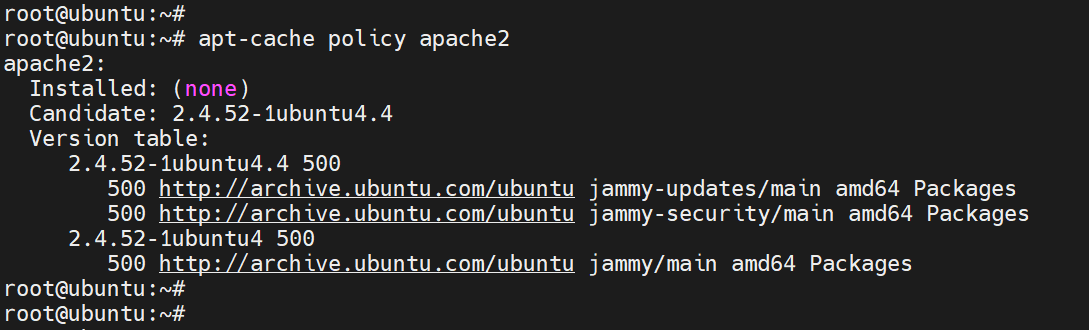
First, update your Linux server. Use the terminal to run updates. Install Apache using the command: sudo apt install apache2. For Nginx, use: sudo apt install nginx.
Once installed, start the server. Use sudo systemctl start apache2 for Apache. For Nginx, enter sudo systemctl start nginx. Check server status with systemctl status. Ensure everything runs smoothly. Adjust settings as needed for your site.
Securing Your Server
A firewall is like a gatekeeper. It keeps your server safe. Block unwanted traffic using a firewall. Allow only trusted connections. Use tools like UFW or iptables. Set rules to control data flow. Keep the firewall updated. Always check for new security features. Make sure your firewall is active. Test it regularly.
SSH helps you connect safely to your server. Change the default SSH port to a new number. This makes it harder for bad people to find it. Use strong passwords. Or better, use SSH keys for login. Disable root login. This adds another layer of protection. Regularly update SSH settings. Keep the software up-to-date. This fixes any security holes.
Setting Up A Database
Picking a database is important. MySQL and PostgreSQL are popular choices. They are free and open source. MySQL is faster for simple tasks. PostgreSQL is strong with complex queries. Choose based on your needs. Research their features. Understand their differences.
Install the database using package managers. Use apt for Ubuntu and yum for CentOS. Follow the installation steps closely. Secure your database with a strong password. Configure your database settings. Edit the configuration file for better performance. Test your database connection. Ensure everything works well before moving on.

Credit: www.siteuptime.com
Deploying Your Website
First, choose a reliable FTP client like FileZilla. It helps in moving files to your server. Make sure to enter the correct server address and login details. Check your internet connection for smooth uploading. Drag and drop your website files into the server’s public directory. Double-check the files to ensure they are in the right place.
Virtual hosts help in hosting multiple sites on one server. Begin by opening the server’s configuration file. Use a text editor like Nano or Vim. Add a new block for each website. Specify the site’s domain name and directory path. Save the changes and restart the server. Ensure that each site is accessible via its domain.
Monitoring And Maintenance
Setting up a Linux server for web hosting involves monitoring and maintenance. Regularly check system performance and update software to ensure security. Schedule backups to prevent data loss and troubleshoot issues promptly for smooth operation.
Regular Updates
Keeping your server updated is crucial. Updates protect from bugs and threats. Linux offers regular updates. Always check for available updates. Make sure your server is up-to-date. This ensures safety and smooth performance. Regular updates reduce risks. They improve system stability. Never ignore an update notice.
Performance Monitoring
Monitoring your server is essential. It helps track performance. Use tools to check server health. Look at CPU usage and memory. Also, watch disk space and network speed. These factors affect performance. Good monitoring prevents slowdowns. It identifies problems early. Fix issues before they grow. This keeps your server running well.
Troubleshooting Common Issues
Setting up a server for web hosting on Linux can present challenges. Troubleshoot common issues like network configuration, firewall settings, and software dependencies. Follow step-by-step guides to resolve these efficiently and ensure smooth server operation.
Network Problems
Network problems can halt your server’s performance. Start by checking the cables and connections. Make sure everything is plugged in correctly. Reboot the router if the internet is down. Ping the server to see if it responds. If it doesn’t, check the IP address. It should be static, not dynamic. Wrong IP settings can cause conflicts. Ensure firewall settings don’t block traffic. Open ports like 80 for HTTP. Also, check the DNS settings. These help your server find websites. Sometimes, a simple restart fixes issues.
Software Conflicts
Software can often cause conflicts. First, check if all updates are installed. Outdated software can clash with newer versions. Look at the logs for error messages. These can reveal what went wrong. If two programs use the same resources, they might crash. Uninstall one program if necessary. Reinstall it if problems persist. Check compatibility with your operating system. Not all software runs on every version. Disable unnecessary background processes. They can slow down your server or cause errors.

Credit: www.amazon.com
Frequently Asked Questions
How To Setup A Web Server In Linux?
Install Apache using the command: sudo apt-get install apache2. Start the service with: sudo systemctl start apache2. Verify installation by visiting your server’s IP. Adjust firewall settings to allow traffic. Modify configuration files in /etc/apache2/ for custom settings. Restart Apache after changes using: sudo systemctl restart apache2.
How Do I Setup A Web Hosting Server?
To set up a web hosting server, choose a reliable hosting provider and select your plan. Install server software, configure settings, and upload your website files. Ensure security measures are in place. Regularly maintain and update your server for optimal performance.
How To Create A Virtual Server In Linux?
To create a virtual server in Linux, install a hypervisor like VirtualBox or KVM. Use the hypervisor to set up a new virtual machine. Allocate resources like CPU, memory, and storage. Install your preferred Linux distribution. Configure network settings for connectivity.
Save your configuration and start the virtual machine.
How To Create Domain Server On Linux?
Install Linux server software and configure DNS settings. Use BIND for DNS management. Set up necessary domain records. Ensure server security with firewalls. Regularly update and monitor server performance.
Conclusion
Setting up a Linux server for web hosting is straightforward. Follow the steps closely. Use secure practices for a stable server. Choose the right software for your needs. Regular updates keep your server safe. Monitor performance for optimal results. Troubleshooting helps solve issues quickly.
Backups protect against data loss. Learn and grow your skills. Practice makes perfect in server management. Share your experience with others. Enjoy hosting your own website. Stay curious and keep exploring.


