
Are you ready to give your WordPress site a fresh look but unsure where to start? Setting up a new WordPress theme can feel like a daunting task, especially if you’re not tech-savvy.
But don’t worry! We’ve got you covered. This guide will simplify the process, taking you step-by-step through everything you need to know to transform your website’s appearance. Imagine captivating your audience with a visually stunning design that keeps them coming back for more.
Intrigued? Keep reading to discover how easy it is to set your WordPress theme and make your site stand out!
Choosing The Right Theme
Picking the right theme is important. Think about what your site needs. Is it a blog, a store, or a portfolio? Each type needs a different design. Simple layouts are best for beginners. They are easy to manage. Responsive themes work well on all devices. This is important for mobile users. SEO-friendly themes help your site rank better. Check for theme support too. It’s good to have help if needed.
WordPress has many themes. Some are free, others cost money. Free themes are good to start with. Paid themes often have extra features. Popular themes are usually well-tested. Check reviews before choosing. Look for themes with regular updates. This keeps your site secure. Try different themes to see which one fits best. You can always change it later.
Credit: themegrill.com
Installing Your Theme
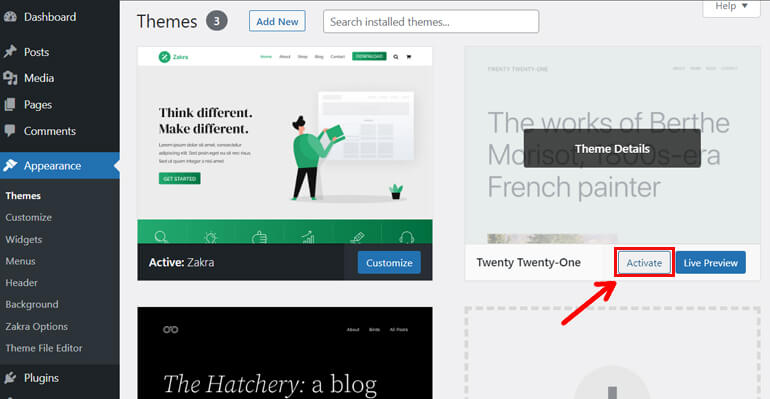
Click on Appearance in your dashboard. Then select Themes. Look for the Add New button and click on it. Search for a theme you like. Press Install to add it. After installing, click Activate to use the theme. Your new theme is now live!
Open your FTP client. Connect to your server using your details. Navigate to the wp-content/themes folder. Drag and drop your theme’s folder into this location. After uploading, go to your dashboard. Click on Appearance, then Themes. Locate your theme and click Activate. Your theme is now ready!
Customizing Theme Settings
Change the look of your site. Pick colors that fit your style. Use the theme options to make these changes. Choose fonts that are easy to read. Bold fonts can help important words stand out. Mix colors and fonts for a unique look. Remember, keep it simple and clear. This helps visitors read your content easily. A good color and font choice makes your site nice to see.
Widgets are like small tools. They add features to your site. Use them for things like a search bar. Menus help visitors find pages on your site. Place important pages in your menu. This makes them easy to find. Arrange widgets and menus in the WordPress dashboard. Drag and drop to move them around. Keep your widgets and menus tidy. This helps visitors navigate your site easily.
Credit: help.market.envato.com
Optimizing For Performance
A fast website makes users happy. It also helps your site. Use a light-weight theme. It loads faster. Avoid too many plugins. They can slow down your site. Always keep your WordPress updated. This ensures best speed. Use a caching plugin. It saves time by loading pages faster. Optimize images before uploading. Smaller images load quicker. Every second counts.
Good SEO brings more visitors. Choose a theme with SEO-friendly codes. This helps search engines find your site. Use clean URLs. They are easy to read. Add keywords to your titles and descriptions. They help people find your content. Use alt text for images. This helps search engines understand your images. Always check for broken links. They can hurt your SEO.
Ensuring Mobile Responsiveness
Setting a WordPress theme for mobile responsiveness is crucial. Choose themes designed for mobile compatibility. Customize settings to ensure images and text adjust smoothly on various devices. Regularly test and update your theme to maintain optimal performance.
Testing On Different Devices
Mobile responsiveness is crucial. Try your website on different devices. Use smartphones, tablets, and computers. Check if everything looks good. Test buttons, images, and text. Fix anything that looks odd. Make sure users have a great experience. Happy users visit your site more often.
Utilizing Responsive Design Tools
Responsive design tools help a lot. Tools like Google’s Mobile-Friendly Test are useful. They show how your site looks on mobile. You can find problems quickly. Fixing them makes your site better. Ensure your site adapts to screens of all sizes. This keeps users satisfied and engaged.
Troubleshooting Common Issues
Setting a WordPress theme often involves common issues like broken layouts and missing plugins. Check theme compatibility and update all plugins to fix these problems. If issues persist, switch to a default theme to identify conflicts.
Resolving Compatibility Problems
Many themes might not work with your plugins. This can cause errors. Check if your theme is up-to-date. Update it if needed. Sometimes, plugins need updates too. Always backup your site before changes. Consider using a child theme. It helps keep changes safe.
Fixing Broken Layouts
A broken layout looks messy. Check your theme settings. Sometimes small tweaks can help. Clear your cache after changes. Browser cache can show old layouts. Try using a different browser. See if the layout looks okay there. If problems continue, contact theme support. They might have a solution.
Credit: www.greengeeks.com
Frequently Asked Questions
How To Set A Theme In WordPress?
To set a theme in WordPress, log into your dashboard. Navigate to “Appearance” and click “Themes. ” Choose a theme from the available options or upload a new one. Click “Activate” to apply your chosen theme. Customize it under “Customize” for a personalized look.
How Do I Set A Standard Theme In WordPress?
Go to your WordPress dashboard. Click on “Appearance” and then “Themes. ” Choose a theme you like and click “Activate. ” Your selected theme is now set as the standard for your site. Customize it further using the “Customize” option under “Appearance.
“
How Do I Select A WordPress Theme?
Choose a theme that aligns with your website’s purpose. Ensure it’s responsive, fast-loading, and supports essential plugins. Check user reviews and ratings for reliability. Customize options should be flexible and easy to use. Prioritize themes with regular updates for security and performance.
How Do I Change The Template Of My WordPress Site?
Go to your WordPress dashboard. Click on “Appearance” then “Themes. ” Choose a new theme and click “Activate. ” Customize it under “Customize” in the “Appearance” section to fit your preferences. Always preview changes before publishing to ensure satisfaction. This process updates your site’s look efficiently.
Conclusion
Setting a WordPress theme is simple with these steps. Choose a theme that fits your style and needs. Download the theme file, then go to your WordPress dashboard. Click on “Appearance,” then “Themes,” and upload your file. Activate the theme to see it live on your site.
Customize it to match your brand. Make changes to colors, fonts, and layout. Check your site on different devices to ensure it looks good. With practice, you’ll find it easy to change themes. Your website will reflect your unique vision and purpose.
Enjoy the process and happy blogging!


