
Are you ready to launch your website but feeling overwhelmed by the technicalities of web hosting? You’re not alone.
Navigating the setup process can seem daunting at first, but with the right guidance, you’ll find it’s easier than you think. Imagine finally seeing your website live, accessible to the world, and optimized for your needs. In this guide, you’ll discover step-by-step instructions on how to set up web hosting on Domain.
com. By the end, you’ll have the confidence and knowledge to manage your hosting like a pro. Let’s get started and make your online presence a reality!

Credit: www.domain.com
Choosing The Right Hosting Plan
Shared hosting means you share a server with others. It is often cheaper. It’s good for small websites. Dedicated hosting gives you a whole server. No sharing with others. It offers better performance. It’s great for big websites. Choosing depends on your needs and budget.
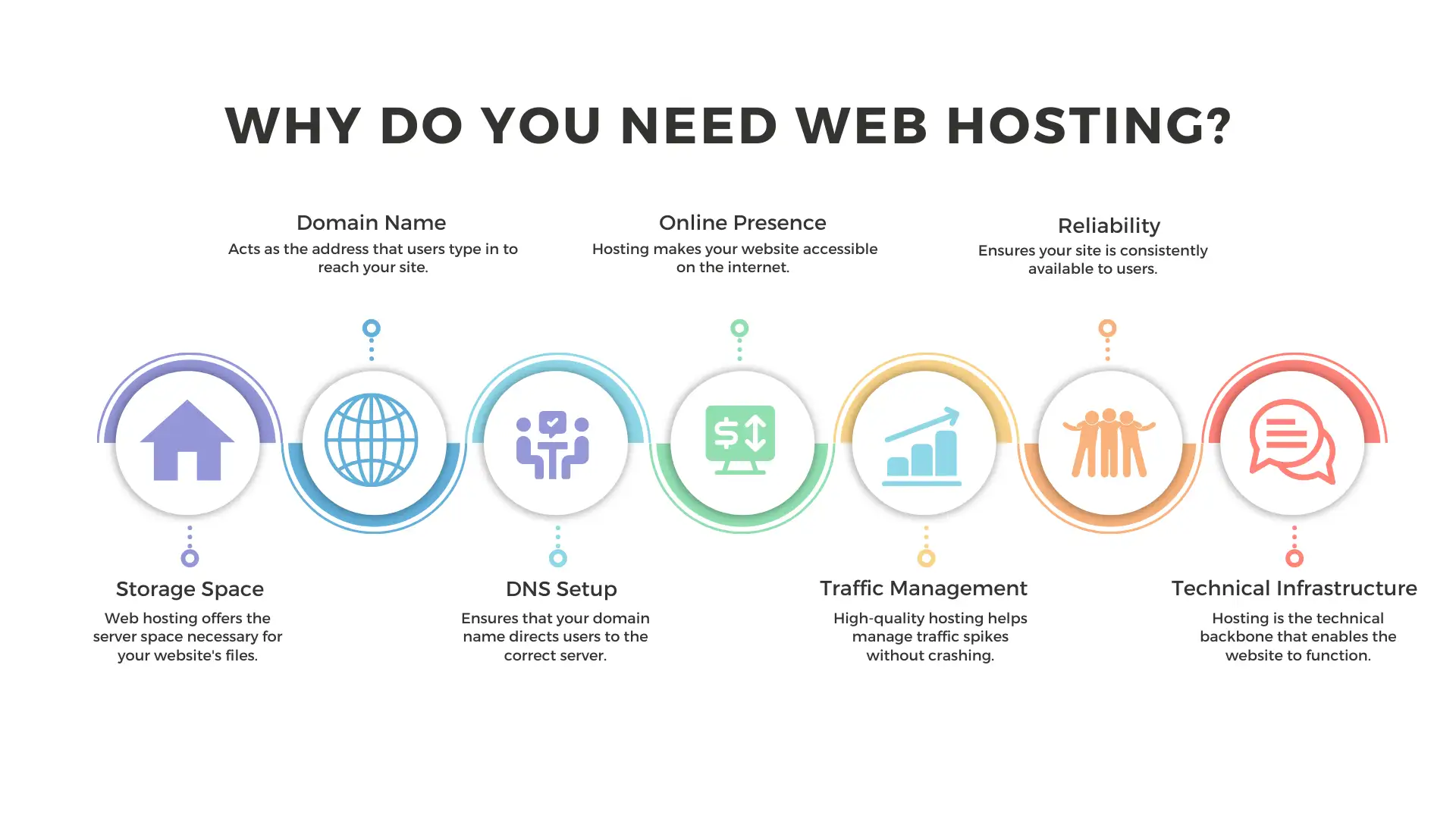
Bandwidth is how much data your site can handle. More visitors need more bandwidth. Storage is space for your files, like images and text. Large files need more storage. Small sites need less. Always check your website’s traffic and content size. This helps you pick the right plan.
Credit: wegic.ai
Registering Your Domain
Choose a short and simple domain name. It should be easy to remember. Avoid numbers and hyphens. They can confuse people. Pick a name that relates to your content. This helps others find you easily. Check if your name is easy to spell. This makes it user-friendly. Consider using a keyword. This can help with search engines.
Visit a domain registrar website. Type your chosen name in the search box. Look for availability results. If it’s taken, try a different one. Check for other extensions like .net or .org. This gives more options. You can also try slight variations. Make sure the name is unique. Avoid names that are similar to others.
Navigating Domain.com’s Platform
First, go to the Domain.Com website. Click on the Sign Up button. Enter your email and a strong password. Remember to choose a password you can remember. Follow the steps on the screen. Fill in your details accurately. Check your email for a confirmation link. Click the link to verify your account. Now you have an account on Domain.Com. This process is simple and quick.
After logging in, you see the dashboard. The dashboard is like a control panel. Here, you can manage your domain and hosting. Look for the My Domains section. This shows all your domains. You can also view the My Hosting area. Here, you manage your hosting plans. Each section has helpful options. Explore each one to get familiar. Understanding the dashboard is important.

Credit: www.whatsthehost.com
Setting Up Web Hosting
Start by visiting Domain.Com. Navigate to the hosting section. Choose a plan that fits your needs. Basic plans suit small websites. Larger sites need more resources. Click on the plan you want. Add it to your cart. Create an account if needed. Then, proceed to checkout. Enter your payment details. Complete the purchase. You now have a hosting plan!
Log in to your Domain.Com account. Go to your dashboard. Find the domain you own. Click on it. Look for the DNS settings. You need to update these. Use the nameservers from your hosting provider. Enter them in the DNS settings. Save the changes. Wait for them to take effect. This can take a few hours. Your domain is now linked to your hosting!
Configuring Dns Settings
DNS records help direct internet traffic to your domain. Each record has a specific function. The most common types are A, CNAME, MX, and TXT. An A record links your domain to an IP address. CNAME allows one domain to be an alias for another. MX records handle email routing. TXT records provide text information about your domain. Understanding these records is essential. It ensures correct setup of your domain.
Start by accessing your domain’s DNS settings. Look for existing A records. Change the IP address to the one given by Domain.Com. If there are CNAME records, ensure they point to Domain.Com. Update MX records if Domain.Com handles your email. This ensures your emails arrive correctly. Save changes after updating. Propagation can take up to 48 hours. Check if your domain points correctly. Use tools like DNS Checker to verify.
Installing A Website Builder
Choosing the right website builder is key. Easy-to-use builders are best for beginners. Look for drag-and-drop features. Check if it offers responsive templates. This ensures your site works on phones and computers. Popular choices include Wix, Squarespace, and WordPress.
First, log into your Domain.com account. Navigate to the hosting section. Select your domain name. Next, find the “Website Builder” option. Click to start the installation. Follow the simple instructions on the screen. Choose your desired template. Customize the template to fit your needs. Preview your site to make sure it looks good. Finally, publish your website. It’s now live on the internet!
Uploading Website Files
Using FTP is a common way to move files. It helps in transferring files from your computer to the server. First, install an FTP client on your computer. FileZilla is a good option. Open the FTP client and enter your login details. You will need your username, password, and server address. Connect to the server and find the right folder. It is usually called “public_html”. Drag and drop your website files into this folder. Wait for the files to upload.
Organizing Files on the Server is important. Keep files in the right place. Use folders to organize them. This makes it easy to find and update files. Check file names for errors. Use simple names without spaces. This helps in loading files correctly. Follow these steps to keep your website running smoothly.
Enhancing Website Security
Boost your website’s security by setting up web hosting on Domain. Com. Start by selecting a reliable hosting plan. Follow the setup instructions to ensure a safe and secure online presence.
Implementing Ssl Certificates
SSL certificates make websites safe. They protect data from hackers. Visitors trust sites with SSL more. Getting an SSL is easy. Domain.com helps you do it. Install the SSL on your hosting account. Your site will show a padlock icon. This means it is secure. SSLs are vital for e-commerce sites. They keep payment info private. Google likes secure sites more. It may rank them higher. So, an SSL can help with SEO too.
Regular Backups And Updates
Backing up your website is crucial. It saves your data. Problems happen sometimes. Backups can fix issues fast. Domain.com offers backup services. Use them to save your files. Updates are important too. They keep software safe. New updates fix security holes. Always update your site regularly. This prevents hackers from entering. Domain.com can help with updates. Check for updates often. This keeps your site secure and running smoothly.
Troubleshooting Common Issues
Setting up web hosting on Domain. com may sometimes pose challenges. Common issues include DNS misconfigurations and file upload errors. Address these by checking settings and ensuring correct file paths for a smooth setup.
Resolving Domain Connection Problems
Domain connection problems can be frustrating. First, check domain settings. Ensure DNS records are correct. Verify domain name servers match hosting service. Next, inspect domain registration status. Confirm it’s active and not expired. Sometimes, a simple refresh fixes the issue. Clear browser cache and cookies. This can solve minor connection glitches. Contact domain support if problems persist. They can provide specific assistance. Always keep registration details updated. This prevents unexpected issues.
Fixing File Upload Errors
File upload errors are common on websites. Start by checking file size. Some hosts limit upload sizes. Ensure files are within allowed limits. Check file format compatibility. Not all formats are supported. Use common formats like JPEG or PNG. Verify internet connection strength. Slow connections cause upload failures. Clear browser cache before retrying. This can resolve minor errors. Adjust permissions for upload folders. Incorrect permissions block uploads. Consult hosting support for persistent issues. They offer guidance and solutions.
Frequently Asked Questions
How Do I Host A Website On My Domain?
Choose a hosting provider and sign up. Connect your domain to the hosting account. Upload website files using FTP or a control panel. Ensure DNS settings point to your hosting server. Test your website to confirm it’s live.
Does Domain.com Host Websites?
Yes, domain. com hosts websites. They provide various hosting solutions, including shared, VPS, and dedicated hosting plans. Their services cater to different needs, offering reliable and scalable options. You can manage your website efficiently with their user-friendly tools and support.
Choose a plan that suits your requirements.
How To Start Domain Hosting?
Choose a domain name and register it with a domain registrar. Select a hosting provider and plan. Connect the domain to the hosting server. Use a website builder or CMS to create your site. Test and launch your website.
How To Self Host A Website With A Domain?
Purchase a domain name and a hosting plan. Install a web server, like Apache or Nginx. Upload your website files via FTP. Update DNS settings to point the domain to your server’s IP address. Test your website to ensure it loads correctly.
Conclusion
Setting up web hosting on Domain. Com is straightforward. Follow the steps carefully. Ensure your domain is registered. Choose a hosting plan that fits your needs. Keep your login details safe. Check your website regularly for issues. Contact support if needed.
Remember, a secure site builds trust. User-friendly sites attract more visitors. Good hosting enhances site performance. Make your site accessible to all. Happy hosting on Domain. Com!


