
Are you looking to customize your WordPress site without risking your main theme’s functionality? Setting up a child theme is your best solution.
This not only safeguards your original theme but also gives you the freedom to tweak your site to match your vision. Imagine having the power to make changes without fear of losing them after a theme update. With a child theme, you can.
Dive into this guide to discover how easy it is to set up a child theme in WordPress, ensuring both your creative freedom and peace of mind. By the end of this article, you’ll be equipped with the knowledge to enhance your site’s design while keeping its core intact. Don’t miss out on transforming your site safely—keep reading to unlock the secrets of WordPress customization!
What Is A Child Theme?
A child theme is a theme that inherits features from another theme. This main theme is called the parent theme. Child themes allow you to make changes safely. They keep the original theme intact. You can modify styles, layouts, and functions without worry.
Changes in child themes stay even after updates. This is the best part. Using a child theme is smart. It keeps your site customized and updated. No fear of losing important changes. It’s a win-win situation.
Credit: elementor.com
Benefits Of Using A Child Theme
A child theme helps keep your main theme safe. It allows you to make changes without touching the main files. This means updates are easier and safer. You can customize your website in your own way. No need to worry about losing your work.
Using a child theme makes your site more flexible. You can add features and change styles. Your site can look unique. If you make mistakes, fixing them is simple. It is a safe place to try new ideas.
Child themes help in keeping your website organized. They keep your custom code separate. This makes it easy to find and edit. Your website stays neat and clean. It is a good practice for web design.
Prerequisites For Creating A Child Theme
Creating a child theme needs some basic tools. First, you need a WordPress site. A code editor is helpful. It makes editing files easy. You also need a file manager. It helps move files to your site. Understanding some HTML and CSS is good. These help in styling the theme. A basic knowledge of WordPress structure is useful. It helps in understanding where files go. The parent theme must be active. This is important. Without it, the child theme won’t work. Lastly, keep a backup of your site. Mistakes can happen. A backup keeps your site safe.
Credit: www.cloudways.com
Creating The Child Theme Folder
Begin by opening the WordPress directory on your server. This is where all your WordPress files live. Look for the folder named “wp-content”. Inside this folder, you will find another folder named “themes”. All theme files are stored here.
You need to create a new folder for your child theme. Choose a name that is easy to remember. A common practice is to use the parent theme’s name followed by “-child”. For example, if your parent theme is named “twentytwentyone”, you can name your child theme folder “twentytwentyone-child”.
Once the folder is created, your child theme is ready for the next steps. This folder will hold all custom files for your child theme. Keep it organized for easier updates in the future.
Creating The Style.css File
Basic Structure of a child theme’s style.css is important. This file tells WordPress about your child theme. It should start with a special comment. This comment includes the theme name, description, and author. Don’t forget the version number. It’s like a label for your theme. Without it, WordPress won’t recognize your theme.
Adding Custom Styles is fun. You can change how your site looks. Write CSS rules in style.css to modify styles. Make text larger or change colors. These rules affect your site design. Always test changes before saving. This ensures your site looks good.
Credit: www.wpbeginner.com
Setting Up The Functions.php File
Use functions.php to load styles from the parent theme. This keeps your child theme looking like the parent. Write a function to get the parent theme’s style. Use wp_enqueue_style to add the style. Call this function with add_action. This helps keep everything in order.
Add custom functions to make your theme unique. Use this file to add new features. Write small functions for each change. Keep your functions clean and short. Make sure they work well with the parent theme. This helps keep your site running smoothly.
Activating The Child Theme
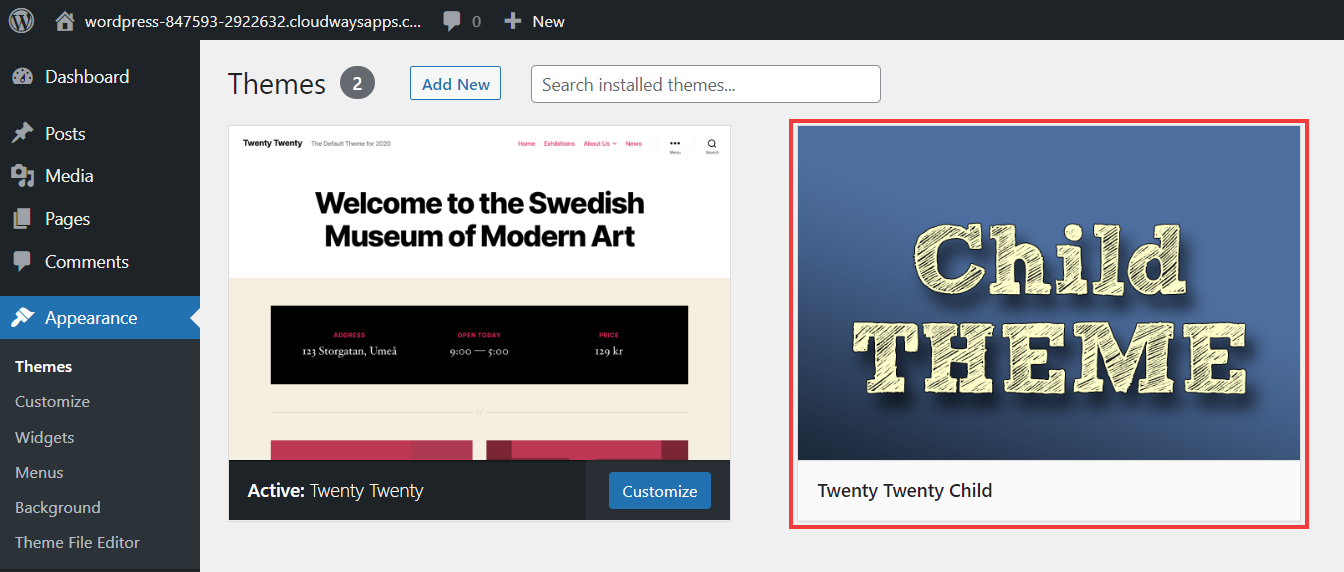
First, go to your WordPress dashboard. Find the Appearance menu on the left. Click on Themes. You will see a list of your themes. Locate your child theme. Hover over it, then click Activate. This makes your child theme active.
Now, check your website. Ensure everything looks right. Sometimes, you may need to adjust settings. Your child theme is now live. Any changes you make will be safe. The parent theme will stay the same. Enjoy your new design!
Customizing The Child Theme
Setting up a child theme in WordPress allows safe customization without altering the original theme. Create a new folder in the themes directory, and add a style. css file with essential details. Activate the child theme in the WordPress dashboard to start personalizing your site effortlessly.
Modifying Templates
Copy the template file into the child theme folder. Make changes to the copied file. WordPress will use the child theme file instead. This keeps your changes safe. Updates to the parent theme will not affect it. Always use this method for customizing templates.
Adding New Features
Open the functions.php file in the child theme. Add your custom code here. This file runs every time a page loads. New features go here. Add widgets, menus, or shortcodes. Keep your code organized. Test the changes on your site. This makes sure everything works well.
Common Mistakes To Avoid
Many people forget to back up their site before changes. This can lead to losing important data. Always make a copy first. Another mistake is not testing changes on a local server. This helps find problems early. Some skip using a style.css file in their child theme. This file is very important. It controls how the site looks. Without it, changes might not work. Make sure to include it.
Some people do not enqueue scripts properly. This can break the site. Use the right method to add scripts. Lastly, check for compatibility issues with plugins. Some plugins may not work well with your child theme. Test them to ensure smooth operation.
Testing The Child Theme
Before testing, ensure the child theme is activated. Check the site’s appearance. Look for changes in colors or fonts. Make sure the layout is correct. If something looks wrong, it might be a coding issue. Inspect the site using different browsers. This helps find any issues. Test on mobile devices too. Many people use phones to browse. Ensure the site looks good on all screens. Check functionality of plugins. Some may not work well with the child theme. If plugins fail, deactivate them. Then, reactivate one by one to find the culprit. Testing helps catch problems early. It saves time and frustration later.
Test changes in the style.css file. Adjust colors or fonts. Refresh the site to see updates. If changes appear, the child theme works. Fix issues before going live. A well-tested theme keeps visitors happy. They enjoy a smooth browsing experience.
Frequently Asked Questions
What Is A WordPress Child Theme?
A WordPress child theme is a theme that inherits the functionality of a parent theme. It allows you to customize your site without altering the original theme’s files. This helps in preserving changes during updates, making customization safer and more efficient.
Why Use A Child Theme In WordPress?
Using a child theme allows you to modify your site’s appearance without altering the parent theme. It ensures that your customizations are preserved even when the parent theme is updated. This approach is safer and more efficient for maintaining a personalized website.
How Do You Create A WordPress Child Theme?
To create a child theme, first create a new folder in your theme directory. Add a style. css file with the necessary headers and import the parent theme’s styles. You can also create a functions. php file to enqueue scripts and styles from the parent theme.
Can Child Themes Affect Website Performance?
Child themes typically have minimal impact on website performance. They use the parent theme’s resources, ensuring efficient loading times. However, poorly coded customizations can affect performance. Always test your changes and optimize code to maintain site speed.
Conclusion
Setting up a child theme on WordPress is straightforward. It protects your customizations. This method ensures your changes stay safe during updates. Follow the steps outlined for a smooth setup. Creating a child theme helps maintain your website’s uniqueness. You avoid losing important modifications.
Remember, a child theme is crucial for long-term site management. It’s a smart move for every WordPress user. Embrace this process to enhance your site’s stability. Enjoy the benefits of a personalized WordPress experience. A child theme keeps your site fresh and secure.


