

Ready to share your ideas, stories, or expertise with the world? Setting up a blog on WordPress is easier than you think—and it’s the perfect way to get your voice heard.
Whether you want to build a personal journal, promote your business, or create a community, WordPress gives you the tools to make it happen. In this guide, you’ll discover simple, step-by-step instructions to launch your blog quickly and confidently. By the end, you’ll have a fully customized site that looks great and works smoothly.
Let’s dive in and turn your blogging dreams into reality!
Credit: blog.hubspot.com
Choose Domain And Hosting
Choosing the right domain and hosting is the first step in setting up your WordPress blog. Your domain name is your website’s address on the internet. Hosting is the service that stores your website’s files and makes them accessible online. Picking the right options ensures your blog runs smoothly and is easy to find.
Pick A Domain Name
Choose a simple and memorable domain name. Use words that reflect your blog’s topic or brand. Keep it short and easy to spell. Avoid numbers and special characters. Check if the name is available using domain search tools. A good domain name helps visitors remember your blog.
Select A Hosting Provider
Select a hosting provider that fits your needs. Look for reliable uptime and fast loading speeds. Compare prices and available features. Choose a plan that supports WordPress installation. Good customer support is important in case you need help. Popular providers include Bluehost, SiteGround, and HostGator.
Connect Domain To Hosting
After buying your domain and hosting, link them together. This process is called domain pointing. It makes your domain show your blog files stored on the hosting. Usually, hosting providers give instructions to update nameservers on your domain registrar’s site. Follow their steps carefully to connect your domain to your hosting account.

Credit: www.hostafrica.com
Install WordPress
Installing WordPress is the first major step in creating your blog. This process sets up the core system that powers your website. WordPress installation is quick and simple, especially with modern hosting services. Most hosts offer tools that make installation almost automatic. After WordPress is installed, you gain access to a dashboard to manage your site. This dashboard is where you write posts, change designs, and add plugins. Let’s explore how to install WordPress efficiently.
Use One-click Installation
Many hosting providers offer a one-click WordPress installation feature. This tool installs WordPress with just a few clicks. You do not need technical skills or manual downloads. Log in to your hosting account and find the WordPress installer in the control panel. Click the installer and fill in basic details like site name and admin username. The system will then set up WordPress automatically. This method saves time and avoids errors during setup.
Access WordPress Dashboard
After installation, you can access the WordPress dashboard. Open your web browser and go to your domain followed by /wp-admin. Enter your admin username and password created during installation. The dashboard is your website’s control center. From here, you can add new posts, change themes, and install plugins. Familiarize yourself with the menu options for easier site management. The dashboard helps you keep your blog updated and running smoothly.
Pick And Install Theme
Picking and installing a theme is a key step in setting up your WordPress blog. The theme controls the look and feel of your site. It affects colors, fonts, layout, and overall style. A good theme makes your blog look professional and inviting. WordPress offers thousands of themes, both free and paid. Select one that fits your blog’s topic and personal style. Installing a theme is quick and easy. After installation, you can customize it to match your vision perfectly.
Browse WordPress Themes
Start by going to your WordPress dashboard. Click on “Appearance” and then “Themes.” Here, you will see a collection of free themes. Use the search bar to find themes by keyword or feature. You can filter themes by layout, popularity, or newest additions. Preview a theme to see how it looks on your site. Take time to explore different options. Choose a theme that is responsive, meaning it works well on phones and tablets. Make sure the theme updates regularly for security and compatibility.
Customize Site Appearance
After activating your theme, visit the “Customize” section under “Appearance.” This area lets you change colors, fonts, and background images. You can add a logo or header image to make your blog unique. Adjust the layout of your homepage and menus. Some themes offer extra options like custom widgets or sliders. Preview changes in real-time before saving. Keep your design simple and clean for easy reading. Customizing helps your blog reflect your personality and style clearly.
Add Essential Plugins
Plugins enhance your WordPress blog’s features and improve its performance. They add new tools and functions without coding. Essential plugins help with SEO, security, speed, and user experience. Choosing and adding the right plugins is a key step in setting up your blog.
Find Useful Plugins
Start by exploring the WordPress Plugin Directory. Search for plugins that match your blog’s needs. Look for plugins with high ratings and many active installs. Read user reviews to check reliability. Choose plugins that are regularly updated by developers. Avoid installing too many plugins to keep your site fast.
Install And Activate Plugins
Go to your WordPress dashboard and click on “Plugins.” Select “Add New” and enter the plugin name in the search bar. Click “Install Now” on the plugin you want. After installation, press “Activate” to enable the plugin. Check the plugin’s settings to customize it for your blog. Repeat for each essential plugin you need.
Create Navigation Menu
Creating a clear navigation menu on your WordPress blog improves user experience. Visitors can easily find important pages and content. A well-organized menu guides readers through your site smoothly. It also helps search engines understand your site structure. Follow these steps to build a simple and effective navigation menu.
Add Pages And Categories
Start by adding pages to your menu. Pages are static parts of your blog, like About or Contact. Go to the WordPress dashboard and click on Appearance > Menus. Here, you can select from your existing pages. Add any important pages to the menu with one click.
Including categories in your menu helps visitors find posts by topic. Categories group your blog posts into sections like Travel or Food. In the same menu screen, find the Categories box. Select the categories you want and add them to the menu. This keeps your content organized and easy to browse.
Organize Menu Items
Drag and drop menu items to change their order. Place the most important pages at the top. You can also create submenus by moving items slightly to the right. Submenus show as dropdowns on your site. This helps keep your menu neat and compact.
After arranging items, choose where the menu appears. Most themes have locations like Primary or Footer menu. Select the right spot and save your menu. Check your site to see how the menu looks and works. Adjust as needed for the best user experience.
Write Your First Post
Writing your first post is an exciting step in your WordPress journey. This is where your blog starts to take shape. A well-crafted post captures readers’ attention and shares your message clearly. Follow these simple steps to create your first blog post easily.
Open Post Editor
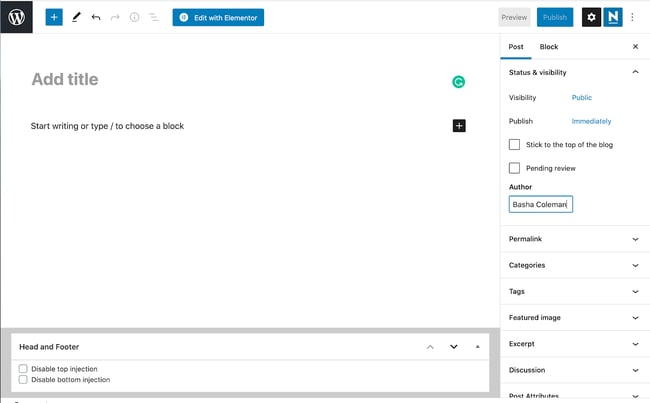
Log in to your WordPress dashboard. Look for the “Posts” menu on the left side. Click “Add New” to open the post editor. This is your workspace to write and design your post. The editor offers a clean and simple layout.
Add Content Blocks
WordPress uses blocks to add different content types. Click the plus (+) icon to add a block. Choose from text, images, videos, and more. Blocks help organize your content neatly. Add paragraphs, headings, lists, or media one by one.
Format Text And Media
Highlight your text to see formatting options. Make text bold, italic, or add links. Use headings to break your post into sections. Upload images or videos by selecting the media block. Adjust size and alignment for better appearance. Proper formatting makes your post easy to read.
Publish And Manage Posts
Publishing and managing posts is the heart of your WordPress blog. It lets you share your ideas and keep your content organized. WordPress gives you simple tools to control when and how your posts appear. You can write now and publish later. You can also group posts by topics to help readers find what they want.
Save Drafts Or Publish
Start writing your post in the editor. You can save it as a draft to work on later. Drafts stay private until you publish them. When your post is ready, click the “Publish” button. This makes your post live on your blog. You can also schedule posts to publish at a set date and time. This helps keep your blog active even if you are busy.
Use Categories And Tags
Categories and tags help organize your posts. Categories are broad groups like “Travel” or “Food.” Tags are more specific keywords related to the post, like “Italy” or “Pasta.” Assigning categories and tags makes it easier for readers to find posts on topics they like. It also improves your blog’s SEO by linking related content together. Use clear and simple names for both categories and tags.
Customize Blog Appearance
Customizing your blog’s appearance shapes how visitors see your content. It creates the first impression and sets your blog’s tone. WordPress offers easy tools to change colors, fonts, and layout. These tweaks make your blog unique and inviting. Focus on clear, readable design for better engagement. Adjusting the look helps your blog match your style and topic.
Adjust Colors And Fonts
Start by choosing colors that fit your blog’s theme. Use the WordPress Customizer to pick background and text colors. Keep contrast high for easy reading. Select fonts that are simple and clean. WordPress gives many font options to match your style. Avoid too many font styles to keep the blog neat. Make headings stand out with bold or larger fonts.
Set Up Widgets And Sidebars
Widgets add useful features to your sidebar or footer areas. Common widgets include search bars, recent posts, and social links. Go to Appearance > Widgets to add or remove items. Arrange widgets in a way that helps visitors find content easily. Sidebars help organize your blog and improve navigation. Keep widgets relevant and avoid clutter to maintain a clean look.
Maintain Your Blog
Maintaining your WordPress blog keeps it running smoothly and securely. Regular care protects your content and improves user experience. Simple tasks can prevent many common issues.
Update Themes And Plugins
Themes and plugins need frequent updates. Updates fix bugs and security holes. They also add new features and improve performance. Always update to the latest versions. Before updating, check if the update is compatible with your WordPress version. Updating keeps your blog safe from hackers.
Backup Your Site Regularly
Backing up your blog protects your data. A backup is a copy of your entire site. Save backups on a different device or cloud storage. Schedule backups to run automatically if possible. In case of errors or attacks, you can restore your blog quickly. Never skip this step to avoid losing your work.
Credit: www.elegantthemes.com
Frequently Asked Questions
How Do I Create A Blog On My WordPress Website?
Choose a domain and hosting, then install WordPress. Select a theme and install plugins. Create posts via the dashboard under “Posts” > “Add New. ” Publish your content to start your blog.
Are Blogs On WordPress Free?
Yes, WordPress offers free blogs on WordPress. com with basic features and a WordPress subdomain. Premium plans add custom domains and advanced tools.
What Is The Difference Between A Blog And A Post In WordPress?
A blog is the entire website or section with multiple posts. A post is a single article or entry within that blog.
Is WordPress Worth It For Blogging?
WordPress offers full control, flexibility, and ownership, making it ideal for bloggers seeking growth and customization. It supports easy content creation and scalability.
Conclusion
Setting up a WordPress blog is easier than it seems. Choose a domain and hosting to start. Install WordPress and link your domain next. Pick a simple theme to match your style. Add plugins to improve your blog’s features. Create posts regularly to share your ideas.
Keep your site updated for security and speed. Enjoy expressing yourself through your new blog. This step-by-step approach helps you build confidence. Start today and watch your blog grow bit by bit.


