
Imagine this: you’re about to install a new plugin or theme on your WordPress site, but you pause, wondering if it’s compatible with your version of WordPress. You’ve heard horror stories about websites crashing because of version mismatches, and you definitely don’t want that happening to your site.
Knowing your WordPress version is crucial, not just for compatibility, but also for ensuring your site is secure and running smoothly. But how do you find this vital piece of information quickly and easily? You’ll discover step-by-step methods to identify your WordPress version in a matter of minutes.
Whether you’re a seasoned pro or a curious beginner, understanding your WordPress version will empower you to make informed decisions for updates and installations. Let’s dive in and unveil the mystery together, ensuring your website stays safe and fully optimized!
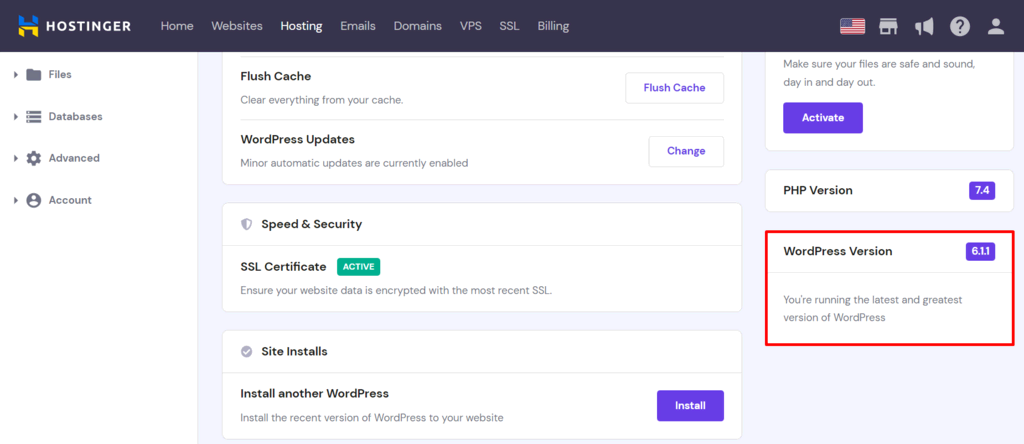
Credit: www.hostinger.com
Checking Dashboard For Version Info
The WordPress dashboard shows your version. Log in to your site first. Find the bottom right corner. You will see the version number there. Look for “WordPress X.X.X.” X.X.X is your version.
The dashboard is simple to use. Just follow these steps. Knowing the version helps with updates. It keeps your site safe and running well. Always check for the latest version.
Sometimes the version is hard to spot. A cluttered dashboard can hide it. Try cleaning up or using a bigger screen. This can make the version easier to find.

Credit: www.interserver.net
Using Page Source To Find Version
To see your WordPress version, open your website in a browser. Right-click on the page and select “View Page Source” or “Inspect”. A new tab or window will open. This is the HTML code of your website.
Press “Ctrl + F” (or “Cmd + F” on a Mac) to open the search box. Type “generator” into the search box. Look for a line that says . The numbers replace “x.x.x” with your WordPress version.
Finding your WordPress version helps with site management. Always keep your WordPress updated. It’s important for security and new features.
Accessing Version Via WordPress Files
Find the WordPress version in the wp-includes/version.php file. Open your website’s files through a File Manager or an FTP client. Go to the wp-includes folder. Look for the version.php file. Open it to see the version number. It is written inside the file. It is easy and quick to find.
The readme.html file also shows the WordPress version. This file is in the main folder of your WordPress. Open this file to see the version. The version number is usually at the top. This method is simple. Anyone can do it.
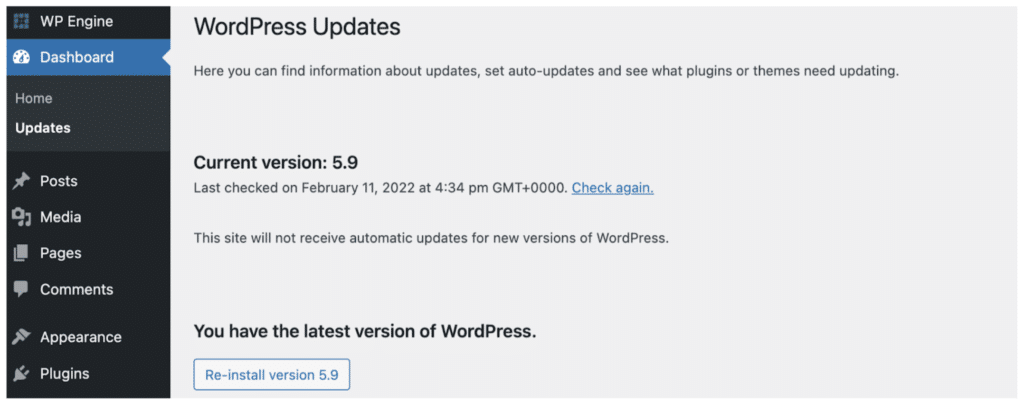
Credit: wpengine.com
Using WordPress Cli For Version
The WordPress CLI is a tool to check your WordPress version. First, make sure you have installed the WordPress CLI on your computer. Open your terminal or command prompt. Type the command wp core version. This command shows the current version of WordPress. It is simple and fast. You can also use this tool for other tasks. Remember, using the CLI is for those who know basic commands. If you are new, learn a bit about command lines first. This will make things easier for you. The CLI tool is helpful and effective. Check your WordPress version without logging into the dashboard. This saves time and effort. Always keep your WordPress updated for security reasons. New versions come with better features and fixes.
Utilizing Plugins For Version Check
Many plugins help find your WordPress version. They are easy to use. Install a plugin like WP-Health to start. It shows the version number. The plugin gives extra information. You can see updates needed. Version Info plugin is another choice. It quickly shows your WordPress version. All these plugins are free.
Plugins are safe. They don’t change your website. They only show information. This is important for website security. Always keep your WordPress updated. Using these plugins helps. You will know if updates are needed. This keeps your site safe and fast.
Security Implications Of Version Exposure
Discovering your WordPress version is essential for security. Check the footer of your admin dashboard or view the page source code for details. Keeping your version hidden can prevent exploitation by hackers targeting outdated software.
Risks Of Public Version Display
Exposing your WordPress version can be risky. Hackers target known vulnerabilities in specific versions. If they know your version, they might attack your site. Updates fix these weaknesses. Outdated versions lack these fixes. This makes them easy targets. It’s important to hide your version number. This reduces the chance of attack. Protect your website by keeping version info private.
Steps To Secure Version Information
Start by updating WordPress regularly. This ensures you have the latest security patches. Use a plugin to hide the version number. Many plugins offer this feature. Remove the version number from your site’s source code. Check your theme’s header file. You might find version info there. Delete it. Make sure your site stays safe from threats. Protect your online presence with these simple steps.
Frequently Asked Questions
How Can I Find My WordPress Version?
To find your WordPress version, log into your WordPress dashboard. Scroll down and locate the “At a Glance” section. Here, you’ll see your current WordPress version displayed. Alternatively, check your website’s source code by viewing the page source and searching for “generator” to see the version.
Why Is Knowing My WordPress Version Important?
Knowing your WordPress version is crucial for security and compatibility. It ensures your plugins and themes are up-to-date. Keeping your WordPress updated helps protect your site from vulnerabilities. It also ensures compatibility with the latest features and improvements available in newer versions.
Can I Update WordPress Manually?
Yes, you can update WordPress manually. First, download the latest version from WordPress. org. Then, access your website files via FTP. Upload the new WordPress files, overwriting the old ones. Make sure to back up your website before updating to prevent data loss or issues.
Is There A Plugin To Check WordPress Version?
Yes, several plugins can help you check your WordPress version. Plugins like “WP-Health” or “Site Health” provide detailed site information. They display your WordPress version along with other important details. These plugins are easy to install and use, offering additional site insights.
Conclusion
Knowing your WordPress version is essential. It helps maintain your site’s security. Regular updates protect against vulnerabilities. Checking your version is simple and quick. Use your dashboard or site code. Stay informed about updates for smooth operation. A current version ensures compatibility with themes and plugins.
This keeps your site running efficiently. Regular monitoring prevents issues before they arise. Keeping WordPress updated boosts performance and security. It’s vital for a reliable, secure website. Make checking your WordPress version a routine task. Your site’s health depends on it.
Stay proactive. Stay secure.


