
Imagine you’ve just developed an amazing Java application and now you’re itching to share it with the world. But, you’re stuck wondering how to get your JAR file running on your web host.
It’s a common roadblock many developers face, especially when SSH comes into play. You might feel overwhelmed by the technical jargon, but don’t worry—this guide is here to make things simple. By the end of this article, you’ll not only understand the process but you’ll be able to confidently execute it.
We’ll break down each step into easy-to-follow instructions, ensuring you feel in control. Whether you’re a seasoned developer or just starting out, learning how to run a JAR file on a web host using SSH can open doors to new possibilities for your projects. So, let’s dive in and demystify this process together—your Java application deserves to shine!
Setting Up Ssh Access
SSH keys help keep your connection secure. First, open your terminal. Type ssh-keygen and press enter. This creates a new key. It saves in a hidden folder. The folder is named .ssh. You can find it in your home directory. Next, you see a prompt. It asks for a passphrase. You can skip this step. Press enter twice. Now, you have a public and private key. Keep the private key safe. Share the public key with the web host.
Log in to your web host’s control panel. Locate the SSH settings. You need to add your public key here. Open your .ssh folder. Find the id_rsa.pub file. Copy its contents. Paste it into the web host’s SSH settings. Save the changes. This step allows SSH access. You can now connect securely.

Credit: stackoverflow.com
Transferring Jar File To Server
Secure Copy Protocol (SCP) helps move files to a server. Use it to transfer your Jar file easily. First, open your terminal on your computer. Type the SCP command like this: scp yourfile.jar username@server:/path/to/directory. Replace “yourfile.jar” with your file name. Username is your server login name. Server is your server address. Path is where you want the file. Press enter to start the transfer. Wait until it completes.
Check if the Jar file is on the server. Log into the server using SSH. Navigate to the directory where you sent the file. Use the ls command to list files. Look for your Jar file name. If you see it, the transfer was successful. If not, repeat the SCP command. Make sure all details are correct. This ensures your Jar file is ready to use.
Installing Java On Web Host
First, open your SSH terminal. Type java -version and press enter. If Java is installed, you will see a version number. This means Java is ready to use. No message means Java is missing. You need to install it. Make sure you have the right permissions to install software.
Use package manager to install Java. For Ubuntu, type sudo apt-get install default-jdk. Wait as it downloads and installs. For CentOS, use sudo yum install java-1.8.0-openjdk. After installation, check Java version again. This ensures Java is installed successfully.
Executing Jar File
Use SSH to connect to your web host. Once connected, locate the directory where your Jar file is stored. Use the cd command to change directories. For example, type cd /path/to/directory. Make sure you are in the correct folder. Check with the ls command. It shows all files in the directory. You should see your Jar file listed.
To start the Jar file, type the Java command. Use this format: java -jar yourfile.jar. Replace yourfile.jar with your file name. The Jar file will now run. Watch the output on your screen. If there are errors, check your Java version. It must support your Jar file. Update Java if needed.
Configuring Environment Variables
Setting up environment variables is essential for running a Jar file on a web host with SSH. Ensure paths are correctly configured for seamless execution. Use SSH commands to verify settings and troubleshoot issues efficiently.
Setting Java Home
The Java Home is where Java is installed. Find the path of your Java installation. It is usually in /usr/lib/jvm/. Open the terminal. Type nano ~/.bashrc to edit the file. Add a line: export JAVA_HOME="/usr/lib/jvm/java-version". Replace java-version with your version number. Save the file. Close the terminal. Open a new terminal. Type echo $JAVA_HOME. You should see the Java path. This means Java Home is set correctly.
Updating Path Variable
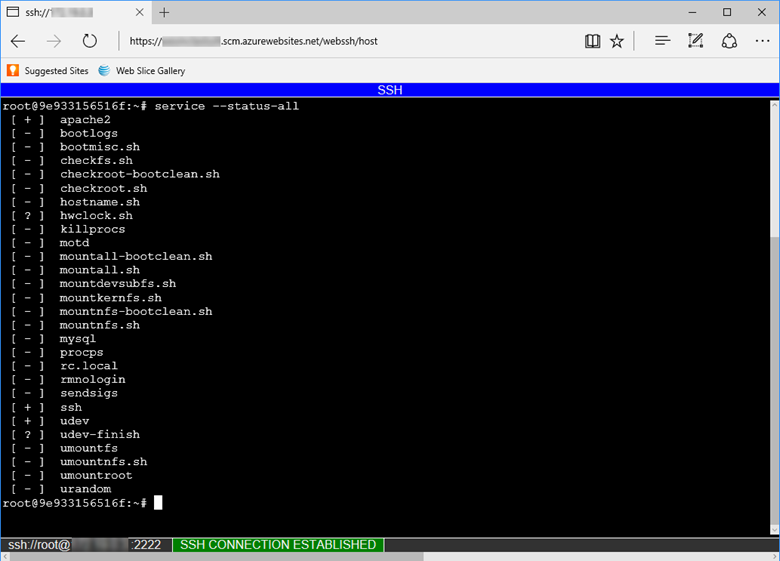
The PATH variable helps your system find programs. You need to add Java to this path. Open the terminal. Type nano ~/.bashrc again. Add this line: export PATH="$PATH:$JAVA_HOME/bin". Save and close the file. Restart your terminal. Type echo $PATH. Check if the Java path is included. Now, your system knows where Java is.
Credit: learn.microsoft.com
Troubleshooting Common Issues
Running a Jar file on a web host using SSH involves a few steps. Begin by accessing the server via SSH. Use commands to navigate to the file location and execute it, ensuring the Java environment is correctly set up.
Common issues often relate to permissions and Java version compatibility.
Resolving Permission Errors
Permission errors happen often when running jar files. Ensure the file has execute permissions. Use the command chmod +x filename.jar to fix this. This command gives the file the right to run. Also, check if your user has the needed rights on the server. Use the command ls -l filename.jar to see file permissions. You might need to contact your host support if errors continue. Remember, permissions are important for security.
Handling Java Version Conflicts
Java version conflicts can stop your jar file from running. First, check the Java version on your server. Use java -version to see the installed version. Your jar file might need a specific Java version. If the version is wrong, install the correct one. You can use a version manager like SDKMAN to switch versions easily. Ensure the correct Java version runs your jar file. This avoids many errors.

Credit: www.plesk.com
Frequently Asked Questions
How To Deploy Jar File In Web Server?
To deploy a JAR file on a web server, first ensure Java is installed. Transfer the JAR file to the server. Use a command-line interface to execute: `java -jar filename. jar`. Ensure the server’s firewall allows the required port. Test the deployment by accessing the application in a browser.
How To Run Jar File On Remote Server?
Connect to the server via SSH. Navigate to the JAR file’s directory. Execute the command `java -jar filename. jar`. Ensure Java is installed on the server. Adjust permissions if needed.
How To Connect To Host With Ssh?
Use an SSH client like PuTTY or Terminal. Enter your host’s IP address and port number. Input your username and password. Click ‘Open’ or press ‘Enter’ to establish the connection. Ensure your firewall settings permit SSH access. Verify your credentials for seamless connection.
How To Run A Jar File Online?
Use an online Java runtime environment like JDoodle or Repl. it. Upload your JAR file. Execute it directly on the platform. These tools provide a virtual Java environment for running JAR files online. Ensure your code is compatible with the platform’s Java version.
Conclusion
Running a Jar file on a web host with SSH is simple. Follow these steps carefully. Start by connecting to the host via SSH. Navigate to the file’s directory. Use Java commands to execute the file. Ensure your host supports Java.
Check permissions and configurations. Troubleshoot issues promptly. Practice makes perfect; try it several times. You’ll gain confidence with each attempt. Remember, patience and persistence are key. Soon, you’ll run Jar files effortlessly. Your skills will grow with each success. Enjoy the process and keep learning.


