

Ready to build and test your WordPress site without the pressure of a live environment? Running WordPress locally lets you create, customize, and experiment freely on your own computer.
You get full control, speed, and security—all while keeping your work private until you’re ready to go public. Whether you want to develop a new theme, try plugins, or simply learn how WordPress works, this guide will walk you through every step to set up your local WordPress site easily.
Keep reading to discover how you can take your website ideas from concept to reality, right from your desktop.
Choose Local Server Software
Choosing the right local server software is essential for running WordPress on your computer. It creates a safe space to build and test your website. This software mimics a live web server, allowing WordPress to run smoothly. It includes tools like Apache, MySQL, and PHP, which WordPress needs to operate. The choice affects speed, ease of use, and compatibility with your system. Select software that fits your skill level and computer setup for the best experience.
Compare Popular Options
XAMPP is free and works on Windows, Mac, and Linux. It includes Apache, MySQL, PHP, and Perl. Easy to set up, it suits beginners well. MAMP is popular among Mac users but also has a Windows version. It provides a simple interface and fast setup. LocalWP is designed specifically for WordPress. It offers one-click WordPress installation and helpful developer tools. Each option has pros and cons. Choose based on your operating system and comfort with technical tasks.
Download And Install
First, visit the official website of your chosen software. Download the version that matches your computer’s operating system. Run the installer and follow the setup instructions. Accept default settings unless you have specific needs. After installation, launch the software and start the servers. Create a database through the software’s control panel. Finally, download WordPress and place it in the software’s web folder. Now you are ready to install WordPress locally and begin development.
Download WordPress
Downloading WordPress is the first step to run it locally on your computer. This process lets you have full control over your website without an internet connection. It is simple and quick, even for beginners. Follow the steps below to get WordPress ready for local use.
Get The Latest Version
Visit the official WordPress website to download the latest version. Always choose the newest release for better features and security. Click the download button and save the file to your computer. The file comes as a compressed ZIP archive.
Extract Files
After downloading, locate the ZIP file on your computer. Use a file extractor program to unzip the contents. Extract all files into a folder where you want to run WordPress locally. This folder will hold your WordPress files and data. Make sure the extraction completes without errors before moving to the next step.
Set Up Local Database
Setting up a local database is a key step to run WordPress on your computer. The database stores all your website’s content and settings. Without it, WordPress cannot work properly. This section explains how to create a local database quickly and easily.
Access Database Manager
First, open your local server software. Common tools include XAMPP, MAMP, or LocalWP. Each comes with a database manager, usually called phpMyAdmin.
Find the phpMyAdmin option in the control panel of your local server. Click it to open the database manager in your web browser.
This interface lets you create and manage databases without using command lines. It’s user-friendly and perfect for beginners.
Create New Database
Once inside phpMyAdmin, look for the “Databases” tab at the top. Click it to start creating a new database.
Enter a simple name for your database. Use lowercase letters and avoid spaces or special characters. For example, use “wordpress_local”.
Choose the “utf8_general_ci” collation for the best compatibility with WordPress.
Click the “Create” button. Your new database is now ready to use in WordPress installation.
Credit: jetpack.com
Configure WordPress Locally
Configuring WordPress locally sets the stage for smooth development. This step lets you test changes safely before going live. A local setup mimics a real server environment on your computer. You gain full control over the site without needing internet access. Let’s explore the key tasks in configuring WordPress on your local machine.
Move Files To Server Folder
First, move WordPress files to your local server folder. Locate the folder where your local server stores website files. Common folders include htdocs for XAMPP or www for WAMP. Copy all WordPress files and folders into this directory. This step makes WordPress accessible through your local server. Ensure all files are intact to prevent errors during setup.
Edit Configuration File
Next, edit the wp-config.php file to connect WordPress with the local database. Open the file in a text editor. Update the database name, username, and password to match your local database settings. Usually, the username is root with no password for local servers. Save the changes to enable WordPress to communicate with your database. Proper configuration avoids connection errors and ensures smooth operation.
Run Installation Wizard
The WordPress installation wizard guides you through setting up your local site. It makes the process simple and quick. Follow the steps carefully to avoid errors. The wizard asks for essential information to configure your site correctly. Let’s explore the key parts of this process.
Enter Site Details
First, provide your site title. This name appears on your website and browser tab. Next, choose the site language. Pick the language you will use to write content. Then, set the site’s tagline. This short phrase describes your site’s purpose. These details help personalize your WordPress site.
Create Admin Account
Create a username for your admin account. Use a unique name to keep your site secure. Then, set a strong password. This protects your site from unauthorized access. Enter your email address. WordPress uses this for notifications and password recovery. Finally, decide if search engines should index your site. Since it is local, you may want to disable indexing for now.
Access Your Local Site
Accessing your local WordPress site is the next important step after installation. This allows you to see your site in action on your computer. You can check how your pages look and test features without being online.
Running your WordPress site locally saves time and helps you make changes safely. Follow the simple steps below to open your site and log into the dashboard.
Open Browser
Open any web browser on your computer, like Chrome, Firefox, or Edge.
Type http://localhost or http://localhost/your-folder-name in the address bar.
Press Enter to load your local WordPress site homepage.
You should see your site’s front page as it will appear online.
Login To Dashboard
To manage your site, go to the admin login page by adding /wp-admin after your local URL.
For example, type http://localhost/wp-admin or http://localhost/your-folder-name/wp-admin.
Enter the username and password you set during WordPress installation.
Once logged in, you can customize your site, add posts, and change settings.
Test And Troubleshoot
Testing and troubleshooting are key steps in running a local WordPress site. They help spot problems early and keep your site running smoothly. Testing checks if everything works as expected. Troubleshooting fixes errors that may appear during setup or use.
Regular testing saves time and stress. It ensures your site is ready before going live. Troubleshooting guides you through solving common issues. This section covers typical errors and how to fix them quickly.
Common Errors
Some errors happen often in local WordPress setups. Database connection failures are common. This error means WordPress cannot reach the database. Wrong login details or server settings cause it.
Another frequent problem is missing files or broken links. This happens if WordPress files are not in the right folder. It can also result from incomplete installations.
Plugin conflicts may stop your site from loading. Sometimes plugins clash with each other or with WordPress versions. This can cause white screens or error messages.
Fixing Issues
Start fixing issues by checking your database settings. Confirm the database name, username, and password match your local server. Restart your local server software to refresh connections.
Check that all WordPress files are in the correct folder. Reinstall WordPress if files are missing or corrupted. Use the latest WordPress version for better stability.
Deactivate all plugins if your site shows errors. Reactivate them one by one to find the problem plugin. Update plugins and themes to their newest versions.
Enable WordPress debugging to see detailed error messages. Add define('WP_DEBUG', true); in your wp-config.php file. This helps identify the exact cause of problems.

Credit: www.youtube.com
Migrate To Live Server
Migrating your local WordPress site to a live server is the next important step. This process makes your website accessible to everyone on the internet. It involves moving your site’s database and files from your computer to your hosting provider.
Proper migration ensures your website works exactly as it did locally. Careful handling of your database and files prevents errors and data loss. Follow the steps below to make the migration smooth and successful.
Export Database And Files
Start by exporting your WordPress database. Use a tool like phpMyAdmin to export the database as an SQL file. This file contains all your site content, settings, and user data.
Next, download all WordPress files from your local server. These include themes, plugins, and media uploads. Use a file manager or FTP client to copy the entire WordPress folder. Keep the folder structure intact for easy import later.
Import To Hosting Provider
Log in to your hosting account and access the control panel. Create a new database for your WordPress site on the live server. Import the SQL database file using the hosting provider’s database tool.
Upload your WordPress files to the server using an FTP client. Place the files in the root directory or the folder assigned for your website. Update the wp-config.php file with the new database details to connect your site to the live database.
Finally, check your site URL and permalinks settings in the WordPress dashboard. Adjust them if needed to reflect your live domain. Your WordPress site is now live and ready for visitors.
Use Helpful Tools
Running a local WordPress site becomes easier with the right tools. These tools save time and reduce errors. They help manage your site smoothly on your computer. Below are two key tools that simplify local WordPress development.
Localwp Features
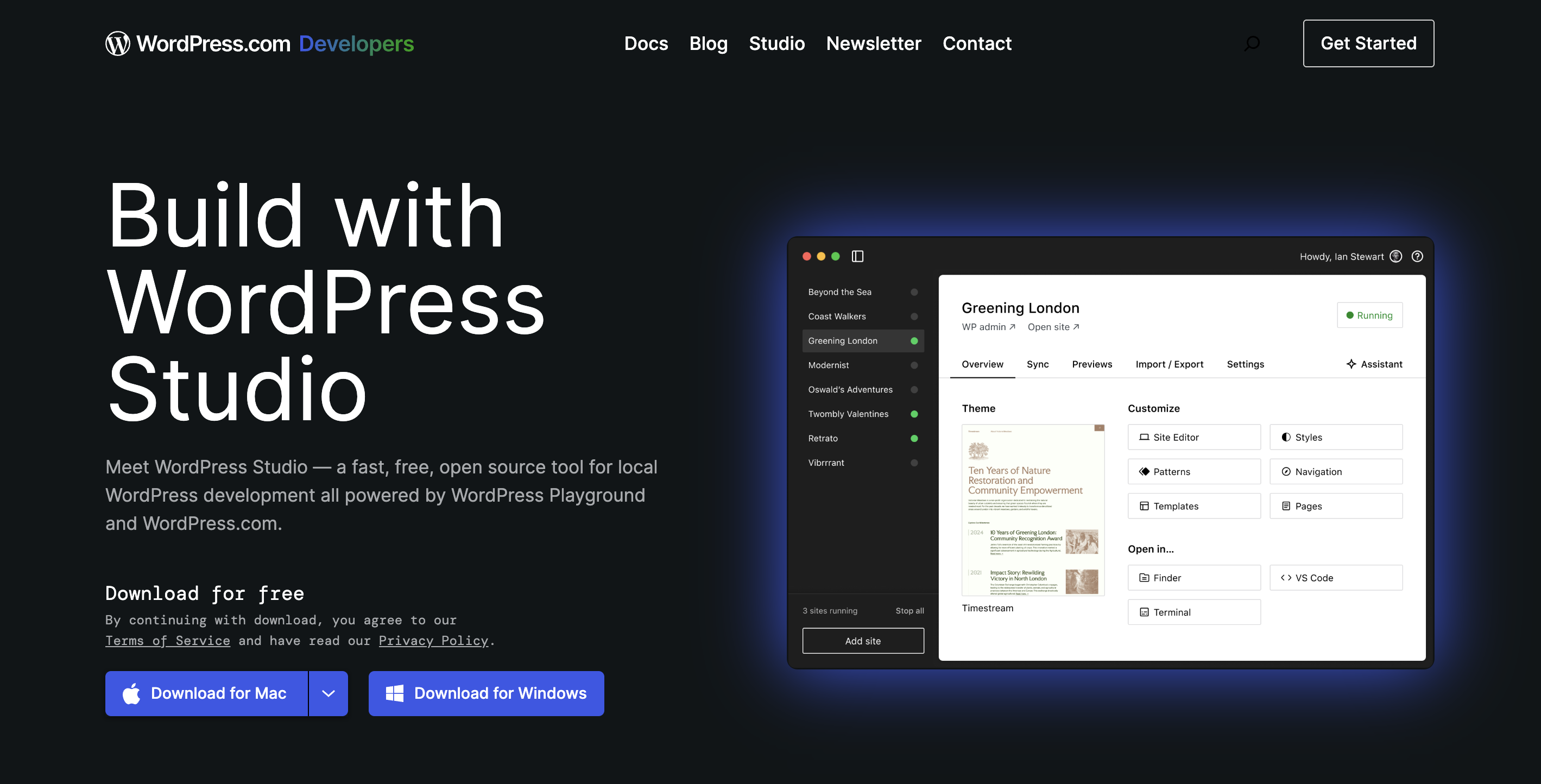
LocalWP is a popular tool for local WordPress setup. It creates websites quickly without complex configurations. The interface is simple and user-friendly. You can create multiple WordPress sites with just a few clicks. LocalWP supports PHP versions switching, which helps test compatibility. It offers SSL support to run sites securely on your computer. The tool also includes one-click WordPress admin login. This feature saves time logging into your site. LocalWP allows easy site export and import, useful for backups or moving to live servers.
Wp-cli Commands
WP-CLI is a command-line tool for WordPress management. It lets you update plugins, themes, and core files fast. You can install WordPress using simple commands without using a browser. WP-CLI helps create users, generate content, and manage databases. It is perfect for developers who prefer keyboard shortcuts. Using WP-CLI reduces manual work and speeds up development. It works well with LocalWP and other local servers. Learning basic WP-CLI commands boosts your efficiency managing WordPress locally.

Credit: learn.wordpress.org
Frequently Asked Questions
How To Run A WordPress Site Locally?
Download and install local server software like XAMPP or LocalWP. Create a database, download WordPress, then install it locally. Access your site via localhost to test and develop.
How To Run Localhost In WordPress?
Install a local server like XAMPP or LocalWP. Download WordPress and create a database. Run the installer on localhost to set up WordPress.
How To Run WordPress Locally In Windows 10?
Download and install a local server like XAMPP. Create a database in phpMyAdmin. Download WordPress and extract it to the server’s root folder. Run the WordPress setup via localhost in your browser and follow installation steps.
How Do I Access A Local WordPress Site?
Install a local server like XAMPP or LocalWP. Download WordPress, create a database, and run the installation on localhost. Access your site via http://localhost in your browser.
Conclusion
Running WordPress locally helps you build and test your site safely. It saves time and avoids errors on a live site. Use simple tools like LocalWP or XAMPP for easy setup. Practice creating and managing your site without internet worries.
This approach suits beginners and pros alike. Keep exploring and improving your WordPress skills step by step. Your local site is a great place to start and grow.


