
Do you ever feel like your WordPress site has lost its original spark? Maybe you’ve tweaked it a bit too much, or perhaps you’re just missing the clean and simple look it had when you first started.
Restoring your WordPress theme to its default settings can be the perfect solution to bring back that fresh, organized appearance. It’s simpler than you might think, and doing so can save you time and stress. Imagine having a site that runs smoothly, looks great, and feels like it’s brand new again.
In this guide, we’ll walk you through the steps to easily reset your theme, so you can reclaim that polished look and ensure your website is performing at its best. Ready to see your WordPress site shine like it once did? Let’s dive in and find out how!
Understanding WordPress Themes
WordPress themes are like clothes for your website. They change the look and feel. You can choose many different styles. Some themes are colorful. Others are simple. Themes help to make your site unique. They also help visitors understand your content.
Themes are very important. They affect how people see your site. A good theme makes your site easy to read. It helps visitors find information fast. Themes can also affect how fast your site loads. A slow site can make visitors leave. So, choose a theme that is both pretty and fast.
Reasons To Restore Default Theme
Slow website speed can frustrate users. Complex themes often cause this. Default themes are lighter and faster. They have fewer features that slow things down. A quick site keeps visitors happy. Happy visitors stay longer. Longer visits lead to more engagement.
Some themes look cluttered. Default themes offer a clean design. Simple designs focus on content. Content is key for readers. Minimal layouts are easier to navigate. Easy navigation helps users find what they need. This boosts user satisfaction. Satisfied users return.
Errors disrupt user experience. Custom themes may have bugs. Default themes are usually bug-free. Fixing errors can be hard. Default themes simplify troubleshooting. Easy fixes save time. Saved time means more productivity. Productivity is good for growth.
Preparing For Theme Restoration
Always save a copy of your current theme. Use a reliable plugin or your hosting service. This ensures you can return to your old settings if needed. Keep the backup in a safe place. It helps avoid data loss.
Write down all your custom settings. This includes colors, fonts, and layouts. Note any special codes or scripts. Having this list makes it easy to restore later. You won’t forget any important details.
Check if your plugins work with the default theme. Some plugins may not be compatible. Make a list of these plugins. You might need to find alternatives. This step ensures a smooth transition.

Credit: wordpress.com
Restoring The Default Theme Via Dashboard
Access the WordPress dashboard and navigate to the Appearance section. Select Themes and activate the default theme. This restores your site’s original appearance effortlessly.
Accessing The Theme Settings
Start by logging into your WordPress Dashboard. Look for the Appearance menu on the left. Click on it to see the options. Next, find the Themes section. This is where you manage your themes.
You will see a list of installed themes. The active theme is usually highlighted. To restore the default theme, you need to switch it.
Activating The Default Theme
Find the default theme in the list. It might be named Twenty Twenty-One or similar. Hover over it to see the options. Click on the Activate button to set it. Now, your website uses the default theme again.
Check your site to ensure it’s working well. The default theme should now appear. This process is quick and easy. It helps when settings are changed or errors occur.
Using Ftp For Theme Restoration
Open your FTP client and enter your server details. You need the username, password, and host name. These details are usually provided by your hosting service. After entering the details, click connect to access your server files.
Once connected, locate the wp-content folder. Inside, find the themes folder. This folder contains all installed themes. Look for the theme you want to restore. You might need to scroll or search if there are many themes.
Download the original theme files from the WordPress repository. These files should be clean and unmodified. Delete the old theme files from your server. Replace them with the new files you downloaded. Make sure to upload all necessary files for the theme to work properly.
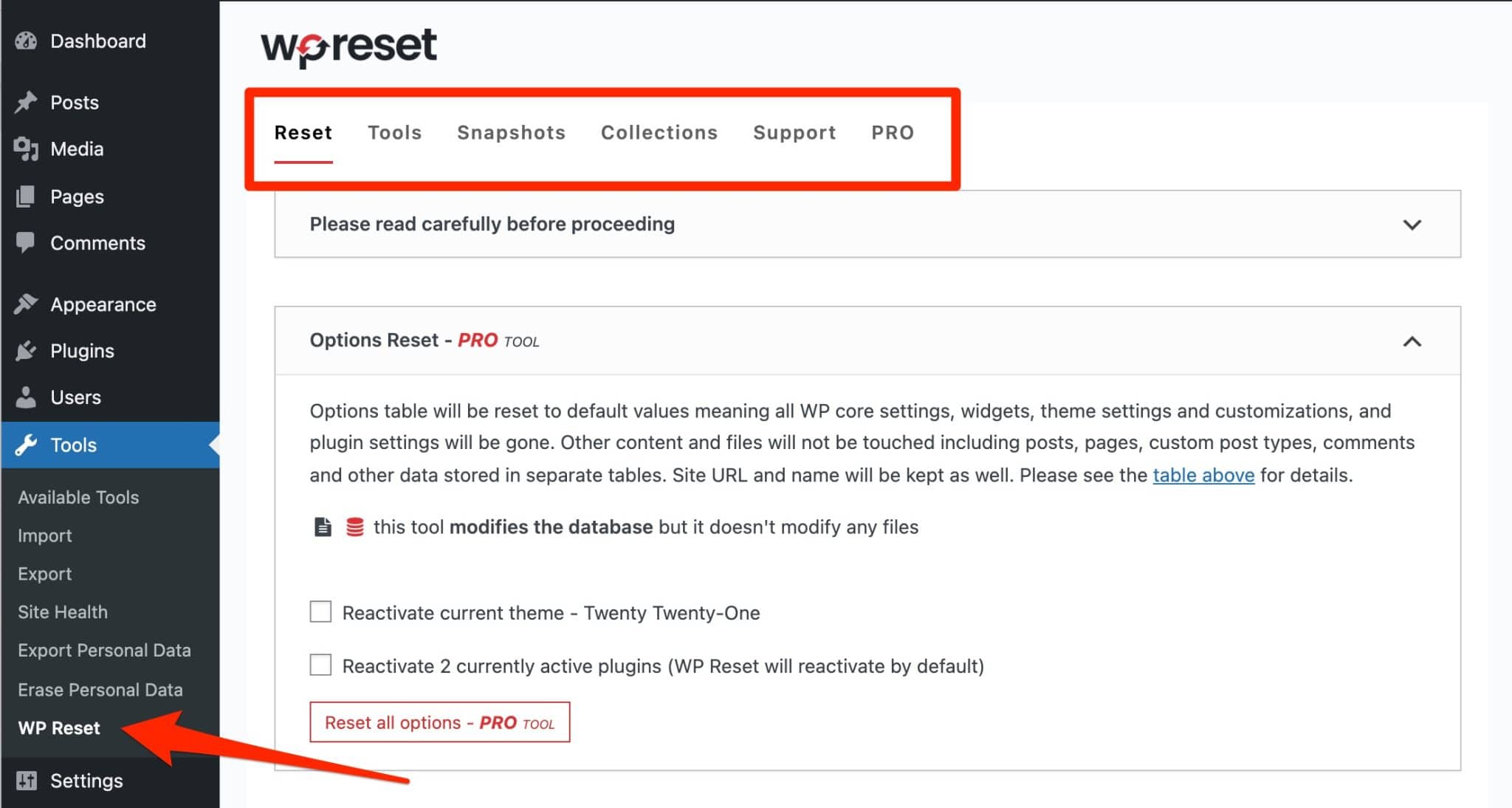
Credit: wpmarmite.com
Database Reset For Theme Restoration
Restoring the default theme settings in WordPress often requires a database reset. This process returns your theme to its original state, removing customizations and changes. Follow simple steps to ensure your site looks fresh and functions smoothly.
Importance Of Database Reset
A database reset can solve many theme problems. Themes sometimes get mixed up. A reset helps clear old settings. It makes the site fresh and clean. This step is vital for theme restoration. It ensures all old data is gone. New data can then be added easily. Many people forget this step. But it’s very important. Without it, new themes may not work right.
Steps To Reset WordPress Database
- Back up your WordPress site. This keeps your data safe.
- Go to the WordPress dashboard. Find the plugin area.
- Search for a database reset plugin. Install and activate it.
- Open the plugin. Choose the reset option.
- Confirm the reset. Wait for the process to finish.
- Check your site. Make sure everything is working.
Common Issues And Solutions
Sometimes, the theme may look wrong or broken. Check your theme files. They might be missing or corrupted. Reinstall the theme to fix this. Clearing your browser cache can also help. This makes sure you see the latest changes to your site.
Widgets and menus might disappear after a theme change. Go to the customize section in WordPress. Look for missing items there. Drag them back to their original spots. If still missing, check if the new theme supports them.
Style conflicts can make your site look odd. This happens if two styles clash. Use the custom CSS option in WordPress. Add your own styles to fix the conflict. Always preview changes before saving.
Maintaining Your WordPress Theme
Updating your WordPress theme is important. It keeps your site safe. Updates fix bugs and add new features. Always check for updates. Update your theme to the latest version. This makes your website better and faster.
Customizing your theme is fun. Use a child theme for changes. This keeps the main theme safe. Don’t change the core files. Use the customizer tool for small tweaks. Keep notes of changes made. This helps if you need to fix something later.
Backups are lifesavers. They protect your data. Always back up before big changes. Use plugins for easy backups. Save backups to a secure place. Regular backups ensure safety. If things go wrong, backups help restore your site.

Credit: blog.hubspot.com
Frequently Asked Questions
How Do I Reset My WordPress Theme To Default?
To reset your WordPress theme, navigate to Appearance > Themes. Select the default theme and activate it. You may need to delete customizations by going to Customize and resetting options. Always backup your site before making changes to avoid data loss.
Can I Restore WordPress Theme Without Losing Data?
Yes, you can restore your WordPress theme without losing data. Ensure you backup your site first. Use a plugin like WP Reset to revert theme settings. This keeps your content intact while resetting the theme to default settings.
What Are The Steps To Change WordPress Theme?
To change your WordPress theme, go to Appearance > Themes. Click on ‘Add New’ and browse available themes. Select and preview your preferred theme. Once satisfied, click ‘Activate’ to apply the theme. Backup your site before changing themes to prevent data loss.
Is Theme Restoration Safe For My Site?
Restoring a theme is generally safe if done correctly. Always backup your site before making changes. Using reliable plugins and following proper steps ensures your content stays intact. Consult theme documentation for specific instructions related to your theme.
Conclusion
Restoring your WordPress theme to default is straightforward. It ensures a fresh start. This helps fix unwanted changes and errors. A clean theme boosts website performance. Visitors enjoy a better browsing experience. Follow the steps carefully for best results. Backup your site before making changes.
This prevents data loss. Regular maintenance keeps your site running smoothly. Avoid complex settings if you’re unsure. Simplicity often works best. Keep learning about WordPress features. It empowers you to manage your site effectively. Happy blogging!


