
Are you feeling overwhelmed by your Sydney WordPress theme not functioning the way you want it to? You’re not alone.
Whether it’s due to a minor glitch or a major customization gone wrong, resetting your theme might just be the fresh start you need. Imagine the ease of having your theme back to its original state, ready to be tailored perfectly to your needs.
In this guide, we’ll walk you through the simple steps to reset the Sydney WordPress theme, ensuring you can regain control and confidence in your website. Stay with us, and discover how to effortlessly restore your theme, empowering you to focus on what truly matters—your content and your audience.
Backup Your Website
Before making changes, save your current settings. This ensures you can return if needed. Go to your WordPress dashboard. Find the settings option. Click and look for “Export Settings.” Download the file. Keep it safe.
Next, export your content and media files. This keeps your posts and images secure. In the dashboard, locate “Tools.” Click on “Export.” Choose “All Content.” Download the export file. Store it on your computer.

Credit: beautifulthemes.com
Accessing The WordPress Dashboard
First, open your web browser. Type your website’s URL. Add /wp-admin at the end. This is your admin panel. Enter your username and password. Click the Login button. Now, you are inside the dashboard.
Look at the left menu. Find the Appearance option. Click on it. A new list appears. Choose Themes from the list. Here, you see all your themes. Find the Sydney theme. You can manage your theme from here.
Deactivate Sydney Theme
First, log in to your WordPress dashboard. Find the Appearance section on the left menu. Click on Themes. Here, you will see your current theme and others available. Look for a default theme like Twenty Twenty-One or Twenty Twenty-Three. Hover over the default theme and click Activate. This will switch your website to the default theme. Your Sydney theme is now deactivated.
Some plugins might not work well with the Sydney theme. It’s important to ensure your new theme works fine. Check your website for any problems. Look for broken links or missing images. If you find issues, deactivate each plugin one by one. This helps find the faulty plugin. Reactivate plugins that do not cause problems.
Resetting The Sydney Theme
Theme reset plugins can help you start fresh. First, install a plugin like WP Reset. Activate it from your WordPress dashboard. Look for the reset option in the plugin settings. Click on it. Your theme will reset to its default settings. This option is safe and quick. Always back up your data before resetting.
Manual reset needs more steps. Start by going to your WordPress dashboard. Navigate to Appearance and then Themes. Deactivate the Sydney theme. Switch to a basic theme like Twenty Twenty-One. Delete the Sydney theme. Reinstall it from the theme directory. Your theme will be reset now. This method is longer but gives you control. Remember, backup first. Always!
Reinstalling The Sydney Theme
Go to the Sydney theme website. Find the latest version. Click the download button. Save the file to your computer. Check the file format. Make sure it is a .zip file. Keep it in a safe place. You’ll need it soon.
Log in to your WordPress dashboard. Find the Themes section. Click on “Add New”. Choose “Upload Theme”. Select the .zip file from your computer. Click “Install Now”. Wait for the installation to finish. Click “Activate”. Your theme is now ready. Enjoy your fresh Sydney look!
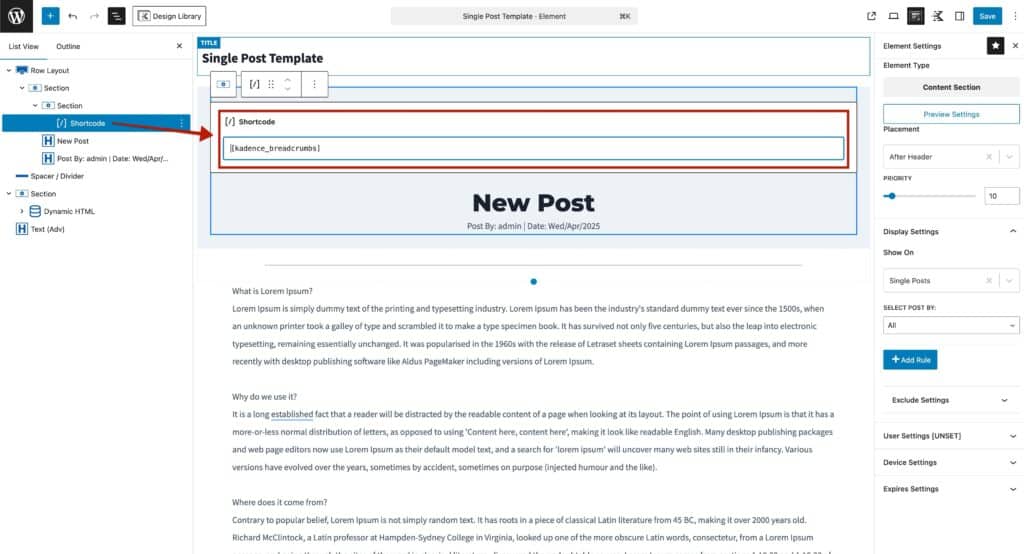
Credit: www.kadencewp.com
Restoring Your Website Content
First, open your WordPress dashboard. Find the Tools option. Click on Import. Choose the file you have. This file holds your content and media. Now, click Upload. Wait as the content loads. Check your website. Make sure all content appears. Sometimes, images need extra steps. Ensure all media is present.
Go to the Appearance section. Select Widgets. Drag your needed widgets back. Place them in the right areas. Each widget needs attention. Then, click on Menus. Recreate your site’s menu. Add all important pages. Arrange them as before. Save changes. Check your site to ensure it looks correct.
Testing Your Website
Resetting the Sydney WordPress theme is easy. First, access the WordPress dashboard. Then, navigate to the “Themes” section and click “Customize. ” Select “Reset Options” to restore default settings. This process helps refresh your site’s design without losing content.
Check For Functionality
Testing your website is important. Click each link on the site. Make sure each link works. Check the contact form. Ensure it sends emails correctly. Try adding items to the cart. Test the checkout process. See if you receive a confirmation email. Look for any errors or broken features. Fix them quickly. Check the loading speed. A fast website keeps visitors happy.
Ensure Mobile Responsiveness
Many people use phones to browse. Check your website on mobile. Is everything easy to see? Are buttons big enough to click? Text should be easy to read. Pictures need to fit the screen. Test on different phones. Use a tablet too. Make sure everything adjusts well. A mobile-friendly site attracts more users. Keep testing until it works perfectly.

Credit: wp101.com
Troubleshooting Common Issues
Resetting the Sydney WordPress theme often resolves common issues. Navigate to Appearance > Themes, select Sydney, and click ‘Reset Options. ‘ This restores default settings, helping fix theme-related problems swiftly.
Resolve Plugin Conflicts
Plugin conflicts can cause problems. First, disable all plugins. Then, activate them one by one. Watch if the problem happens again. This helps find the bad plugin. Always keep plugins updated. Old plugins might not work well. Check if the plugin is compatible with your theme. Read reviews and support pages. They might have solutions.
Fix Layout Problems
Layout issues can be annoying. Refresh your page first. Sometimes it’s a simple fix. Clear your browser’s cache. This can solve display errors. If the problem stays, check your theme settings. Look for any unusual changes. You might need to adjust the settings. Use a different browser to see if it’s the same. Some themes need specific browsers. Always keep your theme updated. Updates fix many layout bugs.
Frequently Asked Questions
How Do I Reset My Sydney Theme?
To reset your Sydney WordPress theme, go to your WordPress dashboard. Navigate to Appearance > Themes. Select Sydney and click on ‘Customize’. Choose the ‘Reset’ option. Confirm the action to restore default settings.
Can I Restore Sydney Theme Settings Easily?
Yes, restoring Sydney theme settings is simple. Access your WordPress dashboard, go to Appearance > Customize, and find the ‘Reset’ button. Click to revert to default settings.
Will Resetting Sydney Theme Affect My Content?
Resetting the Sydney theme won’t affect your content. It only reverts theme settings to defaults. Your posts, pages, and media remain unchanged.
Why Should I Reset My Sydney Theme?
Resetting Sydney theme can resolve customization issues. It restores default settings, fixing design errors and improving site performance. It’s useful for troubleshooting.
Conclusion
Resetting the Sydney WordPress theme is simple and quick. Follow the steps outlined above. Your site will regain its original look. Customize it again to suit your style. Remember to backup your data before resetting. This prevents loss of important information.
Regular updates keep your theme functioning well. Explore new features and improvements often. Stay informed about theme updates. Always check compatibility with plugins. A smooth, functional site enhances user experience. Enjoy creating a visually appealing website. Happy blogging!


