
Are you tired of sluggish website loading times? You might be surprised to learn that the images you upload to your WordPress site could be the culprit.
Oversized images not only slow down your website but can also frustrate your visitors and negatively impact your search engine rankings. The good news is, you don’t need to be a tech expert to fix this issue. In this guide, you’ll discover how to rescale images before uploading them to WordPress, ensuring your site remains fast and efficient.
Imagine the satisfaction of seeing your site load quickly and keeping your visitors engaged. Stick around to learn simple yet effective techniques that will transform your website’s performance and enhance user experience.
Benefits Of Rescaling Images
Improved Load Times are important for websites. Smaller images load faster. This makes pages open quickly. Users don’t like waiting. Fast pages keep visitors happy. Search engines also prefer fast sites.
Enhanced User Experience is key for keeping visitors. Clear images make sites look good. Visitors enjoy browsing more. They stay longer on the site. This can lead to more clicks and views.
Optimized Storage Usage saves space on servers. Large images use more storage. Smaller images fit better. This helps save money on hosting. It also keeps the site organized. Easy for site owners to manage.

Credit: securityaffairs.com
Choosing The Right Image Dimensions
Images make websites look nice. But big images slow websites down. WordPress has specific needs for images. Knowing these needs can help. It helps your site run fast. Images should be clear. But not too big. This balance is key.
Images in WordPress often use common sizes. Thumbnails are usually 150×150 pixels. Medium images might be 300×300 pixels. Large images often use 1024×1024 pixels. These sizes fit well in most designs. They keep pages neat and tidy.
High-quality images look great. But they can be large in size. Large images take time to load. Reducing image size helps speed up the site. But it should not lose much quality. Find the right balance. This keeps your site fast and pretty.
Tools For Image Rescaling
Online tools are fast and easy. Use them to resize images quickly. Popular options include ResizeImage.net and PicResize. Just upload an image and choose the size. These tools work on any device. No need to install anything. Perfect for quick tasks.
Desktop software offers more features. Programs like GIMP and Paint.NET are great. They allow detailed edits. Adjust brightness and contrast too. Install them on your computer. Use them anytime without internet. Great for big projects.
WordPress plugins make resizing easy. Use plugins like Smush or EWWW Image Optimizer. These tools resize images automatically. Just upload and let them work. Save time and keep images sharp. Easy to install and use.
Step-by-step Guide To Rescaling
Choose a tool to change image size. Options include Photoshop and GIMP. These tools are popular and easy to use. Free options work well too. Some tools have special features. These help in making quick changes.
Open the image in your chosen tool. Look for the resize option. Change the width and height. Keep the aspect ratio locked. This stops the image from stretching. Use simple numbers for easy resizing.
Save the image after resizing. Use the save as option. Choose a format like JPEG or PNG. These formats are best for web use. Check the file size. Smaller files load faster on websites.
Best Practices For Image Uploads
Clear names help organize images. Use short and simple names. Include keywords in names. Avoid spaces; use hyphens instead.
Numbers can help sort images. Example: “beach-sunset-01”. Keep names descriptive. This helps in search.
Choose the right format for your image. JPEGs are good for photos. PNGs suit graphics and logos.
Use WEBP for smaller sizes and quality. It loads faster. Smaller files save space. They also improve site speed.
Lazy loading delays image load. Images load when needed. Improves speed for users.
Saves bandwidth. Better for mobile users. Use plugins to enable lazy loading. Most are easy to set up.
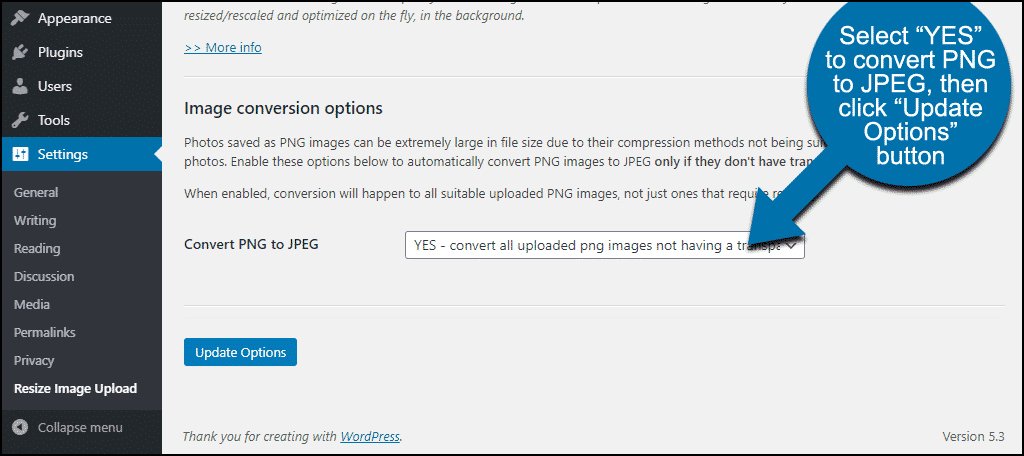
Credit: www.greengeeks.com
Troubleshooting Common Issues
Quality loss can make images look bad. Keep image resolution high. This helps keep the details sharp. Use tools that do not compress too much. Some tools provide better results. Always check the image after rescaling. If it looks fuzzy, try again.
Upload errors can be frustrating. Check the file size. It might be too big. Rename the file if there is an error. Use a simple name. Avoid special characters. Ensure the image format is correct. JPEG and PNG work best. Retry the upload after these steps.
Display issues can occur due to improper settings. Check the alignment. Ensure images fit well within the page. Use the right dimensions. This prevents them from being too small or too big. Always preview before publishing. Adjust if necessary.

Credit: www.youtube.com
Frequently Asked Questions
How Do I Rescale Images For WordPress?
To rescale images for WordPress, use image editing software like Photoshop or online tools like Canva. Adjust the dimensions to your desired size while maintaining aspect ratio. Save the image in an appropriate format, like JPEG or PNG, to ensure quality retention before uploading to WordPress.
Why Resize Images Before Uploading To WordPress?
Resizing images before uploading helps improve site performance and speed. Smaller images reduce loading times, enhancing user experience and SEO rankings. It also saves storage space on your server and prevents bandwidth overuse, ensuring efficient resource management for your website.
What Is The Best Size For WordPress Images?
The best size for WordPress images varies by use, but common dimensions are 1200×800 pixels for blog posts. Thumbnails are often set to 150×150 pixels. Adjust sizes based on your theme’s requirements to ensure optimal display and responsiveness across all devices.
Can I Use Plugins To Resize WordPress Images?
Yes, you can use plugins like Smush or EWWW Image Optimizer to automatically resize images in WordPress. These plugins optimize images during upload, reducing file size while maintaining quality. This helps improve page load times and overall site performance without manual resizing.
Conclusion
Rescaling images before uploading boosts your WordPress site’s performance. Smaller images load faster. This keeps your visitors happy. Plus, it saves storage space. Tools like Photoshop or free online resizers are helpful. These make the process easy. Remember to keep image quality high.
Don’t compromise clarity for size. Consistent practice makes it routine. This ensures your site runs smoothly. Faster sites often rank better on search engines. A little effort goes a long way. Keep your WordPress site efficient and user-friendly. Regularly update your skills and tools.
Your site will thank you.


