
Have you ever wondered why your WordPress site proudly displays the theme name at the bottom of each page? You might be thinking about how great it would be to have a clean, professional look without any distractions.
Removing the theme name from your WordPress site can make a world of difference in how your site is perceived. It can elevate your brand’s image and add a touch of uniqueness that sets you apart from the competition. But how exactly do you do it?
And why should you even bother? This guide is designed to give you the insights and steps you need, so you can take control of your website’s appearance and make it truly yours. Get ready to discover how a small change can make a significant impact on your website’s professionalism and appeal.
Why Remove Theme Name?
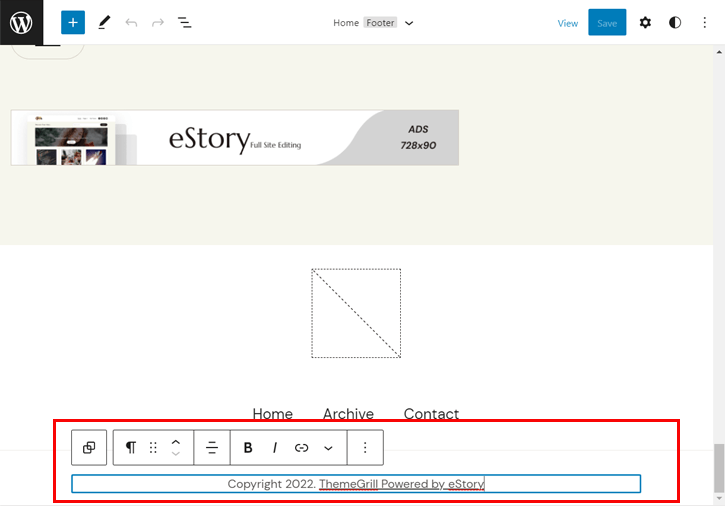
Removing the theme name can make your website look more professional. It also helps in keeping your site secure. Hackers might target specific themes. By hiding the theme name, you make it harder for them. This adds an extra layer of protection to your site. Some users prefer a clean footer without a theme name. It gives a unique feel to the website. It also helps in maintaining a consistent brand image. By removing it, you keep the focus on your content.
Credit: themegrill.com
Theme Editor Method
First, log into your WordPress dashboard. Find the Appearance option in the menu. Click on it. Choose the Theme Editor option. You will see many files. These files make up your theme. Be careful here. Wrong changes can break your site.
Find the file named style.css. This file holds important theme info. Click to open it. Look for the Theme Name line. You can change it. Make sure to save changes. Saving is crucial. Always check your site after changes.
To remove the theme name, locate the line starting with Theme Name:. You may delete or edit this line. Your choice should suit your needs. After editing, save the file. Refresh your site to see the change. Check if everything works fine.
Using A Child Theme
First, make a new folder for your child theme. This goes in the wp-content/themes directory. Inside, create a style.css file. Write a header with details like theme name and author. Next, create a functions.php file. Add code to enqueue the parent theme’s styles. This makes sure the child theme gets the parent theme’s design.
Change the styles in the child theme’s style.css file. This can override the parent theme’s styles. You can also add new functions in the functions.php file. Test your changes to ensure they work. Adjust fonts, colors, and layout as needed. This gives your website a personal touch.
Child themes help keep changes safe. If the parent theme updates, your customizations stay intact. Always update the parent theme, but check your changes after. Sometimes, updates might affect your tweaks. Regularly back up your site. This ensures your work doesn’t get lost. Using a child theme is a smart way to manage your site.
Custom Code Snippets
To remove the theme name from WordPress, you can add a snippet to your functions.php file. First, access your WordPress dashboard. Navigate to Appearance > Theme Editor. Then, find the functions.php file in the list on the right. Copy and paste the code below:
function remove_theme_name() {
    return '';
}
add_filter('theme_name_filter', 'remove_theme_name');
This code will help hide the theme name. Make sure to save changes after adding the code.
Before making changes, create a backup of your site. This ensures you can restore it if needed. Some themes may not support this code. Test the changes on a staging site first. Make sure the site runs smoothly after changes. Check for any errors or issues. If problems arise, contact your theme’s support. They can provide further assistance.
Plugins For Theme Name Removal
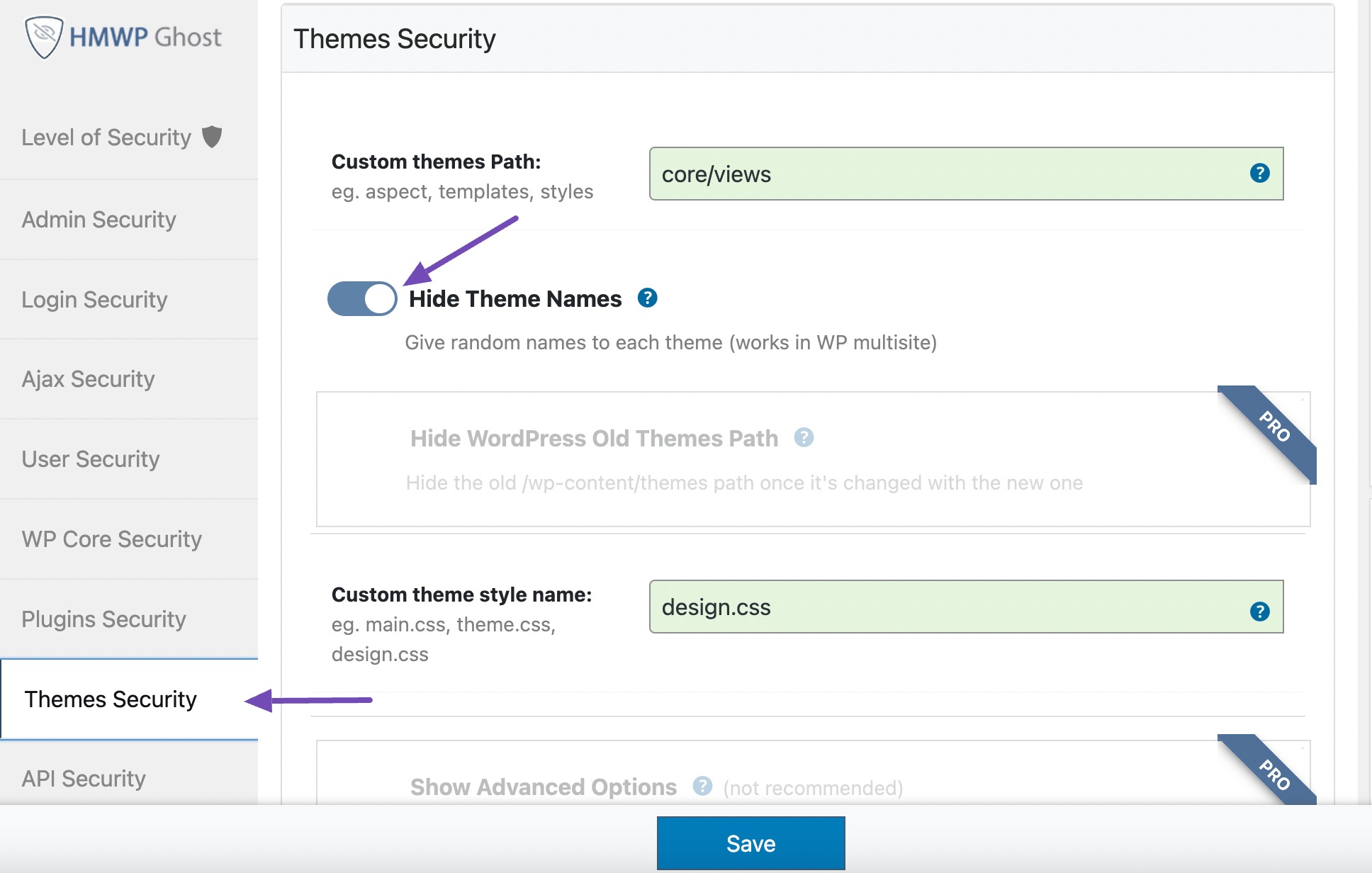
WordPress offers many plugins to hide the theme name. These plugins are easy to use. WP Hide & Security Enhancer is a famous plugin. It helps to remove theme details. Hide My WP is another choice. It protects against theme detection.
Install plugins from the WordPress store. Search for the plugin name. Click ‘Install Now’. Activate the plugin after installation. Open the plugin settings. Follow the steps to hide the theme name.
Testing Changes
Check if the theme name is still visible on your site. Visit the homepage and inspect the footer. You may need to refresh the page several times. Sometimes, the theme name hides in source code. Use the browser’s inspect tool to look at the code. If the name is removed, it won’t appear in the code.
Some common issues might occur during the process. You might find the theme name still appears. This could be due to cache. Clear your browser cache and check again. Another issue might be plugin interference. Disable plugins to see if one causes the problem. Always back up your site before making changes. It is important to ensure your site remains safe.
Best Practices
It’s smart to backup your site. Always. This protects your data. Use plugins like UpdraftPlus. They help save your site. Backups can be stored on clouds. Google Drive or Dropbox work well. Regular backups keep your site safe. Weekly backups are best. Daily backups are even better.
Site functionality must stay smooth. Test your site often. Check links and images. Ensure plugins are updated. Updated plugins work better. Avoid broken links. Fix them quickly. Monitor site speed. Fast sites keep visitors happy. Use tools like GTmetrix. It checks site speed. Good speed is important. Speed keeps users engaged.
Credit: rankmath.com

Credit: www.nexgi.com
Frequently Asked Questions
How To Hide Theme Name In WordPress?
To hide the theme name, use a custom CSS plugin. Add custom code to your theme’s functions. php file. This method helps ensure the theme name is not visible to users. You may also use plugins like “Hide My WP” for enhanced security and privacy.
Can I Remove Theme Name From Footer?
Yes, you can remove the theme name from the footer. Edit the footer. php file in your theme editor. Replace or delete the theme credits section. Always create a child theme before making changes to avoid losing custom edits during updates.
Is It Legal To Remove Theme Name?
It is generally legal to remove the theme name if the theme allows it. Check the theme’s licensing agreement for specific details. Ensure compliance with any attribution requirements. Customizing your theme responsibly avoids potential legal issues.
Will Removing Theme Name Affect Seo?
Removing the theme name won’t directly affect SEO. SEO is impacted by content quality, site structure, and backlink profile. Focus on optimizing these areas for better rankings. Removing the theme name is more about aesthetics and branding than SEO.
Conclusion
Removing the theme name in WordPress is simple. Follow the steps carefully. This keeps your site clean and professional. Always ensure backups before making changes. Mistakes can happen, so be cautious. Customizing your site enhances brand identity. It also protects your design choices.
Now you can maintain a seamless look on your website. Enjoy the flexibility and control WordPress offers. Remember, small adjustments make a big difference. Keep exploring and learning for better site management. Your website deserves the best presentation. Happy customizing!


