
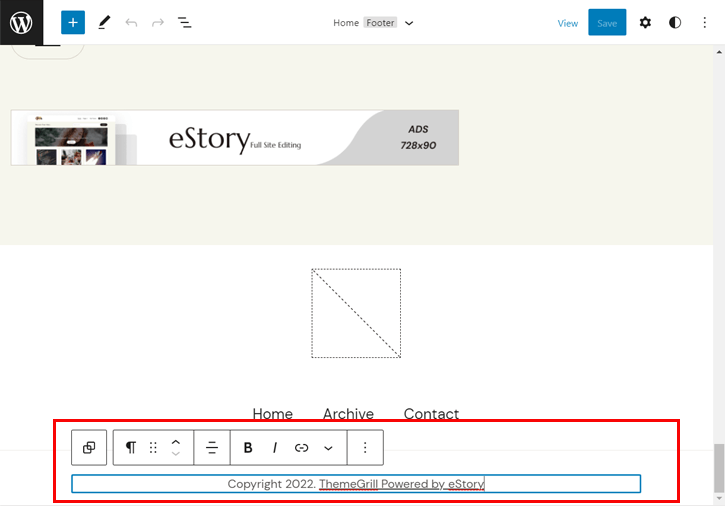
Are you looking to personalize your WordPress site by removing the theme name? You might have noticed that some themes prominently display their names in the footer or elsewhere on your site.
While this isn’t necessarily a bad thing, you may prefer a cleaner, more professional look. Removing the theme name can help you establish your brand identity and make your site feel uniquely yours. In this guide, we’ll walk you through simple steps to remove the theme name from WordPress, making your website look polished and custom-tailored.
By the end of this article, you’ll have the know-how to make these changes effortlessly, enhancing your site’s appearance and functionality. Let’s dive in and give your WordPress site the personal touch it deserves!
Why Remove Theme Name
Websites sometimes show their theme name to visitors. This can lead to privacy issues. When others know your theme, they might copy your site. They can also find security flaws in the theme. Protecting your site starts with hiding the theme name. It keeps your site safe and unique. Also, it makes it harder for hackers to attack your site.
Your website should match your brand. Showing the theme name can break brand consistency. Visitors may see the theme name and get confused. It makes the site look less professional. Removing the theme name helps your site look clean. It keeps the focus on your brand. Use your own logos and colors to make your site unique. This keeps visitors happy and engaged.

Credit: www.youtube.com
Understanding Theme Files
Discovering how to remove the theme name from WordPress can enhance site branding. Modify theme files or use plugins to achieve a cleaner look. Ensure careful editing to avoid site issues.
Common Theme Locations
Theme names often hide in different file locations. The header.php file is a common spot. It holds important header details for your site. Look for the footer.php file too. Footer files sometimes have theme names. The functions.php file might also have theme names. This file helps with extra features for your site.
Role Of Style.css
Style.css is the main file for your theme’s look. It has design rules for your site. This file often lists the theme name. It is usually near the top of the file. Changing this can hide the theme name. Edit carefully. The style.css file controls site appearance. Mistakes can affect your site’s look.
Using Custom Css
Add custom CSS to hide the theme name. This method is simple. Find the CSS code related to the theme. Use display: none; to hide it. Make sure to save your changes.
Place your CSS in the right spot. Go to the WordPress dashboard. Click on Appearance, then Customize. Find the Additional CSS section. Paste your code here. Check your site to see changes.
Editing Theme Code
Start by opening the WordPress dashboard. Look for Appearance in the menu. Click on it. Then, choose Theme Editor. This lets you change the theme code. Be careful while editing. Mistakes can break your site. Always make a backup before changing anything.
Find the style.css file. It is usually on the right side of the Theme Editor. Click to open it. Look for lines that mention the theme name. You might find it at the top. Delete or change these lines. Save your changes by clicking Update File. Check your site to see the changes. Refresh your browser to make sure.
Child Theme Method
Creating a child theme is simple. Begin by making a new folder. Name it “yourtheme-child”. Inside this folder, make two files: style.css and functions.php. These files are important. They tell WordPress your theme exists. In style.css, add a comment at the top. Write the parent theme’s name. This connects your child theme to the parent. Your child theme can now use the parent theme’s styles.
Start by opening the functions.php file. Here, add codes to remove the theme name. Use the wp_enqueue_scripts function. This function helps in changing styles. Add your custom styles here. This overwrites the parent theme’s styles. In style.css, you can add more styles. These styles give your site a new look. Make changes without fear. The parent theme remains safe. Your changes stay in the child theme.
Using Plugins
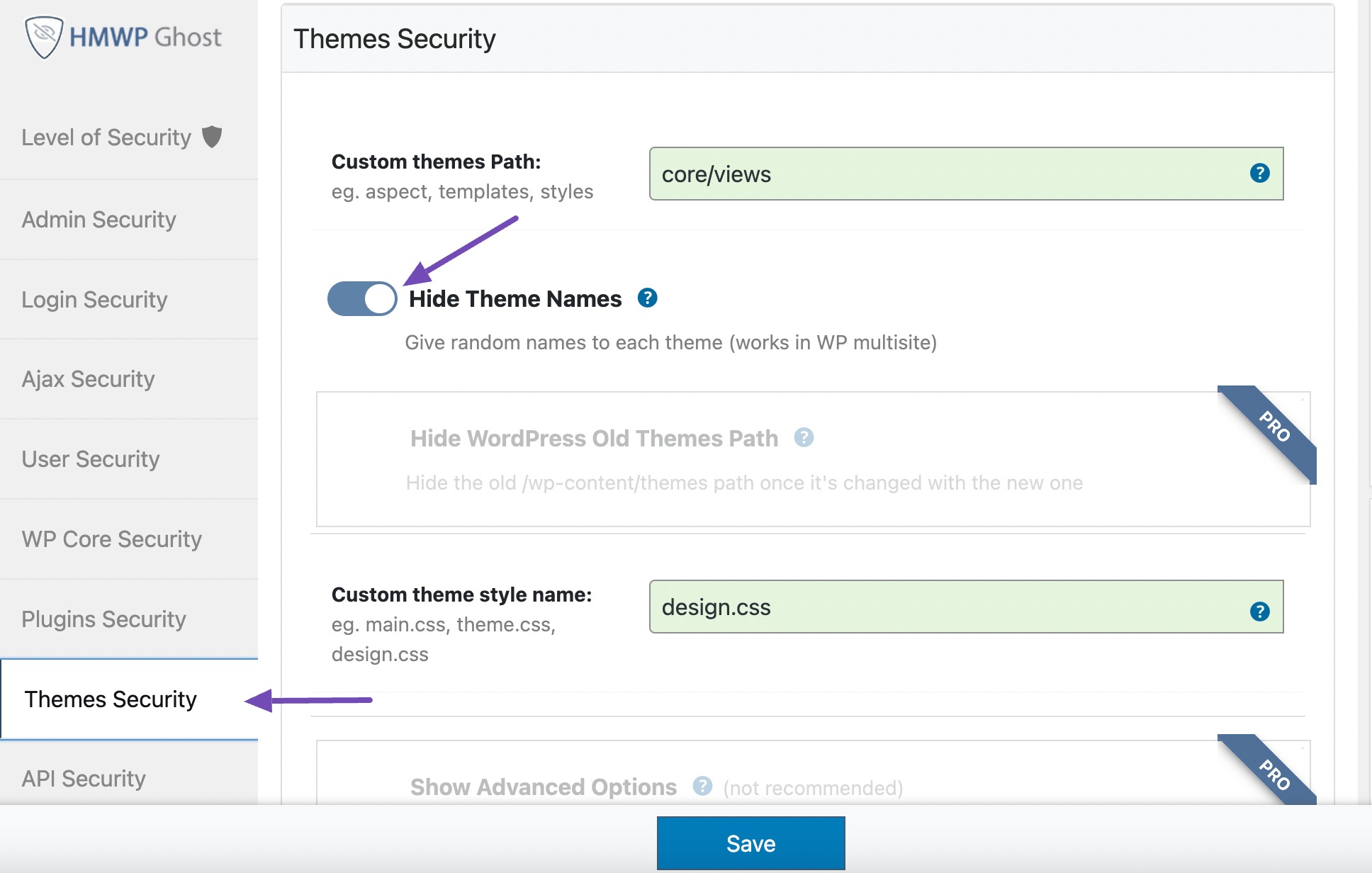
Plugins help to remove the theme name easily. They are simple to use. Popular choices include WP Hide & Security Enhancer and Remove Footer Credit. These plugins keep your site clean and professional.
First, go to your WordPress Dashboard. Then, click on Plugins. Select Add New and search for the plugin name. Click Install Now next to the desired plugin. After installing, click Activate.
Open the plugin settings from the dashboard. Follow the on-screen instructions to configure. Many plugins offer simple steps for configuration. Save your changes once done. This process ensures the theme name is hidden.
Considerations And Risks
Removing the theme name can affect future updateserrors or slow performance. Always consider if updates are important. Ensure your site is safe and functional. Regular updates keep your site secure. They improve the site’s health. Think about the risks before removing the name.
Removing the theme name can lead to security risks. Hackers might find it easier to target your site. Themes have security measures built-in. These help protect your site. Without updates, these measures may fail. It can make the site vulnerable. Protecting your site is important. Consider the risks of removing the theme name. Always keep security in mind. Ensure your site remains safe and secure.
Credit: rankmath.com
Credit: themegrill.com
Frequently Asked Questions
How Do I Remove The Theme Header In WordPress?
Go to WordPress Dashboard, click Appearance, then Theme Editor. Locate header. php, carefully remove header code, and save changes.
How Do I Remove A Title From A WordPress Theme?
Go to your WordPress dashboard and select “Appearance”. Choose “Customize”, then “Additional CSS”. Add the code `. entry-title { display: none; }`. Click “Publish” to save changes. This will hide the title on your site without deleting it.
How Do I Rename My WordPress Theme Name?
To rename your WordPress theme, edit the “style. css” file in the theme folder. Change the “Theme Name” field. Then, update the folder name via FTP or your hosting file manager. Ensure all references and functions align with the new name to avoid errors.
How To Get Rid Of WordPress Theme In Footer?
Remove the WordPress theme footer by editing the footer. php file. Locate and delete the relevant code. Alternatively, use a custom CSS plugin to hide the footer text. Always backup files before making changes to avoid data loss.
Conclusion
Removing the theme name from WordPress is simple. Now, your site looks cleaner. This change helps to focus on your content. Visitors will appreciate a neat appearance. Your site feels more professional. Privacy can increase too. Make sure you follow steps carefully.
Mistakes can affect your site. Always back up before changes. It’s wise to test adjustments first. Enjoy your streamlined WordPress site. Keep exploring new ways to enhance it. Regular updates can boost user experience. Happy blogging!


