

Are you looking to clean up your WordPress site by removing an old or unused theme? Maybe you’ve switched to a new design and want to free up space or avoid conflicts.
Removing a WordPress theme might seem tricky at first, but with the right steps, it’s straightforward and quick. In this guide, you’ll learn exactly how to safely delete any theme from your WordPress dashboard without risking your site’s performance. Stick with me, and by the end, you’ll feel confident managing your themes like a pro—making your website leaner and easier to maintain.
Let’s get started!
Switch To A Different Theme
Switching to a different theme in WordPress is a necessary step before removing your current theme. This ensures your website stays live and functions properly. Changing the active theme to a default or another installed theme is simple. It protects your site from errors that happen if no theme is active.
Activate Default WordPress Theme
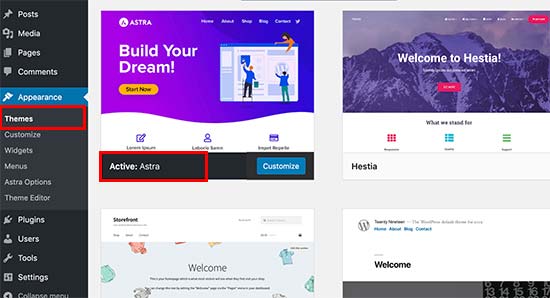
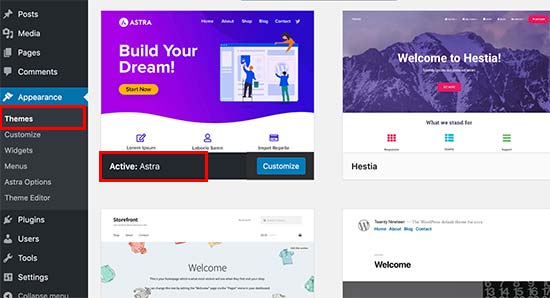
Start by logging into your WordPress dashboard. Go to Appearance and then Themes. Look for the default WordPress theme, often named “Twenty Twenty-Three” or similar. Hover over it and click Activate. This will switch your site to the default theme instantly.
Using the default theme is safe because it is regularly updated. It also works well with most plugins and WordPress versions. After activation, your old theme will no longer be active and ready for removal.
Why You Must Change Active Theme First
WordPress does not allow deleting the theme currently in use. This is to prevent your website from breaking or showing a blank page. Changing the active theme first keeps your site stable and accessible.
Once you switch to another theme, you can safely delete the old one. This avoids errors and downtime. Always activate a different theme before removing your current one to keep your site online and error-free.
Delete Theme Via Dashboard
Deleting a WordPress theme via the dashboard is a simple process. This method helps you keep your site clean and free from unused themes. Removing old themes can improve site security and reduce clutter.
Follow these steps carefully to delete a theme from your WordPress dashboard safely.
Access Themes Section
Log in to your WordPress dashboard first. On the left menu, find and click Appearance. Then select Themes. This opens the page showing all installed themes on your site.
Locate And Select Theme To Remove
Browse the list of themes to find the one you want to delete. Make sure this theme is not currently active. If it is active, activate a different theme first. Click the theme thumbnail to open its details.
Confirm Theme Deletion
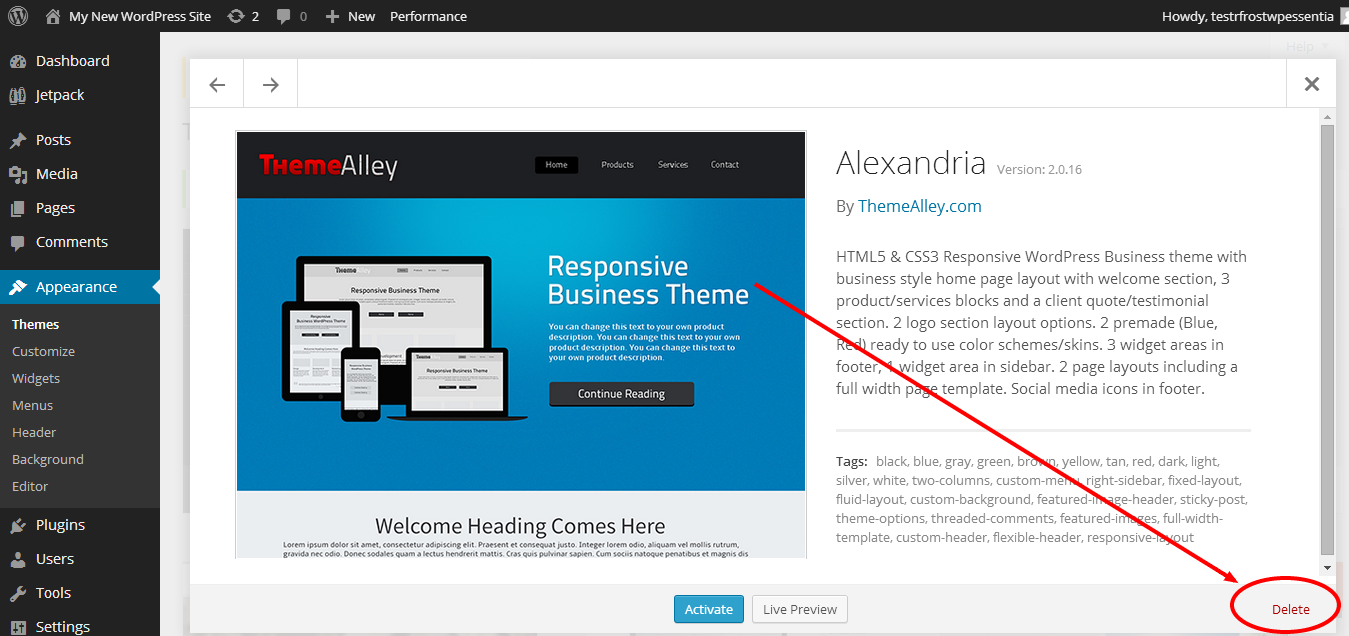
In the theme details popup, find the Delete button at the bottom right corner. Click Delete. A confirmation box will appear. Click OK to confirm the deletion. The theme will be removed from your site.
Remove Themes Using Ftp
Removing a WordPress theme using FTP is a direct way to clean your website. This method helps when the dashboard is inaccessible or the theme causes errors. It involves connecting to your site files and deleting the theme folder manually. Follow these steps carefully to avoid issues.
Connect To Your Site Via Ftp
First, open your FTP client like FileZilla or Cyberduck. Enter your FTP credentials: host, username, and password. These details come from your hosting provider. Click Connect to access your website files. Make sure the connection is secure before moving on.
Navigate To Themes Folder
Once connected, find the WordPress root directory. Usually, it is called public_html or www. Inside, open the wp-content folder. Then, open the themes folder. This folder contains all your installed themes as separate folders. Identify the theme you want to remove.
Delete Theme Files Manually
Select the theme folder you want to delete. Right-click and choose Delete or press the delete key. Confirm the deletion when prompted. Wait for the process to finish. The theme files will be removed from your server. Check your site to ensure it works properly with the active theme.
Credit: support.basehost.com.au
Delete Multiple Themes At Once
Deleting multiple themes at once in WordPress saves time and keeps your site clean. Removing unused themes improves your website’s speed and security. Instead of deleting themes one by one, bulk removal helps you manage themes efficiently.
Bulk Theme Removal Options
WordPress does not offer bulk theme deletion by default. You must delete themes individually through the dashboard. To remove several themes at once, use a plugin like WP-Optimize or Bulk Delete. These plugins allow selecting and deleting multiple themes quickly.
Another option is using FTP or cPanel file manager. Access your WordPress folder, open the /wp-content/themes/ directory. Here, you can delete multiple theme folders at once. Be careful to only delete unused themes to avoid site errors.
Precautions When Deleting Multiple Themes
Always activate a different theme before deleting others. WordPress won’t let you delete an active theme. Back up your website before removing themes. This protects your site if you delete important files by mistake.
Check if any deleted theme was customized or used by child themes. Deleting such themes can break your site. Review each theme carefully to avoid losing important design or functionality.
Common Issues And Fixes
Removing a theme in WordPress can sometimes cause unexpected problems. These issues may stop you from deleting the theme as planned. Knowing common problems helps solve them faster. Here are two typical issues and how to fix them.
Theme Deletion Button Missing
Sometimes, the delete button for a theme is not visible. This usually happens if the theme is active. WordPress does not allow deleting the active theme for safety.
To fix this, first activate a different theme. The default WordPress theme is a good choice. After activating a new theme, go back to the theme you want to delete. Now, the delete button should appear. Click it to remove the theme.
Errors During Theme Removal
Errors can occur during theme removal. These include permission problems or server issues. A common error is “You do not have permission to delete this theme.”
Check your user role in WordPress. Only admins can delete themes. If you are not an admin, ask one to delete the theme for you. Also, check file permissions on your server. The theme folder must be writable.
Contact your hosting provider if you face server errors. They can help fix permission or configuration problems. After fixing these issues, try deleting the theme again.
Credit: www.wpbeginner.com
Clean Up After Theme Removal
Removing a theme from WordPress is only the first step. Cleaning up after theme removal keeps your site fast and organized. Old theme data can slow down your site or cause conflicts with new themes. Taking time to clear out leftover files and settings helps maintain a smooth user experience. This process also frees up space on your server.
Remove Unused Theme Data
The old theme may leave behind data in your database. This includes custom options, widgets, and theme-specific settings. You can remove this data using plugins designed for database cleanup. Another option is to manually delete unused options in the WordPress database. Clearing this data helps avoid clutter and errors.
Widgets added by the old theme may stay active. Check the Appearance > Widgets area and remove any leftover widgets. Also, review menus under Appearance > Menus. Delete any menus that are no longer needed. This keeps your site structure clean and tidy.
Check For Leftover Files And Settings
Some themes add files to your server outside the WordPress theme folder. Use an FTP client or file manager to browse your site files. Look for folders or files named after the old theme. Delete these if they are no longer used.
Review your active plugins. Some plugins work only with certain themes and may become unnecessary. Deactivate and delete plugins linked to the old theme. This reduces security risks and improves site speed.
Clear your site cache and browser cache after cleanup. This ensures you see the latest changes and your site runs smoothly. Regular cleanup after theme removal keeps your WordPress site healthy and ready for new designs.
Prevent Theme Conflicts
Theme conflicts can cause your WordPress site to act strangely. They may slow down your site or break its design. Preventing these conflicts helps keep your website running smoothly. Careful theme management is key to avoiding problems when removing or changing themes.
Best Practices For Theme Management
Always use themes from trusted sources. Avoid installing many themes at once. Keep only the themes you use or plan to use. Disable unused themes to reduce conflicts. Test new themes on a staging site before applying them live. This helps spot issues without affecting visitors.
Backup Before Deleting Themes
Backing up your site is essential before deleting any theme. A backup saves your content, settings, and customizations. Use reliable backup plugins or your hosting service’s tools. Store backups safely, so you can restore your site if needed. This step protects your site from unexpected errors or data loss.
Credit: www.netfirms.com
Frequently Asked Questions
How Do I Completely Remove A Theme In WordPress?
Log in to WordPress Dashboard. Go to Appearance > Themes. Activate a different theme. Click the unwanted theme, then select Delete and confirm.
How Do I Remove My Theme?
To remove your theme, first activate a different theme. Then, go to Appearance > Themes, select the unwanted theme, and click Delete. Confirm to complete removal.
Why Can’t I Delete Themes?
You can’t delete a theme while it is active. Switch to a different theme first, then delete the unwanted one.
How Do I Remove A Template From WordPress?
Log in to WordPress Dashboard and go to Appearance > Themes. Activate a different theme first. Click the unwanted theme, select Delete, and confirm removal.
Conclusion
Removing a theme in WordPress is simple and quick. Always activate a different theme before deleting the old one. Use the Appearance > Themes section in your dashboard to manage themes easily. Deleting unused themes keeps your website clean and secure.
Regularly check your themes to avoid clutter and improve site performance. Following these steps helps maintain a smooth WordPress experience. Try it yourself and keep your site up to date with only the themes you need.


