
Are you looking to give your WordPress site a fresh start or simply want to switch things up with a new look? Removing a theme in WordPress 4.0 might sound like a daunting task, but it’s easier than you think.
Whether your current theme is causing issues or you just want a change of scenery, knowing how to efficiently remove a theme is essential for maintaining a clean and clutter-free site. In this guide, you’ll discover a straightforward, step-by-step process that will empower you to manage your website’s appearance with confidence.
Get ready to take control of your WordPress experience and ensure your site remains streamlined and efficient. Let’s dive in and uncover how you can effortlessly remove a theme from WordPress 4. 0 today.
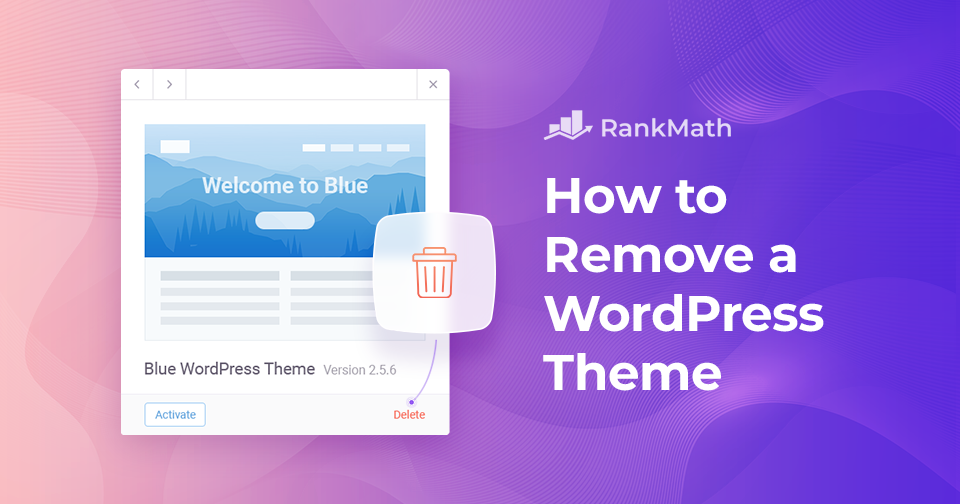
Credit: rankmath.com
Backup Your Site
Backups save your hard work. Imagine losing all your data. It’s a nightmare. A backup keeps your data safe. You can restore it anytime. Peace of mind comes with regular backups. No worries about mistakes or crashes. Stay safe, keep backups handy.
There are many ways to backup your site. Use plugins like UpdraftPlus or BackWPup. They are easy to use. Another way is manual backups. Download your files and database. Save them on your computer. You can also use your hosting service. Many offer automatic backups. Choose a method that suits you best.

Credit: jetpack.com
Access WordPress Dashboard
First, go to your WordPress login page. Type your username and password. Click the login button. You will see the main dashboard screen. It’s where you manage your site.
Look on the left side of the dashboard. Find the Appearance tab. Click on it. A menu will open up. Here, you can see different options. Themes are listed there. You can change or remove them.
Deactivate Current Theme
Switching to a default theme is easy. Go to your WordPress dashboard. Click on Appearance. Then, choose Themes. You will see a list of themes. Find the default theme, like Twenty Twenty-One. Hover over it. Click on Activate. This changes your current theme. Now, check if your site still works fine.
After switching themes, visit your site. Look at the pages. Do they look good? Check the menu. Are all items visible? Test any forms or special features. Make sure everything works. If something is broken, try to fix it. Sometimes, widgets may move or disappear. You can adjust them in the Widgets area under Appearance.
Delete Theme
Open your WordPress dashboard. Find the menu on the left side. Click on Appearance. A new menu will appear. Select Themes from this menu. Now, you will see all your installed themes. Each theme has a preview image. Under each image, there are options.
Look for the theme you wish to remove. Do not delete the active theme. Click on the theme you want to delete. A window will pop up. On the bottom right, find the Delete button. Click it. A prompt will appear. Confirm your choice. The theme will be gone. This makes your site cleaner. Be careful and ensure you delete the correct theme.
Use Ftp Client
Use an FTP client to easily remove a theme from WordPress 4. 0. Connect to your website’s server and navigate to the ‘wp-content/themes’ directory. Delete the theme folder you want to remove, and your changes will be reflected immediately.
Installing Ftp Client
Download an FTP client like FileZilla. It’s free and easy to use. Install it on your computer by following on-screen steps. After installing, open the FTP client. You will see a login screen. This is where you enter your website details. You need your FTP username and password. Also, type in your website’s server address. Click connect once you fill in these details. If everything is correct, you’ll connect to your website. Now, you can see your site’s files.
Accessing Theme Files
Look for the folder named wp-content. Click on this folder. Inside, find another folder named themes. This folder has all your theme files. Select the theme you want to remove. Right-click and choose delete. This action removes the theme from your site. Ensure you delete the correct theme. Double-check before you remove. This process is simple and quick. Remember to disconnect once done.
Remove Theme Files
First, go to your WordPress Dashboard. Find the Appearance menu. Click on Themes. You will see a list of themes. Note the active theme; you cannot delete it. Now, use a file manager or FTP client to access your WordPress files. Navigate to the wp-content/themes directory. This folder contains all theme files.
In the wp-content/themes directory, locate the theme folder you wish to remove. Select the folder carefully. Right-click on the folder. Choose the delete option to remove it. This action permanently deletes the theme files. Make sure to back up any important files first. Deleting cannot be undone.
Verify Theme Removal
Log into your WordPress dashboard. Look for the Appearance section on the left. Click on it to see the list of installed themes. Make sure the theme you removed is no longer there. If it is still listed, it might not have been deleted properly.
Visit your site to check how it looks now. Ensure the design is different from the previous theme. If the site looks unchanged, the theme removal might not be complete. Refresh the page to see any changes.
Troubleshoot Issues
Removing a theme from WordPress 4. 0 involves accessing the dashboard and navigating to the Appearance section. Locate the Themes option, select the unwanted theme, and click ‘Delete’. Ensure the theme is deactivated before removal to prevent errors.
Common Problems
Sometimes, removing a WordPress theme can cause issues. You might see a broken site or missing content. These problems are common and can be fixed.
Solutions And Fixes
First, check the backup files. Restore them if needed. Next, switch to a default theme like Twenty Twenty-One. This helps in finding the root issue. If the theme was customized, use a child theme instead. This keeps your changes safe. Finally, clear your browser cache. This ensures you see the updated site.

Credit: www.hosted.com
Frequently Asked Questions
How Do I Uninstall A WordPress Theme?
To uninstall a WordPress theme, go to your dashboard and navigate to Appearance > Themes. Find the theme you want to remove, click on it, and then select ‘Delete’. Always ensure you have an active theme before deleting another to avoid website issues.
Can I Delete A Theme Via Ftp?
Yes, you can delete a WordPress theme via FTP. Connect to your server using an FTP client, navigate to /wp-content/themes/, and delete the theme folder you wish to remove. Be cautious and ensure you don’t delete your active theme.
Will Removing A Theme Affect My Website?
Removing a theme won’t affect your website if it’s not active. Ensure you have another theme activated before deleting. Backup your website beforehand to prevent any unexpected issues or data loss during the process.
How Do I Deactivate A WordPress Theme?
You can deactivate a theme by activating a new one. Navigate to Appearance > Themes in your dashboard and click ‘Activate’ on the theme you prefer. Your current theme will automatically be deactivated.
Conclusion
Removing a theme in WordPress 4. 0 is simple. Follow the steps carefully. Start by accessing your WordPress dashboard. Navigate to the “Appearance” section. Choose the theme you wish to remove. Click “Delete. ” Confirm your action. Your theme is now removed.
Always check your site’s appearance after changes. Ensure everything works correctly. Regular maintenance keeps your site fresh. Consider backup before making big changes. Stay updated with the latest WordPress tips. Keeping your site clean boosts performance. Enjoy a smoother WordPress experience.


