
Are you tired of seeing that generic footer at the bottom of your WordPress website? It’s like wearing a suit with sneakers—something just feels off.
You’re not alone. Many WordPress users want a clean, professional look for their site, and that often means saying goodbye to the default theme footer. Imagine having complete control over your website’s appearance, making it truly yours. Removing the theme footer can elevate your site’s design, enhance user experience, and even improve your SEO ranking.
But how do you go about it without wrecking your site? Don’t worry; you don’t need to be a tech wizard to solve this puzzle. In this guide, you’ll discover simple and effective ways to remove the theme footer in WordPress. Get ready to transform your website from standard to stunning. Let’s dive in and give your WordPress site the polished look it deserves!
Understanding Theme Footers
Theme footers are at the bottom of web pages. They offer important info. Footers can include copyright details and links. They help users find legal info and contact details. Many sites use footers for social media links. This helps users connect with brands. Footers can also show a site’s privacy policy. These sections keep sites organized and tidy. Users often look to footers for quick links. They are crucial for site navigation. Footers help improve user experience.
Footers usually have contact info. Phone numbers and emails are common. Copyright notices are often present. They protect content rights. Links to privacy policies are standard. These policies show how user data is used. Social media icons are popular. They guide visitors to Facebook, Twitter, and more. Footers can also have site maps. These maps help users find pages easily. Some footers include newsletter sign-ups. They engage users and boost connections.
Reasons For Removing Footers
Footers might not match your style. You may want a unique look. Changing the footer can help. It makes your site stand out. Some themes have limited options. Removing the footer allows more design freedom. You can add your own elements. This can make your site more personal.
Footers often have theme credits. This might not fit your brand. Removing them makes your brand more visible. You can add your own branding elements. This helps in creating a consistent brand image. It makes your site look more professional.
Some websites have legal obligations. They need specific information in the footer. Removing the default footer helps. You can add your legal text. This ensures you meet legal needs. It keeps your site compliant with laws.
Preparation Before Removal
Backing up is important. Use a plugin or your hosting service. This saves all your files and settings. If something goes wrong, you can restore your site. Always have a backup before any big change. It keeps your site safe.
Find the footer code in your theme. Go to the WordPress dashboard. Click on Appearance, then Editor. Look for footer.php. This is where the footer code lives. Sometimes, it’s in a different file. Check your theme’s documentation. Identifying the right code is crucial for successful removal.
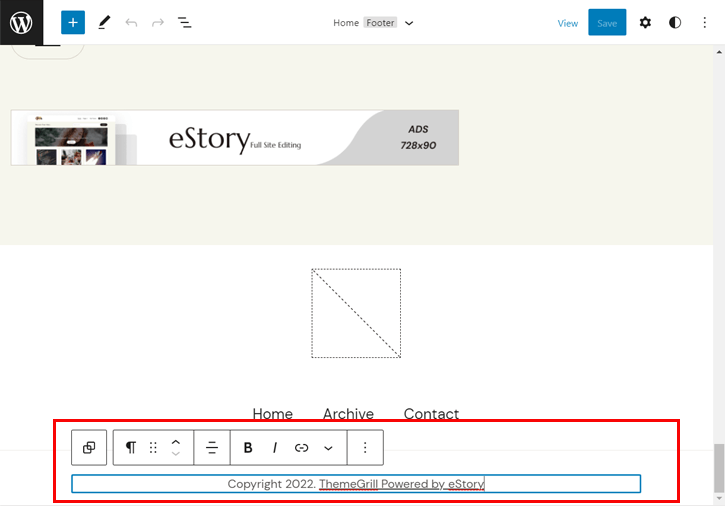
Credit: themegrill.com
Manual Code Editing
Editing theme files in WordPress lets you remove the footer. Access the theme editor from your dashboard. Find the footer. php file. Delete or modify the footer section carefully. Save changes to see the results.
Accessing Theme Editor
Start by logging into your WordPress dashboard. Find the Appearance menu on the left. Click on Theme Editor to open it. You will see a list of files on the right side.
Locating Footer Php File
Look for the file named footer.php. This is where the footer code is stored. It might be near the bottom of the file list. Click on it to open and edit.
Modifying Footer Code
Inside the footer.php, search for lines related to the footer text or links. Carefully remove or change these lines. Be sure to save your changes. Refresh your website to see the new footer.
Using Plugins For Removal
Remove the theme footer in WordPress easily with plugins. These tools offer a straightforward way to customize your site’s footer. They simplify the process, allowing users to make changes without coding skills.
Recommended Plugins
Some plugins can help remove the theme footer. Try using the Remove Footer Credit plugin or the WP Remove Footer plugin. They are both popular choices. Each one is easy to use and offers clear instructions. These plugins save time and effort.
Installation And Setup
First, go to your WordPress dashboard. Click on Plugins, then select Add New. Search for the plugin you like. Click Install Now. Once installed, click Activate. The plugin is now ready to use.
Configuring Plugin Settings
After activation, go to the plugin settings. Usually found under Settings or Tools. Follow the instructions provided. Adjust the settings to remove the footer. Make sure to Save Changes. Check your website. The footer should be gone. If not, try refreshing the page.

Credit: blog.hubspot.com
Custom Theme Development
Creating a child theme is a smart way to start. It helps you keep the original theme safe. First, make a new folder in the themes directory. Name it after your theme with “-child” at the end. Add a style.css file inside this folder. Write a few lines to connect it with the parent theme. The child theme can now have its own unique style. Your original theme stays untouched. This is great for making changes easily.
To change the footer, copy the footer.php file from the parent theme. Place it in your child theme folder. Now, edit this file as you wish. Remove any unwanted text or links. Save your changes and check your website. The new footer should appear on your site. This method is safe and easy. Your custom footer won’t change with theme updates.
Testing Changes
Easily remove the footer from a WordPress theme using the theme editor. Navigate to Appearance, then Theme Editor, and find the footer. php file. Delete or adjust the footer code to customize your site’s appearance.
Check Site Functionality
Ensure the site works properly. Visit different pages. Click on links and buttons. Each element should respond correctly. Look out for broken links. Test forms to see if they submit data. Check interactive features. Proper functioning means the theme footer was removed safely.
Ensure Responsiveness
Test the site on various devices. Open it on a phone. Try it on a tablet. Use different browsers. The site should adjust to different screen sizes. Responsive design helps users view content easily. Check for any layout shifts. Make sure images load quickly. Good responsiveness improves user experience.
Troubleshooting Common Issues
Sometimes, error messages pop up when trying to remove a theme footer. This can be frustrating. Check if your theme files are protected. Some themes do not allow changes easily. You might see a message saying, “You can’t change this file.” This means the file is locked.
To fix, try using an FTP client. Connect to your WordPress files directly. Look for the footer file. Check the permissions. Change them if needed. Always keep a backup before editing. This keeps your site safe.
Sometimes, the footer does not disappear even after changes. This can happen if the file is cached. Browsers save old versions. Clear the cache in your browser. This will show the latest changes.
Also, check for plugins that might control footers. Some plugins override theme settings. Disable these plugins one by one. This helps find which one causes the problem. Always make changes carefully.
Maintaining Clean Code
Keeping your WordPress updated is crucial. Updates fix bugs and improve security. They also make your site run smoothly. Always check for the latest updates. Install them as soon as possible. This will help maintain a clean code.
Optimizing code helps your site work better. Clean code loads faster. It also uses less memory. Remove unnecessary code lines. This will make your site efficient. Use tools to check your code. They find errors and suggest fixes. Your site becomes more responsive and easier to manage.
Credit: docs.wpbeaverbuilder.com
Frequently Asked Questions
How To Get Rid Of WordPress Theme In Footer?
Access your WordPress dashboard. Navigate to “Appearance” > “Editor. ” Find the footer. php file. Remove or edit the theme credit line. Save changes. Always back up your site before making edits.
How Do I Edit The Theme Footer In WordPress?
To edit the theme footer in WordPress, access the Appearance menu. Select “Theme Editor” and open the “footer. php” file. Make your changes carefully, then click “Update File” to save. Always back up your site before editing code to prevent errors.
How Do I Remove The Footer Column In WordPress?
To remove the footer column in WordPress, navigate to Appearance > Customize. Click on “Footer” settings and adjust the layout. Alternatively, use a custom CSS code or edit the footer. php file in your theme. Always back up your site before making changes to code.
How Do I Remove Theme Information In WordPress?
To remove theme information in WordPress, access your theme files via FTP or file manager. Edit the style. css file and remove or modify the theme details in the header section. Ensure you save changes and clear your website cache.
Always back up your files before making changes.
Conclusion
Removing the theme footer in WordPress is simple with the right steps. Follow the methods discussed to achieve a cleaner site look. Always back up your site before making changes. This ensures safety and peace of mind. Customize your footer to fit your brand’s needs.
A personalized footer enhances your website’s professional appeal. Remember, each theme might be slightly different. Check the theme documentation for specific instructions. With practice, you will gain confidence in editing WordPress themes. Keep exploring and learning to improve your WordPress skills.
Happy customizing!


