
Have you ever felt a twinge of dissatisfaction seeing the “Theme by” credit at the footer of your WordPress site? You’re not alone.
Many WordPress users, like you, strive for a professional, clean, and personalized website. Imagine the joy of having a site that feels truly yours—no distractions, just your brand and content. In this guide, you’ll discover simple, effective steps to remove that pesky “Theme by” line from your WordPress site.
By the end, your website will look more polished and uniquely yours. Ready to make your site stand out and reflect your personal or business brand perfectly? Let’s dive in.

Credit: wpmarmite.com
Reasons To Remove ‘theme By’ Footer
The ‘Theme by’ footer can make your site look unprofessional. Visitors might think the site is not unique. This can affect your brand image. Removing it gives a cleaner look. It also shows ownership of your site. People will take your site more seriously. They will see it as more trustworthy. This small change can make a big difference.
Your site might load faster without extra code. Faster sites keep visitors happy. They stay longer and explore more. This can lead to more clicks and actions on your site. Removing the footer can also help with SEO. Search engines like clean and simple sites. Cleaner code can improve your site ranking.
Legal Considerations
Removing the theme credit from your WordPress site could cause issues. Many themes come with a license. This license may require you to keep the credit visible. Always check the theme’s terms before making changes. Some themes allow you to remove credits for a fee. This fee supports the developers. It is important to respect their work. Ignoring these rules might lead to legal problems. Developers spend time creating themes. They deserve recognition. Make sure you understand what is allowed. Some themes have settings to remove credits. Use these settings if available. If unsure, contact the theme’s support team. They can offer guidance on what is permitted. Always act responsibly and follow guidelines.
Finding The ‘theme By’ Code
Find the footer.php file in your theme folder. This file holds the code for the footer area. Use an FTP client or the WordPress dashboard to access it. Look for the ‘Theme by’ text inside this file. It usually appears at the bottom. Be careful while editing this file. Make sure you don’t delete any important code.
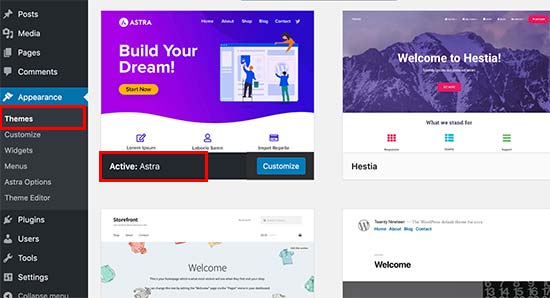
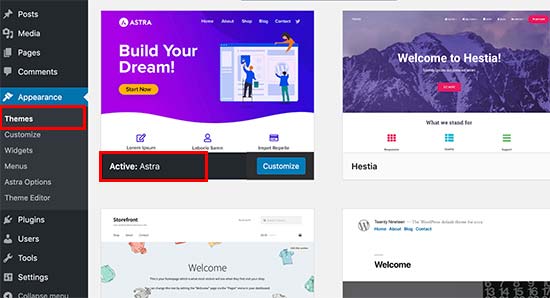
Open the WordPress Customizer in your dashboard. Click on ‘Appearance’. Then select ‘Customize’. Find the ‘Footer’ section. Check if there’s an option to remove the ‘Theme by’ text. Some themes offer a direct way to remove it. This method is easier and safer. Always save changes after editing.
Credit: www.wpbeginner.com
Editing The Footer Code
Editing the footer code in WordPress helps remove the “Theme by” credit. Access the footer. php file in your theme’s directory. Locate and delete the line with the “Theme by” text to customize your website’s footer.
Direct Code Modification
Access the WordPress dashboard. Go to Appearance and click on Editor. Find the footer.php file in the list. Open it and search for the line with the theme credit. Remove or edit this line carefully. Save the changes to update your site. Be cautious; mistakes can break your site. Always have a backup before editing.
Using A Child Theme
Create a child theme for safe editing. A child theme won’t affect the main theme. Copy the footer.php file to the child theme folder. Edit this file for changes. This way, updates to the main theme won’t overwrite your edits. Always test changes on a local site first. This keeps your site safe from errors.
Using Plugins For Removal
Plugins can help remove “Theme by” from WordPress. WP Hide & Security Enhancer is a popular choice. It’s simple and effective. Remove Footer Credit works well too. Both plugins are easy to use. They allow you to change footer text without coding.
First, go to your WordPress dashboard. Click on ‘Plugins’. Then, click ‘Add New’. Search for the plugin you want. Click ‘Install Now’. After installation, click ‘Activate’. Go to the plugin settings. Enter your desired footer text. Save your changes.
Avoiding Common Mistakes
Many users want to remove the “Theme by” text. This can be tricky. First, always create a backup of your site. Mistakes can break your site. Use a child theme for changes. It keeps the main theme safe. Do not edit the theme files directly. This can cause problems after updates.
Check the license of your theme. Some themes do not allow changes. Reading the theme’s documentation helps. It often provides instructions. If unsure, ask for help in forums. Many experts can guide you. They make sure your site stays safe.
Use the inspect tool in your browser. It helps find the text quickly. Then, add CSS code to hide it. This method is safe and easy. Always preview changes before going live. It ensures everything looks good.
Testing And Verifying Changes
Checking on Multiple Devices is crucial. Always view your WordPress site on phones and tablets. Some themes look good on desktops but not on mobile. Use different browsers like Chrome and Firefox. This helps see if changes work everywhere. Testing is key to a successful update.
Ensuring Responsiveness means your site fits all screen sizes. Small screens need special care. Avoid large images that don’t fit. Check buttons and links. They must be easy to click on small screens. Responsive sites attract more visitors. Test thoroughly to ensure everything works well.
Credit: themelooks.com
Maintaining Seo And Compliance
SEO is important for your website. Removing the “Theme by” link can affect it. Search engines like Google notice these changes. Your website might rank lower if not done right. Make sure to keep SEO best practices in mind. Check if changes harm your site’s ranking.
Follow your theme’s license rules. Some themes need you to keep the credit link. Read the license agreement carefully. Breaking these rules can cause problems. You might face legal issues if you do not comply. Always respect the developer’s work. It is important to support them by following the rules.
Frequently Asked Questions
How To Remove “theme By” In WordPress Footer?
To remove “Theme by” from your WordPress footer, access the theme editor. Locate footer. php and search for the credit line. Delete or comment out the code. Alternatively, use a custom CSS plugin to hide it. Always back up files before editing to prevent issues.
Can I Remove Theme Credit Without Coding?
Yes, you can remove theme credits without coding by using a plugin like “Remove Footer Credit. ” Install and activate the plugin, then navigate to its settings. Input the text to remove and save changes. This method is easy and beginner-friendly.
Does Removing Theme Credit Affect Seo?
Removing theme credit doesn’t affect SEO directly. However, it can enhance your site’s professionalism and branding. This might indirectly improve user engagement, which can contribute positively to SEO. Ensure you follow ethical practices when removing credits.
Is It Legal To Remove Theme Credits?
It’s generally legal to remove theme credits if the theme license permits. Check the theme’s terms of use to ensure compliance. GPL-licensed themes allow modifications, including credit removal. Always respect the developer’s rights and consider giving voluntary credit.
Conclusion
Removing “Theme by” from WordPress is simple. Follow the steps carefully. Customize your theme for a unique look. This small change enhances your site’s professionalism. Always back up before editing files. Mistakes can happen. Check your changes to ensure everything works.
Keep your WordPress theme updated. Regular updates prevent security issues. Learning these skills boosts your confidence in site management. Enjoy a cleaner, more personalized website. Happy customizing!


