
Are you tired of seeing the “Theme by Colorlib Powered by WordPress” footer on your website? You’re not alone.
Many website owners want their site to look clean and professional, without any unnecessary credits cluttering the page. You might feel frustrated every time you scroll down and see that text, especially if you’ve worked hard to create a unique and personal brand.
But don’t worry, you’re about to discover how to remove it effortlessly. By the end of this article, you will have a clear, step-by-step guide to removing that footer credit, giving your website the polished look it deserves. Keep reading to reclaim your website’s footer space and enhance your site’s aesthetic appeal.

Credit: www.whiteoaktwp.org
Why Remove Theme Credit?
The theme credit often appears at the bottom of websites. It shows the theme’s creator. Some site owners feel it looks unprofessional. Removing it can make a site look cleaner. A professional website builds trust with visitors.
Many people want their site to look unique. Having a common credit line can take away from that. It’s important to make your website truly yours. This is a big reason to remove the theme credit.
Some visitors may not like seeing ads or credits. Keeping your site free from these distractions can improve user experience. People stay longer on sites they enjoy. This can help your site grow.
Backup Your Website
Always make a backup before making changes. Backups keep your data safe. If things go wrong, you can restore them. Use plugins or manual methods for this. Plugins like UpdraftPlus are helpful. They save time and effort. Manual backups need more work. But they give you control.
Store backups in a safe location. Cloud storage works well. Google Drive or Dropbox are good choices. External hard drives are also an option. Keep multiple copies if possible. This ensures data safety.
Accessing Theme Editor
Start by logging into your WordPress dashboard. Look at the left side menu. There, you will see different options. Find the option labeled “Appearance”. Click on it to open a drop-down menu. This menu shows several options.
Look for the “Theme Editor” option. It is usually the last item. Click on “Theme Editor”. This will take you to the theme code editor. You can now see and edit your theme files. Be careful when editing these files. Changes here affect your whole site.
Identifying Footer File
Discover the process to remove the “Theme by Colorlib Powered by WordPress” link. Locate the footer. php file in your WordPress theme editor. Edit it carefully to delete or modify the text.
Understanding Theme File Structure
The theme files are in your WordPress directory. These files control your site’s look. Themes have many files. Each file has a job. The footer.php file is important. It controls the bottom part of your website. You need to find this file.
Finding Footer.php
Start by going to the WordPress admin panel. Click on Appearance. Then click Theme Editor. A list of files will show on the right. Look for the footer.php file. This file is usually near the bottom. Click on it to open. Now, you can make changes to the footer.
Editing Footer Code
Open your WordPress dashboard. Find the theme editor option. Click on it. Look for the footer.php file. This file holds footer information. Use the search tool. Enter “Colorlib” to find the text. You might see “Powered by WordPress” there. It will be near the bottom. This is the text you need to change.
Locate the text “Powered by WordPress”. It is under the footer file section. You can delete the code. Or make it a comment. Commenting means adding before the code and after the code. This hides it from visitors. Be careful when deleting code. Save changes after editing. Visit your site. Check if the text is gone. If it is, you did it right.
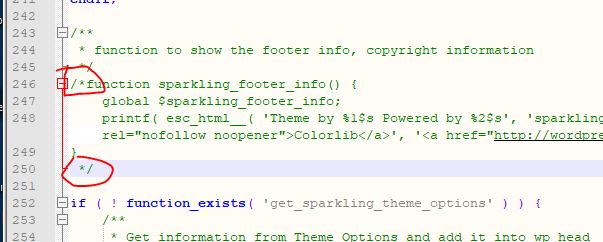
Credit: colorlibsupport.com
Using Css To Hide Credits
Hide credits with CSS to clean up your WordPress site. Easily remove “Theme by Colorlib” using custom CSS code. This technique offers a smooth, distraction-free browsing experience for users.
Adding Custom Css
First, open your WordPress Dashboard. Click on Appearance and then Customize. Find the Additional CSS option in the menu. Click it to open the CSS editor. Add this simple code:
.site-info {
  display: none;
}
This code hides the footer credits. Make sure to save changes. Check your site to see if the credits are gone. If not, check your code again.
Verifying Changes
Visit your WordPress site. Scroll to the bottom. Look for the credits. If they are not visible, your CSS works. If you still see them, refresh the page. Clear your browser cache if needed. Try different browsers to verify. Ensure you saved your changes in the Dashboard. Now, the credits should be hidden.
Child Theme Method
A child theme is like a copy of the main theme. It helps you keep your changes safe. First, create a new folder in the wp-content/themes directory. Name it after your theme with “-child” at the end. In this folder, make a file named style.css. Inside, write some lines to connect it to the main theme. This keeps the look of the website the same.
To change the footer, copy the footer.php file from the main theme. Place it into your child theme folder. Edit this copied file to remove or change the text “Theme by Colorlib”. Make sure not to delete other important codes. These steps help in keeping your changes when the theme updates. Always save your work!
Plugins For Credit Removal
Many plugins help remove credit links. Remove Footer Credit is popular. It works with many themes. Another is WP Footer Remover. It is easy to use. Footer Putter also helps. It can change footer text. These plugins make things simple.
First, go to your dashboard. Click on “Plugins”. Then, click “Add New”. Search for the plugin name. Click “Install Now”. After installation, click “Activate”. Go to settings. Find the plugin settings. Change the footer text there. Save changes. Check your site. The credit link should be gone.
Legal And Ethical Considerations
Every theme has a license. This license tells you what you can do. Some licenses let you change things. Others do not. It’s important to read the license. Know what it says. This helps you stay out of trouble. Follow the rules. You might need to give credit to the creator. That’s part of the deal. Respect the rules.
Sometimes you need to ask for permission. This is important. You can’t just change things. Not without asking. Find out who owns the theme. Contact them. Write a clear message. Be polite. Tell them what you want to do. Wait for their answer. It might take time. Be patient. Getting permission keeps things fair.
Testing And Confirming Changes
Verify the site works well after changes. Click each link. Ensure all pages load without problems. Test forms and buttons. Confirm they respond correctly. Try resizing the window. Check the site looks good in different sizes. Use multiple browsers for testing. Make sure everything displays properly.
Check for any error messages. Look for broken images. Make sure there are no missing elements. Review the site in detail. Use browser developer tools. Inspect for any hidden issues. Confirm the site is error-free. Errors can affect user experience. Fix them promptly for a smooth site.
Credit: colorlib.com
Frequently Asked Questions
How Do I Remove Powered By WordPress Theme?
Edit the footer. php file in your WordPress theme. Locate and remove the “Powered by WordPress” text. Alternatively, use a custom CSS code: `footer { display: none; }` to hide it. Always back up your files before making changes to your theme.
How Do I Remove An Activated WordPress Theme?
Go to your WordPress dashboard and click “Appearance” > “Themes. ” Activate a different theme first, then click on the theme you want to remove and select “Delete. ” Confirm the deletion to remove the activated theme. Ensure a backup before making changes.
How Do I Disable The WordPress Theme License?
To disable your WordPress theme license, access your WordPress dashboard. Navigate to the theme settings and locate the license management section. Find the option to deactivate or remove the license. Follow any prompts provided. Always backup your site before making changes to ensure safety.
How To Remove Powered By Astra WordPress Theme?
To remove “Powered by Astra,” go to Appearance > Customize > Footer Builder. Locate the footer bar section, click the edit icon, and delete or modify the text. Make sure to save changes. This ensures a clean, professional website footer.
Conclusion
Removing the “Theme by Colorlib Powered by WordPress” footer can enhance your site’s look. It gives a more professional touch. You learned different methods to achieve this. Every step was straightforward and clear. Always back up your site before making changes.
This ensures you don’t lose important data. Customize your site freely now. Enjoy a cleaner, more personalized design. Your site reflects your style and content. Share your thoughts in the comments. We love hearing from you! Keep exploring and optimizing your WordPress experience.


