
Are you trying to give your WordPress site a cleaner, more modern look? Removing page titles might just be the trick you need.
Whether you’re looking to streamline your design or highlight key content without distractions, ditching those default page titles can make a world of difference. Imagine a website where your content shines without any unnecessary clutter. Sounds appealing, right? In this guide, you’ll discover simple, step-by-step methods to remove page titles in your WordPress theme.
By the end of this article, you’ll have the tools you need to create a more engaging and visually appealing website. So, let’s dive in and transform your site into a masterpiece that truly reflects your vision!
Reasons To Remove Page Titles
Page titles can make the site look cluttered. By removing them, the pages appear cleaner and more organized. This helps readers focus on the content. Sometimes, page titles do not match the design. Removing them can enhance the visual appeal. It gives more space for images or important text.
Some themes display titles in a way that may confuse visitors. Removing these titles can improve user experience. This helps in keeping visitors engaged. Titles can sometimes duplicate headings. This might make the page look repetitive. Eliminating them ensures a better flow of information.
For sites with custom designs, removing titles can maintain a consistent look. It ensures that each page aligns with the overall design theme. This helps in creating a cohesive appearance for the website.

Credit: www.hostinger.com
Accessing The WordPress Dashboard
First, go to your WordPress site. Find the login page. It usually ends with /wp-admin. Enter your username and password. Click the login button. Now, you will see the dashboard. This is the main area. You can manage your site here. Look for the sidebar on the left. It has many options. Each option helps you control different parts. The dashboard is easy to use. Spend some time exploring it. You will learn quickly. Make sure to remember your login info. This will help you access the dashboard anytime.
Using Custom Css
First, find the Page ID. Go to your WordPress dashboard. Click on Pages and then choose the page. Check the URL in your browser. You will see a number. This is the Page ID. Write it down. It is important for the next step.
Open your WordPress dashboard again. Go to Appearance and then click on Customize. Choose Additional CSS from the menu. In the text box, add the following CSS code:
.page-id-XX .entry-title {
    display: none;
}
Replace XX with your Page ID. Click Publish to save changes. The page title will now be hidden.
Theme Settings Adjustments
Check your WordPress theme options. Many themes offer easy settings to hide page titles. Look for a tab or section called “Display Settings” or “Page Settings”. Here, you might find a checkbox for hiding titles. If available, uncheck it to remove the titles. Some themes may require saving changes. Always remember to save any adjustments you make.
Go to your WordPress dashboard. Find the “Appearance” section and click on “Customize”. This opens the theme customizer. Search for any options related to page titles. Some themes might let you disable titles for specific pages. Explore these settings to see if you can turn off titles globally. This method is usually simple and effective.
Using Page Builders
Remove the page title in WordPress themes easily with page builders. Access theme settings and locate the option to hide titles. Enjoy a cleaner, more professional look for your website without any coding skills.
Popular Page Builders
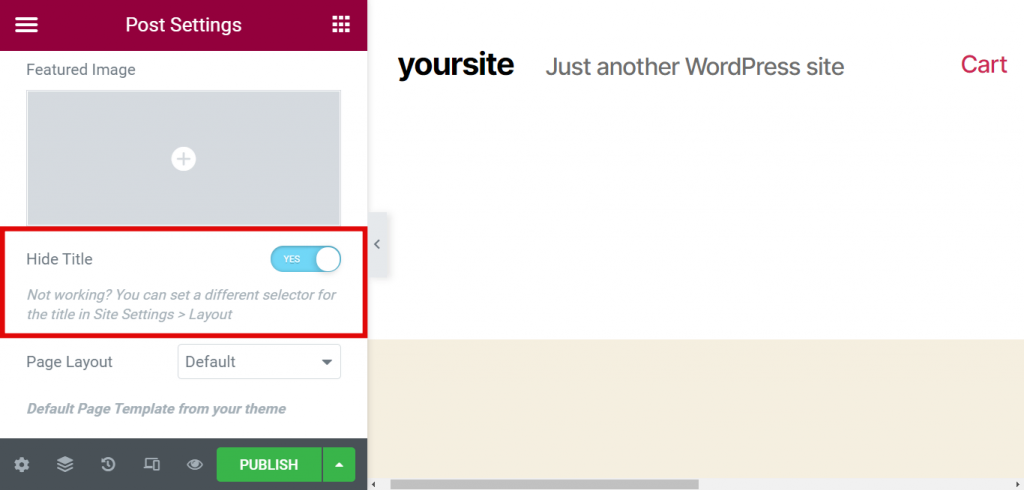
Page builders like Elementor and Divi are popular. These tools help edit WordPress pages easily. They offer drag-and-drop features. You can remove page titles with them. Begin by choosing a page to edit. Look for title settings in the builder. You may find a toggle or checkbox. Use it to hide the page title. It’s simple and quick.
Removing Titles With Page Builders
Hide page titles using builders. First, open the page editor. Next, find the title options. Builders have settings for titles. Some have hide options. Choose to hide the title. This makes pages cleaner. Removing titles can improve design. It helps focus on content. Titles can clutter a page. Builders make removing them easy.

Credit: blog.templatetoaster.com
Plugins For Title Removal
There are several plugins to help remove page titles. Title Remover is a popular choice. It is easy to use. Hide Title is another option. Both plugins are free.
First, go to the WordPress dashboard. Click on Plugins and then Add New. Search for the plugin you want. Click Install Now and then Activate. After activation, go to the plugin settings. Choose the pages where you want to hide titles. Save your changes. It’s that simple!
Editing Template Files
Editing template files in WordPress allows users to remove page titles easily. Access the theme editor, find the header. php or page. php file, and delete the title tag. Save changes to see the page without its title, creating a cleaner look.
Accessing Template Files
Find your template files inside your WordPress theme folder. Use an FTP client or WordPress dashboard. Navigate to Appearance, then Theme Editor. Locate the file that controls page titles. Common file names include header.php or index.php. Always create a backup before editing. This prevents loss of data if errors occur.
Modifying Code
Inside the template file, search for the line that displays the page title. It often looks like php the_title(); ?. To remove the title, simply delete this line or comment it out. Commenting is done by adding // before the line. Check changes by refreshing your website. Ensure the title is gone without affecting other elements. Keep the code clean and easy to read.
Testing And Verifying Changes
Effortlessly remove the page title in a WordPress theme by customizing the CSS. Test the changes by previewing the page in different browsers to ensure the title is gone. Verify the update by refreshing the page and checking the site’s appearance across devices.
Previewing Changes
Click on the preview button in your WordPress dashboard. This helps you see changes without making them live. Look at the page carefully. Is the page title gone? Check different pages to be sure. Sometimes, it might still show up. This is okay. You might need to fix it.
Troubleshooting Issues
Changes might not work sometimes. Don’t worry. Check if you saved your changes. If it still doesn’t work, check your theme settings. Some themes have their own settings for titles. Try using a different method to hide the title. Another option is to use a plugin for more help. Sometimes, clearing your browser cache can also help. Refresh the page and check again.
Credit: www.hostinger.com
Frequently Asked Questions
How To Get Rid Of Page Title In WordPress?
To remove a page title in WordPress, use a custom CSS code or a theme setting. Navigate to “Appearance” > “Customize” > “Additional CSS” and add: `. page-title { display: none; }`. Alternatively, check your theme options for a setting to hide page titles.
How Do I Remove The Page Header In WordPress?
Go to your WordPress dashboard. Navigate to “Appearance,” then “Customize. ” Click “Header” and set “Display Header” to “Off. ” Save changes.
How Do I Hide The Title Of A Page In Storefront?
To hide a page title in Storefront, use a custom CSS code. Add this code in the Additional CSS section of your WordPress Customizer: `. page. entry-title { display: none; }`. Save changes to apply.
How Do I Remove Title Space In WordPress?
Edit your theme’s CSS file to adjust the margin or padding for titles. Use `. entry-title` and modify the spacing values. Alternatively, use a custom CSS plugin to add styling changes without editing theme files directly. Always preview changes to ensure correct formatting on your WordPress site.
Conclusion
Removing the page title in WordPress is straightforward. These steps enhance your site’s look. Clean design matters. It boosts user experience and engagement. Your site appears more professional. Simple adjustments make a big difference. No coding skills needed. Just follow the steps.
Customize your theme effortlessly. The page title won’t distract visitors. Focus remains on content. Visitors enjoy a seamless experience. Your site stands out. Easy changes like this improve your site. Try it today. Notice the impact. Enjoy a cleaner, more appealing web presence.


