
Struggling with the clutter at the bottom of your WordPress website? That lingering footer text that just won’t go away can be a real eyesore, especially when you’re striving for a clean and professional look.
Maybe it’s the default theme text, or perhaps an unnecessary copyright notice—whatever it is, it doesn’t have to stay there. In this guide, you’ll discover simple steps to remove unwanted footer text from your WordPress theme, giving your site a fresh and polished appearance.
Imagine the satisfaction of having complete control over your site’s design, ensuring every detail aligns with your vision. Ready to dive in and transform your website? Let’s get started!

Credit: www.youtube.com
Accessing WordPress Dashboard
Start by logging into your WordPress dashboard. Enter your username and password. Once logged in, look for the Appearance section. You will find it on the left menu. Click on it to expand the options. Select Theme Editor from the list. This will take you to the editor page. Be careful here. Editing code can change your site. Always make a backup first.
Scroll down to find footer.php. This file controls the footer. Click on it to open. Look for the text you want to remove. Delete the text, then save changes. Check your site to see if the text is gone. If not, clear your browser cache. This helps show the latest changes.
Identifying The Theme
First, log into your WordPress dashboard. Find the appearance section on the left. Click on Themes. Here, you will see all your installed themes. The active theme will be at the top. Its name will be displayed clearly. Remember this name. It is important for the next steps.
Next, check if the theme has a customizer. Go back to the dashboard. Click on Customize under Appearance. Some themes have a footer option here. If your theme does, you can change the text easily. If not, you might need to edit the code.
Using Theme Customizer
First, open the WordPress dashboard. Find the Appearance section on the left. Click on Customize. This takes you to the theme customizer.
Navigating To Customizer
The customizer lets you change theme settings easily. Look at the left side panel. Many options are listed there. Find the Footer section among them.
Locating Footer Settings
Click on the Footer settings. This opens more options. Look for something like Footer Text. You can edit or remove the text here. Save changes to update your site. Check your site to see the changes.
Editing Footer Via Theme Editor
Start by logging into your WordPress dashboard. Find the Appearance option on the left side. Click it, then click on Theme Editor. A new page will open with many files. This is where you can edit your theme’s code. Be careful with changes here. They affect your site.
Look for a file named footer.php on the right side. Click on it to open. This file contains the footer’s code. Check the code to find the text you want to change. Look for words that match your current footer text.
Once you find the text, you can remove or change it. To remove, simply delete the text. To change, type the new words you want. After editing, click Update File. This saves your changes and updates your site.
Using A Child Theme
First, make a new folder in your WordPress themes directory. Name it my-child-theme. Inside this folder, create a style.css file. Write your child theme’s name at the top of this file. Use the Template line to link to the parent theme. Save the file. Next, make a functions.php file in the same folder. This file lets you add extra code to your child theme. Now, you have a child theme ready.
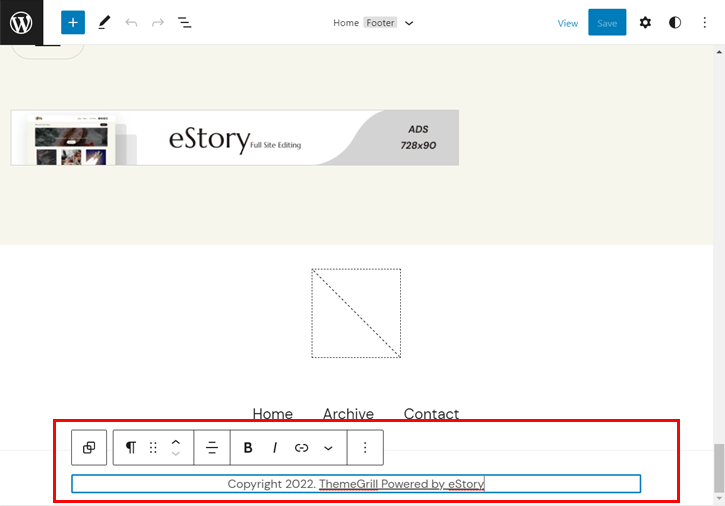
Open the parent theme’s footer file. Look for the code with the footer text. Copy this code to the child theme folder. Edit the copied code in your child theme. Change the text or remove it. Save the file. Your footer will now show your changes. This keeps the parent theme safe. Your edits stay even after theme updates.
Credit: themegrill.com
Installing Plugins For Footer Removal
Easily remove footer text in your WordPress theme by installing a suitable plugin. Choose one that allows quick customization. Enhance your site’s appearance without touching any code.
Recommended Plugins
Plugins make removing footer text easy. One popular option is Remove Footer Credit. Another choice is WP Customizer. Both are user-friendly. They help change footer text without coding. Choose a plugin that suits your theme. Many plugins are free. Ensure the plugin has good reviews. Read user feedback for confidence. Always back up your site first. This keeps your data safe.
Configuring Plugin Settings
After installing, open the plugin settings. Look for the footer text option. You may find it under Appearance or Settings. Find the text you want to remove. Erase or replace it with new text. Some plugins have a live preview. Check your changes before saving. This ensures the footer looks right. Once satisfied, save your changes. Visit your site to confirm the update. Adjust if necessary.
Understanding Theme Licensing
Free themes are easy to find. Many websites offer them. They come with basic features. These themes are suitable for simple websites. But they have limits. Often, the footer text cannot be removed.
Premium themes cost money. They offer more features. You can change the footer text easily. These themes provide better support. They are great for business websites. You get more control with premium themes.
Every theme has a license. The license tells you what you can do. Free themes have strict rules. You may not change the footer text. It is part of their license.
Premium themes offer more freedom. You can often edit the footer. Check the theme license first. Make sure you can make changes. Always follow the license rules.

Credit: www.hostinger.com
Backup And Restore Procedures
Having a backup is very important. It saves your data. Use plugins like UpdraftPlus or BackupBuddy. They make backups easy. You can save them on your computer. Or in the cloud. Always check your backup files. Make sure they are complete and safe.
Restoring changes is simple. Go to your plugin. Click on restore. Follow the steps. Make sure to choose the right backup file. Check your site after restoring. Ensure everything is working fine. Regular backups help prevent loss. They keep your site secure.
Frequently Asked Questions
How Can I Remove Footer Text In WordPress?
To remove footer text in WordPress, access the theme customizer. Navigate to Appearance > Customize. Look for Footer settings. Here, you can edit or remove the footer text. If not available, use custom CSS or child themes for manual adjustments.
Is It Possible To Change Footer Text Without Coding?
Yes, many WordPress themes offer options to modify footer text without coding. Use the Customizer under Appearance > Customize. If unavailable, install plugins like “Insert Headers and Footers” for easy changes without touching code.
What Plugins Help With Footer Text Removal?
Several plugins can help remove footer text. Consider using “Remove Footer Credit” or “Header Footer Code Manager. ” These plugins allow easy customization of footer content without delving into theme files or coding.
Can I Hide Footer Text Using Css?
Yes, you can hide footer text using CSS. Add custom CSS in Appearance > Customize > Additional CSS. Use display: none; to hide elements. Ensure you know the specific CSS selector for your theme’s footer text.
Conclusion
Removing footer text in a WordPress theme is simple. Just follow the steps outlined. Now, you can customize your site’s footer with ease. Personalizing your website enhances its professional look. It provides a better user experience for visitors. Always back up your site before making changes.
It prevents data loss and ensures smooth operations. Explore other customization options WordPress offers. These changes can create a unique and engaging website. Stay creative and keep your website fresh. Remember, a well-designed site attracts more visitors. Enjoy your WordPress journey with newfound confidence.


