
Are you overwhelmed by the clutter on your WordPress dashboard? If you’ve ever wished for a streamlined, distraction-free workspace, you’re not alone.
Many WordPress users find themselves bogged down by unnecessary dashboard items that complicate their workflow. Imagine logging into your WordPress site and seeing only what you need—no clutter, no confusion. It sounds refreshing, doesn’t it? In this guide, you’ll discover simple, effective methods to remove unwanted dashboard items from your WordPress theme.
By the end of this article, you’ll have the tools to create a cleaner, more organized digital workspace tailored to your needs. Stay with us, and transform your WordPress experience today!
Importance Of Customizing The Dashboard
The WordPress dashboard is like a control center. It is where you manage your site. Customizing it makes work easier. Removing unnecessary items helps focus. It reduces clutter and confusion. This makes navigation faster and smoother. Users find what they need quickly. It saves time. A clean dashboard looks neat and professional.
Fewer items mean less distraction. This helps concentrate on important tasks. Customization improves user experience. It gives a sense of control. Users can personalize their workspace. This increases efficiency. It also boosts productivity.
For beginners, a simple dashboard is less overwhelming. It helps them learn faster. Experts can streamline their workflow. Customization meets the needs of different users. It is important for everyone. A tidy dashboard is a happy dashboard. Enjoy a better WordPress experience.
Understanding User Roles And Permissions
WordPress has different user roles. Each role has specific permissions. Admins can do everything. They have full access to the dashboard. Editors manage content. They cannot change site settings. Authors write and publish posts. They cannot edit other users’ posts. Contributors can write but not publish. They need approval from editors. Subscribers can only read and comment. Choosing the right role is important. It keeps the site secure. Limit access for safety. Only trusted users should have admin rights. Understanding these roles helps manage the site better. It ensures everything runs smoothly.
Accessing The WordPress Dashboard
First, log into your WordPress account. Use your username and password. Once logged in, you will see the dashboard. This is where you manage your site. You can add or remove items here.
Click on the Screen Options tab. This tab is at the top-right corner. A menu will appear. This menu lets you choose what to see on the dashboard. Uncheck boxes for items you want to hide. Click Apply when done.
If you need more help, use the Help tab. This tab is next to the Screen Options tab. It offers tips and guidance. Follow these steps to keep your dashboard tidy.
Identifying Unnecessary Dashboard Items
Some dashboard items are not needed. They can make your screen messy. Find out which items you use. Many items are there just to take space. Look for items with no value to you. Plugins can add many extra items. Check if you really use them. If not, they can be removed.
Think about your daily tasks. Do you use all the items for them? If not, they are not needed. Remove them. This makes finding important items easier. It saves time too. A clean dashboard is easy to work with. It helps you focus on important things.
Using WordPress Functions
Remove items from the WordPress dashboard easily. Use the remove_menu_page function. This function hides menu pages. It helps in tidying up the dashboard. Reduce clutter for users. Just add the code to your theme’s functions.php file. Locate the menu slug. Use it with remove_menu_page. Example: remove_menu_page('edit.php');. This removes the posts menu. Simple and effective. Make your dashboard clean.
Submenus can be removed too. Use the remove_submenu_page function. It simplifies the dashboard. Focus on the essentials. Add the function to functions.php. Find the submenu slug. Use it with remove_submenu_page. Example: remove_submenu_page('edit.php', 'edit-tags.php');. This removes the categories submenu. Enhance user experience. Keep only what you need.
Credit: www.greengeeks.com
Installing And Using Plugins
Plugins can help remove dashboard items in WordPress. They are easy to use. Some plugins are very popular. These plugins let you customize the dashboard. You can hide, add, or move items. This makes your dashboard cleaner. It also helps you find things faster. Your WordPress becomes simple to use.
Many plugins are popular for dashboard changes. For example, Adminimize is a top choice. It hides dashboard items with a few clicks. Another option is Widget Disable. It removes unnecessary widgets. Both plugins are free to use. They are easy to install. They keep your dashboard tidy.
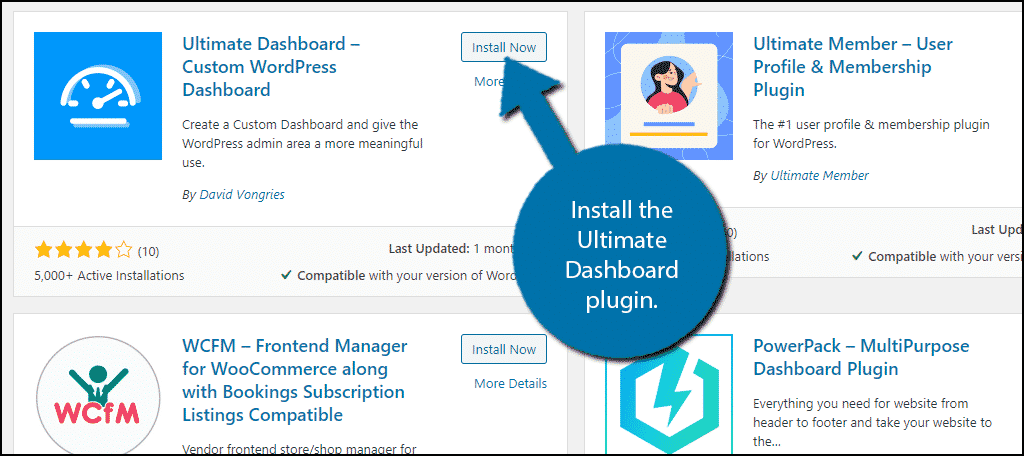
First, find your plugin. Go to the WordPress plugin store. Search the plugin name. Then, click “Install Now”. After that, click “Activate”. You will see new settings. Go to your dashboard. Find the plugin settings. Choose what you want to hide. Save your changes. Your dashboard is now cleaner.
Customizing With Code Snippets
Adding Code to functions.php can change the WordPress dashboard. First, find your theme’s functions.php file. This file holds important code for your site. Open it and add your custom code. Be careful. Mistakes can break your site. Always make a backup. Use a child theme to keep your changes safe.
Creating a Custom Plugin for Code is another way. Plugins are like extra tools. They add features to your site. Create a new folder in the wp-content/plugins directory. Add a PHP file inside. Write your code here. Name the plugin and activate it in WordPress. This keeps your theme clean and organized. Plus, your changes stay even after theme updates.

Credit: crocoblock.com
Testing And Verifying Changes
Check the dashboard once changes are made. Look for any missing items. Make sure everything works smoothly. Items should be easy to find. User experience matters. Ask a friend to test the dashboard. Their feedback can be helpful. Adjust settings if needed. Try different browsers to test the view. Ensure it looks good on phones too. This helps users feel comfortable. Always aim for simplicity. More tests mean better results.
Checking User Experience
Users should find the dashboard easy. Items must be clear and accessible. Check if users can do tasks quickly. Less clutter means more focus. Speed is important. Slow dashboards frustrate users. Listen to user feedback. Their opinions help improve the site. Make changes if users struggle. Happy users return often. Their experience should be smooth.
Troubleshooting Common Issues
Problems can occur after changes. Items might disappear or break. Check settings if issues arise. Updates fix bugs. Keep themes updated. Plugins might cause trouble. Disable them to test the dashboard. Look for error messages. They provide clues. Check forums for solutions. People share fixes online. Sometimes reinstalling helps. Don’t panic; most issues can be solved.
Best Practices For Dashboard Management
Balancing functionality and simplicity is key. Too many items can make the dashboard messy. A clean dashboard helps you work faster. Only keep what you need. Remove extra tools. This makes it easy to find what you want.
Always check your dashboard. See if all items are useful. If not, remove them. This helps keep things tidy. You get more space to work.
Regular updates and maintenance keep the dashboard in shape. Update your theme often. This fixes bugs. It also keeps your site safe. Check for new tools. Remove old tools you do not use. This keeps the dashboard fresh and fast.

Credit: wordpress.stackexchange.com
Frequently Asked Questions
How To Access WordPress Dashboard Settings?
To access WordPress dashboard settings, log into your WordPress site using admin credentials. Navigate to the dashboard by clicking on “Dashboard” in the left-hand menu. Here, you can manage site settings, customize the appearance, and add or remove dashboard items as needed.
Can I Customize Dashboard Items Easily?
Yes, customizing dashboard items is easy in WordPress. Use the “Screen Options” on the dashboard to select which items you want visible. You can also use plugins like “Adminimize” for more advanced customization options.
Are Plugins Needed To Remove Dashboard Items?
While plugins are not always necessary, they simplify the process. Plugins like “Adminimize” or “Dashboard Widgets Suite” offer user-friendly interfaces to manage and remove dashboard items without coding knowledge.
What Are The Risks Of Removing Dashboard Items?
Removing dashboard items can impact site management if done incorrectly. It’s essential to ensure critical tools remain accessible. Always backup your site before making changes to avoid losing important configurations.
Conclusion
Removing dashboard items from your WordPress theme can simplify your workspace. It helps focus on essential tasks without distractions. Follow the steps carefully to customize your dashboard. Keep backups before making changes. This ensures you can restore if needed. Streamlining your dashboard also boosts productivity.
You spend less time navigating unnecessary items. Remember to check plugin compatibility. This prevents errors or conflicts. Enjoy a cleaner, more organized WordPress experience. Adjust settings as needed for optimal efficiency. Regularly review your dashboard items. Maintain a clutter-free environment for better website management.


